



Payroll: send pay periods to your payroll provider
17 views · by Kevin J Bruno · updated 1 day ago
Payroll hands your firm's pay information to the payroll provider you already use, which actually runs payroll. For each pay period it gathers everyone's approved timesheet hours (split into regular and overtime by your firm's rule), approved paid leave, pay changes and bonuses or profit shares, shows you a preview, and sends it to the provider in one click. Pay stubs come back from the provider and are filed in each person's HR documents. BIMeta never runs payroll and never holds bank or tax details.
Where to find it
- Sidebar → People → HR, then the Payroll tab. HR is one menu entry that gathers the firm's HR tools as tabs across the top of the page. It opens on the Hiring tab; click a tab to switch. You only see the tabs you're allowed to open.
- Press Ctrl K (Jump to…) and type Payroll.
Who can use it
Only Human Resources and Business Owners. Admins never see Payroll by default, and neither do IT Staff, BIM Managers, Project Managers or Users. Sending a pay period, matching people and saving settings are all recorded in the audit log.
The QuickBooks option uses the firm's QuickBooks connection, which is set up under Admin → Settings → Integrations by someone who manages the firm's integrations (IT Staff or a Business Owner by default).
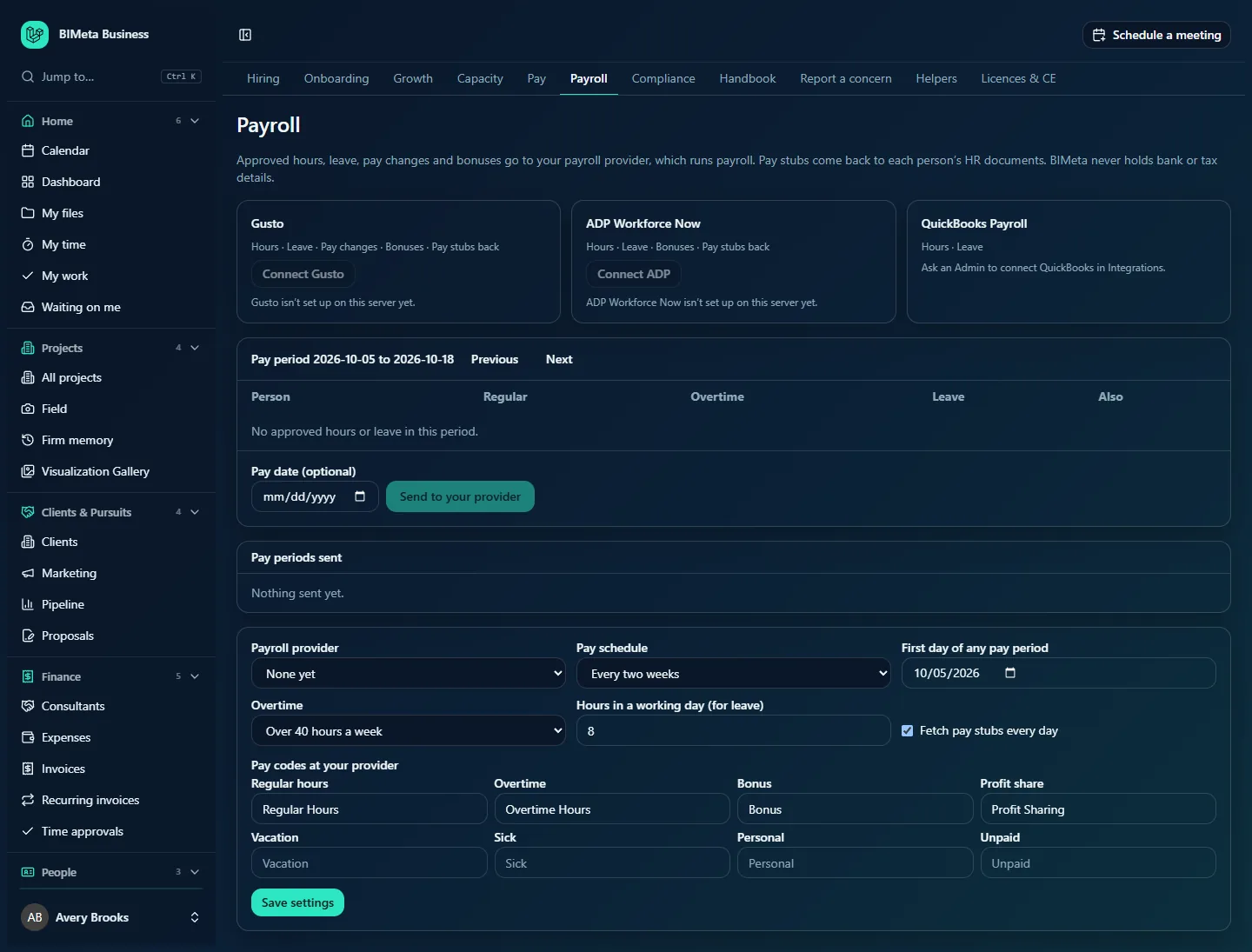
The screenshot shows Northlight Architects before a provider is chosen. The pay period has no approved time yet, and the note lists people whose time is still waiting for approval, for example Avery Brooks (4 h), Leo Alvarez (10 h), Priya Nair (6 h).
A tour of the page
Introduction
"Approved hours, leave, pay changes and bonuses go to your payroll provider, which runs payroll. Pay stubs come back to each person's HR documents. BIMeta never holds bank or tax details."
Provider cards
One card per supported provider, listing what it can receive and send back:
| Provider | What it supports |
|---|---|
| Gusto | Hours, Leave, Pay changes, Bonuses, Pay stubs back |
| ADP Workforce Now | Hours, Leave, Bonuses, Pay stubs back |
| QuickBooks Payroll | Hours, Leave |
Each card shows In use for the provider chosen in the settings and Connected once it's connected, with a Connect or Disconnect button (Connect Gusto, Connect ADP). The QuickBooks card says "Uses the firm's QuickBooks connection." or "Ask an Admin to connect QuickBooks in Integrations." If a card says the provider "isn't set up on this server yet", that connection isn't available for your portal yet; contact BIMeta support.
Matching (once your provider is connected)
n people matched by work email, Not matched: … with the names still missing, Match people, and Fetch pay stubs (for providers that send stubs back).
Pay period
- The heading, for example Pay period 2026-09-21 to 2026-10-04, with Previous and Next. The page opens on the period that contains yesterday.
- A warning listing time that is Waiting for approval, and not sent until approved, with each person's hours.
- A table: Person, Regular and Overtime hours, Leave (paid leave by type), and Also (Pay change or Bonus when one is included). "No approved hours or leave in this period." when empty.
- Pay date (optional) and Send to provider (greyed out until a provider is chosen).
Pay periods sent
Every period sent so far: the dates, a status badge (Draft, Sent or Failed), the provider, how many people, who sent it, and the error message if it failed. "Nothing sent yet." when empty.
Settings
- Payroll provider: None yet, Gusto, ADP Workforce Now or QuickBooks Payroll.
- Pay schedule: Weekly, Every two weeks (the default), Twice a month (1st–15th, 16th–end) or Monthly.
- First day of any pay period: any date that starts a pay period, so weekly and two-weekly periods line up with your provider's.
- Overtime: No overtime, Over 40 hours a week (the default), Over 8 hours a day or Over 8 hours a day or 40 a week.
- Hours in a working day (for leave): how many hours a day of leave is worth (1 to 12; 8 by default).
- Fetch pay stubs every day (on by default).
- Pay codes at your provider: the names your provider uses for Regular hours, Overtime, Bonus and Profit share, and one for each leave type (for example Vacation, Sick, Personal). They start with the provider's usual names, such as Regular Hours and Overtime Hours.
- Save settings.
How to …
Set up payroll for the first time
- In the settings, choose your Payroll provider, Pay schedule, First day of any pay period and Overtime rule, check the pay codes match the ones at your provider, and click Save settings.
- Connect the provider on its card:
- Gusto: click Connect Gusto and sign in to Gusto to allow the connection.
- ADP Workforce Now: first subscribe to BIMeta in the ADP Marketplace, then click Connect ADP. BIMeta checks it can see your workers and shows how many it found.
- QuickBooks Payroll: the card says "Ask an Admin to connect QuickBooks in Integrations." Whoever manages your firm's integrations (IT Staff or a Business Owner by default) connects QuickBooks under Admin → Settings → Integrations; Payroll then uses that connection.
- Click Match people. Each person is paired with the provider's employee who has the same work email. You'll see how many matched and the names that didn't.
- Fix any unmatched people (usually a different email at the provider) and click Match people again.
Send a pay period
- Use Previous and Next to reach the period.
- Check the warning for time still waiting for approval, and get it approved in Finance → Time approvals if it should be paid in this period.
- Review each person's regular and overtime hours, leave, and any pay change or bonus.
- Optionally set the Pay date.
- Click Send to provider. You'll see "Pay period sent to provider" and the period appears under Pay periods sent as Sent.
- Finish and run the payroll at your provider as usual.
What's included:
- Hours: only approved timesheet time, split into regular and overtime by your rule.
- Leave: approved leave of types marked Paid on the Leave page, as hours using Hours in a working day and the leave type's pay code.
- Pay changes (Gusto): new pay recorded on people's HR records that starts in the period.
- Bonuses and profit shares (Gusto and ADP): amounts from applied cycles on the Pay page whose date falls in the period.
Bring pay stubs back
With Fetch pay stubs every day ticked, new stubs are collected every morning. To collect them now, click Fetch pay stubs. Each stub is filed as a Pay stub document on the person's HR record, where they can download it. You'll see how many were filed.
Tips and good to know
- A period can't be sent twice: "This pay period was already sent." If a send fails, the period shows Failed with the reason, and you can send it again.
- Everyone with time or leave in the period must be matched first: "… aren't matched to anyone at … Match people first."
- If the provider can't be reached you'll see a message to try again in a few minutes.
- Bank accounts, tax forms and ID numbers stay at your provider. BIMeta only sends hours, leave, pay rates and one-off amounts.
- Stubs only come back for people who are matched.
Troubleshooting / FAQ
Why is Send greyed out?
No payroll provider is chosen yet. Choose one in the settings and save.
Someone's hours are missing from the preview.
Their time isn't approved yet. It's listed in the "Waiting for approval" note at the top of the period.
Why isn't a person's vacation included?
Only approved leave of a type marked Paid is sent. Check the request is approved and the type is paid on the Leave page.
Why don't I see the Payroll tab in HR?
Only Human Resources and Business Owners can use it. Admins don't see it by design. HR only shows the tabs you're allowed to open, so the tab simply isn't there for everyone else.
Was this article helpful?
Share