



Pay: salary bands, raises, bonuses and profit sharing
19 views · by Kevin J Bruno · updated 4 days ago
Pay is where your firm plans compensation. You set salary bands (a minimum, midpoint and maximum for each career level and office), see where each person's current pay sits in their band, and run planning cycles for raises, bonuses and profit sharing. A cycle is drafted, approved (by a Business Owner, by default) and then applied: raises become new entries in each person's pay history, which flow on to payroll, and bonuses and profit shares are paid with the pay period that covers their date.
Where to find it
- Sidebar → People → HR, then the Pay tab. HR is one menu entry that gathers the firm's HR tools as tabs across the top of the page. It opens on the Hiring tab; click a tab to switch. You only see the tabs you're allowed to open.
- Press Ctrl K (Jump to…) and type Pay.
Who can use it
Only Human Resources and Business Owners. Admins never see Pay, and neither do IT Staff, BIM Managers, Project Managers or Users; the Pay tab isn't shown to them in HR and the page won't open for them. The page says so at the top: "Only HR and Business Owners see this page. Every visit is recorded in the audit log; amounts never are."
- Every visit to the page is recorded in the audit log (who looked, and which cycle). Amounts are never written to the log.
- All amounts (pay, band limits, budgets and proposed amounts) are stored encrypted.
- When A Business Owner approves every cycle is on (the default), only a Business Owner can approve a cycle. Human Resources prepares it.
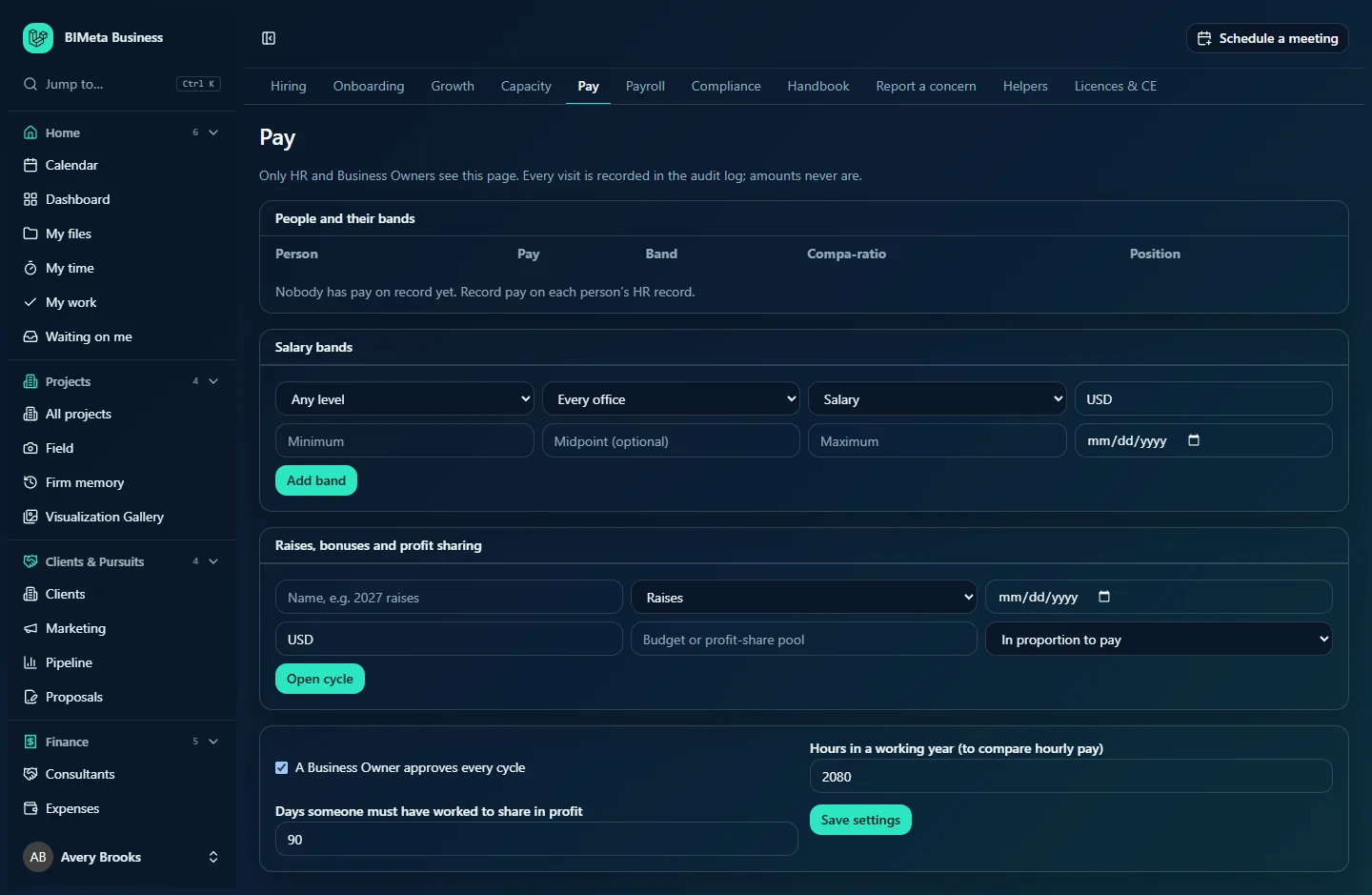
The screenshot shows a Business Owner's view at Northlight Architects before any pay has been recorded.
A tour of the page
People and their bands
One row for each active person who has pay on record (pay is recorded on each person's HR record):
- Person: name, with job title and office.
- Pay: their current pay and whether it's Salary or Hourly.
- Band: the minimum to maximum of the band that applies to them, or No band.
- Compa-ratio: pay divided by the band's midpoint. 1.00 means exactly at the midpoint; 0.90 means 10% below it.
- Position: Below band, In band or Above band.
"Nobody has pay on record yet. Record pay on each person's HR record." when empty.
Salary bands
Each band shows its level (or Any level), office (or Every office), the minimum, mid and maximum, from the date it takes effect, and Remove. The form below adds a band: Level (from the career ladder), Office, Pay type (Salary or Hourly), Currency (USD by default), Minimum, Midpoint (optional), Maximum, the date it applies From, and Add band.
Raises, bonuses and profit sharing
A list of cycles, each with its name (click to open it), kind (Raises, Bonuses or Profit sharing), effective date and status (Draft, Approved or Applied). The form below opens a new cycle: Name, e.g. 2027 raises, Kind, Effective on, Currency, Budget or profit-share pool, How a profit share is divided and Open cycle.
An open cycle
When you click a cycle you see its name and status, Cost spend of budget, the action buttons for its stage, and a table:
- Person and Current pay.
- New pay (raises) or Amount (bonuses and profit shares): editable with Save on each row while the cycle is a draft.
- Change: the raise as a percentage.
- Cost a year: for a raise, the yearly cost of the increase (hourly pay is turned into a yearly figure using the working year); for a bonus or profit share, the amount.
Settings
- A Business Owner approves every cycle (on by default).
- Hours in a working year (to compare hourly pay): 500 to 3,000 (2,080 by default).
- Days someone must have worked to share in profit: 0 to 730 (90 by default).
- Save settings.
How to …
Add a salary band
- Choose the Level (or Any level) and the Office (or Every office).
- Choose the Pay type and Currency (a 3-letter code).
- Enter the Minimum and Maximum, and optionally the Midpoint (halfway if left empty). The maximum must be at least the minimum, and the midpoint must be between them.
- Pick the date it applies From and click Add band. You'll see "Salary band saved".
A person's band is the one for their career level and office, or, if their office has none, the firm-wide one for their level; with the same pay type and currency as their pay; and the newest one in force. Career levels are set by HR on each person's Growth page. People without a career level show No band, and a band saved with Any level isn't used to place anyone, so give each band a level.
Plan raises
- Under Raises, bonuses and profit sharing, enter a name, choose Raises, set Effective on and the Currency, and optionally a budget.
- Click Open cycle. Everyone active with pay in that currency is added, with their new pay starting at their current pay.
- Type each person's New pay and click Save on the row. Watch Change, Cost a year and the cost against the budget.
- When ready, a Business Owner clicks Approve. You'll see "Cycle approved".
- Click Apply to pay records. Each changed pay is recorded in the person's pay history from the effective date, with the cycle's name as the reason. You'll see how many people it was applied for.
Plan bonuses
- Open a cycle of kind Bonuses, with its effective date (the date they're paid) and currency.
- Enter each person's Amount and save. Leave people out by leaving their amount empty or 0.
- Approve, then click Apply (paid with the next pay period). The bonuses are sent to the payroll provider with the pay period that covers the effective date.
Share out profit
- Open a cycle of kind Profit sharing. Enter the pool in Budget or profit-share pool (required) and choose How a profit share is divided: In proportion to pay, Equal shares, In proportion to billable hours (approved billable hours over the year before the effective date) or Set each amount.
- Click Open cycle, then Share the pool out (not needed for Set each amount). Each person's amount is filled in; people who joined less than the eligibility period before the effective date get nothing. Rounding pennies go to the largest shares.
- Adjust any amount by hand if needed, then approve and apply as for bonuses.
Tips and good to know
- Once a cycle is approved it can't be changed: "This cycle was already approved. Open a new one to change it."
- Only people with pay on record in the cycle's currency are included, so record everyone's pay on their HR record first.
- Raises are applied only where the new pay differs from the current pay and is above zero.
- Applied raises appear on each person's HR record under Pay, and new pay is sent to the payroll provider with the pay period it starts in (see Payroll).
- Human Resources and Business Owners can change the settings, including whether an Owner must approve cycles.
- Opening, sharing out, approving and applying cycles, and saving bands and settings, are all recorded in the audit log, without amounts.
Troubleshooting / FAQ
Why don't I see the Pay tab in HR?
Only Human Resources and Business Owners can see it. Admins don't, by design. HR only shows the tabs you're allowed to open, so the tab simply isn't there for everyone else.
Why can't I click Approve?
Your firm requires a Business Owner to approve cycles ("A Business Owner approves this cycle before it is applied."). Ask an Owner.
Why does someone show No band?
There's no band for their career level and office (or a firm-wide one for their level) in the same pay type and currency, or they have no career level set.
Someone is missing from my cycle.
They had no pay on record in the cycle's currency when the cycle was opened. Record their pay and open a new cycle.
Was this article helpful?
Share