



Onboarding and offboarding: checklists for joiners and leavers
17 views · by Kevin J Bruno · updated 14 minutes ago
Onboarding and offboarding keeps joiners and leavers on track with checklists. When someone joins, their onboarding checklist gives HR, IT, their manager and the new person their own tasks with due dates counted from the start date (for example "Set up laptop" for IT, "Book a welcome lunch" for the manager). When someone leaves, the offboarding checklist does the same from their last day and, at the end of that day (or immediately), removes their access to the portal and hands their open work to someone else. Everyone sees the tasks that are theirs to do at the top of the page.
Where to find it
- Sidebar → People → HR, then the Onboarding tab. HR is one menu entry that gathers the firm's HR tools as tabs across the top of the page. It opens on the Hiring tab; click a tab to switch. You only see the tabs you're allowed to open.
- Press Ctrl K (Jump to…) and type Onboarding.
- Dashboard card Onboarding tasks for you: how many checklist tasks are waiting for you; it opens this page.
Who can use it
- Everyone on staff sees Your tasks: tasks assigned to them as the new or leaving person, as someone's manager, or through a queue they belong to.
- The IT queue: tasks marked for IT go to everyone who manages BIMeta Drive licences, which by default means Business Owners, Admins and IT Staff.
- The HR queue and running checklists: Human Resources and Business Owners start and cancel checklists, see every checklist, can tick any task, remove access, and keep the checklist templates.
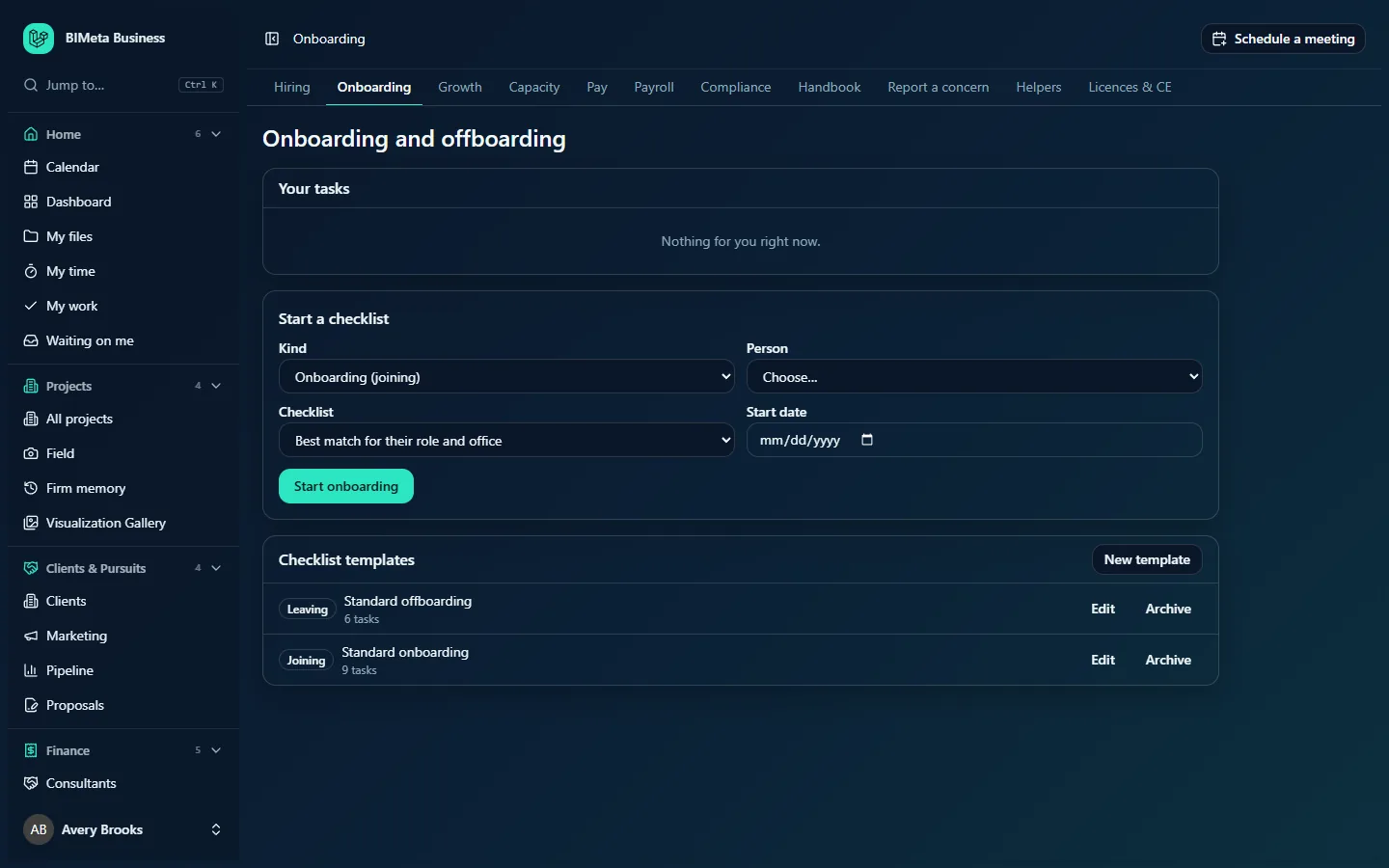
The screenshot shows HR's view at Northlight Architects, with the two starter templates, Standard onboarding (9 tasks) and Standard offboarding (6 tasks). A User sees only Your tasks.
A tour of the page
Your tasks
Open tasks you can tick, soonest due first. Each shows Joining or Leaving, whose checklist it is, the task and due date, with a button: Done, or Issue the licence and tick for a task that issues a BIMeta Drive licence. "Nothing for you right now." when there's nothing to do.
Start a checklist (HR and Owners)
- Kind: Onboarding (joining) or Offboarding (leaving).
- Person: anyone active or invited (invited people are marked (invited), so you can start onboarding before they accept).
- Checklist: Best match for their role and office, or a specific template.
- Start date (onboarding) or Last day (offboarding).
- For offboarding only: Hand their open work to (Their manager or a named person), Remove their access (At the end of their last day or Now), a summary of their open work (for example Open work to hand over: 4 project tasks, 2 RFIs, 1 support tickets, or "They have no open work."), and an explanation of what removing access does.
- Start onboarding or Start offboarding.
Open checklists (HR and Owners)
Each checklist shows Joining or Leaving, the person, Starts date or Last day date, progress such as 3 of 9 done, an Access removed badge once that's happened, and buttons: Show tasks / Hide tasks, Remove access now (offboarding) and Cancel. After access is removed it also says Work handed to name. The task list shows each task, who it's for (HR, IT, Manager or The person), the due date and a Done or Reopen button.
Checklist templates (HR and Owners)
Each template shows Joining or Leaving, its name and number of tasks, with Edit and Archive. New template opens an empty one. The template form has:
- Name and Kind (Onboarding or Offboarding).
- For role (Any role, or a role) and Office code (any if empty): used to pick the best match.
- One row per task: Task, Who (HR, IT, Manager or The person), Days and Portal step (No portal step or Issue a Drive licence), with Remove. "Days are counted from the start date or the last day; use a minus sign for days before."
- Add a task, Save template and Close.
How to …
Tick off your task
- Find it under Your tasks.
- Do the work, then click Done. You'll see "Task done".
- For Issue the licence and tick, the portal issues the person's BIMeta Drive licence first (if they don't already have one) and then ticks the task.
Start onboarding a new hire (HR and Owners)
- Under Start a checklist, leave Kind on Onboarding (joining).
- Choose the Person (invite them first under Admin → Settings → People & access if they're not listed).
- Keep Best match for their role and office or choose a template.
- Pick the Start date and click Start onboarding. You'll see "Onboarding started".
Each task's due date is the start date plus the task's days. Manager tasks go to the manager on the person's HR record; HR and IT tasks go to those queues. The person's Start date on their HR record is set to this date. When a candidate signs an offer in Hiring, onboarding starts on its own.
Offboard someone who's leaving (HR and Owners)
- Under Start a checklist, choose Offboarding (leaving) and the Person. Their open work is counted and shown.
- Pick their Last day.
- Choose who to Hand their open work to: Their manager (the default) or a named, active person other than them.
- Choose when to Remove their access: At the end of their last day (in their office's time zone) or Now.
- Click Start offboarding. You'll see "Offboarding started. Access is removed at the end of their last day." or, with Now, "Offboarding started. Their access was removed and their work handed over."
The person's End date on their HR record is set to the last day.
What removing access does
- Their portal account is switched off and they're signed out everywhere on their next request.
- Their desktop and app sign-ins and any API keys they made stop working.
- Their BIMeta Drive connections are revoked and their desktop apps are told to delete their Drive copies at their next check-in; their Drive licence is taken back.
- Their access to the firm's servers is removed.
- Their open work moves to the person chosen (or their manager): open project tasks, RFIs and submittals in their court, permits and permit comments they own, open support tickets, open leads, goals they own, their open checklist tasks, and their direct reports.
All of this is recorded in the audit log. You can't offboard yourself, and you can't remove the access of the firm's only Business Owner ("Make someone else an Owner first.").
Remove access early (HR and Owners)
- Find the open offboarding checklist and click Remove access now.
- Confirm. You'll see how many open items were handed over.
Cancel a checklist (HR and Owners)
Click Cancel on the checklist. You can't cancel an offboarding after access has been removed; reactivate the person in Admin → Settings → People & access instead.
Create or change a template (HR and Owners)
- Click New template (or Edit on an existing one).
- Name it, choose the Kind, and optionally a role and office it's meant for.
- Add tasks (up to 60). For each, choose Who does it and the Days from the start date or last day (for example -5 for five days before, 0 for the day itself, 30 for a month after).
- Optionally set a task's Portal step to Issue a Drive licence.
- Click Save template. You'll see "Checklist template saved". Use Archive to retire a template.
When you choose Best match for their role and office, the template with the same role and office is picked first, then the same role, then the same office, then any template of that kind.
Tips and good to know
- A person can only have one open checklist of each kind at a time.
- When access is removed, any unfinished tasks on the leaver's own checklist that were assigned to them move to the HR queue.
- An onboarding checklist closes when every task is done. An offboarding checklist stays open until every task is done and access has been removed.
- Set the person's manager on their HR record before starting a checklist, so manager tasks reach the right person.
- Access removal at the end of the last day is checked every hour, so it happens shortly after midnight in their office's time zone.
- Starting, completing, reopening and cancelling are all recorded in the audit log.
Troubleshooting / FAQ
Why don't I see a task I was told about?
It's assigned to someone else, or to a queue you're not in. Manager tasks go to the manager on the person's HR record; IT tasks go to people who manage Drive licences.
"This person already has an open checklist of that kind."
Finish or cancel their existing checklist first.
"Hand the work to someone else who is active."
The person you chose is the leaver themselves or isn't active. Pick another person or Their manager.
The leaver had no manager. Where did their work go?
If no one was chosen and they had no active manager, their open items are left unassigned and the checklist says Work handed to nobody (no manager). Reassign their items by hand.
Was this article helpful?
Share