



Leave: request and approve time off
19 views · by Kevin J Bruno · updated 23 hours ago
The Leave page is where you book time off. It shows how many days of each type of leave you have left, lets you request leave (whole days or half days) and cancel it, lists your own requests for the year, and shows who is out over the next 30 days and your upcoming holidays. People who approve leave decide requests here, and Human Resources, Business Owners and Admins set up the types of leave, their policies, the firm's working days and holiday calendars on the same page.
Where to find it
- Sidebar → People → Leave.
- Press Ctrl K (Jump to…) and type Leave.
- Dashboard cards: Out today (everyone) and Leave to approve (approvers) both open this page.
- The firm's other HR tools (Hiring, Growth, Handbook, Licences & CE and more) are no longer separate menu items: they are tabs of People → HR, just above You and your team.
Who can use it
| What | Who |
|---|---|
| See your balances, request and cancel your own leave, see who is out | Everyone on staff |
| Waiting for a decision: approve or decline requests | Business Owner, Admin, Project Manager, IT Staff, BIM Manager and Human Resources |
| Types of leave and policies, working days, balance adjustments, holiday calendars | Business Owner, Admin and Human Resources |
Approvers see every pending request in the firm, not just their team's. Nobody can decide their own leave: your own requests appear in the list without Approve and Decline buttons, and someone else has to decide them.
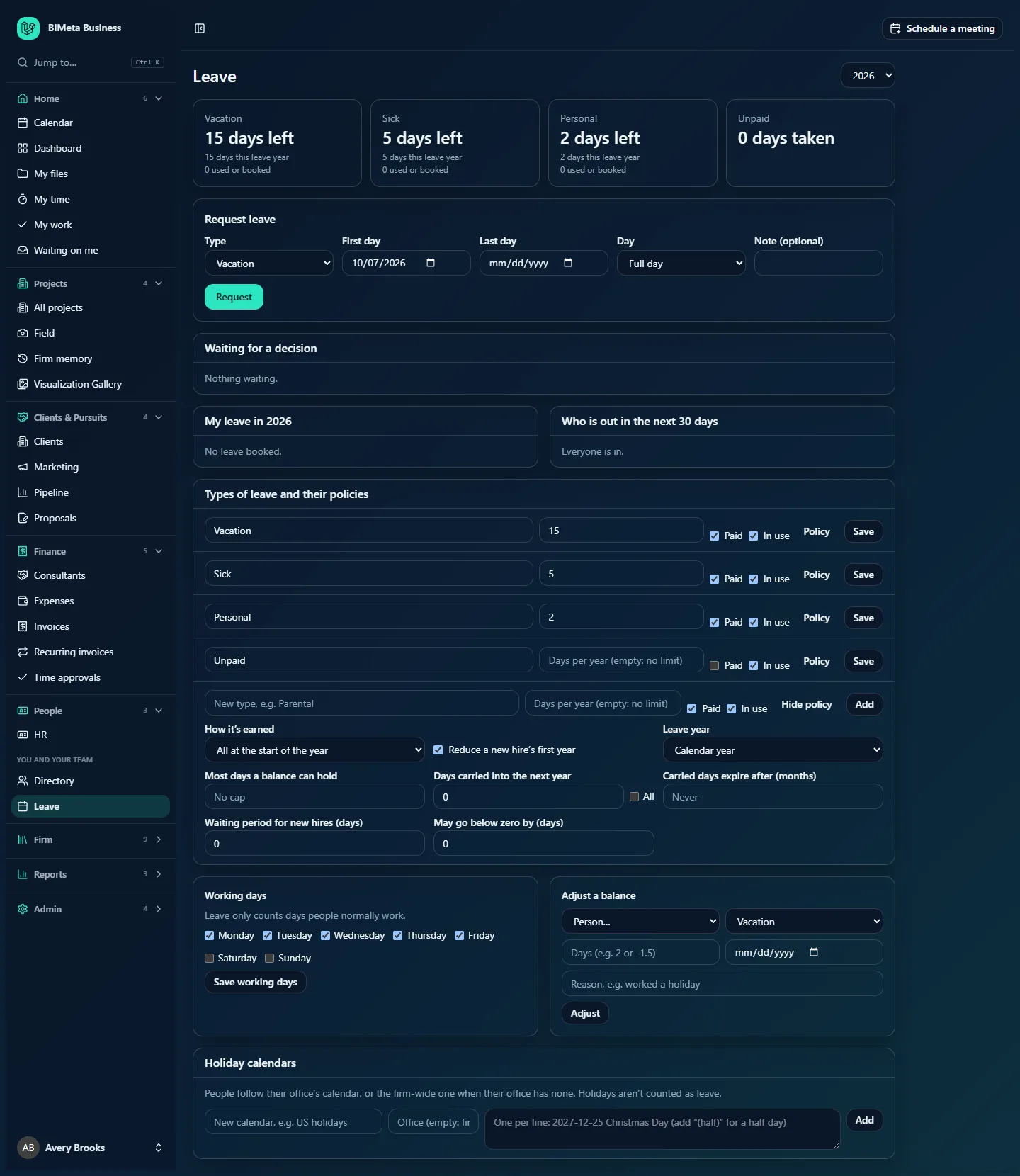
The screenshot shows a Business Owner's view, with every section. A User sees only the balances, the request form, My leave and Who is out.
A tour of the page
Year
The list at the top right switches between last year, this year and next year. Balances and My leave in year follow the year you choose.
Balance cards
One card per type of leave that's in use. At Northlight Architects these are Vacation, Sick, Personal and Unpaid. Each card shows:
- The big number: n days left, or for a type with no limit (such as Unpaid) n days taken.
- n days this leave year (leave given all at once) or n days earned so far (leave earned monthly or by hours worked).
- n days carried over, and the date to use them by if carried days expire.
- Includes n extra days for y years with the firm: shown when your length of service earns extra days on this type of leave (see Extra days for longer service below). These days are already part of the earned days.
- n days adjusted by HR, when HR has added or taken away days.
- n used or booked: approved and pending leave in this leave year, including leave booked for later in the year.
- n days by date: what you'll have at the end of the leave year, when it differs from today (for example when you earn leave monthly).
- Can be taken from date: when a new hire's waiting period hasn't ended yet.
For this year the balance is worked out as of today; for a past year, as of 31 December; for next year, as of 1 January.
Request leave
- Type: the type of leave.
- First day: starts as today.
- Last day: leave empty for a single day.
- Day: Full day, Morning or Afternoon. A morning or afternoon counts as half a day.
- Note (optional): up to 500 characters, shown to approvers.
- Request.
Waiting for a decision (approvers)
Every pending request in the firm, earliest first: the person, the type, the dates, the number of days and their note, with Approve and Decline. "Nothing waiting." when there are none.
My leave in year
Your requests that start in the chosen year, latest first: type, dates (with Morning or Afternoon for half days), a status badge (Pending, Approved, Declined or Cancelled) and a Cancel button for pending leave and approved leave that hasn't started yet. "No leave booked." when empty.
Who is out in the next 30 days
Approved leave for everyone in the firm that overlaps the next 30 days: name, dates and type. "Everyone is in." when nobody is off. Below it, Your holidays in the next 90 days lists the public holidays from your office's calendar, marked (half day) where relevant.
Types of leave and their policies (HR, Owners and Admins)
One row per type: its name, Days per year (empty: no limit), Paid, In use, Policy (opens the policy settings) and Save. The last row, New type, e.g. Parental, adds a type with Add. The policy settings are:
- How it's earned: All at the start of the year, Earned monthly (a twelfth of the yearly allowance each month) or Earned by hours worked (half a day for every so many hours on timesheets; then enter Hours worked for half a day).
- Reduce a new hire's first year: when leave is given all at once, someone who joins partway through the leave year gets a share in proportion to the time left.
- Leave year: Calendar year or Work anniversary (each person's year runs from their start date).
- Most days a balance can hold: a cap; empty means No cap.
- Days carried into the next year: how many unused days carry over (0 by default), or tick All.
- Carried days expire after (months): 1 to 36, or empty for Never. Carried days not used by then are lost.
- Waiting period for new hires (days): how long after their start date a new person can take this leave.
- May go below zero by (days): how far someone may borrow ahead.
- Extra days for longer service: steps such as After 1 years, add 2 days a year and After 3 years, add 5 days a year. Each firm sets its own steps for each type of leave. See below.
Extra days for longer service (HR, Owners and Admins)
A type of leave can give people more days a year as they stay with the firm. In the type's Policy settings, under Extra days for longer service, click Add a step and enter the number of full years and the extra days a year. For example, After 1 years, add 2 days a year and After 3 years, add 5 days a year.
- The highest step a person has reached applies; steps don't add up. With a base of 10 days and the two steps above, someone with 2 years gets 12 days a year, and someone with 4 years gets 15 (not 17).
- Years of service are counted at the start of the leave year, from the start date on the person's HR record. With the Calendar year, the extra begins in the January after they reach the years. Choose Work anniversary as the leave year to give it on the anniversary itself.
- The extra is added to the type's days per year, so it follows that type's other settings: leave given all at the start of the year gives it all then, leave earned monthly earns it month by month, and the cap, carry-over and proration still apply.
- It needs a Days per year allowance to add to, so it isn't available for leave with no limit or leave earned by hours worked.
- A longer service can't earn fewer extra days than a shorter one, and each number of years can be used once (1 to 60 years).
- People with no start date on their HR record don't get extra days until one is entered.
Working days (HR, Owners and Admins)
Tick the days people normally work (Monday to Friday by default) and click Save working days. "Leave only counts days people normally work."
Adjust a balance (HR, Owners and Admins)
Person…, the type, Days (e.g. 2 or -1.5), the date it applies from, Reason, e.g. worked a holiday, and Adjust.
Holiday calendars (HR, Owners and Admins)
"People follow their office's calendar, or the firm-wide one when their office has none. Holidays aren't counted as leave." Each calendar shows its name, office code and holidays (each with a remove button), a box to add more holidays, Save and Remove calendar. The empty row at the bottom adds a new calendar.
How to …
Request leave
- Choose the Type.
- Pick the First day and, for more than one day, the Last day.
- For half a day, keep a single date and choose Morning or Afternoon under Day.
- Optionally add a Note, then click Request. You'll see "Leave requested. You will hear back when it is decided." The request shows as Pending and already counts against your balance.
Days are counted in working days only: weekends (or other days the firm doesn't work) and your holidays are skipped, and a half-day holiday counts as half. Your request is refused if:
- the last day is before the first day, or a half day covers more than one date;
- it starts more than 30 days ago ("Leave more than 30 days ago has to be recorded by an HR admin.");
- it's longer than a year, or every date is a day off or holiday;
- you already have pending or approved leave on any of those days;
- it crosses the end of your leave year (split it into two requests, one for each leave year);
- it starts before your waiting period ends; or
- it's more than you'll have by then, plus any amount the type lets you go below zero ("That is 5 days, but you have 3 days of Vacation available by then.").
Cancel leave
- Find the request under My leave in year.
- Click Cancel. You'll see "Leave cancelled" and the days go back to your balance.
You can cancel pending leave, and approved leave that hasn't started yet. To change past or current approved leave, ask HR.
Approve or decline a request
- Look under Waiting for a decision.
- Check the dates, days and note, and Who is out in the next 30 days if you need to know who else is away.
- Click Approve or Decline.
The person is emailed straight away ("Your leave is approved" or "Your leave request was declined"), the decision is recorded in the audit log, and approved leave appears in Who is out. A request can only be decided once.
Add or change a type of leave (HR, Owners and Admins)
- In Types of leave and their policies, type a name in the last row (up to 80 characters) or change an existing row.
- Enter Days per year (0 to 365, half days allowed), or leave it empty for no limit. Tick Paid and In use as needed.
- Click Policy to set how it's earned, the leave year, cap, carry-over, expiry, waiting period, how far below zero people may go and any extra days for longer service.
- Click Add (new) or Save (existing). You'll see "Leave type saved".
Earned monthly needs a yearly allowance to divide, and earned by hours needs the hours for half a day. When you change an existing type, everyone's current leave year is recalculated under the new rules; earlier years stay as they were. Untick In use to stop people requesting a type without losing its history.
Add or take away days (HR, Owners and Admins)
- In Adjust a balance, choose the person and the type.
- Enter the days: a positive number adds (for example 2), a negative number takes away (for example -1.5), up to 365 either way.
- Pick the date it applies from (today if empty) and type the Reason (required, up to 300 characters).
- Click Adjust. You'll see "Balance adjusted". The person's card shows the days as "adjusted by HR".
Set up holidays (HR, Owners and Admins)
- In the empty row under Holiday calendars, type a name (for example US holidays) and, for one office only, its office code. Leave the office empty for the firm-wide calendar.
- Type the holidays, one per line, as date then name, for example
2027-12-25 Christmas Day. Add(half)at the end for a half day. - Click Add (or Save on an existing calendar). You'll see how many holidays were added. Typing a date that's already there renames it.
- To remove one holiday, click its remove button. To remove a whole calendar and its holidays, click Remove calendar and confirm.
There can be one firm-wide calendar and one per office.
Tips and good to know
- People follow their office's holiday calendar (the office on their HR record), or the firm-wide one when their office has none.
- Unused days are carried into the next leave year automatically every night once a new leave year starts.
- Approved and pending leave reduce the hours people have on the Capacity board (pending leave counts too unless the firm turns that off).
- Approved leave of a Paid type is sent to the payroll provider with each pay period (see Payroll).
- Leave earned by hours worked counts submitted and approved timesheet hours.
- Your balances also show on My time, in the Time off left this leave year panel, so you can see what's left while filling in your week. They are the same numbers as on this page.
- Every request, cancellation, decision, policy change, adjustment and holiday change is recorded in the audit log.
Troubleshooting / FAQ
Why don't I see Approve and Decline on a request?
Either it's your own request (someone else has to decide it) or your role doesn't approve leave. Users don't approve leave by default.
Why is my request for one week only counted as four days?
Holidays and days the firm doesn't work aren't counted. Check Your holidays in the next 90 days.
Why didn't my extra days start on my work anniversary?
Years of service are counted at the start of the leave year. If your firm's leave year is the calendar year, the extra starts the January after you reach the years. HR can change the type's Leave year to Work anniversary to give it on the day. Also check that your start date is on your HR record.
Why can't I cancel leave I took last week?
Only pending leave and approved leave that hasn't started can be cancelled. Ask HR to adjust your balance.
Why does my balance already show days used for leave I haven't taken?
Pending and booked-ahead leave counts as "used or booked" so you can't book the same days twice.
Was this article helpful?
Share