



A person's HR record: job, personal details, HR documents and pay
22 views · by Kevin J Bruno · updated 21 hours ago
Every person at your firm has an HR record. Part of it is public inside the firm (job title, department, office, manager, employment type and start date). The rest is private: personal details and emergency contacts, HR documents such as offer letters and pay stubs, and pay history. You use your own record to keep your contact details and emergency contacts current and to find your documents. Human Resources uses everyone's record to keep job details, pay and documents in one place.
Where to find it
- Sidebar → People → Directory, then click a person's name (in the list or on the org chart).
- Sidebar → People → Directory → My record for your own record.
- The page title is the person's name, for example Avery Brooks. The Directory button at the top right (and the Directory breadcrumb) takes you back to the list.
Who can use it
Anyone on staff can open anyone's record, but what they see is decided section by section:
| Section | Who sees it | Who can change it |
|---|---|---|
| Job | Everyone on staff | Human Resources and Business Owners |
| Personal details | The person, Human Resources and Business Owners | The person, Human Resources and Business Owners |
| HR documents | The person, Human Resources and Business Owners | Human Resources and Business Owners add documents |
| Pay | The person, Human Resources and Business Owners, and the person's manager only if the firm turns that on | Human Resources and Business Owners |
Admins don't see private HR data. Admins run the portal, but personal details, HR documents and pay are hidden from them (and from IT Staff, BIM Managers, Project Managers and Users) unless a Business Owner also gives them the Human Resources role. When you aren't allowed to see a section, its tab simply isn't shown.
Every time someone looks at another person's private sections, the look is recorded in the firm's audit log with who looked and which parts they saw. Opening your own record is not logged.
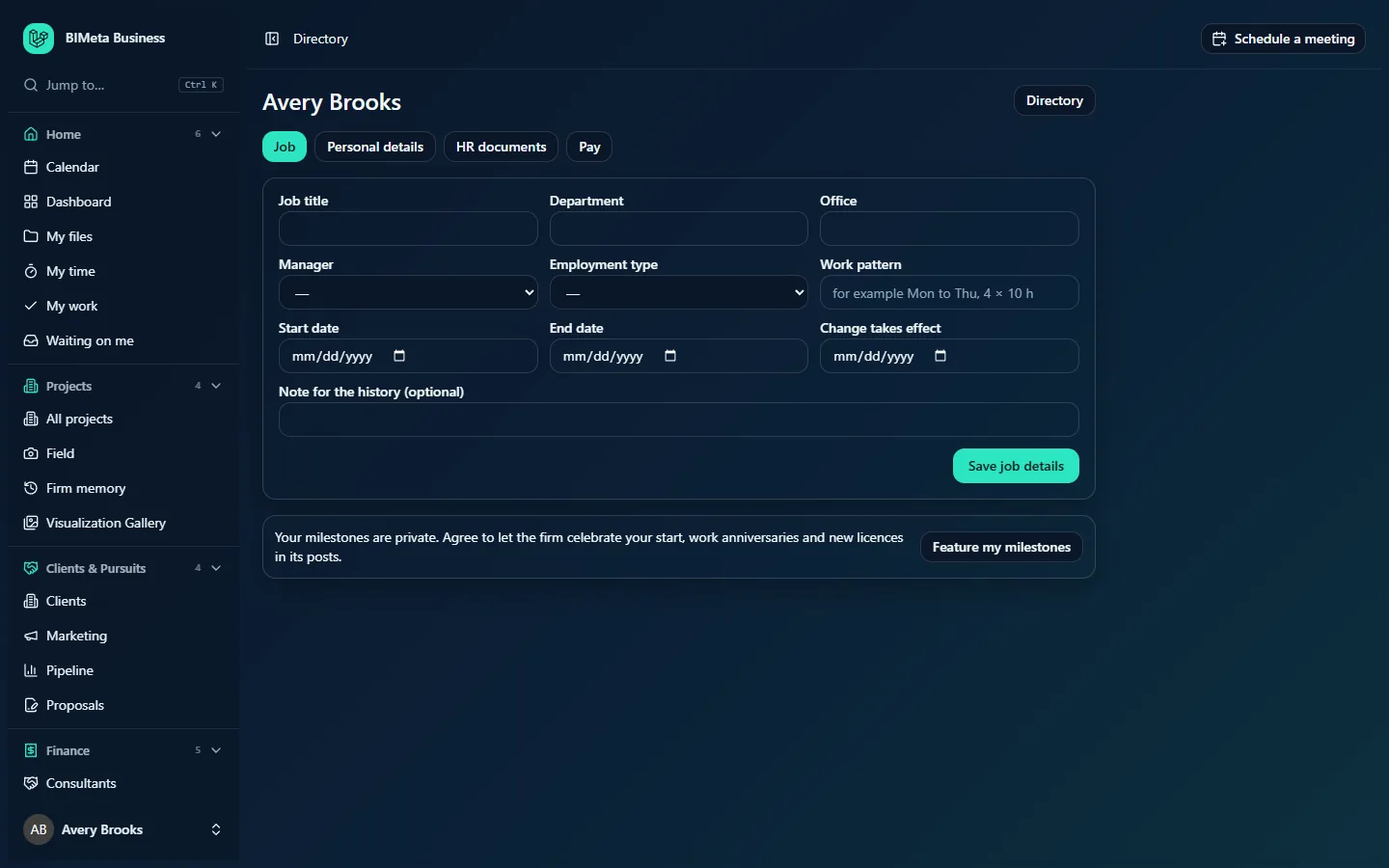
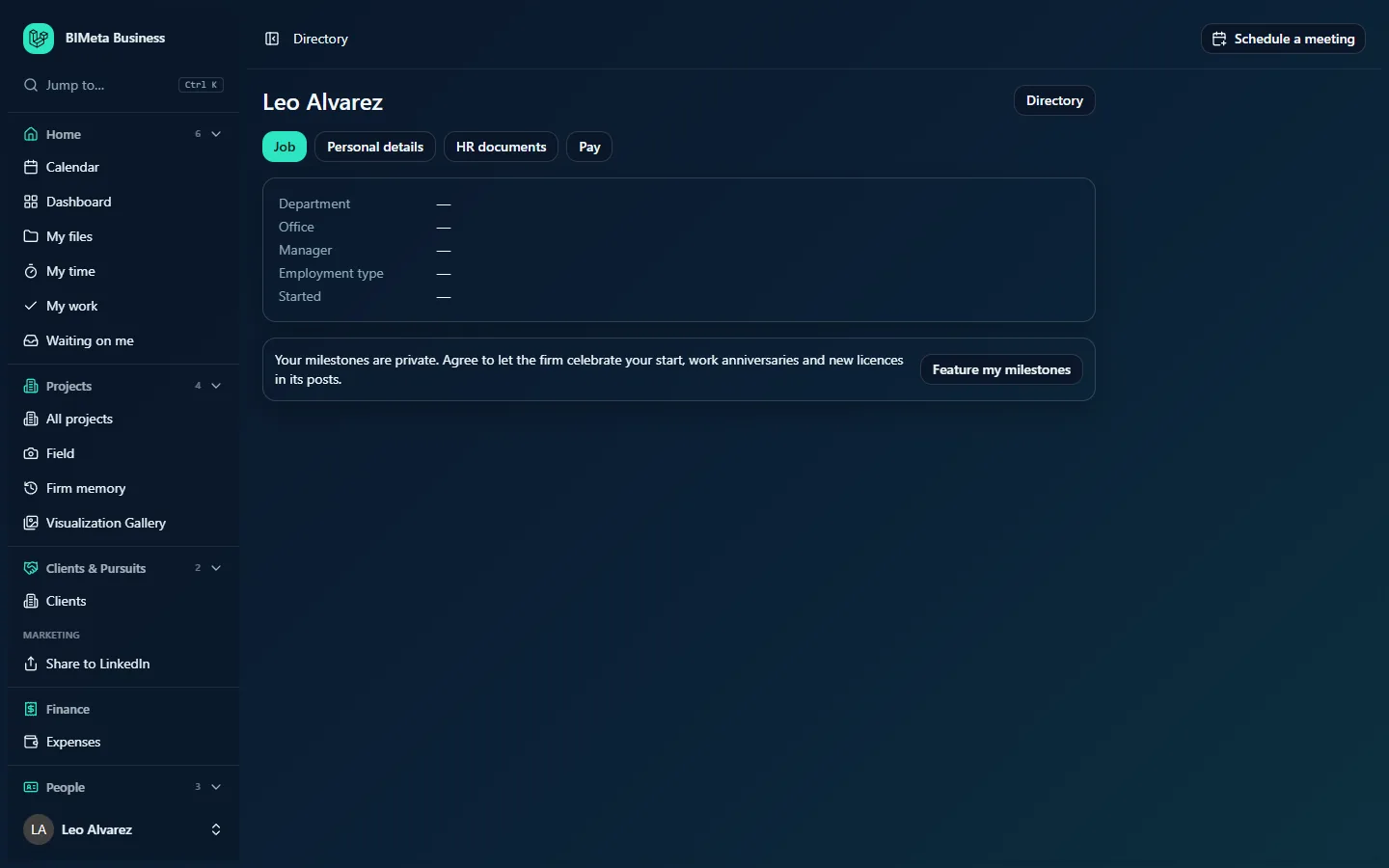
Above: what Human Resources and Business Owners see, with the editable Job form. Below: what a regular User sees on their own record. The Job tab is read-only, and the private tabs are there because the record is theirs.
A tour of the page
Header
- The person's name, followed by their job title when one is set.
- A status badge (for example disabled or invited) appears when the account isn't active.
- Directory: back to the staff list.
- The tab buttons: Job, and, when you're allowed, Personal details, HR documents and Pay.
Job tab (read-only view)
If you can't edit job details you see a simple list: Department, Office, Manager, Employment type and Started. A dash (—) means it hasn't been filled in.
Job tab (Human Resources and Business Owners)
HR and Owners see a form instead:
- Job title (up to 120 characters), Department (up to 120) and Office (the office code, up to 20 characters).
- Manager: choose anyone from the Directory, or — for nobody. This drives the org chart, manager reviews and one-to-ones in Growth, and "manager" tasks on onboarding checklists.
- Employment type: Full time, Part time, Contractor or Intern.
- Work pattern: free text, for example Mon to Thu, 4 × 10 h (up to 200 characters).
- Start date and End date.
- Change takes effect: the date to put in the job history for this change (today if left empty).
- Note for the history (optional): a short note kept with the history entry, up to 300 characters.
- Save job details.
Below the form (or the read-only list) is the job history: one line per change of title, department or employment type, newest first, in the form date: title · department · type (note).
Personal details tab
A note at the top reminds you: "Only this person, HR and Owners see this. ID numbers, bank details and medical information are never kept here." The fields are:
- Personal phone (up to 40 characters) and Pronouns (up to 30).
- Home address (up to 300 characters).
- Birthday.
- Allowed to work until: the date a work permit or visa runs out, if there is one.
- Equipment issued (comma separated): for example Laptop, 2 monitors, Site boots. Up to 30 items of up to 120 characters each.
- Emergency contacts: two rows, each with Name, Relationship and Phone. A row without a name is ignored.
- Save personal details.
Personal details are stored encrypted.
HR documents tab
- A list of the person's documents, newest first. Each shows its title (click to download), a category badge and the date it was added, or "No documents yet." when there are none.
- Categories: Offer letter, Signed agreement, Signed policy, Certificate, Review, Pay stub and Other.
- Human Resources and Business Owners also see an upload area: Category, Title (for a single file) and Add documents (drop or choose one or more files).
Some documents arrive on their own: a signed offer letter is filed here when a candidate signs it in Hiring, and pay stubs are filed here when the firm's payroll provider sends them back (see Payroll).
Pay tab
- The pay history, newest first: the date it started, the amount and currency, per year (salary) or per hour (hourly), and the reason if one was given. "No pay recorded yet." when empty.
- Human Resources and Business Owners also see the form to record a pay change (see below).
Pay amounts are stored encrypted, and the audit log records that a pay change was made but never the amount.
Milestones (your own record only)
On your own record there's a box about firm posts. By default your milestones are private: "Your milestones are private. Agree to let the firm celebrate your start, work anniversaries and new licences in its posts." Click Feature my milestones to agree, or Stop featuring me to withdraw. Only you can give or withdraw this consent, and every firm post is approved before it goes out. Your work anniversaries also appear on the Recognition wall in Growth only if you've agreed.
Managers and pay setting (Human Resources and Business Owners)
When HR or an Owner views someone else's record, a firm-wide checkbox appears at the bottom: Managers may see their direct reports' pay (firm-wide setting), with a Save button. It is off by default.
How to …
Update your own contact details and emergency contacts
- Go to People → Directory → My record.
- Click Personal details.
- Fill in or correct your phone, pronouns, address, birthday and emergency contacts.
- Click Save personal details. You'll see "Personal details saved".
Don't type ID numbers, bank details or medical information. If a field contains words such as SSN, social security, routing number, account number or medical, or mentions a diagnosis or disability, the save is refused with "ID numbers, bank details and medical information aren't kept in the portal. Your payroll or benefits provider holds those."
Change someone's job details (HR and Owners)
- Open the person's record and stay on Job.
- Change the title, department, office, manager, employment type, work pattern or dates.
- If the title, department or type changed, set Change takes effect and, optionally, a Note for the history.
- Click Save job details. You'll see "Job details saved". A history line is added for title, department or type changes, and the change is recorded in the audit log.
You can't make someone their own manager, and you can't choose a manager who already reports (directly or further down) to this person: "That would put this person above their own manager."
Record a pay change (HR and Owners)
- Open the person's record and click Pay.
- Choose the Type: Salary (a yearly amount) or Hourly.
- Enter the Amount (required, above zero), the Currency (required, a 3-letter code such as USD; it starts as USD) and the date it Starts (required).
- Optionally add a Reason (optional) of up to 200 characters, for example Annual raise.
- Click Record pay change. You'll see "Pay change recorded".
Pay history feeds other pages: Pay uses each person's current pay to place them in their salary band, and Payroll sends a new rate to the payroll provider with the pay period it starts in.
Add HR documents (HR and Owners)
- Open the person's record and click HR documents.
- Choose a Category. It applies to every file you add in one go.
- If you're adding a single file, you can type a Title. With several files, each is named after its file name.
- Drop the files on Add documents or click it to choose them. You'll see "Document added" or, for several, how many were added.
Let managers see their reports' pay (HR and Owners)
- Open any other person's record.
- Tick or untick Managers may see their direct reports' pay (firm-wide setting).
- Click Save. This applies to the whole firm and is recorded in the audit log.
Tips and good to know
- Downloads of someone else's HR documents are recorded in the audit log, just like looking at their private tabs.
- When a candidate signs an offer in Hiring, their record is filled in for you: job title, department, office and employment type from the opening, and the manager named in the offer.
- Starting onboarding sets the person's Start date; starting offboarding sets their End date (see Onboarding and offboarding).
- Career level (used by Growth and by salary bands in Pay) is set by HR on the person's Growth page, not here.
- Retention rules under Compliance can remove former employees' personal details, HR documents and pay history a set number of years after their last day, unless they're on legal hold.
Troubleshooting / FAQ
Why can't I see the Personal details, HR documents or Pay tabs on a colleague's record?
Those are private to the person, Human Resources and Business Owners. You only ever see them on your own record (and Pay on your direct reports' records if your firm has turned that on).
I'm an Admin. Why can't I see anyone's pay?
By design. Admins never see pay, personal details or HR documents unless a Business Owner also gives them the Human Resources role.
Why can't I edit my own job title?
Job details are kept by Human Resources. Ask HR to update them.
My save was refused with a message about ID numbers.
Something you typed looked like an ID number, bank detail or medical information (for example the word medical in an emergency contact's relationship). Reword it. Those details belong with your payroll or benefits provider.
Was this article helpful?
Share