



HR helpers: AI drafts of job descriptions, interview questions and reviews
19 views · by Kevin J Bruno · updated 3 days ago
HR helpers are optional AI tools that write first drafts for HR tasks: a job description for an opening, a set of interview questions, and a first draft of a performance review you have to write. Everything they produce is a draft you read, correct and make your own. Nothing is published, sent or submitted for you. A fourth helper, Ask HR, answers handbook questions on the Handbook page.
Where to find it
- Sidebar → People → HR, then the Helpers tab. HR is one menu entry that gathers the firm's HR tools as tabs across the top of the page. It opens on the Hiring tab; click a tab to switch. You only see the tabs you're allowed to open.
- Press Ctrl K (Jump to…) and type HR helpers.
- The helpers are switched on and off in People → HR → Compliance tab, under AI helpers (Business Owners only).
Who can use it
- Everyone on staff can open the page.
- Review drafts: anyone who has a review to write in an open review cycle (a self review, a manager review or peer feedback).
- Job descriptions and Interview questions: people who run hiring, which by default means Human Resources and Business Owners. Hiring-team members who are not HR don't get these two helpers.
- Turning helpers on or off: Business Owners only.
A helper only appears when the firm has turned the helpers on, that particular helper is on, the firm's AI is available, and you have something to use it on.
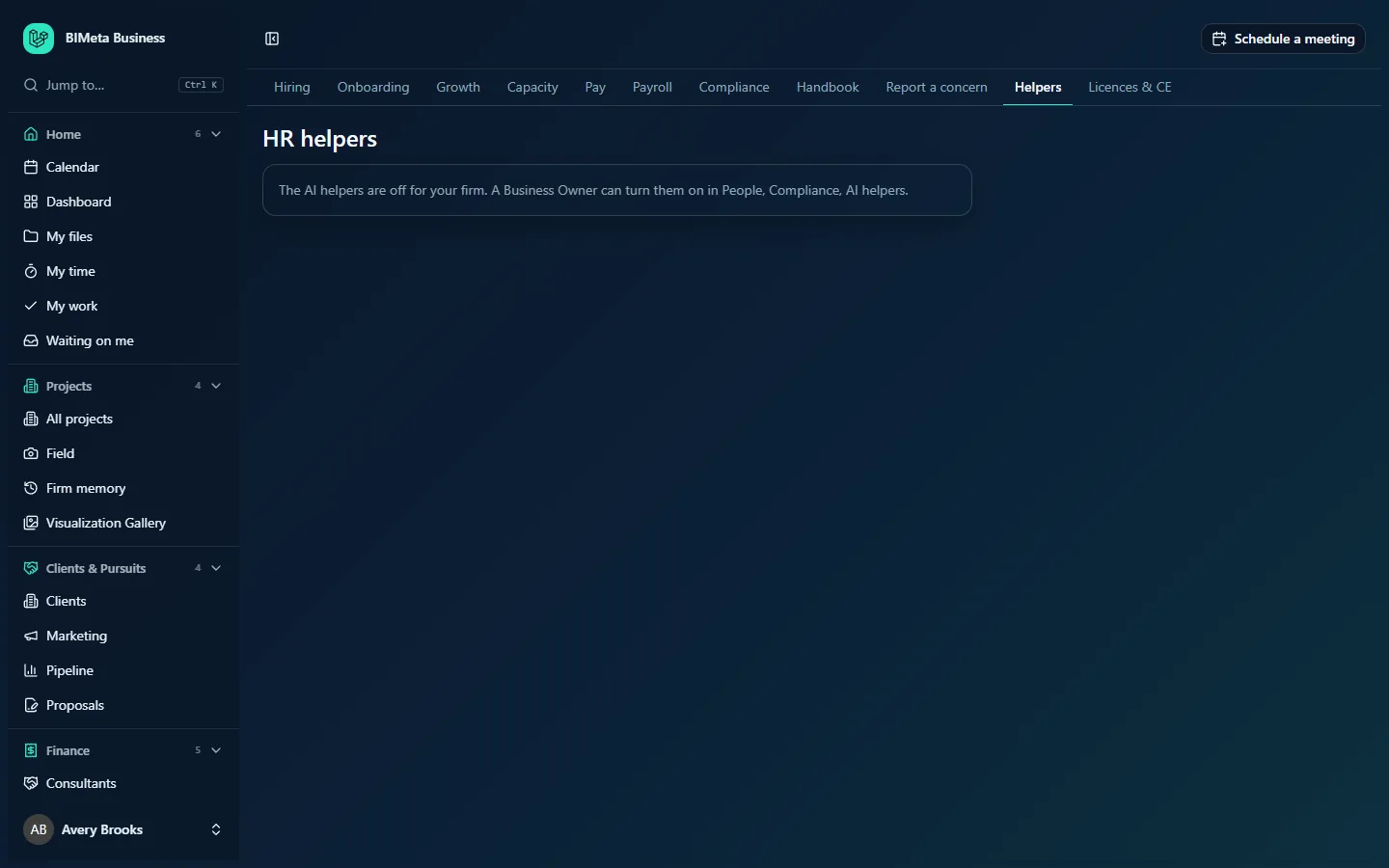
The screenshot shows a new firm where the helpers are still off: "The AI helpers are off for your firm. A Business Owner can turn them on in People, Compliance, AI helpers."
A tour of the page
When the helpers are on, the page starts with: "Everything here is a first draft from AI. Read it, correct it and make it yours before you use it. Nothing is published or submitted for you." Then, depending on what you can use:
Job descriptions
- An Opening list with the openings you can see that aren't closed.
- Notes for the draft: "Anything to include: the team, software, projects, what makes the role special" (up to 2,000 characters).
- Draft it, followed by the estimated cost, for example About 4 credits.
Interview questions
- An Opening list.
- Draft questions with its estimated cost.
Review drafts
- A Review list of the reviews you still have to write, shown as person · cycle. If you have none: "You have no reviews to write right now."
- Your notes: "Your own notes: examples, feedback you have given, what to focus on next" (up to 2,000 characters).
- Draft my review with its estimated cost.
Your drafts
Your 20 most recent drafts, newest first. Each shows what kind of draft it is, what it's about (the opening, or Review of …), when it was made, the text, and a Copy button that copies the text to your clipboard. "Drafts you make appear here." when empty. Drafts are private to you and stored encrypted.
How to …
Draft a job description
- Create the opening first on the Hiring tab of People → HR (even a rough title and description will do).
- In HR helpers, choose the Opening.
- Add anything you want included in Notes for the draft.
- Click Draft it. You'll see "Draft ready below. Read it and change it before you use it."
- Read the draft under Your drafts, click Copy, and paste it into the opening's Description and What they bring fields in Hiring, editing as you go.
The draft is written only from the opening's details, the firm's "about" text and your notes, and it's split into a description and a list of requirements (must-haves, then nice-to-haves).
Draft interview questions
- Choose the Opening under Interview questions.
- Click Draft questions.
- You get 8 to 10 numbered questions, each with Listen for: … (what a strong answer shows). Copy them into your interview notes.
The helper only asks about the job: skills, experience and how the person works. It's told never to ask about age, family, health, religion, nationality or other protected traits. Check the questions anyway before you use them.
Draft your review
- Choose the review under Review drafts.
- In Your notes, add specific examples and feedback you've already given. The more concrete your notes, the better the draft.
- Click Draft my review. You'll see "Draft ready below. Use it as a starting point in your review; nothing was submitted."
- Copy the answers into the review on your Growth page, correct them, fill in anything in brackets, and submit it there yourself.
The draft uses the person's goals and the recognition they received during the review period, plus your notes. Where those don't cover a question it says so in brackets for you to fill in.
Tips and good to know
- Each draft uses AI credits from your firm's allowance; the estimate is shown on each button.
- The helpers are told to use only the facts they're given and not to invent names, numbers, dates or achievements, in plain, inclusive language. They can still make mistakes, so always check the result.
- A draft can only be made for a review that's yours to write, in an open cycle, and not yet submitted.
- Business Owners can turn each helper on or off separately (Job descriptions, Interview questions, Review drafts and Ask HR) in People → HR → Compliance tab, under AI helpers.
Troubleshooting / FAQ
The page only says the helpers are off.
A Business Owner hasn't turned them on yet. Ask them to tick Turn on the AI helpers on the Compliance tab of People → HR, under AI helpers.
Why don't I see Job descriptions or Interview questions?
Those are for people who run hiring (Human Resources and Business Owners by default), and they only appear when there's at least one opening that isn't closed.
Why doesn't my review appear in the list?
It's already submitted, the cycle has been released, or it isn't yours to write.
I got "AI didn't return anything."
Try again in a moment, or write it yourself.
Was this article helpful?
Share