



Hiring: openings, candidates, interviews and offers
17 views · by Kevin J Bruno · updated 13 hours ago
Hiring is your firm's applicant tracking. Human Resources creates job openings, which can appear on the firm's public careers page and in job board feeds. Applications arrive with a resume, and each candidate moves through a pipeline: Applied, Screening, Interviewing, Offer, Hired. The hiring team adds notes and scorecards, books interviews and, when you've chosen someone, sends an offer letter they sign online. Signing invites them to the portal, fills in their HR record and starts their onboarding checklist.
Where to find it
- Sidebar → People → HR, then the Hiring tab. HR is one menu entry that gathers the firm's HR tools as tabs across the top of the page. It opens on the Hiring tab; click a tab to switch. You only see the tabs you're allowed to open.
- Press Ctrl K (Jump to…) and type Hiring.
- Careers page, the link next to the page title, opens the public careers page that applicants see.
The HR tabs
Hiring is the first of the HR tabs. Which tabs you see depends on your role:
| Tab | Who sees it |
|---|---|
| Hiring, Onboarding, Growth | Everyone on staff |
| Capacity | Business Owners, Admins, Project Managers, IT Staff, BIM Managers and Human Resources (not Users) |
| Pay, Payroll, Compliance | Human Resources and Business Owners only |
| Handbook, Report a concern, Helpers, Licences & CE | Everyone on staff |
Your own Directory and Leave pages stay as separate items under You and your team in the People group. Every HR tab can also be found with Ctrl K (Jump to…) and pinned to the top of your sidebar.
Who can use it
- Human Resources and Business Owners run hiring: they see every opening and candidate, create and edit openings, send offers and change the offer letter and privacy settings.
- Hiring managers named on an opening see that opening's candidates and can move them between stages, book interviews, add notes and scorecards.
- Interviewers named on an opening see that opening's candidates and can add notes and their own scorecard.
- Everyone else, including Admins who aren't on a hiring team, sees the Hiring tab (the first tab of HR, so it's where People → HR opens) but no openings: "No openings you can see yet."
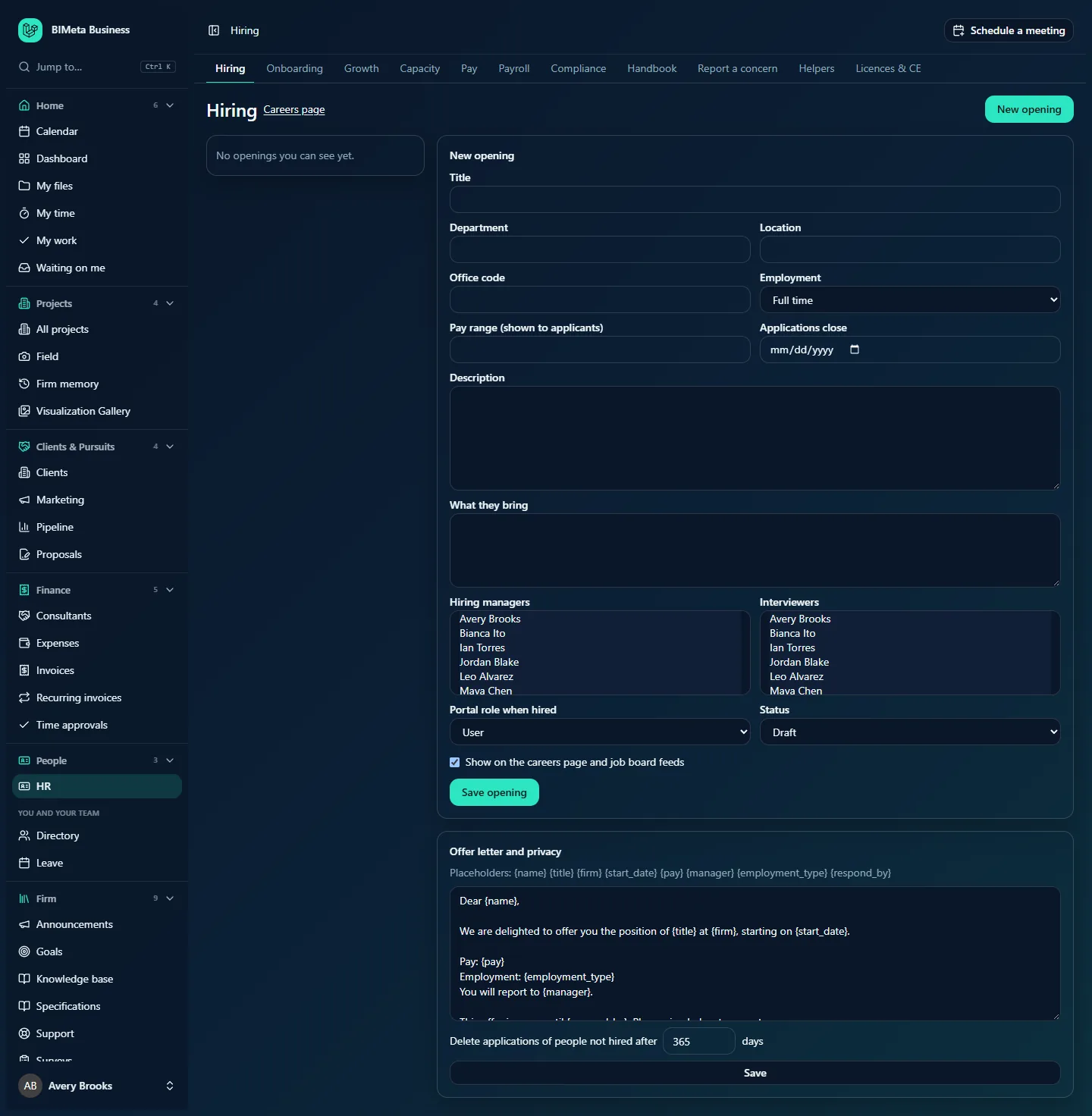
The screenshot shows HR's view at Northlight Architects before the first opening: an empty openings list, the New opening form, and Offer letter and privacy.
A tour of the page
Header
Hiring, the Careers page link, and (HR and Owners) New opening.
Openings list (left)
Every opening you can see, open ones first, then drafts, then closed. Each shows its title, a status badge (Open, Draft or Closed) and the number of active candidates. Click one to open its pipeline.
The pipeline (right)
When you choose an opening you see its title, Edit opening (HR and Owners), Share in Marketing Studio (people who can draft social posts, for an open opening shown on the careers page), and one column per stage: Applied, Screening, Interviewing, Offer, Hired and Not moving forward (which also holds people who withdrew). Each column shows how many candidates it has, and each candidate card shows their name, when they applied and, once there are scorecards, the average rating, for example 3.5 of 4 from 2. Click a card to open the candidate.
New opening / Edit opening form (HR and Owners)
- Title (required, up to 160 characters).
- Department, Location (shown to applicants, for example Portland, hybrid) and Office code.
- Employment: Full time (the default), Part time, Contract, Internship or Temporary.
- Pay range (shown to applicants) (up to 120 characters).
- Applications close: an optional closing date.
- Description (required) and What they bring (the requirements).
- Hiring managers and Interviewers: pick people from the lists (hold Ctrl or Cmd for several).
- Portal role when hired: the role the new hire gets when they sign their offer (User by default).
- Status: Draft, Open or Closed.
- Show on the careers page and job board feeds (ticked by default).
- Save opening (and Cancel when editing).
Offer letter and privacy (HR and Owners)
- The Offer letter template, with these placeholders filled in for each offer:
{name}{title}{firm}{start_date}{pay}{manager}{employment_type}{respond_by}. - Delete applications of people not hired after n days: 30 to 3,650 (365 by default).
- Save.
A candidate's page
Click a candidate card to open their page. It shows their name, email, phone and links, the stage, when they applied, Download resume, the Cover letter, and, once they're not moving forward, the date their application will be deleted. Below are:
- Move to a stage, with an optional note, and Move (HR, Owners and hiring managers).
- Notes: the candidate's history (stage moves, offers, signatures) and team notes, with Add a note.
- Scorecards: each team member's rating out of 4, recommendation (Strong yes, Yes, No, Strong no) and notes, with the form to save yours (Save my scorecard).
- Interviews: booked interviews with time, length, place and interviewers, and (HR, Owners and hiring managers) the booking form.
- Offer (HR and Owners): offers sent and their status, and the form to send one.
How to …
Create an opening (HR and Owners)
- Click New opening.
- Fill in the title, description and the other details. Tip: HR helpers can draft the description and requirements for you once the opening exists.
- Choose the hiring managers and interviewers, and the Portal role when hired.
- Choose Draft while you work on it, or Open to start taking applications. Leave Show on the careers page and job board feeds ticked to advertise it publicly.
- Click Save opening. You'll see "Opening saved" and its pipeline opens.
Only openings that are Open and shown on the careers page appear publicly. Applicants apply there with their name, email, phone, links, a cover letter and a resume (PDF, Word or text file under 10 MB, scanned for viruses), and must agree to how the firm keeps their application. Someone can't apply twice to the same opening while their application is active.
Share an opening on social media
- Open an opening that's Open and on the careers page.
- Click Share in Marketing Studio. A draft post (We're hiring a …, with a link to apply) opens in Marketing Studio.
- Choose the pages and a time there, and send it for approval.
Move a candidate through the pipeline
- Open the candidate.
- Under Move to, choose a stage: Applied, Screening, Interviewing, Offer, Not moving forward or Withdrew. Add a note if useful.
- Click Move. The move is added to the notes and the audit log.
You can't move someone to Hired by hand: people are marked hired when they sign their offer. Moving someone to Not moving forward or Withdrew sets the date their application will be deleted.
Score a candidate
- Open the candidate and go to Scorecards.
- Choose a rating from 1 to 4 and a recommendation, and add notes.
- Click Save my scorecard. Each person has one scorecard per candidate.
So that interviewers judge independently, interviewers only see the other scorecards after saving their own ("No scorecards yet. Others' appear once you add yours."). HR, Owners and hiring managers always see them all.
Book an interview
- Open the candidate and go to Interviews.
- Tick the Interviewers from the opening's team.
- If you've connected your Outlook calendar, pick a day and length and use Find times everyone is free. It suggests times between 9 a.m. and 5 p.m. when every interviewer is free. Without Outlook you'll see "Connect your Outlook calendar to see when interviewers are free and send invitations from it."
- Choose When, the Length (15 minutes to 8 hours) and Where (for example Office, or Teams).
- Click Book interview. You'll see "Interview booked. Invitations were sent."
With Outlook connected, the event is created in your calendar and Outlook invites the interviewers and the candidate. Without it, the candidate is emailed the details. A candidate at Applied or Screening moves to Interviewing automatically.
Send an offer (HR and Owners)
- Open the candidate and go to Offer.
- Enter the Start date (after today) and Pay (for example $85,000 a year).
- Choose their Manager and an Answer by date (a week from today if left empty).
- Check the letter text, which uses the firm's offer template, and click Send offer for signature.
The candidate moves to Offer and gets an email with a private link to read and sign the letter. You'll see "Offer sent. The candidate signs it from the link in their email." When they sign:
- they're marked Hired;
- they're invited to the portal with the opening's role (the invitation comes from the person who sent the offer);
- their HR record gets the job title, department, office and employment type from the opening and the manager from the offer;
- the signed letter is filed in their HR documents as an Offer letter; and
- their onboarding checklist starts, counted from the start date (see Onboarding and offboarding).
If they decline, the offer is marked declined and their reason is added to the notes. You can only give a portal role that's no higher than your own access allows: "You can't give new hires this opening's portal role."
Change the offer letter or how long applications are kept (HR and Owners)
- Edit the template under Offer letter and privacy (up to 20,000 characters), keeping the placeholders you need.
- Set Delete applications of people not hired after (30 to 3,650 days).
- Click Save. You'll see "Hiring settings saved".
Tips and good to know
- Candidates who are Not moving forward or Withdrew are deleted automatically, with their resume, notes, scorecards and interviews, once the retention period has passed.
- Every resume download is recorded in the audit log, as are stage moves, scorecards, interviews, offers and signatures.
- Close an opening (Status Closed) to take it off the careers page and the job board feeds.
- Offer pay is stored encrypted. After hiring, record the person's actual pay on their HR record so Pay and Payroll can use it.
- If the offer email can't be sent, the offer is saved but you'll see a message asking you to check the firm's email settings and send it again.
Troubleshooting / FAQ
Why does Hiring say "No openings you can see yet"?
You're not on any opening's hiring team, or no openings exist yet. HR adds hiring managers and interviewers to each opening.
Why can't I move a candidate to Hired?
People are marked hired automatically when they sign their offer.
Why can't I see the other interviewers' scorecards?
Save your own scorecard first. Interviewers see the others only after scoring.
Find times everyone is free doesn't work.
Connect your Outlook calendar in your account's integrations first. If Outlook doesn't share an interviewer's calendar, pick a time yourself.
Was this article helpful?
Share