



Handbook: read and acknowledge policies, and ask HR
17 views · by Kevin J Bruno · updated 9 hours ago
The Handbook is your firm's employee handbook, kept as separate policies (for example a code of conduct, a remote work policy or an expenses policy). You read each policy here and, when the firm asks, acknowledge that you've read it by typing your name. You can also ask a question: if your firm has turned on the Ask HR helper, an answer is drafted from the handbook itself, and you can always send the question on to a person in HR. Human Resources and Business Owners write the policies, publish new versions and see who has and hasn't acknowledged them.
Where to find it
- Sidebar → People → HR, then the Handbook tab. HR is one menu entry that gathers the firm's HR tools as tabs across the top of the page. It opens on the Hiring tab; click a tab to switch. You only see the tabs you're allowed to open.
- Press Ctrl K (Jump to…) and type Handbook.
- Dashboard card Policies to sign: appears on your dashboard only when you have policies waiting for your acknowledgement, and opens this page.
Who can use it
- Everyone on staff can read the policies that apply to them, acknowledge them and ask questions.
- Human Resources and Business Owners also see Manage policies (write, publish, archive, track acknowledgements) and Questions waiting for HR (answer questions sent to HR). Admins, IT Staff, BIM Managers and Project Managers don't manage the handbook unless they also hold the Human Resources role.
- A policy can be aimed at certain roles only. You only see published policies that apply to one of your roles. Clients and consultants never see the handbook.
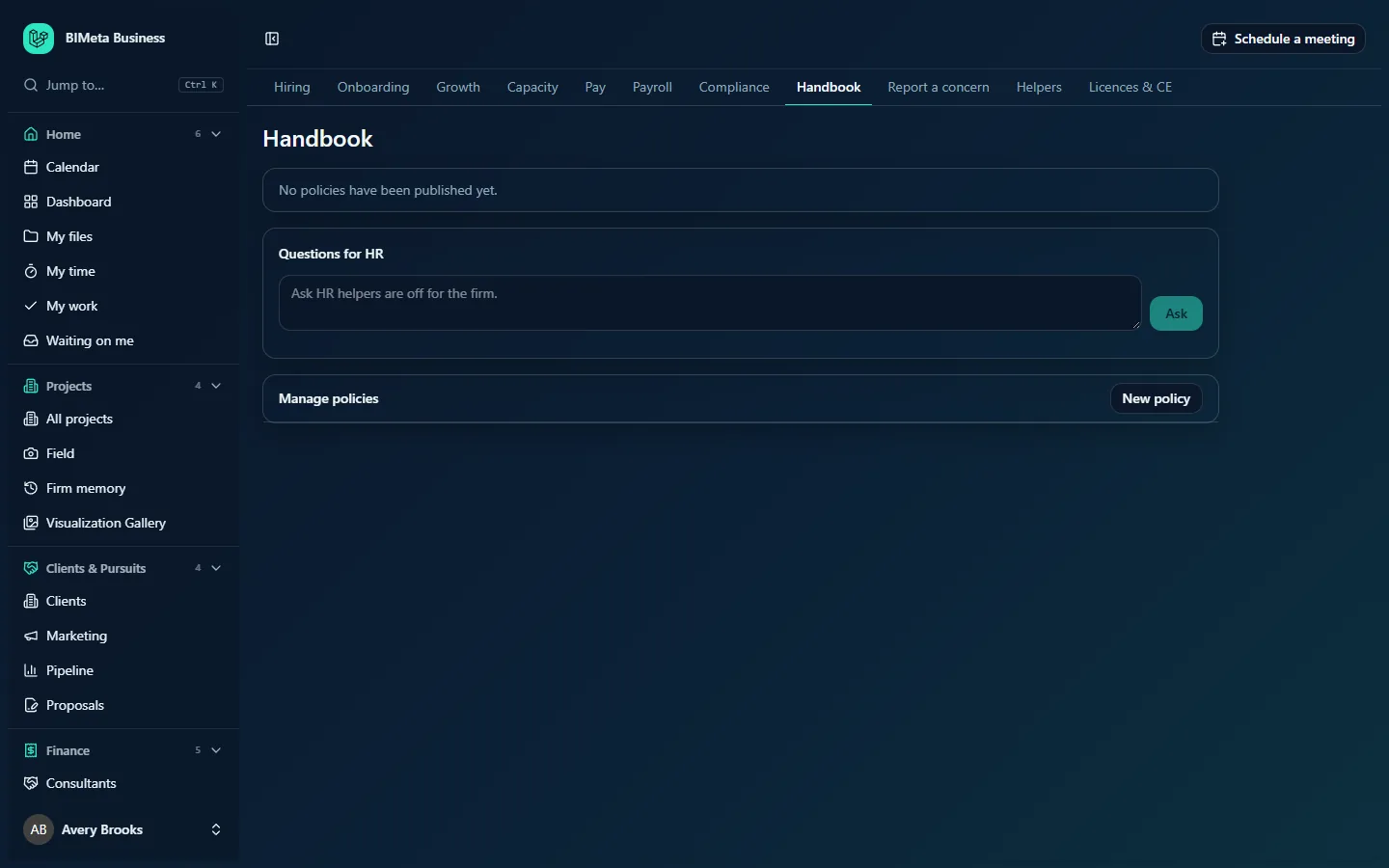
In the screenshot nothing has been published yet and the Ask HR helper is off, which is how a new firm starts.
A tour of the page
Waiting for your acknowledgement
When some policies still need your acknowledgement, a highlighted note at the top says how many, for example Waiting for your acknowledgement: 2.
The policy list
Each published policy that applies to you shows:
- Its title. Click it to open or close the full text.
- A category badge, if it has one (for example Conduct).
- Version n: the version in force.
- Please acknowledge when you still need to acknowledge it, or Acknowledged when you have. Policies that don't need acknowledging show neither.
When opened, you'll see What changed: … (HR's note about the latest version, if any), the policy text, and, if you still need to acknowledge it, the field Type your full name to acknowledge you have read it with an Acknowledge button. "No policies have been published yet." appears when there are none.
Questions for HR
- A box for Your question (up to 1,000 characters) and an Ask button. When the Ask HR helper is on, the box says "Ask about a policy. The answer comes from the handbook, and you can send it on to HR." When it's off, the box is greyed out and says "Ask HR helpers are off for the firm."
- Your last 20 questions, each with its answer. An answer labelled AI, from the handbook was drafted by the helper; one labelled HR came from a person in HR.
- Ask a person in HR under an AI answer sends the question to HR. While it's with them, it shows Waiting for HR.
Questions waiting for HR (Human Resources and Business Owners)
Each question sent to HR, with who asked it, the AI's answer if there was one ("AI answered: …"), a box for your answer and Send answer.
Manage policies (Human Resources and Business Owners)
- New policy opens an empty policy form.
- Every policy is listed, archived ones last, with: Version n or Not published; Unpublished changes when a saved draft hasn't been published yet; Archived; and, for policies that need acknowledging, how many have signed and how many still have to (for example 9 signed, 3 still to sign). Not yet: … names the people who still have to acknowledge the version in force.
- Edit opens the policy form, the publish controls, the version history (Version n, date, by, marked small correction where it was) and Archive or Restore.
The policy form has: Title (up to 160 characters), Category, e.g. Conduct (up to 60), Order (a number; lower numbers are listed first), the Policy text, Applies to (none ticked: everyone on staff) with a checkbox per role, People must acknowledge it (on by default) and Save draft.
How to …
Acknowledge a policy
- Click a policy marked Please acknowledge to open it, and read it.
- Type your full name exactly as it appears on your account (upper and lower case and extra spaces don't matter).
- Click Acknowledge. You'll see "Thanks. Your acknowledgement is recorded." and the badge changes to Acknowledged.
If the name doesn't match you'll see "Type your name as it appears on your account: …" with the name to type. Your acknowledgement records the version, the name you typed and the time, and it's written to the audit log.
Ask a question
- Type your question under Questions for HR and click Ask.
- The answer appears below, labelled AI, from the handbook. It names the policy it used, or says the handbook doesn't cover it.
- If you need a person, click Ask a person in HR. You'll see "Sent to HR. You'll see their answer here." HR's answer appears under your question, labelled HR.
The helper only uses the firm's own published policies. It never gives legal, medical or tax advice, and each question uses some of the firm's AI credits. Asking is only possible when a Business Owner has turned on the Ask HR helper (on the HR Compliance tab, under AI helpers) and the firm's AI is available.
Write and publish a policy (HR and Owners)
- Click New policy.
- Enter the Title, an optional Category and Order, and the Policy text. Title and text are required.
- Under Applies to, tick roles to limit who it's for, or tick none for everyone on staff.
- Leave People must acknowledge it ticked if everyone it applies to must sign it.
- Click Save draft. You'll see "Draft saved. Publish it when it's ready." Nobody sees it yet.
- Click Edit on the policy, optionally type What changed (shown to everyone), and click Publish.
The first version always needs acknowledging. You'll see "Version 1 published. Everyone it applies to is asked to acknowledge it." and the policy shows in each person's list with Please acknowledge.
Update a published policy (HR and Owners)
- Click Edit, change the text and click Save draft. People keep seeing the published version, and the policy shows Unpublished changes.
- When ready, type a note in What changed.
- Decide whether it's a real change. Leave A real change: ask everyone to acknowledge again ticked to make everyone acknowledge the new version. Untick it for a small correction (a typo, a broken sentence): earlier acknowledgements still count.
- Click Publish. The version number goes up by one, and the version history keeps every published version.
See who hasn't acknowledged (HR and Owners)
Under Manage policies, each policy shows how many have signed and how many are still to sign, and Not yet: … lists the names. Remind those people directly.
Archive a policy (HR and Owners)
- Click Edit on the policy.
- Click Archive. It disappears from everyone's handbook (and from what the Ask HR helper reads) but keeps its history. Use Restore to bring it back.
Answer a question sent to HR (HR and Owners)
- Under Questions waiting for HR, read the question and the AI's draft answer.
- Type your answer (up to 5,000 characters) and click Send answer. The person sees it on their Handbook page. The answer is recorded in the audit log.
Tips and good to know
- Acknowledgements are tied to versions. After a real change, everyone must acknowledge again; after a small correction they don't.
- Roles in Applies to are firm roles (for example Project Manager). Someone with several roles sees a policy if any of them match.
- Questions and answers aren't emailed; people see answers when they next open the Handbook.
- You can also store a person's signed paper policies as Signed policy documents on their HR record.
- Saving, publishing and acknowledging policies are all recorded in the audit log.
Troubleshooting / FAQ
Why is the question box greyed out?
The Ask HR helper is off for your firm. Only a Business Owner can turn it on, on the Compliance tab of People → HR, under AI helpers. You can still ask HR directly.
A colleague sees a policy that I don't.
The policy applies only to certain roles, and you don't hold any of them.
Why am I asked to acknowledge a policy I already acknowledged?
HR published a new version as a real change. Open it, read What changed, and acknowledge again.
I edited a policy but nobody sees the change.
Saving only updates the draft. Click Edit and then Publish.
Was this article helpful?
Share