



Growth: reviews, goals, one-to-ones, recognition and the path to licensure
19 views · by Kevin J Bruno · updated 3 days ago
Growth is where your professional development lives. It brings together the reviews you need to write and the ones written about you, your personal goals, one-to-one notes with your manager, the firm's recognition wall, the career ladder, your continuing education (CE) progress, and, for emerging architects, the path to licensure: AXP hours counted from your approved timesheets with supervisor sign-off, and your ARE exam results. Managers use it to follow their direct reports, and Human Resources uses it to run review cycles and set the firm's CE rules.
Where to find it
- Sidebar → People → HR, then the Growth tab. HR is one menu entry that gathers the firm's HR tools as tabs across the top of the page. It opens on the Hiring tab; click a tab to switch. You only see the tabs you're allowed to open.
- Press Ctrl K (Jump to…) and type Growth.
- Managers: the names of your direct reports appear at the top right of your Growth page. Click one to open their Growth page; click You to come back to yours.
Who can use it
- Everyone on staff (Business Owner, Admin, IT Staff, BIM Manager, Project Manager, Human Resources and User) has their own Growth page. The heading reads Your growth.
- Managers, meaning anyone set as the Manager on someone's HR record, can open their direct reports' Growth pages (heading Growth: name). There they can add goals, start AXP tracking, write one-to-ones and read the reviews written about that person.
- Human Resources and Business Owners can open anyone's Growth page and see the extra For HR section (review cycles, which phases count toward AXP, CE rules). They also set each person's career level.
- Admins don't get any special access here: they see their own page and, if they are someone's manager, that person's. Reviews are never shown to Admins just for being Admins.
Anyone else who tries to open another person's Growth page gets "not found".
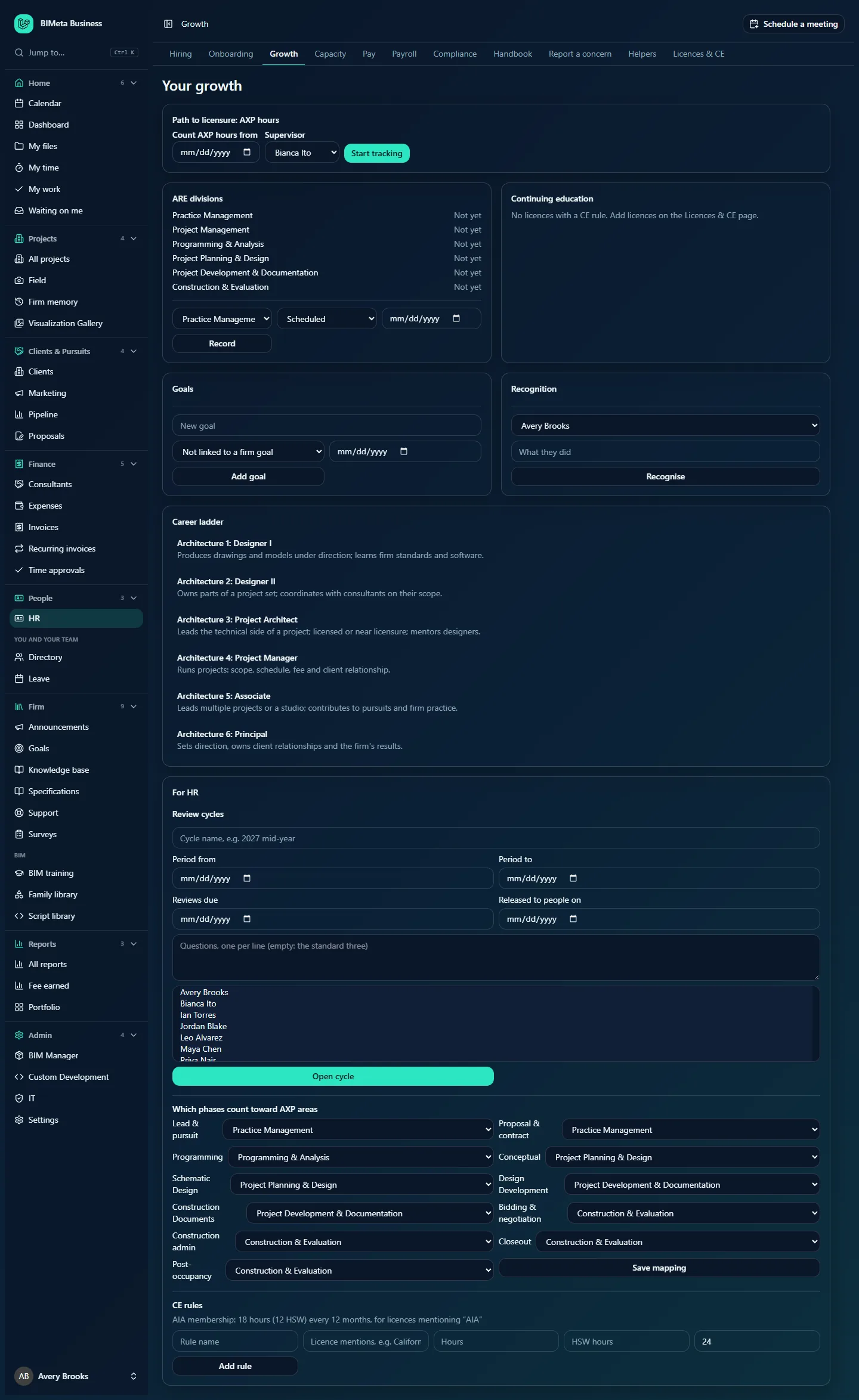
The screenshot shows a Business Owner's own page at Northlight Architects, so it includes the For HR section at the bottom.
A tour of the page
Sections only appear when they have something in them or something you can do, so your page may be shorter than the screenshot.
Header
Your growth (or Growth: name), a badge with the person's career level when one is set, and, if you manage people, links to You and each direct report.
AXP hours to sign off
Only shown to supervisors with requests waiting. Each request shows who asked, the period and the hours by experience area, with a Sign off button.
Reviews to write
Shown on your own page when a review cycle is open and you have reviews to write: your self review, manager reviews for your direct reports, and any peer feedback. Each one shows the person, the cycle, the kind of review and due date, then a text box for each question, an Overall (1 to 5) rating and Submit review.
Path to licensure: AXP hours
Tracks NCARB AXP experience hours. Before tracking starts, it shows a small form: Count AXP hours from, Supervisor and Start tracking. Once tracking, it shows:
- A summary such as 420 of 3740 hours from approved timesheets since 2026-01-05, the supervisor's name, and any hours logged in phases that don't count.
- The six experience areas with hours so far against hours required, and how many have been signed off:
| Experience area | Hours required |
|---|---|
| Practice Management | 160 |
| Project Management | 360 |
| Programming & Analysis | 260 |
| Project Planning & Design | 1,080 |
| Project Development & Documentation | 1,520 |
| Construction & Evaluation | 360 |
- On your own page: Ask for sign-off of hours up to (a date) with Send for sign-off, and a list of your sign-off requests showing signed with the date, or waiting.
ARE divisions
The six ARE divisions (the same names as the experience areas above), each with its latest result: Scheduled, Passed, Not passed or Not yet. On your own page there's a small form to record a result: Division, Result, Exam date and Record.
Continuing education
For each of your licences that one of the firm's CE rules applies to, the hours earned in the rule's period against the hours needed, and the HSW (health, safety and welfare) hours against those needed, for example 12 of 18 hours, 8 of 12 HSW, with a progress bar. If none of your licences match a rule you'll see "No licences with a CE rule. Add licences on the Licences & CE page."
Goals
Your personal goals, each with its title, the firm goal it supports (if linked), a percentage and a progress bar. Below is the form to add one: New goal, a firm goal list (Not linked to a firm goal by default), a due date and Add goal.
Recognition
The firm-wide recognition wall. At the top, upcoming work anniversaries in the next 30 days (for example Maya Chen: 3 years on 2026-10-21), only for people who agreed to share their milestones. Then the latest 50 recognitions, shown as From → To: message. The form at the bottom has a person list, What they did and Recognise.
One-to-ones
Notes from meetings between a manager and their direct report, newest first: the date and manager, the shared notes, the manager's private notes (only shown to the manager who wrote them) and the agreed actions as a list. A manager viewing a direct report's page also gets the form to add one.
Reviews
Reviews that have been written about the person, each showing the cycle, the kind (Self review, Manager review or Peer feedback), the reviewer and the rating out of 5, then each question and answer.
Career ladder
The firm's levels, grouped by track, lowest first, each with its expectations. At Northlight Architects the Architecture track runs from Architecture 1: Designer I ("Produces drawings and models under direction; learns firm standards and software.") up to Architecture 6: Principal. The person's current level is highlighted. HR and Owners viewing someone else's page see a Level list (with No level) and Set level.
For HR (Human Resources and Business Owners)
- Review cycles: the cycles so far, each with how many reviews are written (for example 5 of 12 written), the release date and status, followed by the form to open a new cycle.
- Which phases count toward AXP areas: one list per project phase (Lead & pursuit, Proposal & contract, Programming, Conceptual, Schematic Design, Design Development, Construction Documents, Bidding & negotiation, Construction admin, Closeout, Post-occupancy), each set to an experience area or Doesn't count, and Save mapping.
- CE rules: the rules the firm tracks, for example AIA membership: 18 hours (12 HSW) every 12 months, for licences mentioning "AIA", and a form to add one.
How to …
Write a review
- Open People → HR and the Growth tab. Reviews waiting for you are at the top under Reviews to write.
- Answer each question (up to 5,000 characters each).
- Optionally choose an Overall (1 to 5) rating.
- Click Submit review. You'll see "Review submitted". You can't change it afterwards, and you can't submit once the cycle has been released.
Tip: if your firm has turned on the AI helpers, HR helpers can draft a first version of your answers from the person's goals and the recognition they received.
Start counting AXP hours
- On your Growth page (or a direct report's, if you're their manager, or anyone's, if you're HR), go to Path to licensure: AXP hours.
- Pick the date to Count AXP hours from.
- Choose your Supervisor (anyone but yourself).
- Click Start tracking. You'll see "AXP hours are now counted from timesheets".
From then on, every approved timesheet hour from that date counts toward the experience area its project phase is mapped to. Hours waiting for approval don't count yet.
Ask your supervisor to sign off hours
- On your own page, under the AXP areas, choose Ask for sign-off of hours up to (today or earlier).
- Click Send for sign-off. The request covers the hours since your last signed-off period (or since tracking began) up to that date.
- Your supervisor sees it at the top of their Growth page under AXP hours to sign off and clicks Sign off. The sign-off is recorded in the audit log, and the hours show as signed in each area.
Record an ARE exam
- On your own page, under ARE divisions, choose the Division.
- Choose the Result: Scheduled, Passed or Not passed.
- Optionally pick the Exam date, then click Record. The division shows its latest result.
Add a personal goal
- Under Goals, type the goal in New goal (up to 200 characters), for example Pass PPD by spring.
- Optionally link it to one of the firm's current goals (from Firm → Goals) and pick a due date.
- Click Add goal. You, your manager and HR can add goals to your page.
Recognise a colleague
- Under Recognition, choose who.
- Write What they did (up to 500 characters).
- Click Recognise. Your message appears on the wall for the whole firm. You can't recognise yourself.
Record a one-to-one (managers)
- Open your direct report's Growth page (click their name at the top right of yours).
- Under One-to-ones, pick the Date and write the Shared notes (required). Your report can read these.
- Optionally add Private notes (only you see these) and Actions, one per line.
- Click Save one-to-one. Notes are stored encrypted. One-to-ones can only be recorded between a manager and their own direct report.
Open a review cycle (HR and Owners)
- In For HR → Review cycles, type a cycle name, for example 2027 mid-year.
- Set Period from and Period to (the period being reviewed), Reviews due and Released to people on. The release date must be on or after the due date.
- Optionally type the questions, one per line (up to 12). Leave it empty to use the standard three: "What went well this period?", "What could have gone better?" and "What should the next period focus on?"
- Select who is reviewed in the list (hold Ctrl or Cmd to pick several).
- Click Open cycle. Each person gets a self review to write, and their manager (if they have one) gets a manager review. You'll see "Review cycle opened. Everyone has their reviews to write."
On the release date the cycle is released automatically overnight, and people can then read the reviews written about them.
Set someone's career level (HR and Owners)
- Open the person's Growth page. The page only links to your own direct reports, so for anyone else you need a link to their Growth page (HR and Owners can open anyone's).
- Under Career ladder, choose the Level and click Set level. The change is recorded in the audit log, and the level is used for salary bands in Pay.
Change which phases count toward AXP (HR and Owners)
- In For HR → Which phases count toward AXP areas, choose an area (or Doesn't count) for each phase.
- Click Save mapping. Everyone's AXP hours are recalculated with the new mapping.
Add a CE rule (HR and Owners)
- In For HR → CE rules, enter a Rule name (for example California architect licence).
- In Licence mentions, type the text that identifies the licences it applies to (for example California). The rule applies to any licence whose name or jurisdiction contains this text.
- Enter the Hours needed (0.1 to 500) and the HSW hours among them (optional; can't be more than the total).
- Set how often, Every (months) (1 to 60; 24 by default), and click Add rule.
Tips and good to know
- Who sees reviews: you see reviews about you only after the cycle is released, except your own self review, which you always see. Peer feedback is shown to you without the reviewer's name. Your manager sees the reviews about you as soon as they're submitted. HR and Business Owners see all reviews. Review answers are stored encrypted.
- A manager review is only created for people who have a manager set on their HR record, so check managers in the Directory before opening a cycle.
- CE hours come from the credits you log on Licences & CE. A rule counts every credit you completed within its period (for example the last 12 months), and HSW credits are those you ticked as HSW.
- AXP hours depend on your project phases being right on your timesheets. Time logged against a phase that's set to Doesn't count is shown as "hours in phases that don't count".
- Firm goals to link to come from Firm → Goals; only goals that haven't ended are offered.
- The career ladder itself (tracks, levels and expectations) is set up for the firm; this page shows it and lets HR place each person on it.
Troubleshooting / FAQ
Why can't I see my manager's review of me?
Reviews are released to the person on the cycle's release date. Until then you only see your own self review.
Why don't I see a manager review in my list to write?
Manager reviews go to the person set as Manager on each employee's HR record. If that isn't you, ask HR to update the record before the next cycle.
My AXP hours didn't go up after I logged time.
Only approved timesheet hours count. Once your time is approved, the hours appear in the area your project phase maps to.
Why does Continuing education say I have no licences with a CE rule?
Either you haven't added your licences on Licences & CE, or none of the firm's CE rules mention text found in your licence's name or jurisdiction. Ask HR to add a rule.
Was this article helpful?
Share