



Directory: find people and see the org chart
16 views · by Kevin J Bruno · updated 19 hours ago
The Directory is your firm's staff list. It shows everyone with an active portal account, with their job title, department, office and work email, and it can also draw the firm as an org chart built from who reports to whom. Use it when you need to find a colleague, check who someone reports to, or open a person's HR record.
Where to find it
- Sidebar → People → Directory (first item under You and your team).
- Press Ctrl K (Jump to…) and type Directory.
- From any person's HR record, the Directory button in the top-right corner (and the Directory breadcrumb) brings you back here.
- The firm's other HR tools (Hiring, Growth, Handbook, Licences & CE and more) are no longer separate menu items: they are tabs of People → HR, just above You and your team.
Who can use it
Everyone on staff can open the Directory: Business Owners, Admins, IT Staff, BIM Managers, Project Managers, Human Resources and Users. It needs the everyday "HR self-service" permission that every staff role has. Clients and consultants from outside the firm don't see it.
Everyone sees the same list, because it only contains the fields the whole firm may see: name, job title, department, office, manager and work email. Nothing private (phone numbers, home address, pay, HR documents) ever appears here. What you can see when you open someone's record depends on who you are; see A person's HR record.
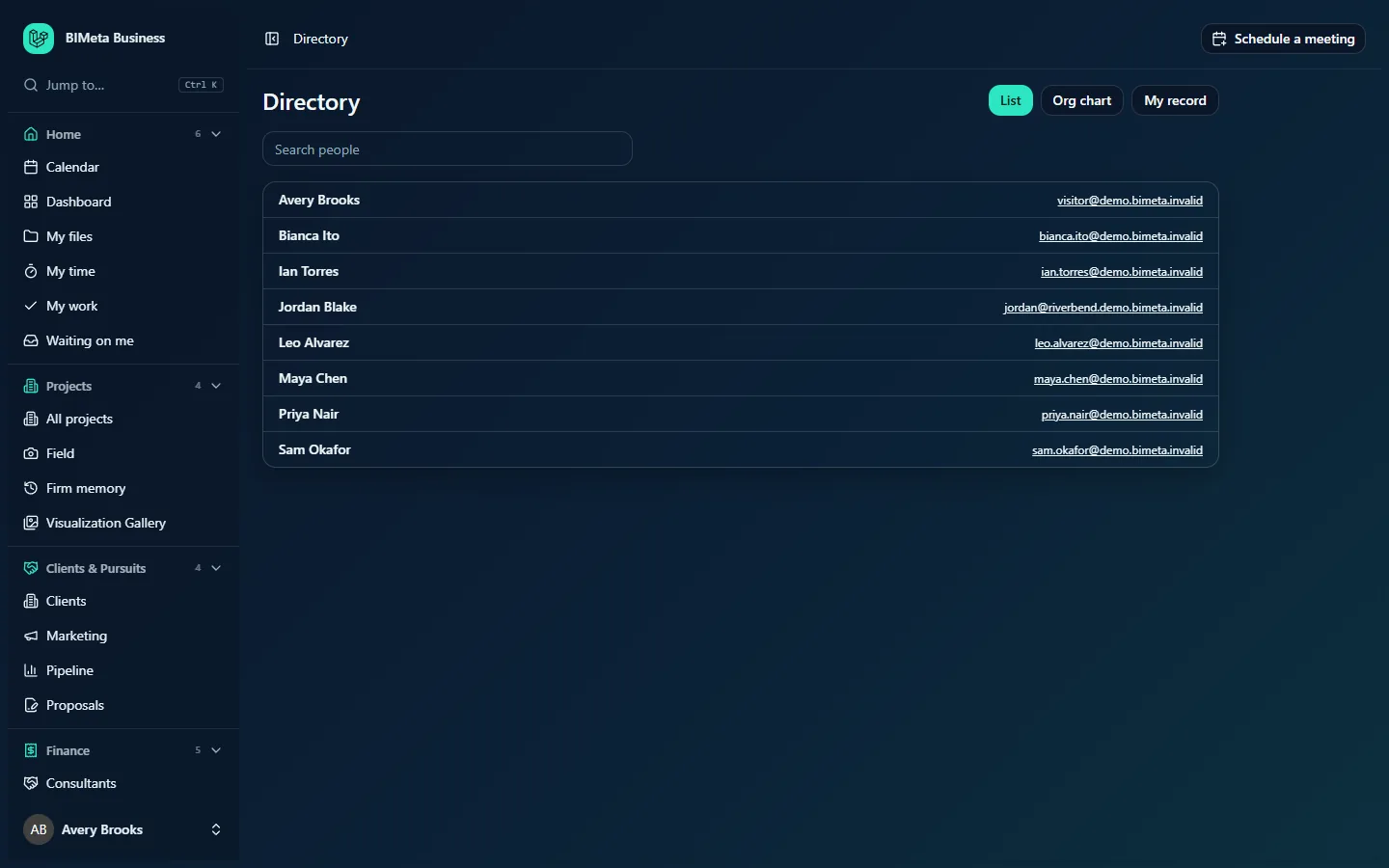
A tour of the page
Header buttons
- List: the default view, a searchable list of everyone. The highlighted button shows which view you're in.
- Org chart: switches to a tree of who reports to whom.
- My record: opens your own HR record, where you can see your job details and keep your personal details and emergency contacts up to date.
List view
- Search people: type any part of a name, job title, department or office. The list filters as you type (for example, typing Chen leaves only Maya Chen). Search ignores upper and lower case.
- Each row shows the person's name (a link to their HR record), then their job title, department and office separated by dots when those have been filled in, and their work email on the right. Clicking the email opens a new message in your email program.
- People are listed alphabetically by name. At the example firm Northlight Architects the list runs from Avery Brooks to Sam Okafor. In the sample screenshot no titles or departments have been entered yet, so only names and emails show.
Org chart view
- Each person is a small card with their name and job title. Click a card to open that person's HR record.
- People with nobody above them (no manager set, or a manager who has left) appear at the top level. Their direct reports are indented beneath them with a line, and so on down the tree, up to 12 levels deep.
- The chart is built from the Manager field on each person's HR record. If nobody has a manager set yet, everyone appears in a single flat list.
How to …
Find a colleague
- Open People → Directory.
- Type part of their name, title, department or office into Search people.
- Click their name to open their record, or click their email address to write to them.
See who reports to whom
- Click Org chart.
- Read down from the top-level people. Each indented group reports to the card above it.
- Click List to go back to the searchable list.
Open your own record
- Click My record.
- Your record opens on the Job tab. Use Personal details to update your phone, address and emergency contacts.
Fix a wrong title, department, office or manager
You can't edit these from the Directory. They come from each person's HR record, and only Human Resources and Business Owners can change them (on the record's Job tab). Ask HR if something is wrong.
Tips and good to know
- Only active accounts appear. People who have been invited but haven't accepted yet, and people whose access has been removed (for example after offboarding), are not listed.
- External people who have accounts (for example a client representative) can appear in the list if they have an active account, because the Directory lists every active account. In the sample, Jordan Blake has an email at the client's domain.
- The org chart and the Directory update as soon as HR saves a change on someone's record; just reload the page.
- Managers matter elsewhere too: a person's manager writes their manager review in Growth, can see their Growth page, receives "manager" tasks on onboarding checklists, and (only if the firm allows it) can see their pay.
Troubleshooting / FAQ
Why is someone missing from the Directory?
Their account isn't active. They may still be invited (they haven't accepted the invitation email yet) or their access may have been removed. An Admin or IT can check under Admin → Settings → People & access.
Why does the org chart look flat?
Nobody has a manager set. Human Resources or a Business Owner sets each person's Manager on the Job tab of their HR record.
Can other people see my phone number or address here?
No. The Directory only shows your name, job title, department, office and work email. Your personal details are only visible to you, Human Resources and Business Owners.
Was this article helpful?
Share