



Compliance: required trainings and documents, retention, legal holds and AI helpers
17 views · by Kevin J Bruno · updated 1 day ago
Compliance keeps track of the things your firm must do by law or policy: trainings each person needs (such as harassment prevention), documents to collect (such as a signed confidentiality agreement or a checked Form I-9), checks, and firm-wide tasks (such as keeping labor law posters up to date). It shows where everyone stands, reminds people before things are due, and gives you a report to export. The same page holds the retention rules for HR records, legal holds, and the switch for the optional HR AI helpers.
Where to find it
- Sidebar → People → HR, then the Compliance tab. HR is one menu entry that gathers the firm's HR tools as tabs across the top of the page. It opens on the Hiring tab; click a tab to switch. You only see the tabs you're allowed to open.
- Press Ctrl K (Jump to…) and type Compliance.
- The link in a compliance reminder email.
Who can use it
- Human Resources and Business Owners run compliance: the status, items, report, retention rules and legal holds. Admins, IT Staff, BIM Managers, Project Managers and Users don't see the Compliance tab in HR.
- AI helpers tab: everyone who can open the page can see the settings, but only a Business Owner can turn the helpers on or off. Others see "Ask a Business Owner to change these."
Exporting the report, recording items, changing retention rules, legal holds and AI settings are all recorded in the audit log.
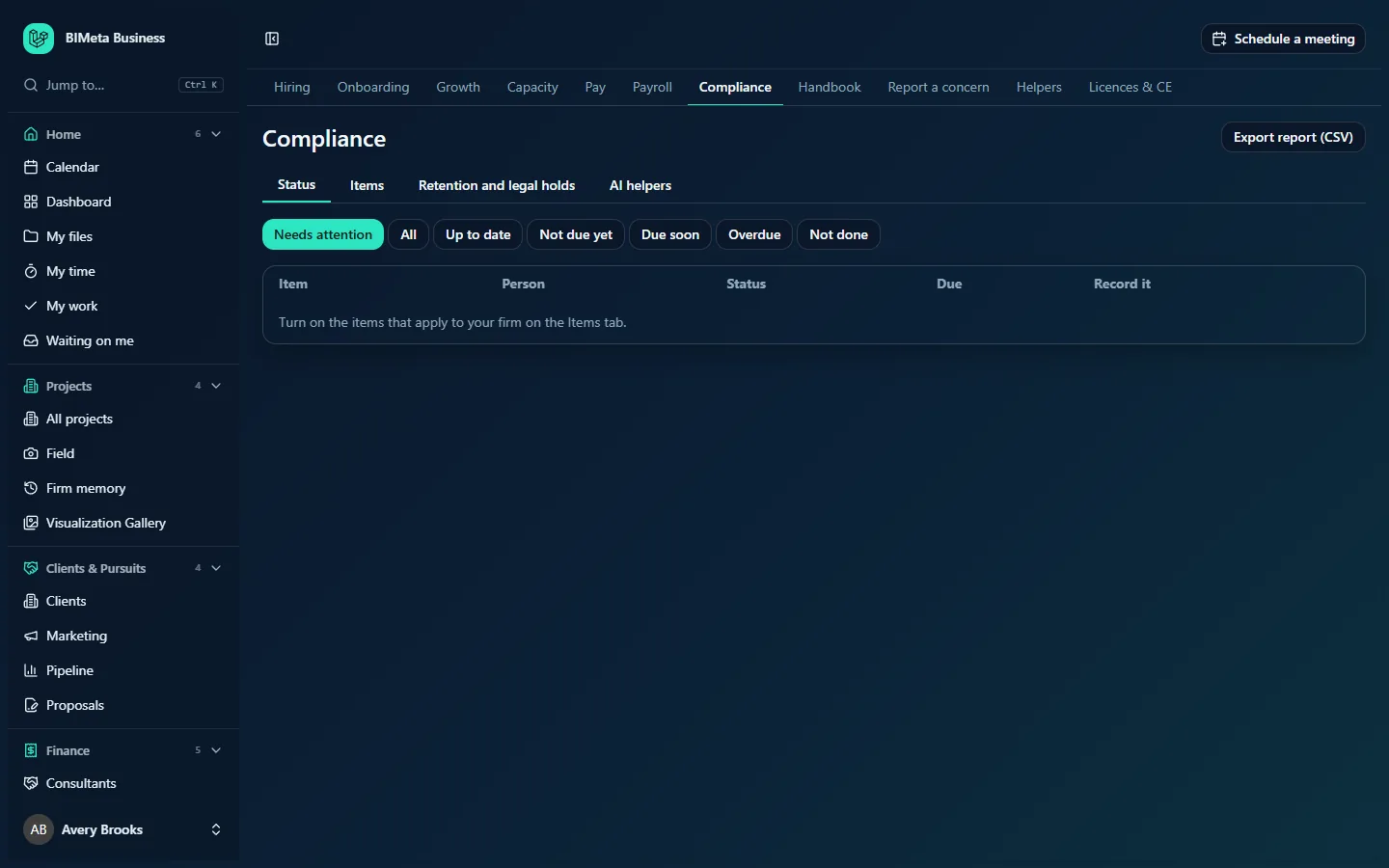
The screenshot shows a new firm: the starter items are still off, so the status list says "Turn on the items that apply to your firm on the Items tab."
A tour of the page
Header
Compliance and Export report (CSV), then four tabs: Status, Items, Retention and legal holds and AI helpers.
Status tab
Filter buttons: Needs attention (the default: due soon, overdue and not done), All, Up to date, Not due yet, Due soon, Overdue and Not done. The table has one row per item per person (or one row for a firm-wide task):
- Item, Person (or The firm), Status (coloured), and Due.
- Record it: a Done on date and a Done button.
How the status is worked out:
- Up to date: done, and either it never needs repeating or its next due date is further away than the reminder window.
- Not due yet: a new person hasn't done it yet but still has time (for example within 90 days of starting).
- Due soon: due within the item's reminder window (30 days by default).
- Overdue: done before, but the repeat date has passed.
- Not done: never done, and either the new-hire deadline has passed or the item has no new-hire deadline.
Items tab
"Starter items are off until you check they apply: rules differ by state, country and firm size." Each item can be edited, and the empty row adds a new one. The fields are:
- Name (required, up to 160 characters) and Kind: Training, Document, Check or Firm-wide task.
- Every N months (repeats every 1 to 120 months; empty means once).
- Days after starting: how many days new people have to do it (0 to 365; not for firm-wide tasks).
- Remind days before: 0 to 180 (30 by default).
- Notes: a description, up to 1,000 characters.
- Roles (none: everyone): limit the item to certain roles (not for firm-wide tasks).
- On: whether the item is tracked.
- Save or Add.
Every firm starts with these starter items, all switched off:
| Item | Kind | Repeats | New people have |
|---|---|---|---|
| Harassment prevention training | Training | Every 24 months | 90 days |
| Form I-9 employment eligibility | Document | Once | 3 days |
| Workplace safety orientation | Training | Once | 30 days |
| Signed confidentiality agreement | Document | Once | 7 days |
| Labor law posters up to date | Firm-wide task | Every 12 months | — |
| OSHA 300A summary posted (February 1 to April 30) | Firm-wide task | Every 12 months | — |
Retention and legal holds tab
"Nothing is removed until you set a rule. Rules run every night; people and incidents on legal hold are always kept. Job applications have their own setting under Hiring." There are three rules, each with a Keep n years field (1 to 50; empty keeps records) and a preview such as 3 would be removed today:
- Closed incidents: concerns reported on Report a concern, counted from when they were closed.
- Former employees' personal details and HR documents: for people whose account has been switched off, counted from their last day (the End date on their HR record).
- Former employees' pay history: also counted from their last day.
Save rules saves them. Below, Legal holds lists everyone on hold, each with Release name, then a Person list and Put on legal hold. "Nobody is on legal hold." when the list is empty.
AI helpers tab
"Optional AI helpers write drafts for people to review: job descriptions, interview questions, review drafts and Ask HR answers from your handbook. Each request uses AI credits. Only a Business Owner can turn them on." The settings are Turn on the AI helpers, a checkbox for each helper (Job descriptions, Interview questions, Review drafts, Ask HR) and Save.
How to …
Turn on the items that apply to your firm
- Open the Items tab.
- For each starter item, check it applies to you (rules differ by state, country and firm size) and adjust the repeat period, new-hire days, reminder and roles.
- Tick On and click Save. You'll see "Item saved". The item now appears on the Status tab for everyone it applies to.
Add your own item
- On the Items tab, fill in the empty row: a name (for example First aid certificate), kind, how often it repeats, how long new people have, the reminder, notes and roles.
- Click Add.
Record that something was done
- On the Status tab, find the row (use the filters).
- Set Done on to the date it was done (not in the future).
- Click Done. You'll see "Recorded". If the item repeats, its next due date is calculated from this date.
Export the report
Click Export report (CSV). You get a spreadsheet file named with today's date, with the columns Item, Person, Status, Due and Last done for every active item and person.
Set retention rules
- Open Retention and legal holds.
- Enter how many years to keep each kind of record, or leave it empty to keep them.
- Click Save rules. You'll see "Retention rules saved. They run every night; the preview shows what they would remove today."
Check the preview first. Removed records (closed incidents, former employees' personal details and HR document files, pay history) can't be brought back.
Put someone on legal hold
- Under Legal holds, choose the Person.
- Click Put on legal hold. You'll see "On legal hold: their records are kept".
- When the matter is over, click Release name.
To hold a single reported concern instead, tick Legal hold on it in Report a concern.
Turn the AI helpers on (Business Owners)
- Open AI helpers.
- Tick Turn on the AI helpers, and tick each helper you want.
- Click Save. You'll see "AI helper settings saved". The helpers appear on HR helpers and, for Ask HR, on the Handbook.
Tips and good to know
- Reminders: every morning, each person gets an email about their items that are due soon, overdue or not done, and Human Resources and Business Owners get one summary. Each reminder is sent once per due date.
- The status list includes active staff only (not clients or consultants). An item limited to roles applies to anyone holding one of those roles.
- New people's deadlines count from the start date on their HR record (or when their account was created if there's no start date).
- The AI helpers also need the firm's AI to be available, and every request uses AI credits.
- Job applications are deleted under their own setting on Hiring, not here.
Troubleshooting / FAQ
Why is the Status tab empty?
No items are switched on yet. Turn on the ones that apply on the Items tab.
Why can't I change the AI helper settings?
Only a Business Owner can. Human Resources can see the settings but not change them.
Someone shows Not done for an item they don't need.
Limit the item to the roles it applies to, or switch it off.
Why wasn't a former employee's data removed?
They're on legal hold, their account hasn't been switched off (for example by offboarding), they have no End date on their HR record, or the rule's number of years hasn't passed since their last day.
Was this article helpful?
Share