



Capacity: who is booked on which project
17 views · by Kevin J Bruno · updated 4 hours ago
Capacity is the firm's staffing board. For each person and each of the coming weeks it shows how many hours they're booked on projects against the hours they actually have (their working week, less holidays and leave), and colours each week by whether they're over-booked, under their billable target or on target. For weeks that have started it also shows the billable time they really logged. Two panels at the top list who is over-booked and who is under target next month. Project leads use it to book people on projects; it only ever deals in hours, never pay.
Where to find it
- Sidebar → People → HR, then the Capacity tab. HR is one menu entry that gathers the firm's HR tools as tabs across the top of the page. It opens on the Hiring tab; click a tab to switch. You only see the tabs you're allowed to open.
- Press Ctrl K (Jump to…) and type Capacity.
Who can use it
| What | Who |
|---|---|
| See the board and the monthly panels | Business Owner, Admin, Project Manager, IT Staff, BIM Manager and Human Resources |
| Book people, set personal targets, change the settings | Business Owner, Admin, Project Manager, IT Staff and BIM Manager |
Human Resources can view the board but not book people. Users don't see the Capacity tab in HR.
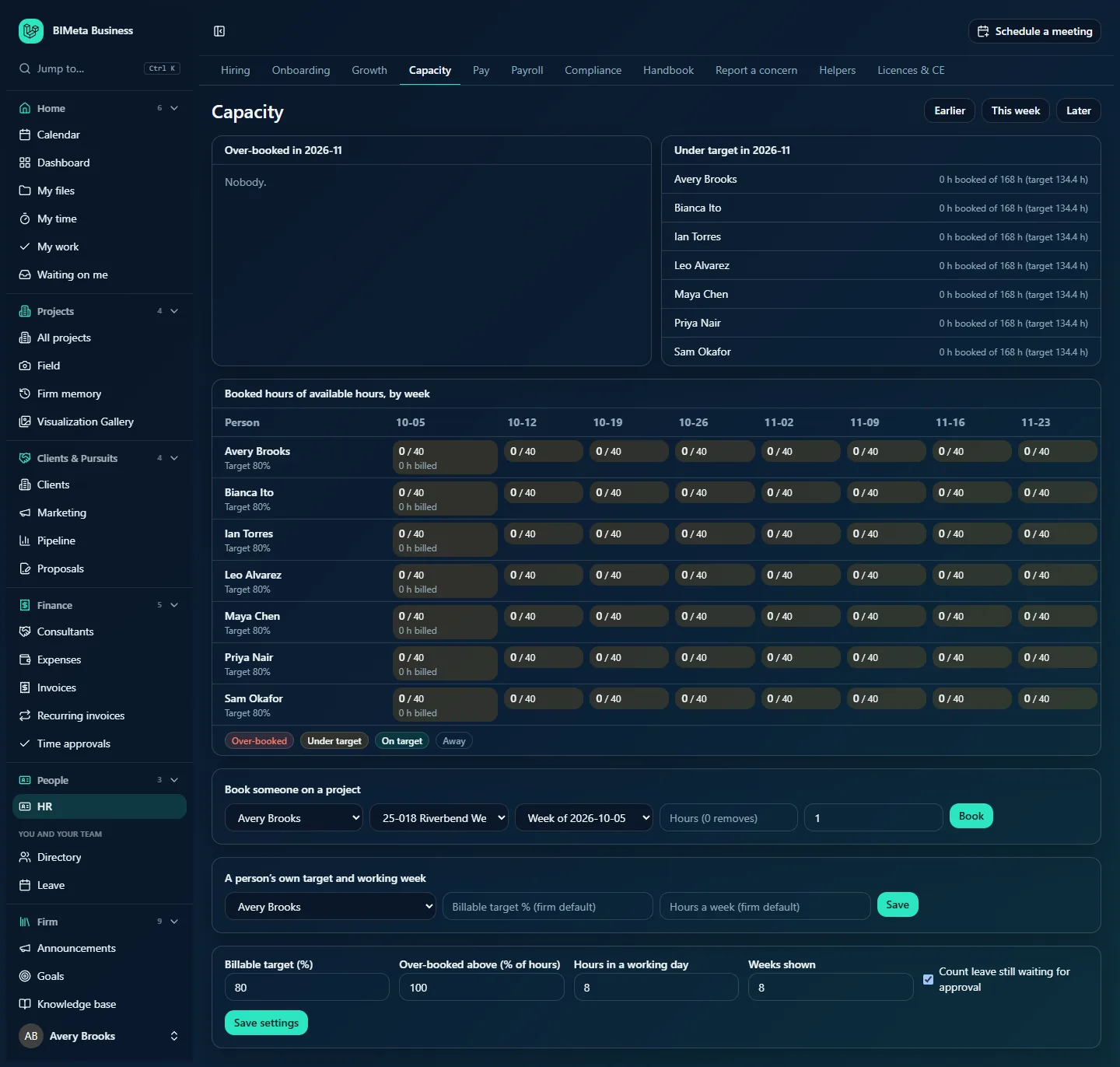
The screenshot shows Northlight Architects with nobody booked yet, so everyone shows 0 / 40 each week and appears under Under target.
A tour of the page
Header
Earlier and Later move the board back or forward by the number of weeks shown (8 by default); This week returns to the current week.
Over-booked in month and Under target in month
Two lists for next month (for example 2026-11), worked out on the month's totals. Each line shows a person and, for example, 0 h booked of 168 h (target 134.4 h): their booked hours, the hours they have that month, and their billable target in hours. "Nobody." when the list is empty.
Booked hours of available hours, by week
- One row per person on staff, with their name and billable target (for example Target 80%).
- One column per week, labelled by its Monday (for example 10-05).
- Each cell shows booked / available hours, for example 32 / 40. For weeks that have started, a second line shows the billable hours actually logged on timesheets, for example 28 h billed.
- Hover over a cell to see its status and the bookings by project.
- The colour and the legend under the table: Over-booked (booked above the firm's limit of their available hours), Under target (booked below their billable target), On target, and Away (no hours available and nothing booked, for example a week of leave).
Book someone on a project
A person list, a project list (active projects, for example 25-018 Riverbend …), Week of, Hours (0 removes), how many weeks, and Book.
A person's own target and working week
A person list, Billable target % (firm default), Hours a week (firm default) and Save.
Settings
- Billable target (%): the share of available hours people should be booked on projects (0 to 100; 80 by default).
- Over-booked above (% of hours): when booked hours count as too many (50 to 200; 100 by default, meaning more than all their available hours).
- Hours in a working day: 1 to 12 (8 by default).
- Weeks shown: 2 to 26 (8 by default).
- Count leave still waiting for approval: when ticked (the default), pending leave reduces available hours as well as approved leave.
- Save settings.
How to …
Book someone on a project
- Under Book someone on a project, choose the person and the project.
- Choose the Week of (one of the weeks shown).
- Enter the hours for that week (0 to 80).
- To book the same hours for several weeks in a row, enter how many weeks (up to 26).
- Click Book. You'll see, for example, "Booked for 4 weeks", and the board updates.
Booking the same person on the same project for a week again replaces the hours. Each booking is recorded in the audit log.
Remove a booking
Book the same person, project and week with 0 hours. You'll see "Booking removed".
Set one person's target or working week
- Under A person's own target and working week, choose the person.
- Enter their Billable target % (0 to 100) and/or Hours a week (1 to 80), for example 60% for a principal who spends time on business development, or 24 hours for a part-timer.
- Click Save. A field left empty goes back to the firm default, and both fields are saved together, so fill in both if the person has their own target and their own working week.
Change the firm's settings
Change the values at the bottom of the page and click Save settings. You'll see "Capacity settings saved".
Find people for a new project
- Click Later if needed to reach the weeks the project starts.
- Look for rows in Under target colour or with low booked hours, and check the Under target panel for next month.
- Hover over cells to see what they're already booked on, then book them.
Tips and good to know
- Available hours come from the firm's working days (set on Leave), less the person's holidays (from their office's holiday calendar) and their leave, with half days counted as half. A person with their own hours a week has those hours spread across the working days.
- The board shows staff only, not clients or consultants.
- Billed hours are billable time logged on timesheets, so you can compare plan with reality for weeks that have started.
- Capacity never shows pay or rates; it's safe to share with project leads.
Troubleshooting / FAQ
Why does someone show fewer than 40 hours available?
They have a holiday or leave (approved, or pending if the firm counts pending leave) that week, or their own working week is shorter.
Why is a project missing from the list?
Only active projects can be booked.
I'm in Human Resources. Why can't I book anyone?
By default HR can view the board but booking is for people who staff projects: Project Managers, BIM Managers, IT Staff, Admins and Business Owners.
Was this article helpful?
Share