



Office servers: keep a local copy of projects in your office
17 views · by Kevin J Bruno · updated 16 hours ago
An office server is a computer or file server in one of your offices that keeps a local copy of the files of the projects you choose. People in that office can then open big drawings and models at network speed, and the office keeps working copies if the internet goes down. To avoid slowing the office connection during the working day, a server only downloads inside its download windows, for example weeknights from 7 PM to 6 AM. This page is where you register those servers, pick their projects and set their windows.
Where to find it
- Sidebar → Admin → Settings, then Office servers in the Apps and connections section. You can also type in Search settings at the top of the Settings page. A ‹ Settings link above the page title takes you back.
- Ctrl K and type
nas,file serveroron premises.
Since the menu was shortened, the firm's settings pages are no longer listed one by one in the sidebar: they are gathered on the Settings page under Admin, grouped into sections. Each person sees only the pages they may open there. Jump to… (Ctrl K) still finds every page, and you can pin a page to the top of your sidebar if you use it often.
Who can use it
Business Owners, Admins and IT Staff, who can register office servers and set what and when they download. BIM Managers and Users can't open it.
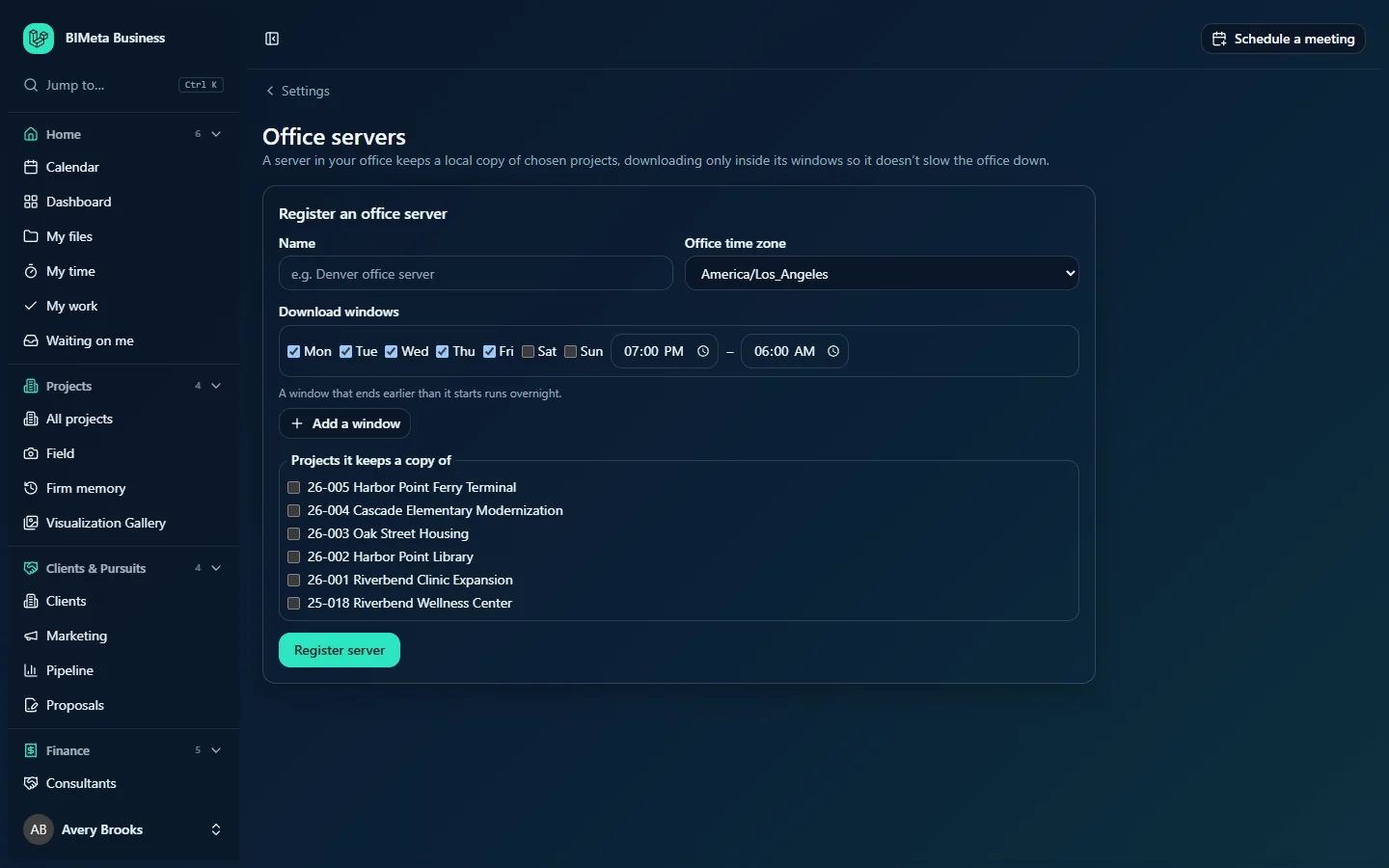
A tour of the page
Heading
The line under the title sums up the idea: a server in your office keeps a local copy of chosen projects, downloading only inside its windows so it doesn't slow the office down.
New token box
Right after you register a server, a highlighted box shows The server's token. Copy it into the office server now: it won't be shown again. followed by the token. The token is the server's password: whoever has it can download the projects you chose. Only a scrambled form is kept, so if you lose it you'll need to register the server again.
Your servers
Each registered server appears as a fold-out row (the example firm Northlight Architects hasn't registered one yet, so the screenshot only shows the registration form). The closed row shows:
- The server's name, for example Denver office server.
- A status badge: Downloading allowed now (it's inside one of its windows), Outside its window, or Signed out (retired; it can no longer download anything).
- How many projects it keeps, and when it was last seen (its last contact with the portal) or not connected yet.
Click the row to open it. For an active server you'll see the same form as for a new server, filled in, with Save, and a Sign this server out button.
Register an office server
The box at the bottom registers a new server. It has:
- Name (required, up to 80 characters). Name it after its office, for example Denver office server.
- Office time zone: the time zone the download windows are read in. It starts at your firm's first office time zone (set in the Firm profile & region step of Admin → Settings → Setup), for example America/Los_Angeles.
- Download windows: one or more rows, each with day boxes Mon to Sun, a start time and an end time. A new server starts with one window: Monday to Friday, 07:00 PM to 06:00 AM. A window that ends earlier than it starts runs overnight. Add a window adds another row (it starts as Saturday and Sunday, all day: 00:00 to 23:59). Remove appears on each row when there's more than one.
- Projects it keeps a copy of: a tick list of your active projects, newest first, for example 26-005 Harbor Point Ferry Terminal or 26-001 Riverbend Clinic Expansion.
- Register server.
How to register an office server
- Type the Name and choose the Office time zone.
- Set the Download windows. Tick at least one day and choose different start and end times. For a window that crosses midnight, tick the day it starts on (for example Monday for Monday 7 PM to Tuesday 6 AM).
- Tick the projects the office needs. You can change them later.
- Click Register server. You'll see Server registered. Copy its token now: it won't be shown again.
- Copy the token from the highlighted box into the office server's sync software straight away.
The server then connects with its token. It can ask what it should hold at any time (so it can plan), but it only downloads files while a window is open. It keeps the current version of every file in each chosen project. The registration is recorded in the Audit log.
How to change a server's projects or windows
- Click the server's row to open it.
- Change the name, time zone, windows or ticked projects.
- Click Save. You'll see Saved. The server picks up the new list next time it checks in.
Unticking a project stops the server fetching it; what it already downloaded stays on the server until your IT team removes it there.
How to retire a server
- Open the server's row.
- Click Sign this server out.
- You'll see Server signed out. It can no longer download anything. The row keeps a Signed out badge so you have a record.
Do this when a server is replaced, stolen or decommissioned, or if its token may have leaked. A signed-out server can't be switched back on; register it again to get a new token.
Rules and limits
- Each server needs at least one window; up to 14 windows per server.
- Each window needs at least one day and different start and end times, in 24-hour time (for example 19:00 and 06:00).
- Only active projects are listed.
- Every registration, change and sign-out is recorded in the Audit log.
Tips and good to know
- Overnight and weekend windows are usually enough: after the first full copy, the server only fetches files that changed.
- Pick the office's own time zone, not head office's, so "7 PM" means 7 PM where the server is.
- Large firms with several offices can register one server per office, each with its own projects.
- Office servers only download. People still save their work to the portal (or through BIMeta Drive), and the server picks the changes up in its next window.
Troubleshooting / FAQ
"Each download window needs at least one day, and different start and end times like 19:00 and 06:00."
One of the window rows has no day ticked, or the same start and end time. Fix that row, or remove it.
The server says "not connected yet".
The server hasn't contacted the portal with its token. Check the token was copied completely into the server's software and that the server can reach the internet.
I lost the token.
Tokens are only shown once. Sign the old server out and register it again to get a new token.
Was this article helpful?
Share