



Newsletters: subscribers, lists, website feed and settings
19 views · by Kevin J Bruno · updated 8 hours ago
Newsletters is where your firm runs its client newsletter and its website feed. From one page you see every newsletter you've written and how sending went, manage subscribers and the lists they're on (with a record of how each person agreed to receive your mail), choose which projects and news appear on your own website, and set the sender details and rules every newsletter follows. Building and sending an individual newsletter happens in Newsletter Studio, covered in Newsletter Studio: build a newsletter with blocks and the related newsletter articles.
Where to find it
- Sidebar → Clients & Pursuits → Marketing, then the Newsletters tab at the top of the page.
- The Newsletter card on the Dashboard: for people who write newsletters it shows how many drafts and subscribers there are, and links here.
- Press Ctrl K and type "Newsletters".
Who can use it
- People allowed to write and send client newsletters, keep subscriber lists and choose what the website feed shows: by default Business Owners and Admins.
- On the Website feed tab, Clear for publicity / Withdraw clearance on a project sheet also needs permission to clear projects for publicity (Business Owners and Admins by default).
- Everyone else sees the firm's latest sent newsletter on their Dashboard (when the firm turns that on), not this page.
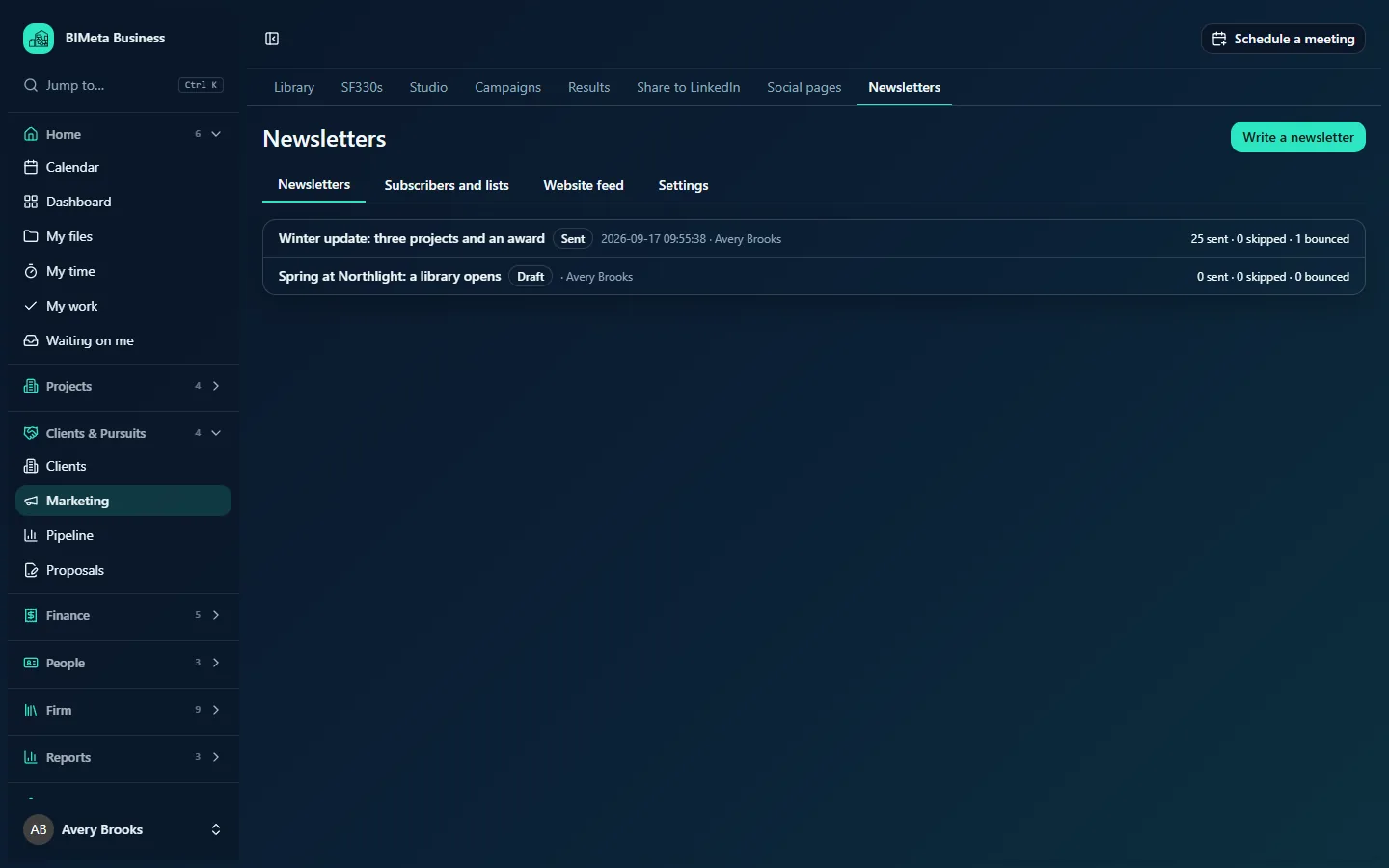
A tour of the page
Header
- Write a newsletter (top right): opens Newsletter Studio with the design gallery. See Newsletter Studio: build a newsletter with blocks.
- A warning, until it's done: Add the firm's postal address in Settings before sending. Marketing email must show it by law.
Below are four tabs: Newsletters, Subscribers and lists, Website feed and Settings.
Newsletters tab
Every newsletter, newest first. Each shows its subject (a link that opens it in Newsletter Studio: drafts open in the editor, scheduled and sent ones show the email and its Results), a status badge (Draft, Scheduled, Sending or Sent), when it was sent or is scheduled, who wrote it, and the counts sent · skipped · bounced. "Skipped" means people who unsubscribed or bounced after sending started. When empty: No newsletters yet.
Subscribers and lists tab
Lists: each list with its name, who is on it (Every subscribed client contact or Chosen people), a Sign-up on the website badge if people can join it from your website, and n subscribed. Below the lists, a form to add one:
- List name (required, up to 120 characters), e.g. Clients and partners.
- Who is on it: Every subscribed client contact (automatically includes every client contact who is subscribed) or Chosen people (only people you or a sign-up add to it).
- People can sign up on the website: offers the list on the sign-up form in your website feed.
- Add list.
Add client contacts: brings client contacts in as subscribers.
- Clients (none chosen: all): pick the clients whose contacts to add (hold Ctrl or Cmd to pick several). Choose none to add every client's contacts. Only contacts with an email address are added; anyone who unsubscribed or bounced before is never added back.
- Also add to list: a "Chosen people" list to put them on, or No particular list.
- These contacts already agreed to hear from us (recorded with your name). Otherwise each is emailed to confirm.
- Add contacts.
Subscribers: filter buttons All, Waiting to confirm, Subscribed, Unsubscribed, Bounced and Marked as spam, each with a count. Each subscriber shows email, name, status, and the consent record: how they agreed (e.g. Signed up on the website), who recorded it and when. People who are waiting or subscribed have an Unsubscribe button. When empty: Nobody here yet.
Website feed tab
Your website can show a live portfolio of your projects and a news list of your published posts, straight from the portal.
- A status line: Your website feed is on, or Your website feed is off. Turn it on in Settings.
- When on, ready-to-paste embed codes for Portfolio (iframe) and News (iframe), and links to portfolio.json, news.json and news.rss for your web designer. Paste one of these into your website, or have your web designer use the JSON or RSS feed. The embedded pages also carry a newsletter sign-up form when at least one list allows website sign-up.
- Projects on the website: every project sheet from the Marketing library. Only projects cleared for publicity can go on the website. Projects under a non-disclosure agreement never do. Each sheet shows its portal project and Under NDA, Cleared or Not cleared.
- Sheets not linked to a portal project can be cleared here with Clear for publicity (or Withdraw clearance). Sheets linked to a project follow that project's setting on Social pages.
- Cleared sheets have On the website, an Order number (lower comes first), a Picture (from the project's Visualization Gallery work approved for marketing, or No picture) and Save.
- If the library is empty: Add project sheets in the marketing library first.
- News on the website: the latest 50 published posts, each with Hide (or Show if hidden) to keep it off the website.
Settings tab
| Setting | What it does | Default |
|---|---|---|
| Sender name | The name newsletters come from (up to 120 characters). | Empty |
| Replies go to | The email address replies go to. | Empty |
| Postal address (shown in every newsletter; required) | Your firm's mailing address (up to 300 characters). Newsletters can't be sent without it. | Empty |
| Footer text | A short line at the bottom of every newsletter (up to 500 characters). | Empty |
| People who sign up on the website confirm by email | Double opt-in: new sign-ups get a confirmation email and only receive newsletters after clicking it. | On |
| Client contacts always confirm by email, even when we say they agreed | Overrides the "already agreed" box when adding client contacts. | On |
| Show the latest newsletter first on everyone's dashboard | Puts a Newsletter card first on every Dashboard once a newsletter has been sent. | On |
| Turn on the website feed | Switches the portfolio and news feeds on. | Off |
| Include published posts as news | Shows your published social posts in the news feed. | On |
| Websites that may embed it (one per line; empty: any) | Restricts embedding to your own sites, e.g. https://www.yourfirm.com. Up to 10, each starting with https://. | Any |
| Projects shown | How many projects the portfolio feed shows (1 to 100). | 24 |
| Emails sent a minute | Sending speed (10 to 1,000 a minute). Lower it if your mail service limits you. | 200 |
| Bounce and complaint address for your mail service (keep it private) | A private web address to give your mail service so it can report bounces and spam complaints back automatically. |
Click Save settings (Newsletter settings saved).
How to…
Get ready to send your first newsletter
- On Settings, enter the Sender name, Replies go to and, most importantly, the Postal address. Click Save settings.
- On Subscribers and lists, add a list (e.g. All clients as Every subscribed client contact).
- Use Add client contacts to bring in your clients' contacts. Tick the "already agreed" box only if they genuinely have; otherwise each gets an email asking them to confirm.
- Click Write a newsletter.
Add client contacts as subscribers
- Open Subscribers and lists.
- Under Add client contacts, select clients (or none for all).
- Optionally choose a list under Also add to list.
- Tick the agreement box only if they've already agreed.
- Click Add contacts. You'll see how many were added and how many were emailed to confirm.
Unsubscribe someone
Find them under Subscribers and click Unsubscribe. They receive nothing further, and they won't be re-added by Add client contacts later.
Put your portfolio on your website
- On Settings, tick Turn on the website feed, add your website under Websites that may embed it, and save.
- Make sure the projects are cleared for publicity (on Social pages, or on this tab for sheets without a portal project).
- On Website feed, tick On the website for each sheet, set its Order and Picture, and click Save.
- Copy the Portfolio (iframe) code into your website, or send the JSON/RSS links to your web designer.
Tips and good to know
- Nobody receives a newsletter without a record of agreeing. Unsubscribes, hard bounces and spam complaints stop all future sends at once; three soft bounces count as a hard bounce.
- Every newsletter automatically includes your postal address, a one-click unsubscribe link and a link to a web version.
- Newsletters are sent through your firm's own email setup when one is configured under Sidebar → Admin → Settings → Emails.
- The website feed checks clearance on every request: withdraw a project's clearance or mark it under NDA and it disappears from your website straight away.
- Keep the bounce address private: anyone with it could report addresses as bounced.
- Newsletters emailed to everyone or only the internal team give each active colleague a subscriber record (consent Member of the firm) the first time, so team members appear in the Subscribers list. See Who gets a newsletter.
- Saving lists, adding contacts, unsubscribing, settings and website choices are recorded in the firm's audit log.
Troubleshooting / FAQ
Why does a list show fewer subscribers than I added?
Only people with status Subscribed are counted. Contacts still Waiting to confirm haven't clicked their confirmation email yet.
"… isn't a website address like https://www.yourfirm.com"
Each embedding site must start with https:// and contain only the domain (no page path).
Why can't I clear a project sheet here?
Sheets linked to a portal project follow that project's publicity setting: This sheet follows its project's publicity setting. Change it on the project. Use Social pages → Projects that may be publicised.
Was this article helpful?
Share