



Newsletter templates, saved sections and the Look
17 views · by Kevin J Bruno · updated 1 day ago
Newsletter Studio helps every newsletter look like it came from the same firm without starting from scratch each time. A new newsletter starts from a design: a blank page, one of BIMeta’s starter designs, or one of your firm’s own templates. Blocks you reuse often (a sign-off, an office list) can be saved as sections and dropped into any newsletter. And the Look tab sets the firm’s logo, header, colours, fonts and button shape for every newsletter at once.
Where to find it
- Sidebar → Clients & Pursuits → Marketing, then the Newsletters tab. Click Write a newsletter to start a new one, or click a newsletter’s subject to open it in Newsletter Studio.
- Press Ctrl K (Jump to…) and type “Newsletters”.
- The Newsletter card on the Dashboard links here for people who write newsletters.
The design gallery appears when you click Write a newsletter. Save as template is in the Studio’s top bar, sections are saved from a block’s toolbar and listed under Saved sections on the left, and Look is the second tab of the settings panel (with no block selected).
Who can use it
People allowed to write and send client newsletters, keep subscriber lists and choose what the website feed shows: by default Business Owners and Admins. IT Staff, BIM Managers and Users don’t see the Newsletters tab unless the firm gives their role that permission. Everyone can read sent newsletters through their web version, and, when the firm posts a newsletter to the portal, as an announcement.
Start your newsletter: the design gallery
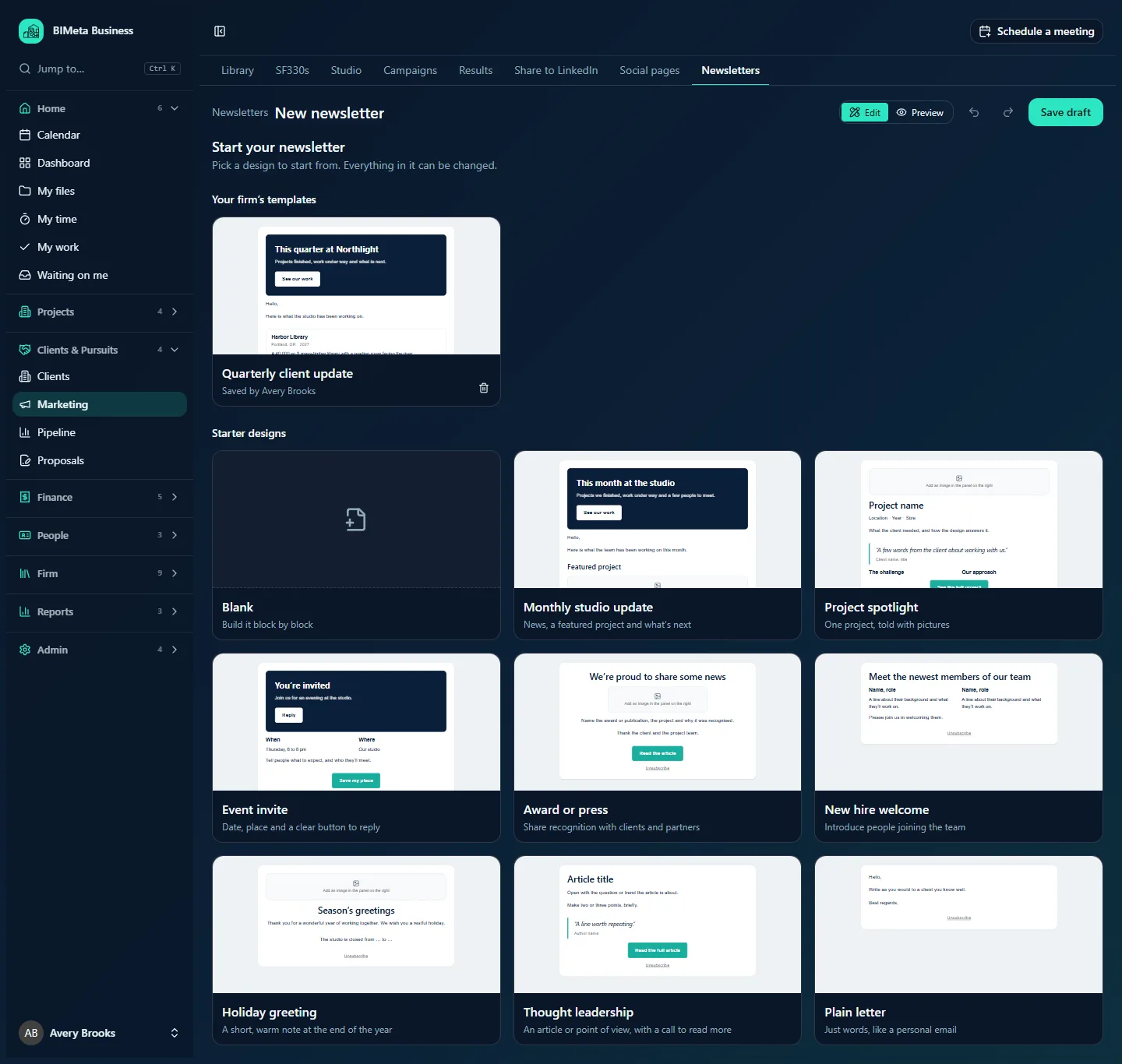
Pick a design to start from. Everything in it can be changed. Each card shows a small picture of the design’s first blocks in your firm’s Look.
- Your firm’s templates (when there are any): designs saved by people at your firm, e.g. Quarterly client update, with Saved by and a bin button to delete (click Delete to confirm, or Keep).
- Starter designs:
- Blank: Build it block by block.
- Monthly studio update: News, a featured project and what’s next.
- Project spotlight: One project, told with pictures.
- Event invite: Date, place and a clear button to reply.
- Award or press: Share recognition with clients and partners.
- New hire welcome: Introduce people joining the team.
- Holiday greeting: A short, warm note at the end of the year.
- Thought leadership: An article or point of view, with a call to read more.
- Plain letter: Just words, like a personal email.
Starter designs come with placeholder words and empty image spots for you to replace, and each ends with an Unsubscribe button. Choosing a starter also uses its name as the subject until you type your own. The gallery is only offered when a newsletter is new: to change the design of an existing draft, rearrange its blocks instead.
Save as template
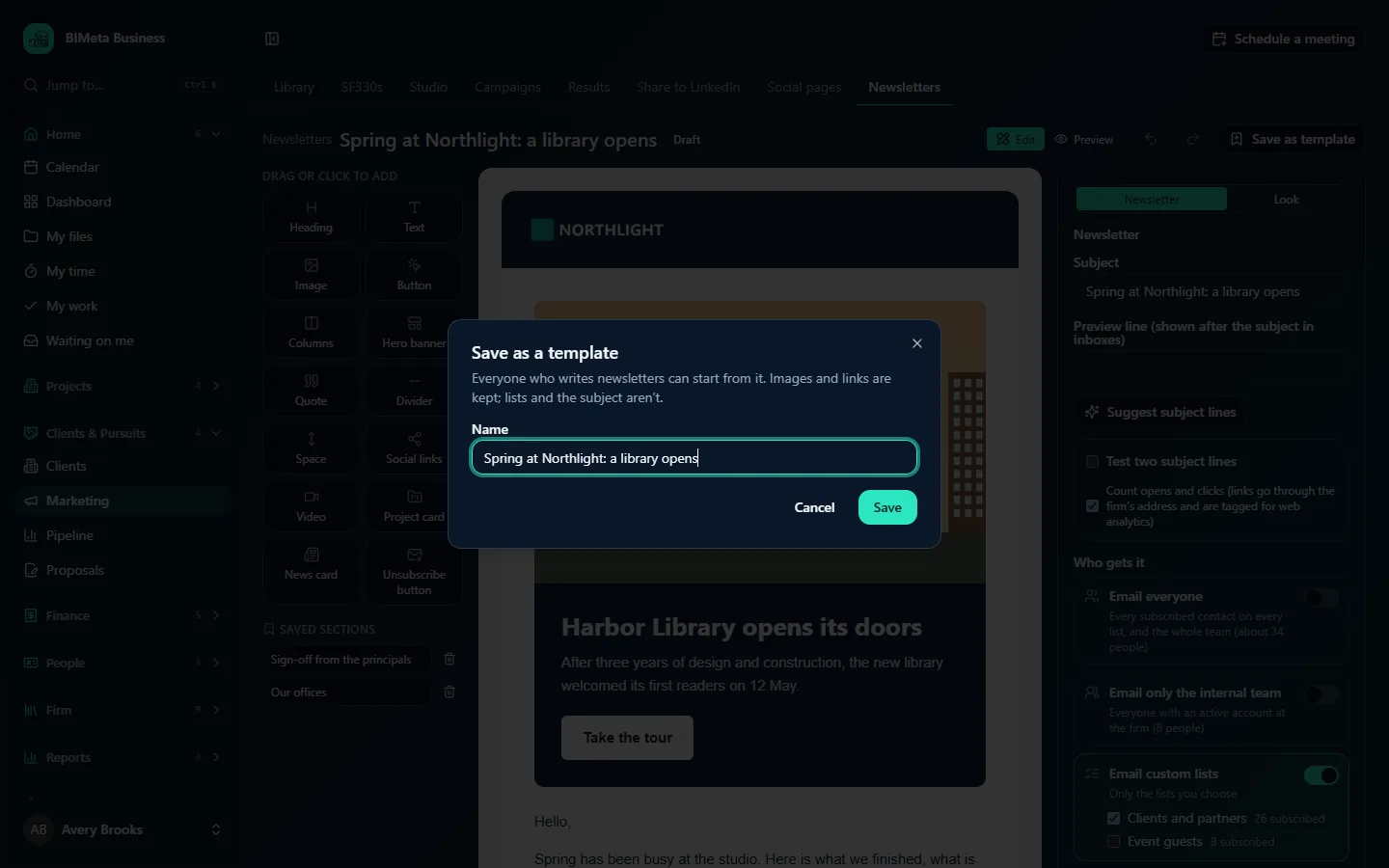
Click Save as template in the top bar, enter a Name (up to 120 characters; it starts as the subject) and click Save. Everyone who writes newsletters can start from it. Images and links are kept; lists and the subject aren’t. You’ll see Saved as a template. It’s offered whenever someone starts a newsletter.
Saved sections
To save one block for reuse, select it on the canvas and click the bookmark button (Save as a section to reuse) in its toolbar, give it a Name and click Save (Section saved. Find it under Saved sections.).
Under Saved sections on the left, click a section to add it below the selected block, or drag it to an exact spot. The bin next to it deletes it. With none saved yet, the list reads Save a block you reuse (a sign-off, an office list) with the bookmark button on it.
The Look tab
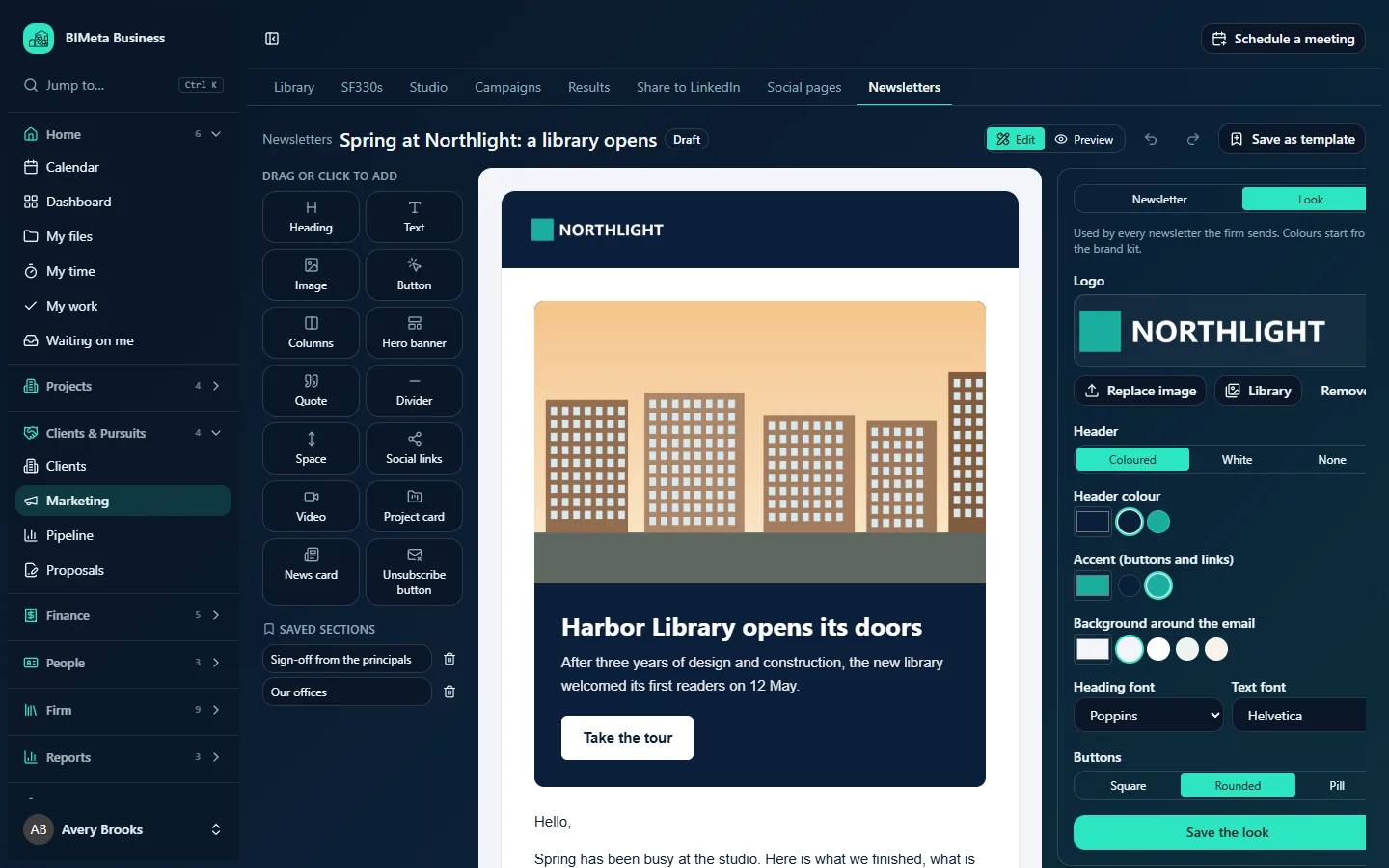
Used by every newsletter the firm sends. Colours start from the brand kit.
| Setting | What it does |
|---|---|
| Logo | Shown in the header of every newsletter. Upload image / Replace image, Library or Remove. Without a logo the header shows the subject. |
| Header | Coloured (a solid band in the header colour, with white text), White (white with a thin line under it) or None. |
| Header colour | For a coloured header. Pick a colour or click a swatch (the brand kit’s colours plus BIMeta navy and teal). |
| Accent (buttons and links) | The colour of buttons, links and quote bars. Starts as the brand kit’s first colour. |
| Background around the email | The colour around the white email body, with four light swatches. |
| Heading font / Text font | Poppins, Helvetica, Segoe UI, Verdana, Trebuchet, Georgia or Garamond. These are email-safe: mail apps without the font fall back to a similar one. |
| Buttons | Square, Rounded or Pill corners. |
Changes show on the canvas immediately but aren’t kept until you click Save the look (The newsletter look is saved. Every newsletter uses it.). Saving is recorded in the firm’s audit log.
How to…
Set up your firm’s newsletter look
- Open any draft newsletter (or start one) and click Look.
- Upload your logo (a PNG with a transparent background works best on a coloured header).
- Choose the header, colours, fonts and button shape.
- Click Save the look.
Make a reusable firm template
- Build a newsletter with the structure you want, using your real logo, standard sections and placeholder words.
- Click Save as template and name it, e.g. Quarterly client update.
- Next time anyone clicks Write a newsletter, it appears under Your firm’s templates.
Tips and good to know
- The firm can keep up to 100 templates and 100 saved sections; delete ones you no longer use to make room (The firm has 100 saved. Delete one you no longer use first.).
- Anyone who can write newsletters can use and delete any template or section, not only the person who saved it.
- Using a template or section copies its blocks; later changes to the template don’t change newsletters already made from it.
- The Look applies to every newsletter, drafts made earlier included, so you don’t restyle each one.
- Set colours in the brand kit first (Marketing → Studio → Brand kit) so the Look’s swatches match.
Troubleshooting / FAQ
I changed the Look but the preview hasn’t changed
Click Save the look; the Preview tab uses the saved Look.
Why can’t I see the design gallery for my draft?
The gallery is offered only when a newsletter is new. Start a new newsletter to use a different design, or use saved sections.
Was this article helpful?
Share