



Newsletter results and subject-line tests
21 views · by Kevin J Bruno · updated 1 day ago
Once a newsletter has gone out, Newsletter Studio shows how it did: how many copies were delivered, how many people opened it and clicked, which links they clicked and where in the email (the click map). You can also test two subject lines on part of your list first and send the better one to everyone else.
Where to find it
- Sidebar → Clients & Pursuits → Marketing, then the Newsletters tab. Click Write a newsletter to start a new one, or click a newsletter’s subject to open it in Newsletter Studio.
- Press Ctrl K (Jump to…) and type “Newsletters”.
- The Newsletter card on the Dashboard links here for people who write newsletters.
Open a sent (or sending) newsletter from the Newsletters tab. The subject-line test and tracking settings are on the Newsletter tab of the Studio’s settings panel while it’s a draft.
Who can use it
People allowed to write and send client newsletters, keep subscriber lists and choose what the website feed shows: by default Business Owners and Admins. IT Staff, BIM Managers and Users don’t see the Newsletters tab unless the firm gives their role that permission. Everyone can read sent newsletters through their web version, and, when the firm posts a newsletter to the portal, as an announcement.
A sent newsletter’s page
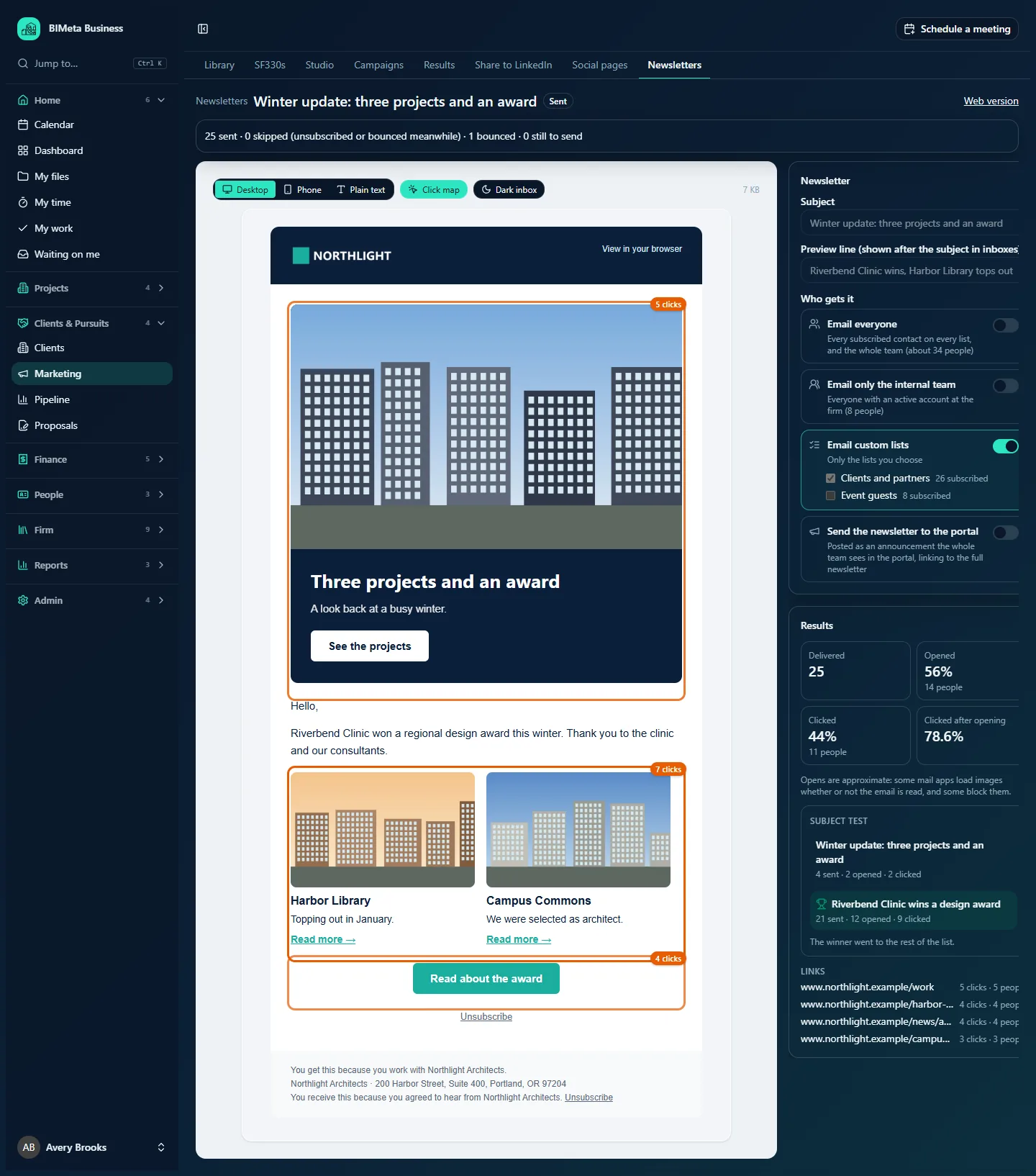
- The delivery line: n sent · n skipped (unsubscribed or bounced meanwhile) · n bounced · n still to send.
- The email, as sent, with Desktop, Phone, Plain text, Click map and Dark inbox.
- On the right, the newsletter’s settings (read-only) and the Results panel.
- Web version in the top bar.
Click map
On sent newsletters the click map is on by default: every block that was clicked gets an orange outline (deeper for more clicks) and a badge such as 7 clicks. Click Click map to switch it off and see the plain email.
Results
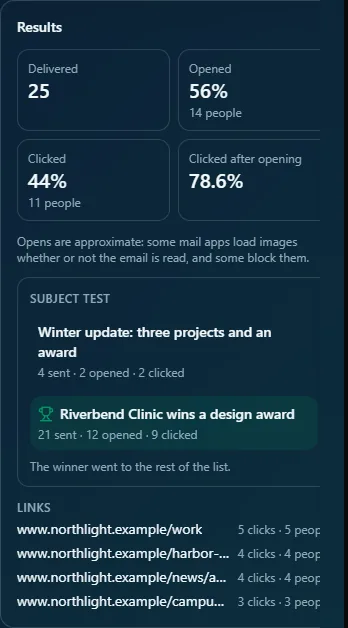
| Figure | Meaning |
|---|---|
| Delivered | Copies accepted for delivery (bounced and failed copies aren’t counted). |
| Opened | The share of delivered copies that were opened, and how many people. |
| Clicked | The share of delivered copies with at least one click, and how many people. |
| Clicked after opening | Of the people who opened it, the share who clicked. |
An honest note under the figures: Opens are approximate: some mail apps load images whether or not the email is read, and some block them. Clicks are more reliable; a click also counts as an open, even when images were blocked.
Links lists every link in the email with n clicks · n people, most clicked first. Results are per newsletter: nobody’s clicks are shown by name. If counting was off, the panel says Opens and clicks weren’t counted for this newsletter.
How opens and clicks are counted
When Count opens and clicks is ticked (the default), each copy gets its own tiny image that counts opens, and each web link goes through the firm’s own portal address before arriving at the real page. Links are also tagged for your web analytics (utm_source=newsletter, utm_medium=email and a campaign name made from the subject), unless they’re already tagged. Email addresses (mailto:) and the reader’s unsubscribe link are never redirected. Untick the box to send a newsletter with no counting at all.
Testing two subject lines
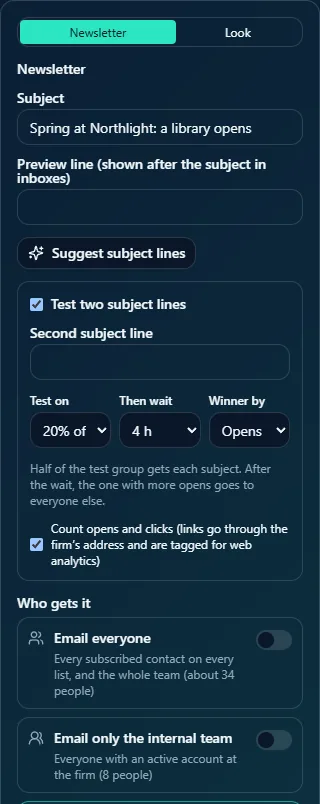
- Test two subject lines: switches the test on.
- Second subject line (up to 200 characters): the alternative to the main subject.
- Test on: 10%, 20%, 30% or 50% of the list.
- Then wait: 1, 2, 4, 8 or 24 h.
- Winner by: Opens or Clicks.
Half of the test group gets each subject. After the wait, the one with more opens (or clicks) goes to everyone else. The test group is picked at random when sending starts. The winner is the subject with the higher share of unique opens (or clicks) among the copies sent; a tie keeps the main subject. Turning the test on always turns counting on, because the test needs it.
In the Results panel, Subject test shows both subjects with sent · opened · clicked; the winner has a trophy and a green background, with The winner went to the rest of the list. Before the decision it says The winner is chosen n h after the test copies go out.
How to…
Run a subject-line test
- In a draft, tick Test two subject lines.
- Type the Second subject line.
- Choose the share, the wait and what decides the winner.
- Send as usual. The test copies go first; the rest of the list receives the winner after the wait.
Tips and good to know
- Subject tests need at least four recipients; with fewer, everyone gets the main subject.
- During the wait the newsletter stays Sending; it becomes Sent once the rest of the list has had theirs.
- Judge by Clicks when your readers use mail apps that preload images, which inflates opens.
- Results keep updating as people open and click later; reload the page to see the latest.
Troubleshooting / FAQ
Why is the open rate so high (or low)?
Some mail apps open every email’s images automatically for privacy; others block images. Use opens as a trend between your own newsletters, not an exact count.
“Write the second subject line for the test, or switch the test off.”
The test is on but the second subject is empty.
Was this article helpful?
Share