



Newsletter preview and checks before sending
17 views · by Kevin J Bruno · updated 5 days ago
Before a newsletter goes out you want to know exactly what readers will see: on a big screen, on a phone, in an inbox that shows only text, and in a mail app that darkens emails. The Preview tab in Newsletter Studio shows the email as the portal really builds it, and Checks before sending lists anything that would make it go out broken (which stops the send) or that’s worth improving (advice you can choose to ignore).
Where to find it
- Sidebar → Clients & Pursuits → Marketing, then the Newsletters tab. Click Write a newsletter to start a new one, or click a newsletter’s subject to open it in Newsletter Studio.
- Press Ctrl K (Jump to…) and type “Newsletters”.
- The Newsletter card on the Dashboard links here for people who write newsletters.
Then click Preview at the top of the Studio (next to Edit). Checks before sending is always visible in the right column below the settings panel.
Who can use it
People allowed to write and send client newsletters, keep subscriber lists and choose what the website feed shows: by default Business Owners and Admins. IT Staff, BIM Managers and Users don’t see the Newsletters tab unless the firm gives their role that permission. Everyone can read sent newsletters through their web version, and, when the firm posts a newsletter to the portal, as an announcement.
A tour of the Preview tab
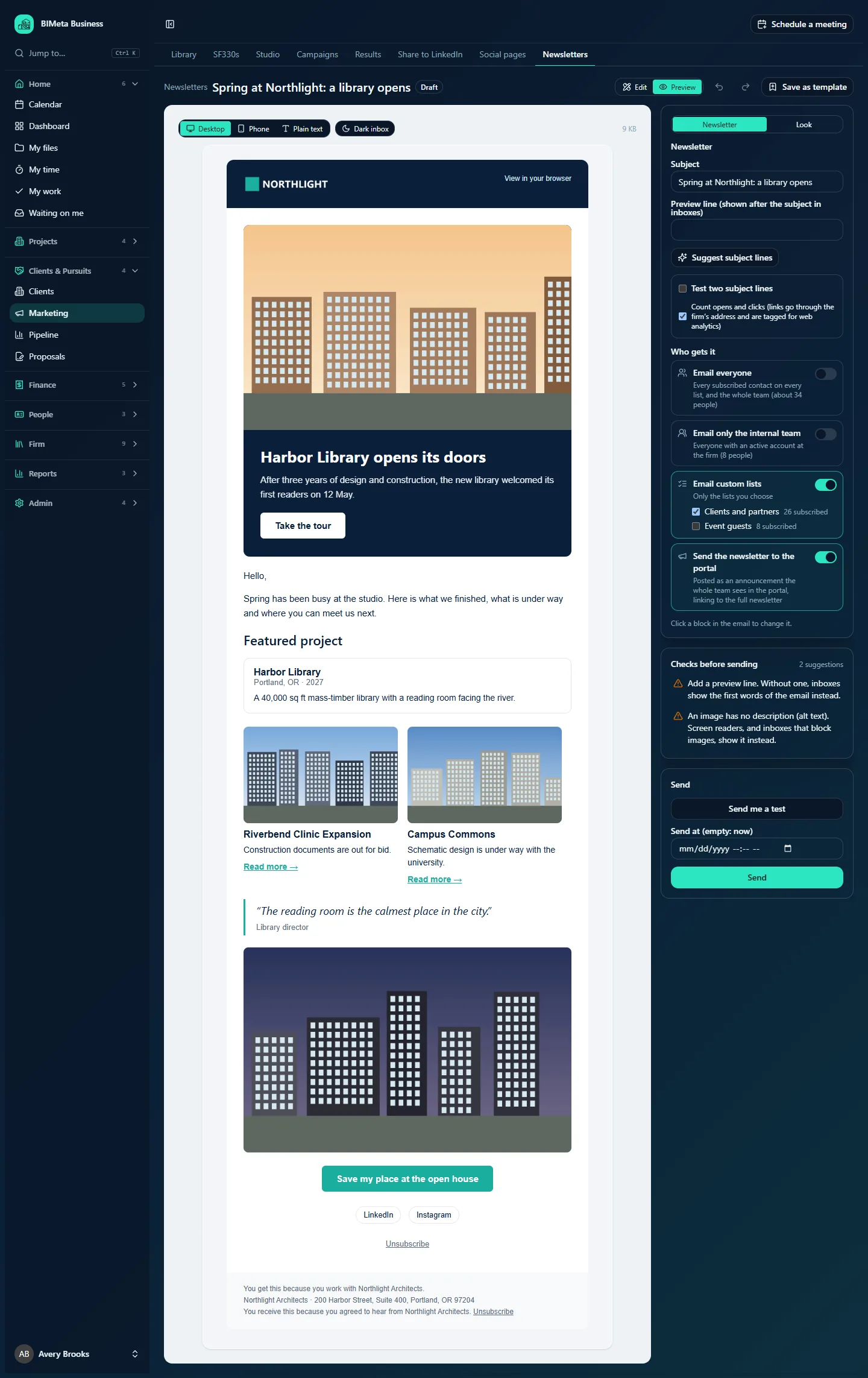
The preview replaces the editing canvas; the block palette is hidden, and the settings panel, checks and Send box stay on the right. The email is rebuilt from what’s in the editor a moment after each change, so you never need to save first.
- Desktop: the email at full width (about 680 pixels), as most desktop mail apps show it.
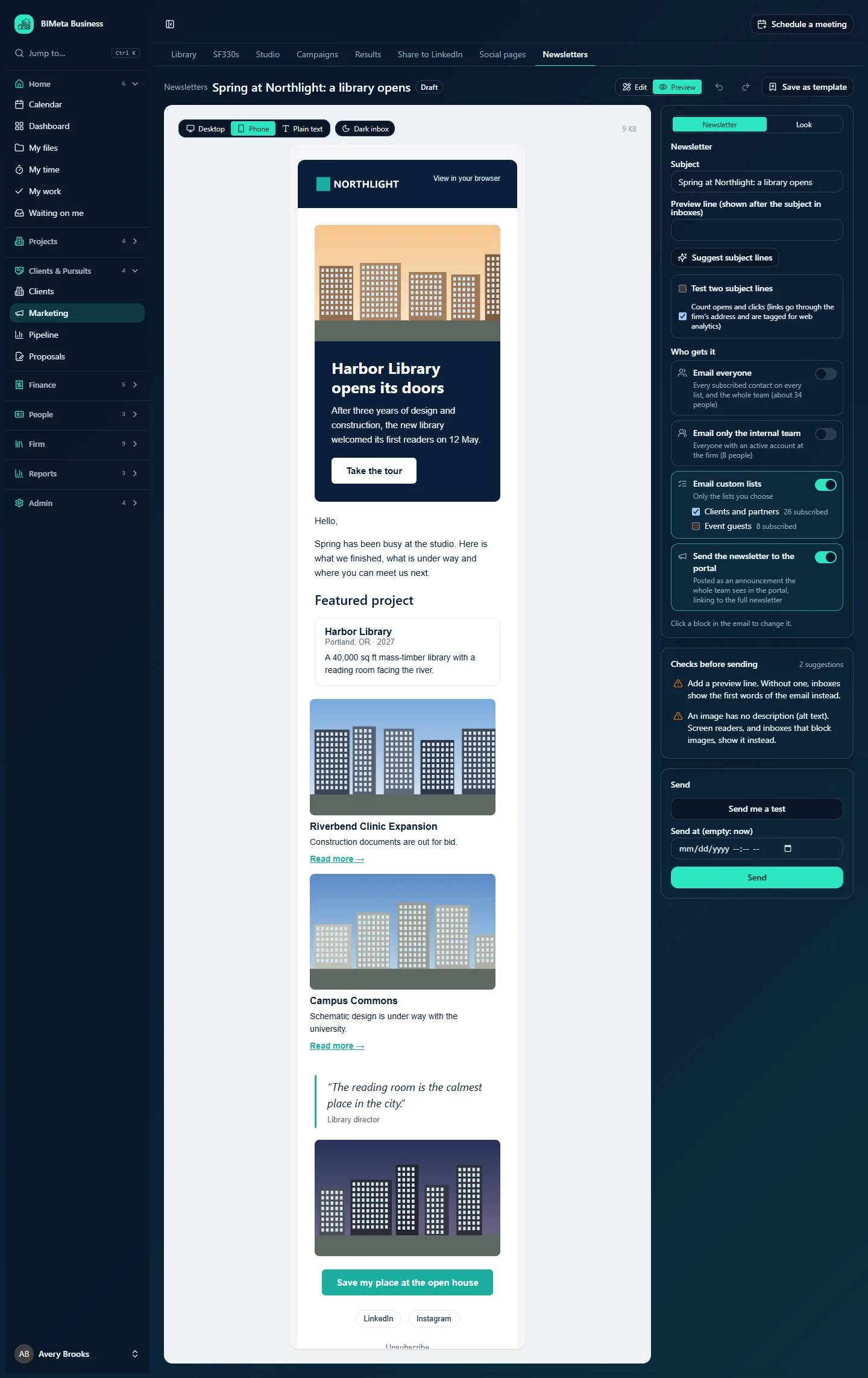
- Phone: the email at a phone’s width (about 390 pixels). Columns stack, and text wraps the way it will on a phone.
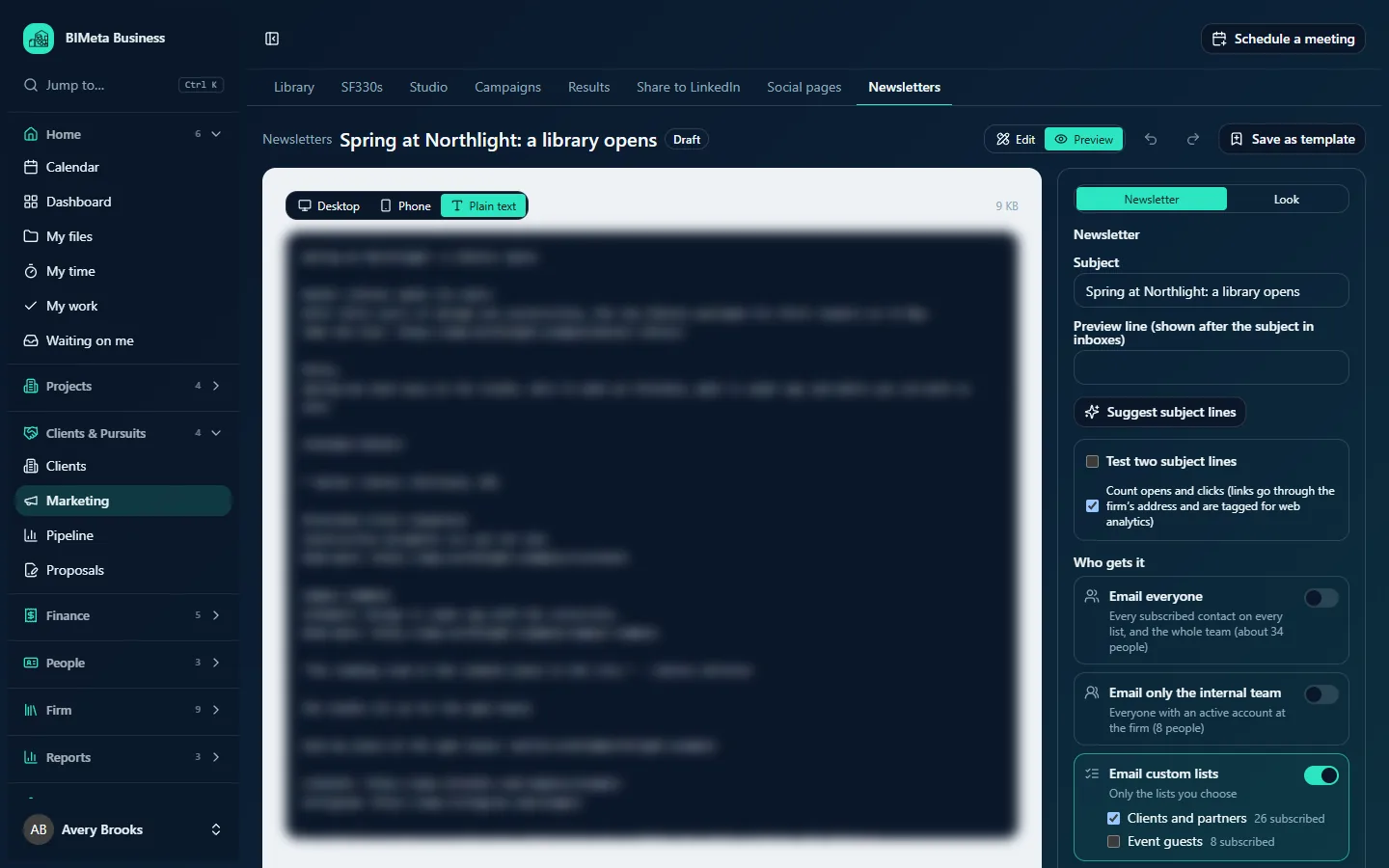
- Plain text: the text-only version that is sent with every email, for mail apps and readers that don’t show HTML. Links appear as written-out addresses.
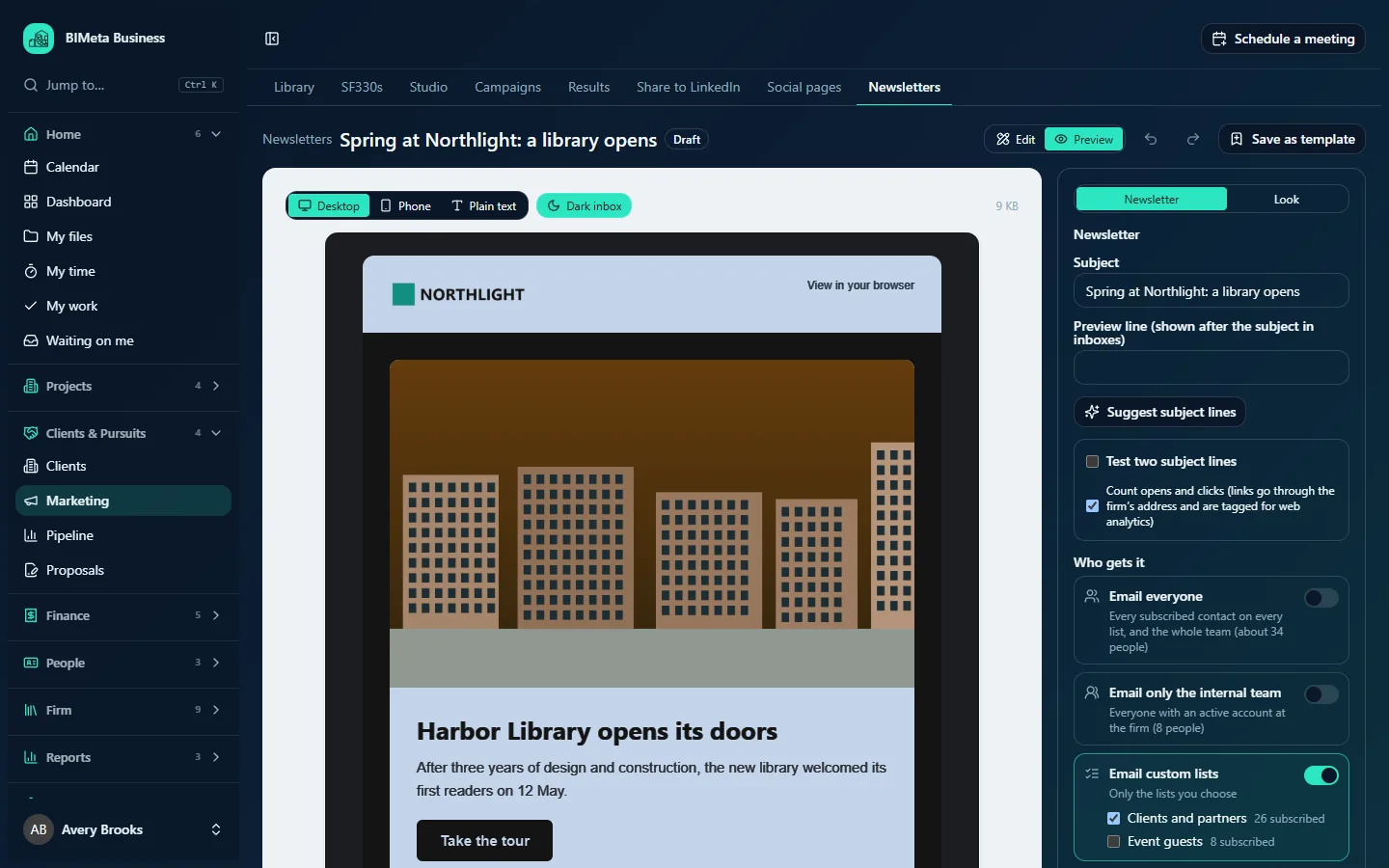
- Dark inbox (Desktop and Phone only): an approximation of how mail apps with dark mode darken your email. A note explains: An approximation: each mail app darkens emails a little differently.
- The size of the email, e.g. 9 KB, or Updating… while it’s being rebuilt.
The preview includes everything the real email has: the firm’s header and logo, a View in your browser link, your footer text, the postal address and the unsubscribe link. Images are shown from the portal; in the real email they come from the firm’s public address.
Checks before sending
The checks panel shows Ready to send with a green tick when nothing is wrong, otherwise n to fix before sending or n suggestions. Each item has a red cross (must fix) or an amber triangle (suggestion). Click an item about a particular block to jump back to Edit with that block selected.
Must fix (Send stays greyed out)
| Message | What to do |
|---|---|
| Add a subject. | Type a subject in the settings panel. |
| Write the second subject line for the test, or switch the test off. | Fill in Second subject line or untick Test two subject lines. |
| Choose who gets it: email everyone, the team, chosen lists, or post it in the portal. | Turn on at least one option under Who gets it. |
| Choose at least one list to send to. | With Email custom lists on, tick a list. |
| Add the firm’s postal address in newsletter settings. The law requires it in every marketing email. | Shown when emailing everyone or custom lists. Add it on Newsletters → Settings. |
| An image block has no image. Upload one or remove the block. | Choose an image or delete the block. |
| A button needs its text and a link (web or email address). | Fill in both, e.g. the Event invite starter’s buttons, which start without an address. |
| A video block needs the video’s https:// address. | Paste the video’s full address. |
Suggestions (you decide)
- The subject is n characters. Inboxes on phones show about 40 to 70. (over 70 characters)
- Add a preview line. Without one, inboxes show the first words of the email instead.
- A heading is empty. / A text block is empty.
- A link in a text block has no address.
- An image has no description (alt text). Screen readers, and inboxes that block images, show it instead. (images, hero images and column images)
- An image is n MB. Under 1 MB opens faster on phones.
- The hero button needs both its text and a link.
- The social links block has no links.
- A project card shows nothing: choose a project cleared for publicity.
- A news card shows nothing: choose a published post.
- This email is n KB. Gmail cuts off emails over about 102 KB; try fewer blocks.
How to…
Check a newsletter before sending
- Click Preview.
- Look through Desktop, then Phone; turn on Dark inbox to make sure your logo and colours still read well.
- Open Plain text and make sure it still makes sense without pictures.
- Work through Checks before sending: click each item to jump to the block, fix it and come back.
- Click Send me a test and look at the copy in your real inbox, ideally on a phone too.
Tips and good to know
- The same checks run again on the server when you click Send, so a newsletter can’t go out with a must-fix problem even from another browser tab.
- Look changes you haven’t saved yet show on the editing canvas straight away, but the Preview tab uses the saved Look. Click Save the look to see them in the preview.
- Alt text matters: many business mail apps block images until the reader allows them, and then show the description instead.
- Sent newsletters open in the preview view, with a Click map button; see Newsletter results and subject-line tests.
Troubleshooting / FAQ
The preview says “Building the preview…” for a long time
The preview is rebuilt on the server. If your connection drops, the last preview stays on screen; make another small change to try again.
Why does the dark preview look different from my phone?
Each mail app darkens emails its own way, and some don’t at all. Treat Dark inbox as a rough guide and send yourself a test.
Was this article helpful?
Share