



Newsletter images and AI help: library, project photos, brand graphics, Write with AI
18 views · by Kevin J Bruno · updated 5 days ago
Good pictures make a newsletter. Newsletter Studio keeps every image your firm uses in newsletters in one image library, lets you pull in photos of projects cleared for publicity, and can make a simple brand graphic in your colours on the spot. You can crop an image to a standard shape around the part that matters, and have AI suggest its description for screen readers. AI can also draft a section of text from your notes and suggest subject lines.
Where to find it
- Sidebar → Clients & Pursuits → Marketing, then the Newsletters tab. Click Write a newsletter to start a new one, or click a newsletter’s subject to open it in Newsletter Studio.
- Press Ctrl K (Jump to…) and type “Newsletters”.
- The Newsletter card on the Dashboard links here for people who write newsletters.
In the Studio, the image picker opens from the Library button wherever an image can be chosen: Image, Hero banner, Columns and Video blocks, and the logo on the Look tab. Write with AI is in the settings of a Text block; Suggest subject lines is under the subject on the Newsletter tab.
Who can use it
People allowed to write and send client newsletters, keep subscriber lists and choose what the website feed shows: by default Business Owners and Admins. IT Staff, BIM Managers and Users don’t see the Newsletters tab unless the firm gives their role that permission. Everyone can read sent newsletters through their web version, and, when the firm posts a newsletter to the portal, as an announcement.
AI features use the firm’s AI credits and are subject to the firm’s AI limits; if the firm has no credits left or AI is turned off, you’ll see a message instead of a result.
Uploading an image
In a block’s settings, click Upload image (or Replace image) and choose a PNG, JPEG, WebP or GIF file up to 10 MB. It’s added to the library and placed in the block. Then fill in Description for screen readers (alt text). Remove takes the image out of the block (it stays in the library).
The image picker
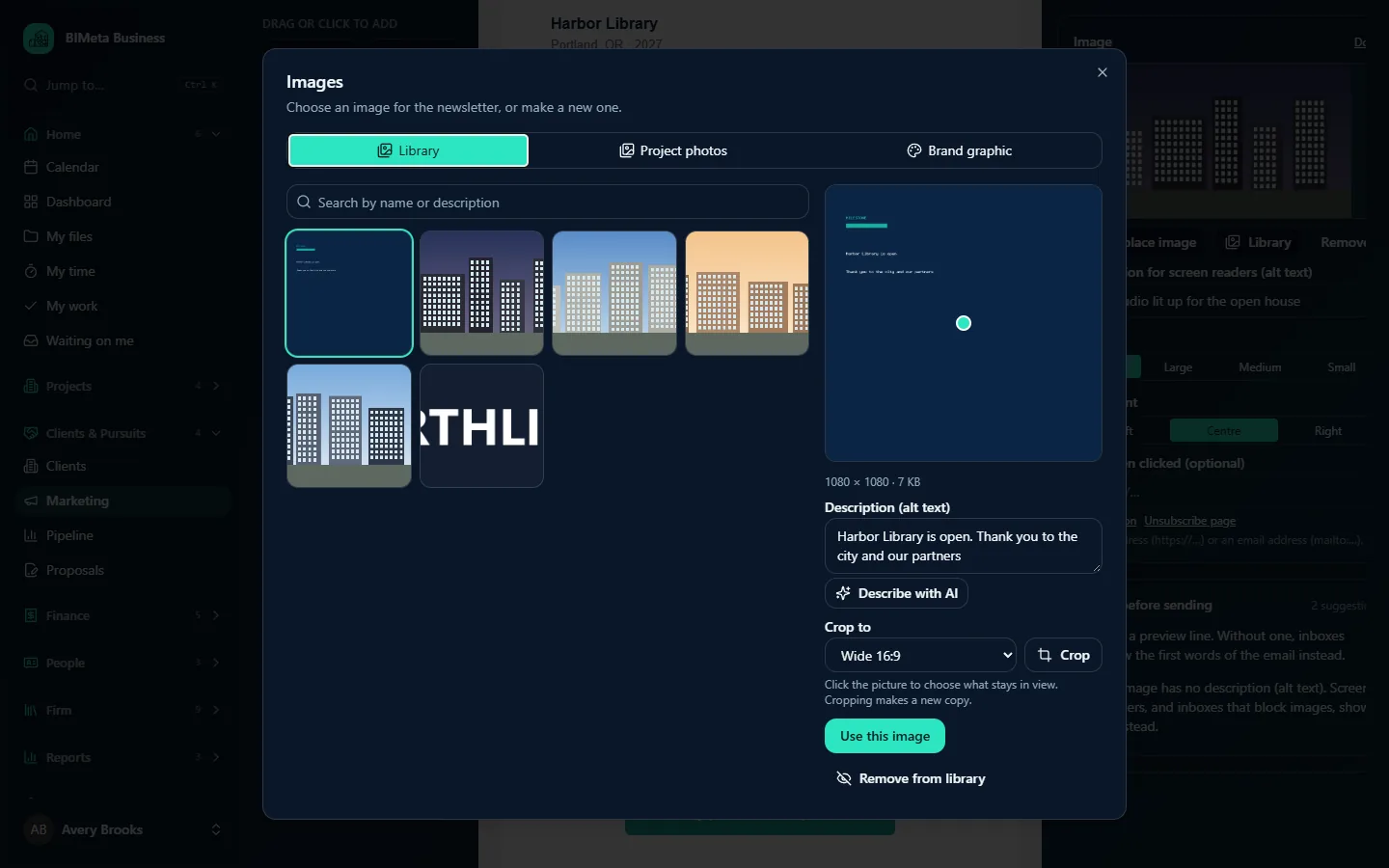
The Images window (Choose an image for the newsletter, or make a new one.) has three tabs.
Library
- Search by name or description: type and press Enter.
- A grid of the firm’s newsletter images, newest first. With none yet: No images yet. Upload one, add a project photo or make a brand graphic.
- Click an image to see its details on the right; double-click to use it straight away.
The details panel shows:
- A larger picture with a dot marking the focal point. Click the part that must stay in view when cropping.
- The size in pixels and kilobytes, e.g. 1080 × 1080 · 7 KB.
- Description (alt text) (up to 300 characters): saved for the image when you click away from the box, so it’s filled in wherever the image is used next.
- Describe with AI: writes a one-sentence description of what’s visible and saves it as the alt text. Works for images under 4 MB. Read it and correct it if needed.
- Crop to Wide 16:9, Landscape 4:3, Square or Portrait 4:5, then Crop. Click the picture to choose what stays in view. Cropping makes a new copy (the original stays in the library), sized for email.
- Use this image: places it in the block, with its description.
- Remove from library: hides it from the library. Nothing is deleted: emails already sent, and drafts that use it, keep showing it.
Project photos
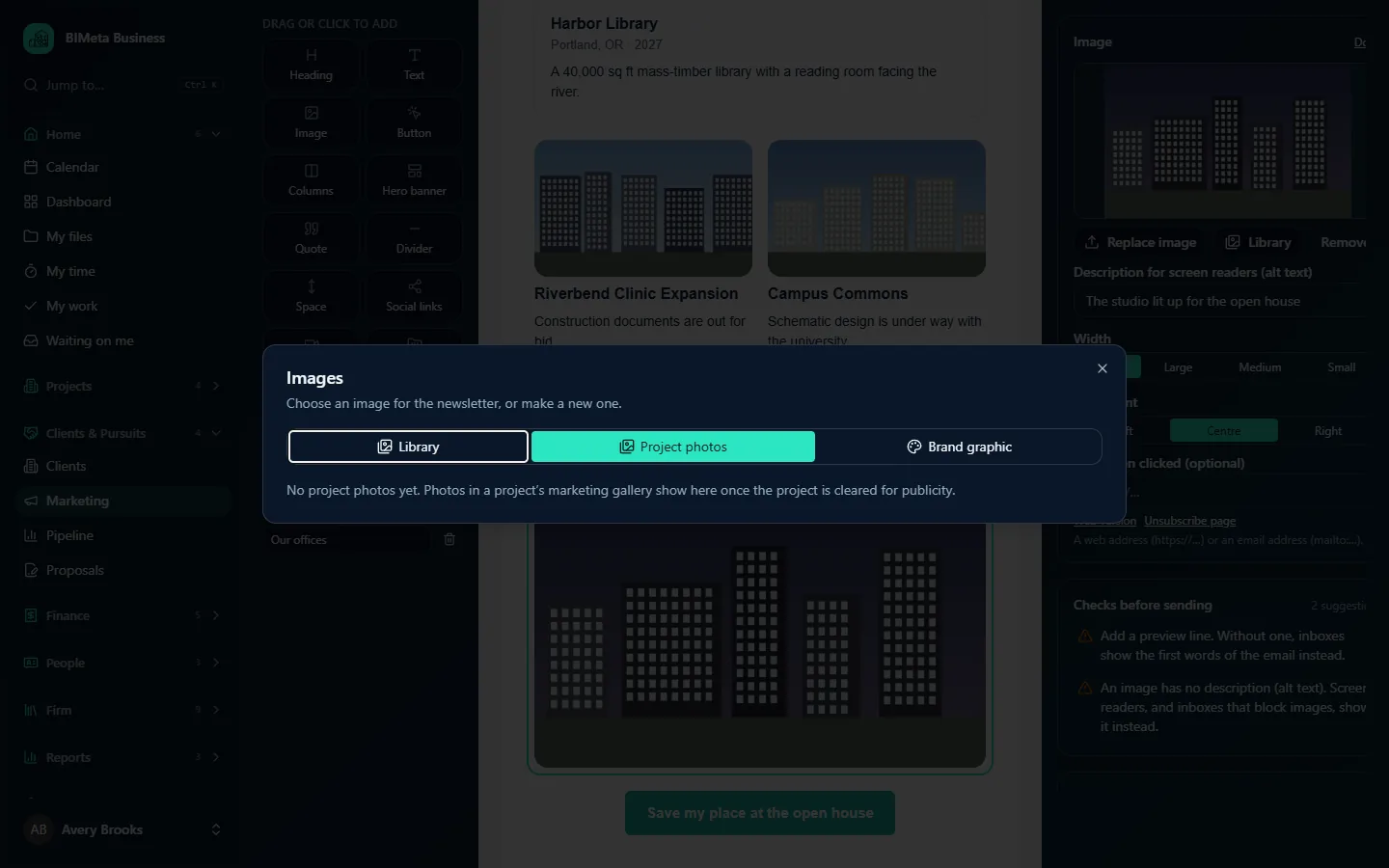
Photos from a project’s marketing gallery (Visualization Gallery work approved for marketing), for projects cleared for publicity and not under an NDA. Click one to add it to the library and use it. With none available: No project photos yet. Photos in a project’s marketing gallery show here once the project is cleared for publicity.
Brand graphic
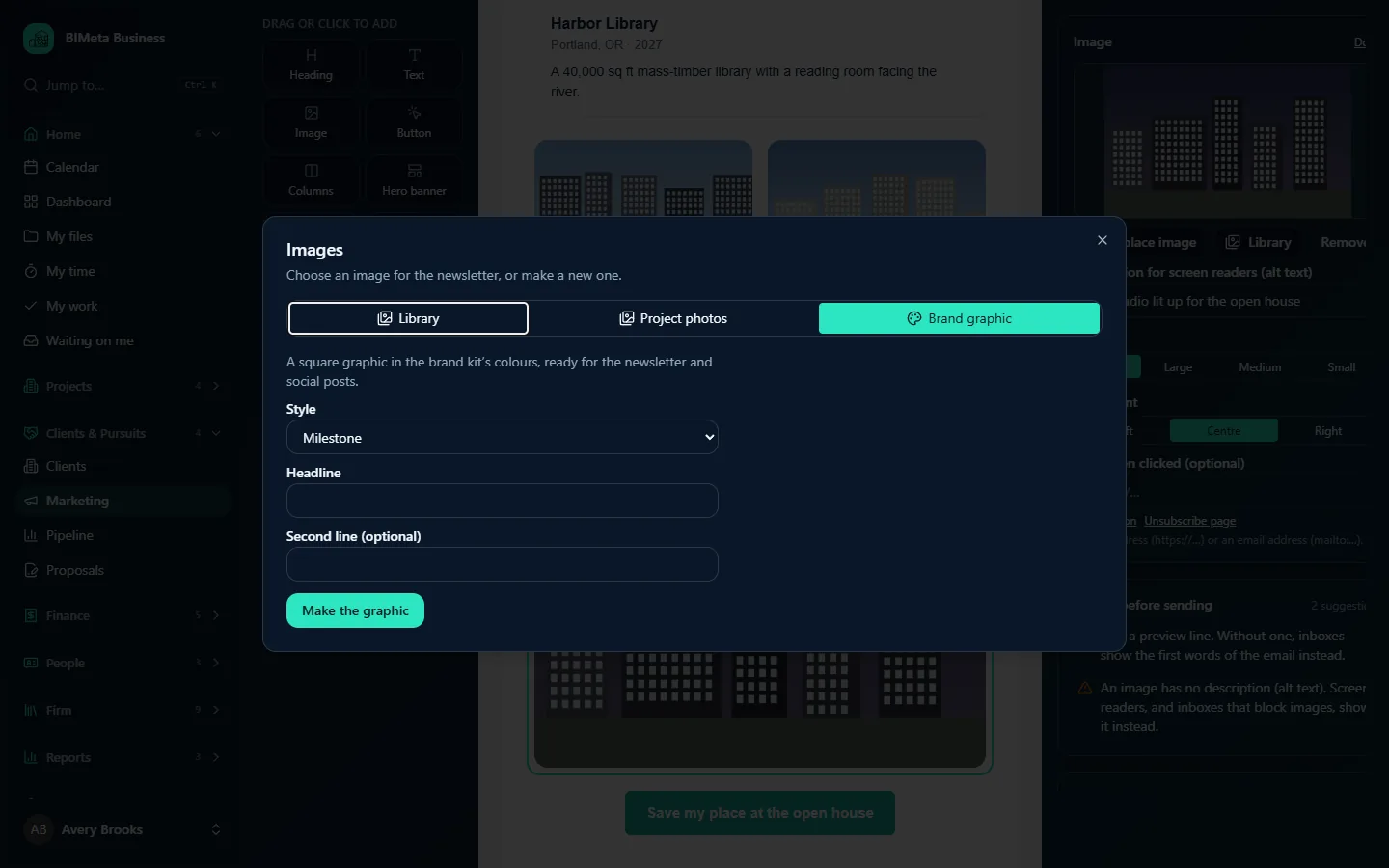
A square graphic in the brand kit’s colours, ready for the newsletter and social posts.
- Style: Milestone, Welcome or Quote.
- Headline (required, up to 120 characters), e.g. Harbor Library is open.
- Second line (optional) (up to 160 characters).
- Make the graphic: creates the image, adds it to the library and places it in the block, with the headline and second line as its description.
Write with AI
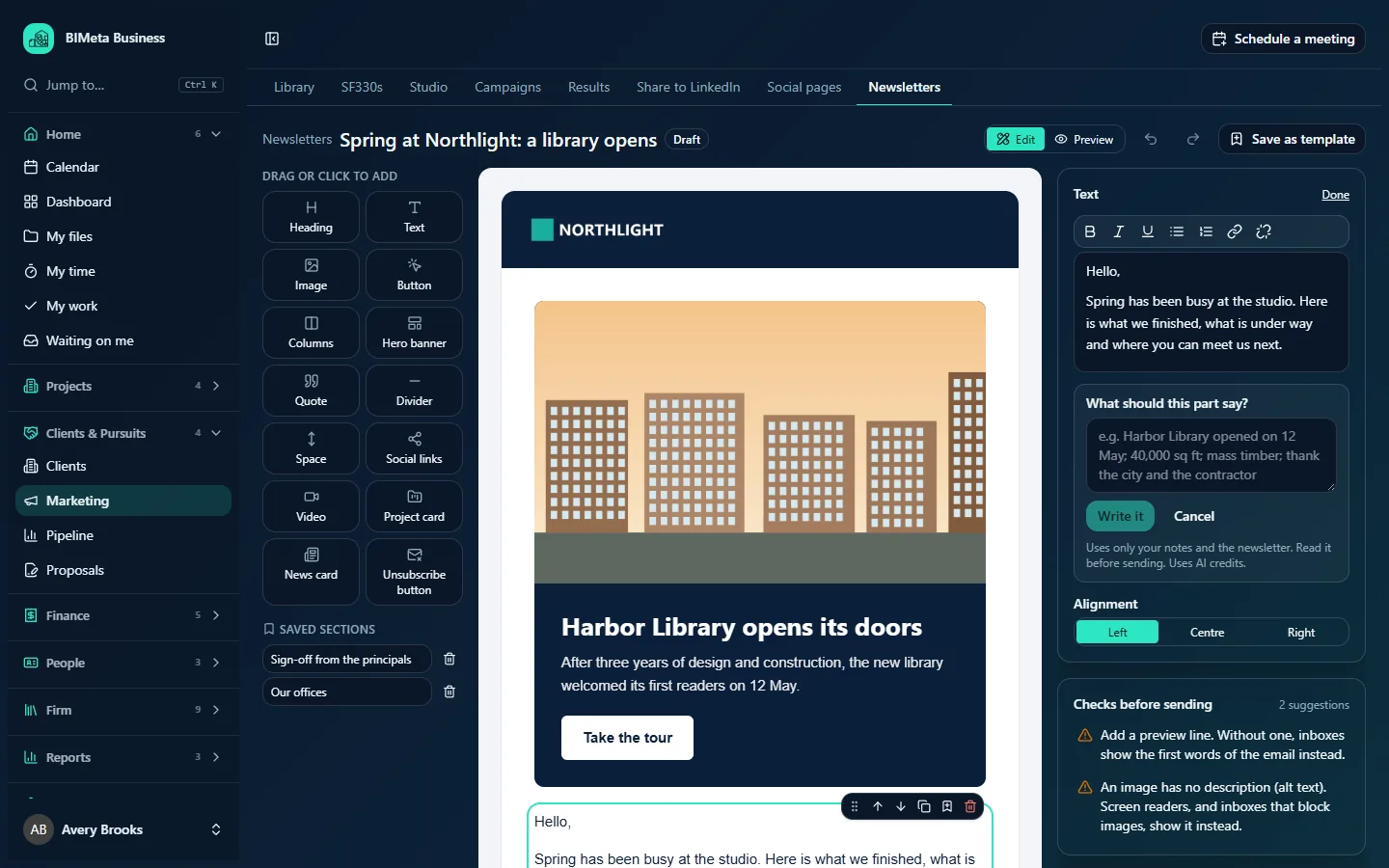
- Select a Text block and click Write with AI.
- Under What should this part say?, write a few notes (up to 2,000 characters), e.g. Harbor Library opened on 12 May; 40,000 sq ft; mass timber; thank the city and the contractor.
- Click Write it. One to three short paragraphs are added to the block (after any text already there). Cancel closes the box.
Uses only your notes and the newsletter. Read it before sending. Uses AI credits. The AI is told never to invent numbers, names, dates, awards, quotes or outcomes, and to write in the firm’s voice from the brand kit. If the draft contains a word the brand kit bans, it’s rejected (The draft used words the brand kit doesn’t allow (…). Try again.).
Suggest subject lines
On the Newsletter tab, click Suggest subject lines once the newsletter has some content (the button is greyed out while it’s empty). You get up to five Subject lines (click to use) of under 60 characters and up to three Preview lines, based on what the newsletter says. Click one to put it in the Subject or Preview line field; you can still edit it. Suggestions with words the brand kit bans are left out.
Tips and good to know
- Keep images under 1 MB: the checks warn about bigger ones because they open slowly on phones.
- Crop pictures for a Columns block to the same shape (e.g. all Landscape 4:3) so the cards line up.
- A project photo added to the library isn’t copied; if the project is later withdrawn from publicity, it disappears from the Project photos tab.
- Uploads and removals are recorded in the firm’s audit log. AI help is rate-limited so it can’t run up the firm’s credits by accident.
Troubleshooting / FAQ
“Upload a PNG, JPEG, WebP or GIF image.” / “Images can be up to 10 MB.”
Save the picture in one of those formats, or make it smaller, and try again.
“Only images under 4 MB can be described.”
Crop the image (the crop is smaller) and describe the crop, or type the description yourself.
“Add some content to the newsletter first.”
Subject-line suggestions need some headings or text to work from.
Was this article helpful?
Share