



Who gets a newsletter: everyone, the team, chosen lists or the portal
17 views · by Kevin J Bruno · updated 6 days ago
Every newsletter needs an audience. In Newsletter Studio, Who gets it decides who receives the newsletter by email (everyone, only your own team, or the lists you choose) and, separately, whether it’s also posted in the portal as an announcement for the team.
Where to find it
- Sidebar → Clients & Pursuits → Marketing, then the Newsletters tab. Click Write a newsletter to start a new one, or click a newsletter’s subject to open it in Newsletter Studio.
- Press Ctrl K (Jump to…) and type “Newsletters”.
- The Newsletter card on the Dashboard links here for people who write newsletters.
Who gets it is on the Newsletter tab of the Studio’s settings panel (click Done or press Esc if a block is selected).
Who can use it
People allowed to write and send client newsletters, keep subscriber lists and choose what the website feed shows: by default Business Owners and Admins. IT Staff, BIM Managers and Users don’t see the Newsletters tab unless the firm gives their role that permission. Everyone can read sent newsletters through their web version, and, when the firm posts a newsletter to the portal, as an announcement.
The options
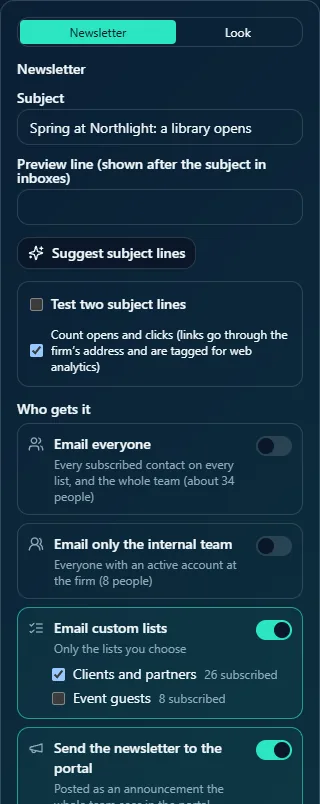
The first three switches are one choice: turning one on turns the others off. The fourth works alongside any of them.
| Switch | Who receives it |
|---|---|
| Email everyone | Every subscribed contact on every list, and the whole team, with an approximate number of people. |
| Email only the internal team | Everyone with an active account at the firm, with the number of people. Good for internal news. |
| Email custom lists | Only the lists you choose: tick one or more lists, each with n subscribed. With no lists yet: Make a list on the Newsletters page first. |
| Send the newsletter to the portal | Posted as an announcement the whole team sees in the portal, linking to the full newsletter. |
With every switch off, the panel warns Turn on at least one way to send it. and the newsletter can’t be sent.
How each option works
- Only people with status Subscribed receive email. People waiting to confirm, unsubscribed, bounced or marked as spam are always left out, and each person is checked again just before their copy goes.
- Email only the internal team and Email everyone include your colleagues. The first time, each active person gets a subscriber record (consent Member of the firm), so they appear under Subscribers and their unsubscribe link works like anyone’s. A colleague who unsubscribed stays unsubscribed.
- Email custom lists reaches each person once, even if they’re on several of the chosen lists. A list set to Every subscribed client contact includes every subscribed client contact.
- Send the newsletter to the portal posts one announcement when sending starts, titled with the subject, containing the newsletter’s text and a Read the newsletter link to the web version, posted in the name of the person who sent it. Turn it on with no email option to share a newsletter only inside the portal.
- The firm’s postal address is required by law for marketing email to people outside the firm: the checks require it when you email everyone or custom lists.
How to…
Send a client newsletter to chosen lists
- Turn on Email custom lists.
- Tick the lists, e.g. Clients and partners.
- Optionally turn on Send the newsletter to the portal so the team sees it too.
- Send as usual. The confirmation tells you how many subscribers it will reach.
Share internal news with the team only
- Turn on Email only the internal team, or leave the email options off and turn on Send the newsletter to the portal.
- Send as usual.
Tips and good to know
- The numbers next to each option are what would be sent right now; the real list is worked out when sending starts.
- Lists, subscribers and consent records are managed on Newsletters → Subscribers and lists; see Newsletters: subscribers, lists, website feed and settings.
- Someone who left the firm keeps their subscriber record. If you don’t want them to receive Email everyone newsletters, unsubscribe them under Subscribers.
Troubleshooting / FAQ
“Choose at least one list to send to.”
Email custom lists is on but no list is ticked.
Why is Send greyed out for an internal-only newsletter?
The Send button currently also waits for the firm’s postal address. Add it on Newsletters → Settings.
Was this article helpful?
Share