



My work: your open tasks and clashes across every project
18 views · by Kevin J Bruno · updated 1 day ago
My work is your personal to-do list for project work. It gathers every open task assigned to you on every project you can see, so you don't have to open each project's Tasks tab one by one, and it lists the model clashes that have been assigned to you. Use it at the start of the day to see what's due, and to mark tasks In progress or Done as you go.
Where to find it
- Sidebar → Home → My work.
- Press Ctrl K (⌘K on a Mac), type
my workand press Enter. - Task due dates also appear on the Calendar; clicking a task there takes you to that project's task list.
Who can use it
Everyone at the firm: Business Owner, Admin, IT Staff, BIM Manager, Project Manager, Human Resources and User. The page only ever shows your tasks. Which projects are searched depends on your access: people who can see every project (all standard staff roles) get tasks from every project; someone who only belongs to certain projects gets tasks from those projects only.
You can always change the status of a task assigned to you, even if you can't otherwise edit that project. Editing a task's title, due date, priority or assignee, or deleting it, is done on the project's Tasks tab by people who can edit the project.
A tour of the page
Heading and summary
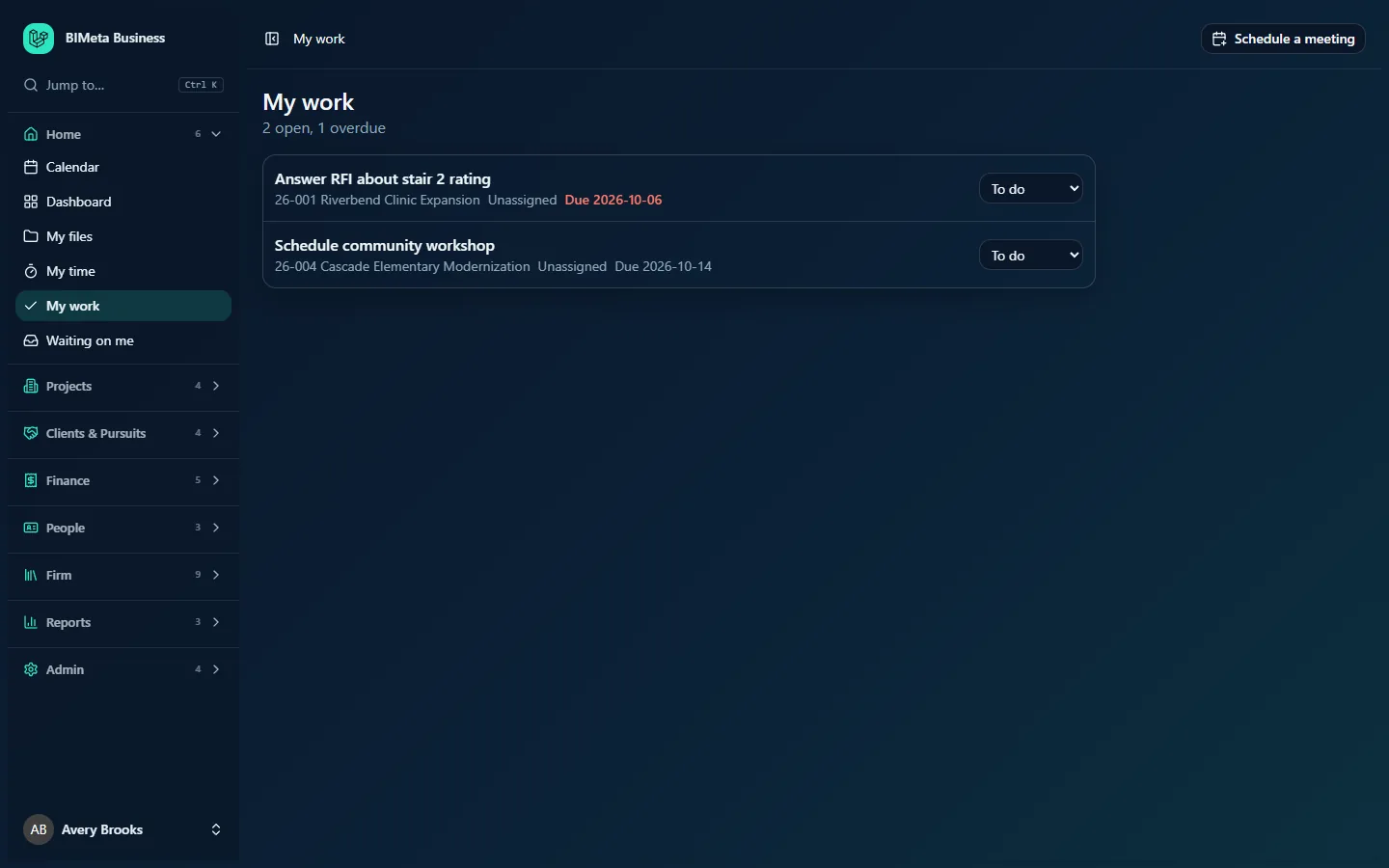
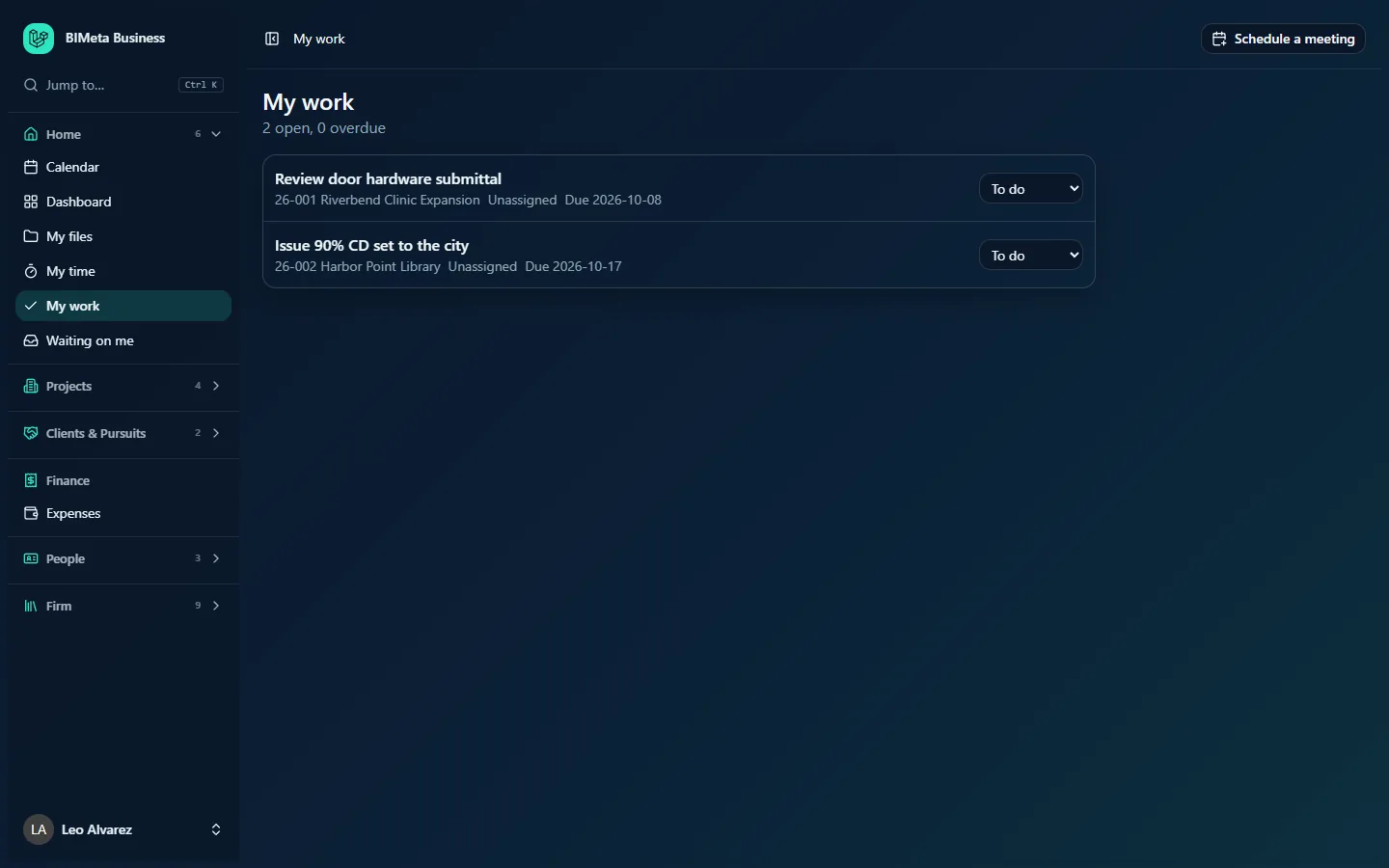
Under the My work heading is a one-line summary: "N open, N overdue", for example 2 open, 0 overdue. Open is the number of tasks on the list; overdue is how many of them have a due date before today. If you have no open tasks and no clashes, the line reads Nothing assigned to you right now.
The task list
Each row is one task that is assigned to you and isn't done yet. Tasks are sorted by due date (earliest first, tasks without a due date last), then high priority before normal.
- Title: the task name in bold, for example Answer RFI about stair 2 rating.
- High: a red badge next to the title when the task's priority is high.
- Project: the project number and name, for example 26-001 Riverbend Clinic Expansion. Click it to open that project's Tasks tab, where you can read the task's notes and see the rest of the team's tasks.
- Assignee label: the assignee text in the grey line (see the FAQ below).
- Due: "Due 2026-10-06". It turns red when the task is overdue.
- Phase: if the task belongs to a project phase, the phase name follows after a dot, for example "· Construction Documents".
- Status picker (right): a drop-down with To do, In progress and Done. Changing it saves immediately.
Clashes assigned to you
If anyone has assigned model clashes to you (or you own a saved clash check, whose newly found clashes are assigned to its owner), a Clashes assigned to you box appears under the tasks. It has one line per project, for example "26-002 Harbor Point Library · 4 open clashes", counting clashes that are open or in progress. Click the project to open its Clashes tab filtered to the clashes assigned to you. Clashes don't count towards the "open" and "overdue" numbers at the top.
Here is the same page for a regular staff member at the example firm Northlight Architects:
How to …
Start or finish a task
- Find the task in the list.
- Open its status drop-down on the right and choose In progress when you start, or Done when you finish.
- The change is saved straight away (there's no Save button) and recorded in the firm's audit log. A task set to Done leaves the list immediately, and the counts at the top update.
Undo a task you marked Done by mistake
- Click the project name on any of your other tasks for that project, or go to the project and open its Tasks tab.
- Find the task (done tasks are listed after the open ones, struck through) and set its status back to To do or In progress. It reappears on My work.
See a task's notes or change its details
Click the project name under the task to open the project's Tasks tab. There, people who can edit the project can open the task to change its title, notes, assignee, due date, priority and phase, or delete it.
Work through your clashes
- In Clashes assigned to you, click a project.
- On the project's Clashes tab (already filtered to yours), review each clash and update its state as you resolve it. Resolved clashes drop off the count here.
Tips and good to know
- Only tasks assigned to you appear. Unassigned tasks and tasks assigned to colleagues stay on the project's Tasks tab.
- Done tasks never show here. My work is a list of what's left to do.
- Due dates are on the Calendar too. Open tasks with a due date show on the Calendar (in amber in the month view) on their due day. In the Week ahead view, choose Mine to see only your own.
- RFIs, submittals and permit comments are on a different list. Construction-administration items where the next response is yours are on Waiting on me, not here.
- Archived or closed projects: tasks still assigned to you there continue to show until they're marked done, so tidy them up at closeout.
Troubleshooting / FAQ
Why does a task in my list say "Unassigned"?
Everything on My work is assigned to you; that's how it gets on the list. The grey line on this page can still read Unassigned, as in the screenshots. The project's Tasks tab shows the assignee's name correctly.
I was given a task but it's not on My work.
Check that it was assigned to you (not just mentioned in the notes) and that it isn't already marked Done. If you only have access to certain projects, the task must be on one of them.
Can I add a task for myself here?
No. Tasks are created on a project's Tasks tab by people who can edit that project. Ask the project's Project Manager to add and assign it to you.
Why can't I change the due date?
My work only lets you change the status. Due dates and other details are edited on the project's Tasks tab by people who can edit the project.
Was this article helpful?
Share