



My files: your private personal file space
17 views · by Kevin J Bruno · updated 16 hours ago
My files is your own private file space in BIMeta Business, separate from project files. Use it for work documents that belong to you rather than to a project: your CV and portfolio, certificates, drafts, reference material, notes. You can upload many files at once, download them from any computer, and upload a newer copy of a file to keep earlier versions.
Where to find it
- Sidebar → Home → My files.
- Press Ctrl K (⌘K on a Mac), type
my filesand press Enter.
Who can use it
Everyone whose role includes Keep your own personal files. At the example firm Northlight Architects, the Business Owner, IT Staff, BIM Manager and User all have it, and Admins do too. Your firm can switch it off for a role in Admin → Settings → Roles & permissions.
Who else can see your files:
- Business Owners, and people the Owner appoints to look after everyone's personal files (IT Staff, by default), can open your section from Admin → Settings → Personal files. They can only look and download; they can't upload, change or remove anything. Every time they open your section or download one of your files, it's written to the audit log and the security log.
- Admins can't see your files, and neither can Human Resources, BIM Managers, Project Managers or other Users.
The page reminds you of this under the heading: Only you, Business Owners and anyone they appoint for IT can open these files. Admins can't.
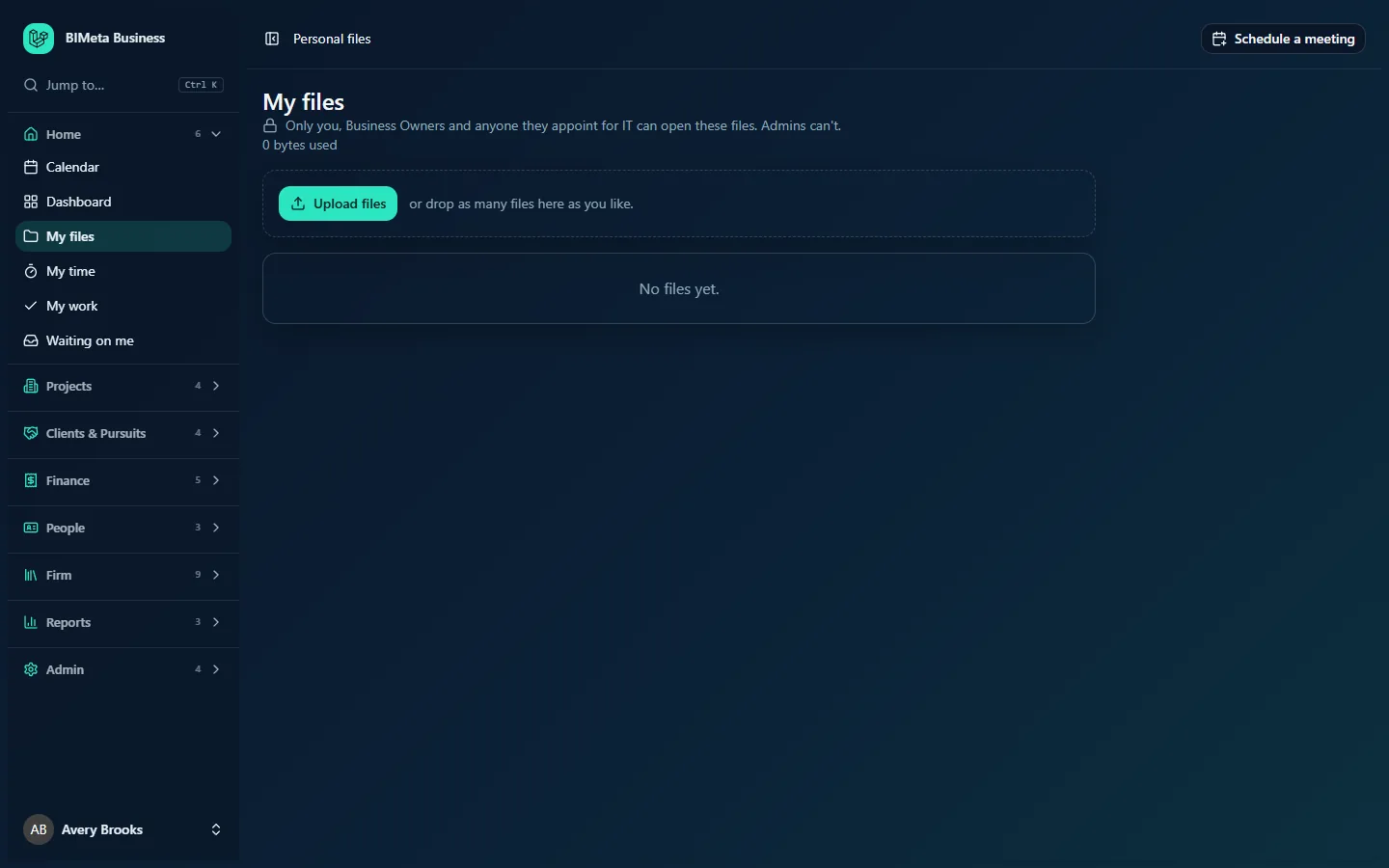
A tour of the page
Header
- My files heading, with the padlock note about who can open your files.
- Space used: for example 0 bytes used or 12.4 MB used. This is the total size of everything you keep here, including earlier versions of files.
Upload area
A dashed box with the Upload files button and the hint or drop as many files here as you like. While an upload runs, the box lists each file with its state (waiting, sending, done, too big or failed) and a progress line such as "3 of 10 uploaded".
File list
Below the upload area is the list of your files (only the latest version of each). Each row shows:
- File name: click it to download the file.
- Details: size and upload date, plus "Version 2" (and so on) when you've uploaded newer copies.
- Download icon: downloads the file.
- Remove icon (bin): removes the file and all its versions, after you confirm.
With nothing uploaded yet, the list says No files yet.
How to …
Upload files
- Click Upload files and choose one or more files, or drag files from your computer onto the dashed box.
- Watch the progress list. Large selections are split into several batches and sent one after another automatically, so you can upload many files in one go.
- When it's finished you'll see Uploaded file name (or Uploaded N files), and the files appear in the list. Each upload is recorded in the audit log.
Each file must be under your server's per-file size limit. Files over it are marked too big and skipped, and the others still upload. If some fail, you'll see Some files didn’t upload. Try those again.
Upload a new version of a file
- Upload a file with exactly the same name as one already in the list.
- It becomes the next version: the list shows the new copy with "Version 2", and the older copy is kept behind it.
Earlier versions aren't listed on this page, but they count towards your space used and are removed together with the file.
Download a file
Click the file name or its download icon. Downloads are recorded against the file.
Remove a file
- Click the bin icon on the file's row.
- Confirm the message Remove file name and all its versions?
- You'll see Removed file name. The file and every earlier version disappear from your list, and the removal is recorded in the audit log.
Removed files are moved out of sight rather than wiped instantly. Your firm's retention rules decide when they're really purged, so if you remove something by mistake, ask your IT team quickly; they may be able to restore it.
Tips and good to know
- Personal, not shared. There are no folders, share links or teammates here. For anything the team or client needs, use the project's Files tab instead.
- Same name = new version. If you want to keep two different files, give them different names.
- Legal holds. If your firm has placed a firm-wide legal hold, you can't remove files until it's lifted. You'll see This file is under a legal hold and cannot be deleted until the hold is lifted.
- Owners' view. When a Business Owner or appointed IT person opens someone's section, the page title reads Personal files: name and warns You're viewing someone else's personal files. This visit is recorded in the audit log. See the Personal files admin article for that side.
Troubleshooting / FAQ
I don't see "My files" in my sidebar.
Your role doesn't include personal files. Ask your Business Owner or Admin.
Can my manager see my files?
Only if they're a Business Owner or have been appointed to access everyone's personal files (usually IT Staff), and every look is recorded. Admins, HR and Project Managers can't.
My upload says "too big".
The file is over your server's per-file upload limit. Compress it or split it, or ask your IT team about the limit.
Where did the old version go?
It's kept behind the latest version. This page only shows the newest copy of each file.
Was this article helpful?
Share