



Marketing Studio: the firm's social media desk
17 views · by Kevin J Bruno · updated 15 hours ago
Marketing Studio is your firm's social media desk. It brings together everything you post to the firm's LinkedIn, Facebook, Instagram and other pages: a list of every post and its status, a month calendar of what's scheduled and published, the posts waiting for someone to approve them, and "moments" worth posting about (a phase finished, a project completed, an award) with one-click AI drafts and branded graphics. Nothing is ever published without a person approving it, and only projects the firm has cleared for publicity can be mentioned.
Where to find it
- Sidebar → Clients & Pursuits → Marketing, then the Studio tab at the top of the page.
- From Campaigns, Brand kit or the post composer, click Back to Marketing Studio or the Marketing Studio breadcrumb.
- Press Ctrl K and type "Marketing Studio".
Who can use it
- Write posts and see the calendar: by default Business Owners and Admins. Other roles don't see Marketing Studio, Campaigns or Results in the menu unless a Business Owner or Admin grants this permission under Sidebar → Admin → Settings → Roles & permissions (for example to a marketing coordinator's role).
- Approve posts and retry failed ones: by default Business Owners and Admins. Only approvers see Waiting for your approval and the Retry button.
- The writer of a post can never approve it themselves, so a firm needs at least two people who can approve (three if the brand kit asks for a second approver).
- Connecting social pages and keeping the brand kit is a separate permission (Business Owners and Admins by default); see Social pages and Brand kit.
- Everyone else can still reshare the firm's posts from Share to LinkedIn.
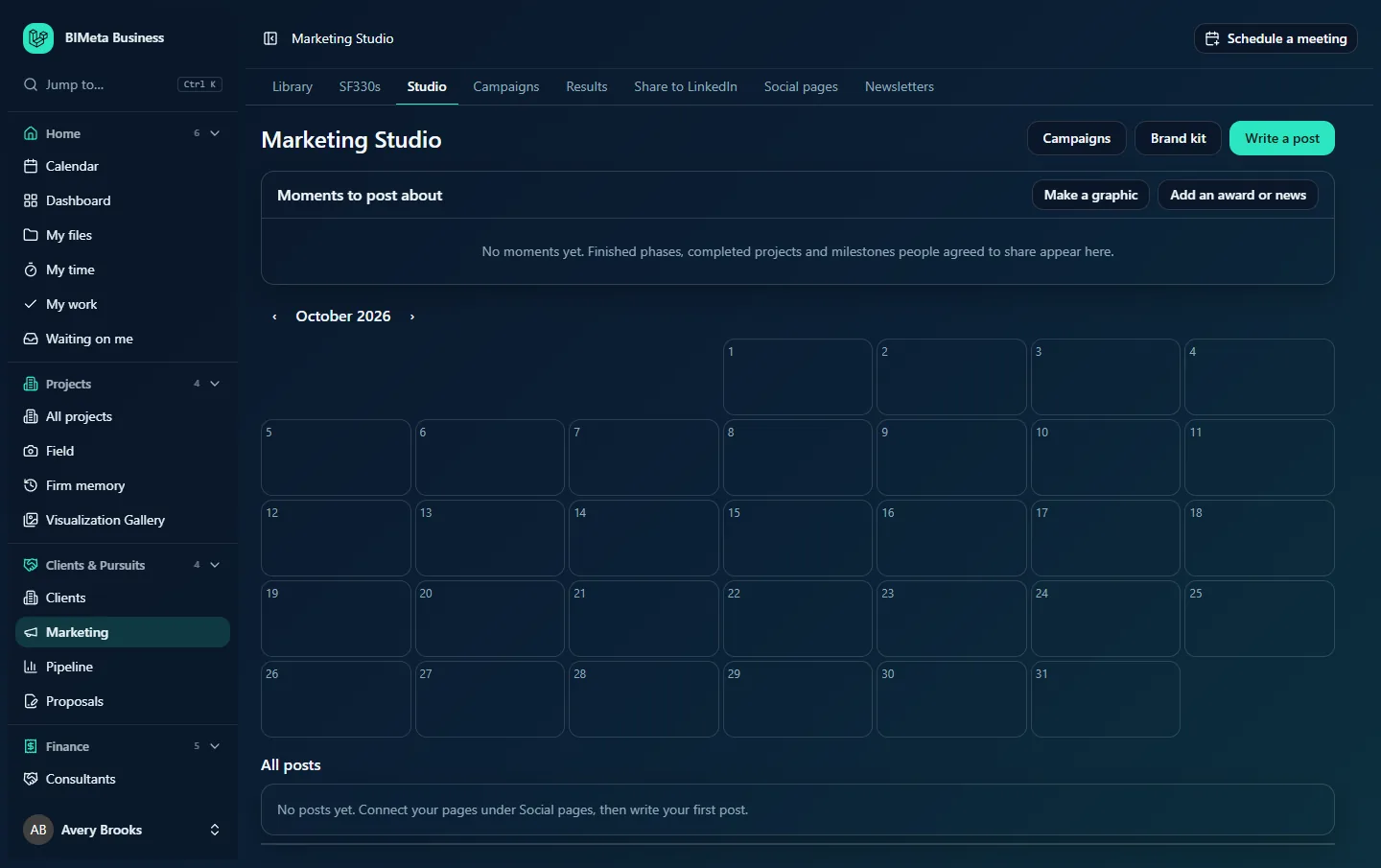
A tour of the page
Header buttons
- Campaigns: group posts into campaigns and set regular posting times. See Campaigns.
- Brand kit: your voice, banned words, hashtags, disclaimer, colors and approval rule. See Brand kit.
- Write a post: opens the composer. See Write a post.
Moments to post about
A list of things worth sharing that the portal noticed or that someone added. Each moment shows its kind as a badge, its title and date:
- Phase finished: added as soon as a project phase is completed.
- Project complete: when a project is closed out.
- New hire, Work anniversary and Licence earned: only for people who agreed to be featured (each person chooses Feature my milestones on their HR record).
- Award and News: added by hand with Add an award or news.
Automatic moments are collected every morning. A moment about a project that isn't cleared for publicity shows the badge Project not cleared for publicity and its draft button is greyed out.
Each moment has two buttons:
- Draft a post (about n credits): AI writes a draft from that moment's facts only (and your brand kit's voice), then opens it in the composer for you to check. The button shows roughly how many AI credits it uses.
- Dismiss: removes the moment from the list.
When there are none: No moments yet. Finished phases, completed projects and milestones people agreed to share appear here.
Two buttons in the panel header open small forms:
- Make a graphic: choose a Template (Milestone, Welcome or Quote), type a Headline (required, up to 120 characters) and an optional Second line (up to 160), choose a cleared project or Firm-wide, and click Make it (no credits). A square branded image is drawn in your brand colors and saved; choose it in the composer under Pictures and videos.
- Add an award or news: choose Award or News, type What happened (required, up to 200 characters), add Facts the post may use (up to 2,000 characters; AI drafts use only these), optionally choose the Project, and click Add.
Waiting for your approval (approvers only)
Appears when there are posts waiting that you didn't write and haven't already approved. Each line shows the post's title (or the start of its text) as a link, by the writer, needs a second approval when one approval is already in, and an Approve button.
Calendar
A month view (weeks start on Monday) with ‹ and › to go to the previous or next month. Each day lists the posts scheduled or published that day with their time (e.g. 09:00 Library opening). Hover to read the full text; click to open the post.
All posts
Every post, most recent first (up to 300). Each shows:
- The title (or the start of the text) as a link to the post.
- A status badge: Draft, Waiting for approval, Approved, scheduled, Publishing, Published, Published on some pages, Failed or Cancelled.
- When it goes out: for a date and time, or as soon as approved, and the project it's about.
- Retry (approvers, on failed or partly published posts) and Cancel (on anything not yet published or cancelled).
- Underneath, each page it goes to. Once published the page name links to the live post; a page that failed is shown in red with the reason.
When empty: No posts yet. Connect your pages under Social pages, then write your first post.
How to…
Get started
- Connect the firm's networks and switch on the pages to post to on Social pages.
- Clear the projects you're allowed to publicize on the same page.
- Fill in the Brand kit.
- Write your first post with Write a post.
Draft a post from a moment with AI
- In Moments to post about, click Draft a post on the moment.
- The composer opens with the draft: Draft written. Check it against the sources before sending it for approval. The post is marked Drafted with AI and lists the records it was written from.
- Edit it, choose the pages, and click Save and send for approval.
Approve a post
- Find it under Waiting for your approval (click its title to read it in full first).
- Click Approve.
- If no second approval is needed: Approved. It goes out at its scheduled time. Posts with no time go out within about a minute. If the brand kit requires a second approver: Approved. A second person must also approve it. A different person then approves it too.
Retry a failed post
- Read the reason shown in red under the failed page (for example an expired connection; reconnect on Social pages first).
- Click Retry. It will be sent again within a minute.
Cancel a post
- Click Cancel on the post and confirm Cancel this post?
- It's marked Cancelled and won't be published. Published posts can't be cancelled here; delete them on the network itself.
Tips and good to know
- AI never publishes. Every AI result is a draft, and every post needs a person other than its writer to approve it.
- Approval re-checks that the post's project is still cleared for publicity. If someone withdrew clearance, the post can't be approved.
- Editing a post that is waiting for approval sends it back to draft; send it for approval again afterwards.
- The approver is not sent a notification; let them know when a post is waiting, or check this page regularly.
- Published posts' numbers appear on Results, where approvers can also offer a post to staff to reshare.
- AI helpers use your firm's AI credits; the estimate is shown on each button. They need AI to be turned on for the firm (Sidebar → Admin → Settings → AI). Branded graphics never use credits.
- Writing, approving, cancelling and retrying posts, and adding moments and graphics, are recorded in the firm's audit log.
Troubleshooting / FAQ
"Someone other than the writer must approve a post."
You wrote it. Ask another approver to approve it.
Why is Draft a post greyed out on a moment?
The moment's project isn't cleared for publicity (see the badge). Someone with access can clear it on Social pages → Projects that may be publicised.
A post says Published on some pages.
One or more pages failed. The failed page is shown in red with the reason; fix the cause and click Retry.
I don't see Waiting for your approval.
Either nothing is waiting, the waiting posts are your own, you've already given the first approval, or your role can't approve posts.
Was this article helpful?
Share