



Results: how your social posts are doing
16 views · by Kevin J Bruno · updated 5 days ago
The Results page shows how the firm's social posts are doing: how many posts went out, how much engagement they drew on each network, each post's own numbers, clicks on tracked links, the best days and times to post, and how often staff reshared the firm's posts on their own LinkedIn. Approvers also use it to offer published posts to staff and to set the firm's results options, including a monthly summary email.
Where to find it
- Sidebar → Clients & Pursuits → Marketing, then the Results tab at the top of the page.
- Press Ctrl K and type "Results".
Who can use it
- People allowed to write social posts and see the posting calendar can open Results: by default Business Owners and Admins.
- People allowed to approve social posts (by default Business Owners and Admins) additionally see Offer to staff, Add to posting slots, the staff reshare leaderboard and the settings panel at the bottom.
- If your firm gives post-writing to other roles without approval, those people see the numbers but not the settings, and they see the staff leaderboard only when Show everyone in Marketing who reshared most is on.
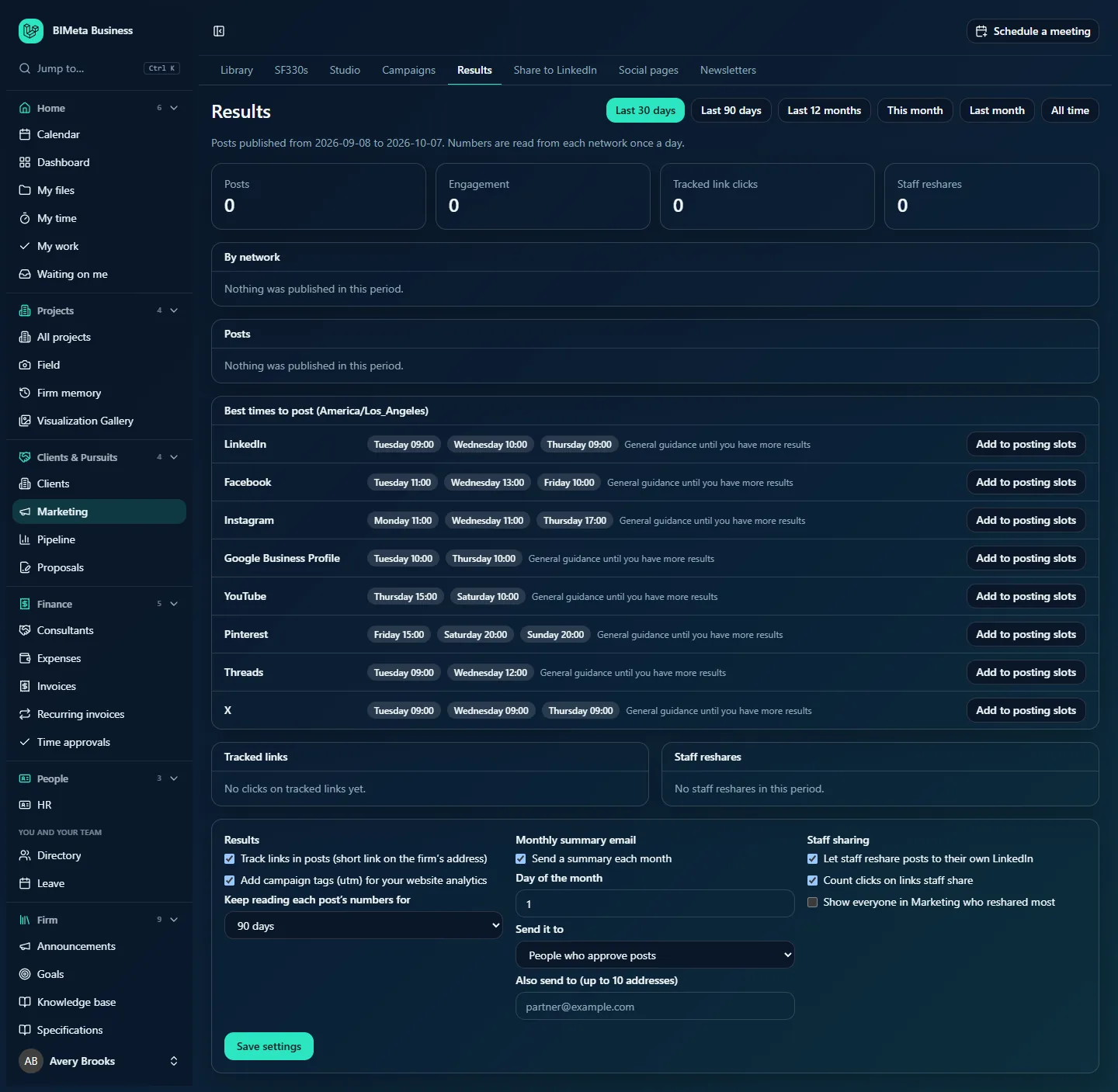
A tour of the page
Period buttons
At the top right: Last 30 days (the default), Last 90 days, Last 12 months, This month, Last month and All time. The line under the title confirms the dates, e.g. Posts published from 2026-09-06 to 2026-10-05. Numbers are read from each network once a day. Dates follow the firm's time zone.
Summary cards
- Posts: posts published in the period (counting each page a post went to).
- Engagement: clicks + reactions + comments + shares + saves, added up across networks.
- Tracked link clicks: clicks on tracked links in the period.
- Staff reshares: how many times staff shared the firm's posts on their own LinkedIn.
By network
A table with one row per network: Posts, then Seen (impressions), People (reach), Views, Clicks, Reactions, Comments, Shares, Saves and Engagement. Networks report different things; a number a network doesn't report is left empty rather than shown as zero. When nothing went out: Nothing was published in this period.
Posts
Each published post on each page: a network badge, the title (linking to the live post), the page name and date, and its numbers (e.g. Seen 1,240 · Reactions 38 · Comments 4), or No numbers yet. If the network couldn't be read, the reason is shown. Approvers see, when staff sharing is on:
- Suggested wording for staff (they can change it) and Offer to staff: puts the post on everyone's Share to LinkedIn page with your suggested words (up to 2,800 characters).
- Stop offering to staff: takes it off that page again.
Best times to post
For each network, up to three suggested days and times in the firm's time zone (e.g. Tuesday 09:00). While a network has too few posts with numbers, the suggestions are General guidance until you have more results; once you have enough, they're calculated From your results (n posts): the hours whose posts drew the most engagement per view. Approvers can click Add to posting slots to add a network's suggestions to its posting slots on Campaigns.
Tracked links
Each tracked link with clicks in the period: the destination address, who shared it (the firm, or the staff member's name for links in staff reshares) and the click count. When empty: No clicks on tracked links yet.
Staff reshares
Who reshared most in the period, with n shares and n clicks each. When empty: No staff reshares in this period.
Settings (approvers only)
| Setting | What it does | Default |
|---|---|---|
| Track links in posts (short link on the firm's address) | Web addresses in posts are swapped for a short link on your firm's portal address that counts the click and sends the visitor on. Only daily counts are kept: no addresses, cookies or visitor details. Link previews fetched by the networks' robots aren't counted. | On |
| Add campaign tags (utm) for your website analytics | Adds campaign tags to tracked links so your website's analytics can tell where visitors came from. | On |
| Keep reading each post's numbers for | How long after publishing each post's numbers keep being updated daily: 30, 60, 90, 180 or 365 days. | 90 days |
| Send a summary each month | Emails a summary of last month: posts, numbers per network against the month before, the three best posts, tracked-link clicks and staff reshares. | On |
| Day of the month | Which day (1 to 28) the summary goes out. | 1 |
| Send it to | People who approve posts, Everyone who writes posts or Business Owners only. | People who approve posts |
| Also send to (up to 10 addresses) | Extra email addresses, e.g. an outside marketing partner. Separate them with commas or spaces. | None |
| Let staff reshare posts to their own LinkedIn | Turns on Share to LinkedIn for everyone. | On |
| Count clicks on links staff share | Tracked links are also used in staff reshares (needs link tracking on). | On |
| Show everyone in Marketing who reshared most | Shows the staff leaderboard to people who can see Results but can't approve. | Off |
Click Save settings to apply (Results settings saved).
How to…
See how last month went
- Click Last month.
- Read the summary cards, then By network and Posts for detail.
Offer a post to staff to reshare
- Find the published post under Posts (staff sharing must be on).
- Type suggested wording in the box next to it. Staff can change it before they share.
- Click Offer to staff (Offered to staff to reshare). It now appears on everyone's Share to LinkedIn page.
Use the best times
- In Best times to post, check the suggestions for a network.
- Click Add to posting slots. New times are added to that network's posting slots; times already there are skipped.
Set up the monthly summary
- In the settings panel, tick Send a summary each month.
- Choose the Day of the month and Send it to, and optionally add other addresses.
- Click Save settings.
Tips and good to know
- Numbers are read from each network once a day, early in the morning, so today's posts show No numbers yet until tomorrow.
- Older posts that were never read are read once, so the firm's whole history appears after connecting.
- Google Business Profile doesn't report numbers per post.
- Changing settings, offering posts to staff and applying best times are recorded in the firm's audit log.
Troubleshooting / FAQ
Why are some columns empty for a network?
That network doesn't report that number. Empty means "not reported", not zero.
I don't see Offer to staff.
Only approvers see it, and only when Let staff reshare posts to their own LinkedIn is on. It appears once per post, on its first page.
"Add up to 10 other addresses." or "… isn't an email address."
Check the Also send to box: at most 10 valid email addresses.
Was this article helpful?
Share