



Marketing library: résumés, project sheets and firm qualifications
17 views · by Kevin J Bruno · updated 1 day ago
The Marketing library holds the building blocks of your firm's qualifications: résumés for your key people, sheets for your best example projects, who worked on which project and in what role, and the firm's general qualifications (the "Part II" of a federal SF330). You fill it in once and keep it up to date; every SF330 you prepare then simply picks its people and projects from here instead of retyping them. Project sheets you choose can also appear on your website's portfolio feed.
Where to find it
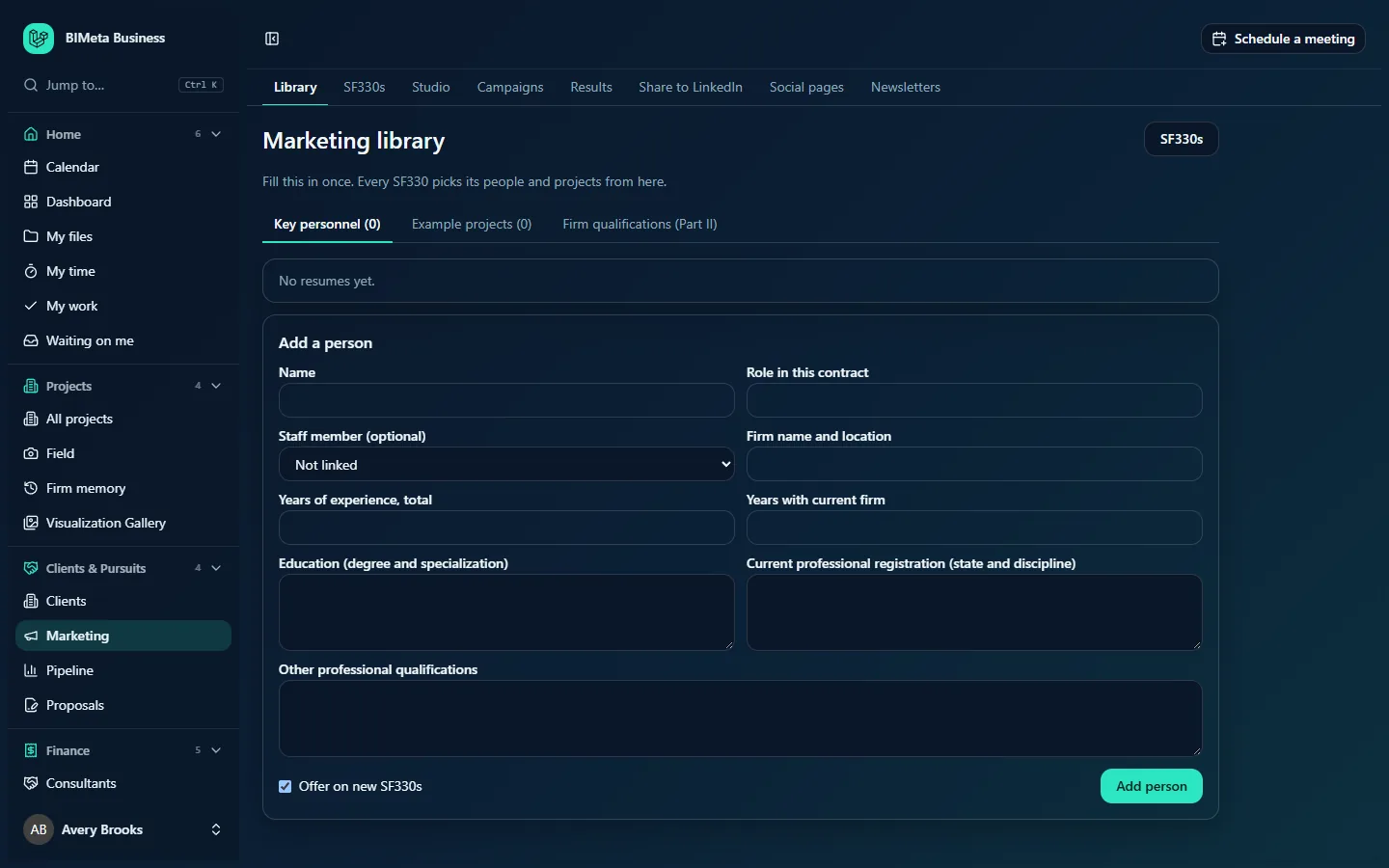
- Sidebar → Clients & Pursuits → Marketing. The Marketing hub opens on this page, the Library tab.
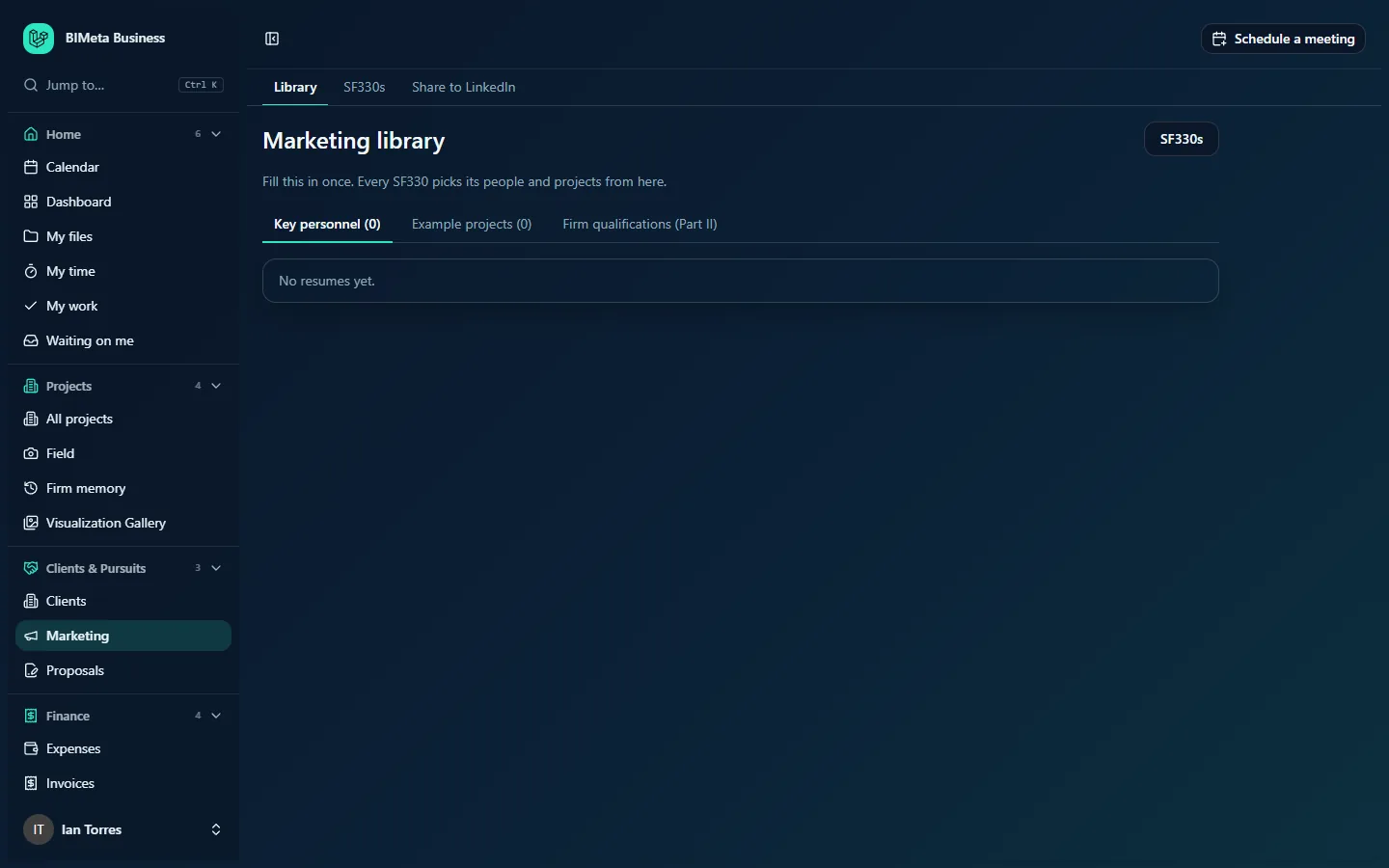
- All marketing tools live in the Marketing hub: Sidebar → Clients & Pursuits → Marketing opens it on its first tab, and a row of tabs across the top of every marketing page (Library, SF330s, Studio, Campaigns, Results, Share to LinkedIn, Social pages, Newsletters) moves between them. You only see the tabs you have access to: Business Owners and Admins see all eight, while IT Staff, BIM Managers and Project Managers see Library, SF330s and Share to LinkedIn.
- From the SF330s page, click the Marketing library button at the top right.
- Press Ctrl K and type "Marketing library".
Who can use it
- View (people allowed to see résumés, project sheets and SF330s): by default Business Owners, Admins, Project Managers, IT Staff and BIM Managers. They can read every résumé, project sheet and the firm qualifications, but the forms are read-only.
- Edit (people allowed to keep the marketing library and prepare SF330s): by default Business Owners and Admins. They see the add forms, edit boxes, link and remove buttons, and Save firm qualifications.
- Users and Human Resources don't see the Marketing library.
Viewers who can't edit see the same tabs without the forms, as in this IT Staff view:
A tour of the page
Header
- Marketing library title and the hint Fill this in once. Every SF330 picks its people and projects from here.
- SF330s button: jumps to the SF330s page.
Below are three tabs. The counts in the tab names show how many entries each has.
Key personnel tab
One collapsible row per person, alphabetically, showing their name, their role, a Not in use badge if they're switched off for new SF330s, and how many projects they're linked to (e.g. 3 projects). Click a row to open it.
Inside an open row:
- For editors, the person's résumé form with the same fields as Add a person (below) and a Save button. Viewers instead see the person's Education and Registration.
- Relevant projects: the project sheets this person is linked to, each with their role on it, and with another firm when the work was done before they joined. Editors can Remove a link. If there are none: No projects linked yet.
- For editors (once the library has at least one project sheet): a row to link another project: pick the Project, type Their role on it, optionally What they did (optional), keep or untick With this firm, and click Link project.
- Remove from library (editors): deletes the person's résumé after you confirm.
When the tab is empty you'll see No resumes yet.
Add a person (editors)
| Field | What to enter |
|---|---|
| Name (required) | The person's name as it should appear on the SF330 (up to 160 characters). |
| Role in this contract (required) | Their usual role, e.g. Principal in Charge or Project Architect (up to 160 characters). SF330 section E, box 13. |
| Staff member (optional) | Link the résumé to the person's portal account, or leave it on Not linked (for example for a consultant). |
| Firm name and location | The office they work from, e.g. Northlight Architects, Seattle, WA (box 15). |
| Years of experience, total | A whole number from 0 to 80 (box 14). |
| Years with current firm | A whole number from 0 to 80. |
| Education (degree and specialization) | Up to 1,000 characters (box 16). |
| Current professional registration (state and discipline) | Up to 1,000 characters (box 17). |
| Other professional qualifications | Memberships, awards, publications, up to 5,000 characters (box 18). |
| Offer on new SF330s | Ticked by default. Untick to keep the résumé but hide it from new SF330s; it then shows Not in use. |
Click Add person to save. You'll see Resume saved.
Example projects tab
- Start a sheet from a portal project (editors): pick one of the firm's projects and click Start sheet. A sheet is created with the project's name as title and its client as project owner, linked to that project, and you fill in the rest. If the project already has a sheet, nothing new is created.
- One collapsible row per sheet, newest year first, showing the title, location and year, and Not in use if switched off. Editors see the sheet's form and Save; viewers see its description. Editors also have Remove from library.
- When empty: No project sheets yet.
- Add a project sheet (editors): a form with the fields below, and Add project.
| Field | What to enter |
|---|---|
| Title (required) | Project name as it should appear (up to 200 characters). |
| Location (city and state) | Up to 200 characters. |
| Year completed: professional services | e.g. 2024, or Ongoing (up to 20 characters). |
| Year completed: construction (if applicable) | Up to 20 characters. |
| Cost | Construction cost as you want it shown, e.g. $12.4M (up to 60 characters). |
| Firm’s role | e.g. Prime architect (up to 300 characters). |
| Project owner | The client organization (up to 200 characters). |
| Point of contact name and phone | A reference at the owner (up to 300 characters). |
| Brief description of scope, size and cost | The project narrative, up to 10,000 characters (SF330 section F, box 24). |
| Offer on new SF330s | Untick to keep the sheet but hide it from new SF330s. |
Saving shows Project sheet saved.
Firm qualifications (Part II) tab
The firm's general qualifications, used as Part II of every SF330. Editors can change and save it; viewers see the values greyed out.
- Firm name (defaults to your firm's name), Unique Entity ID (UEI) (exactly 12 letters and numbers), CAGE code, Year established (1800 to this year), Street, city, state and ZIP, Ownership type, Small business status, Point of contact name, title, phone and email and Former firm names (last six years).
- Employees by discipline: rows of Code (the SF330 function code, up to 5 characters), Discipline (required for the row to be kept), and head counts for Firm and Branch. Use Add discipline for more rows (up to 60) and Remove to delete one.
- Average professional services revenue, last three years: for Federal work, Non-federal work and Total work, choose the SF330 revenue index from 1. Less than $100,000 to 10. $50 million or greater, or Not set.
- Save firm qualifications: saves the whole tab (Firm qualifications saved).
How to…
Add a key person
- Open the Key personnel tab.
- Fill in Add a person: at least Name and Role in this contract.
- Click Add person.
Add an example project
- Open the Example projects tab.
- Either choose a project under Start a sheet from a portal project and click Start sheet, then open the new sheet's row to complete it; or fill in Add a project sheet and click Add project.
- Write a strong Brief description of scope, size and cost; it's what reviewers read.
Record who worked on a project
- On Key personnel, open the person's row.
- Under Relevant projects, choose the Project, type Their role on it (e.g. Project Manager) and, optionally, what they did.
- Untick With this firm if they did the work at a previous employer.
- Click Link project. Linking the same project again updates the role and description instead of adding a duplicate.
These links fill in each person's "relevant projects" (section E, box 19) and the participation matrix (section G) of every SF330 automatically.
Update or retire an entry
- Open the person's or sheet's row, change the fields and click Save.
- To stop offering it on new SF330s without deleting it, untick Offer on new SF330s and save.
- To delete it for good, click Remove from library and confirm. Its project links are removed too.
Fill in the firm's Part II
- Open Firm qualifications (Part II).
- Fill in the firm details, employees by discipline and revenue indexes.
- Click Save firm qualifications.
Tips and good to know
- Removing a person or sheet from the library also removes them from any SF330 that used them the next time it's printed. If you only want to stop using them, untick Offer on new SF330s instead.
- On an SF330, each person lists up to five relevant projects: projects that are on that SF330 come first, then their other linked projects.
- Project sheets can be shown on your website's portfolio feed once their project is cleared for publicity. That's chosen on Newsletters → Website feed.
- Campaigns can turn a project sheet into a short series of social posts with Repurpose.
- Every save and removal is recorded in the firm's audit log.
Troubleshooting / FAQ
"A Unique Entity ID (UEI) is 12 letters and numbers."
Check the UEI from SAM.gov: it is exactly 12 characters with no spaces or dashes.
I don't see the link-a-project row on a person.
You need at least one project sheet in the library first, and you need edit rights.
A person doesn't appear when I build an SF330.
Their résumé probably has Offer on new SF330s unticked (it shows Not in use). Open it, tick the box and save.
Was this article helpful?
Share