



Knowledge base: find answers to common questions
17 views · by Kevin J Bruno · updated 18 hours ago
The Knowledge base is the firm's library of how-to articles: how to request a new monitor, the steps to set up VPN at home, the firm's Revit worksharing rules, where the plotter drivers live. Anyone on staff can search and read it. The articles are written by the people who run the help desk, and they also appear as suggestions on support tickets, so a good knowledge base saves everyone time.
This article covers finding and reading articles. To write one, see Knowledge base: write and publish an article.
Where to find it
- Sidebar → Firm → Knowledge base.
- Jump to… (Ctrl K): type
knowledge. - On a support ticket's page, under These articles might help, links go straight to matching articles.
Who can use it
- Everyone on staff can search, read and vote on published articles.
- Writing, editing, publishing and deleting articles is for knowledge base editors. By default those are Business Owners, Admins and IT Staff. Only they see the New article button, draft articles and the Edit button on an article. BIM Managers and Users see published articles only.
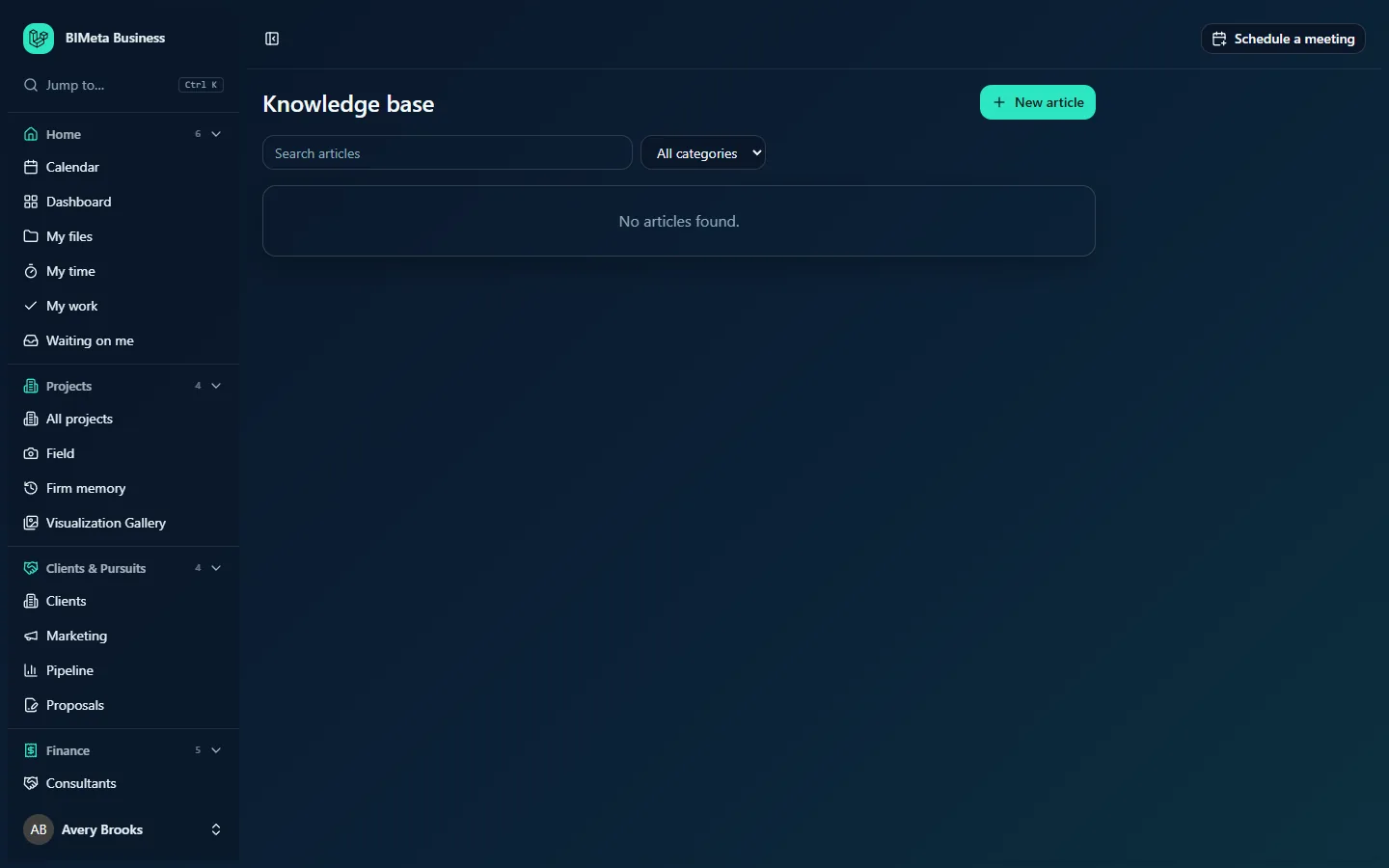
The screenshot shows a Business Owner's view of an empty knowledge base, with the New article button at the top right. A User's page is the same without that button.
A tour of the page
The list page
- New article (editors only): opens the article editor.
- Search articles: type one or more words and press Enter. An article matches when every word appears somewhere in its title or text (up to six words are used). Clear the box and press Enter to see everything again.
- All categories: narrows the list to one category. The list of categories is built from the categories editors have used on articles.
- The article list: each row shows the title (a link), its category badge, a Draft badge for unpublished articles (editors only) and how many times it has been viewed (12 views). The most-read articles come first, then alphabetically by title. Up to 200 articles are listed. If nothing matches, you'll see No articles found.
An article's page
- A Knowledge base link back to the list, and the article's category.
- The title, then Updated with the date it was last saved and who saved it.
- A Draft badge if it isn't published (only editors can open drafts).
- Edit (editors only): opens the editor.
- The article text. Line breaks and spacing are kept as written.
- Did this help? with Yes and No buttons, and a count of how many people found it helpful. Voting appears on published articles only.
How to…
Find an answer
- Open Firm → Knowledge base.
- Type a few key words, such as
vpn home, and press Enter, or pick a category. - Click an article's title to read it.
Tell the authors whether it helped
At the bottom of the article, click Yes or No next to Did this help?. You'll see Thanks for the feedback. Editors use these counts to find articles that need rewriting.
Ask for help when the article didn't answer it
Go to Firm → Support and open a ticket (see Support: raise a help desk ticket and work the queue). Mention the article you tried so the agent knows where it fell short.
Tips and good to know
- Every time an article is opened, its view count goes up by one, including when editors open it. Views are what put popular articles at the top.
- Votes aren't limited to one per person; treat them as a rough signal.
- Searching matches parts of words too:
plotalso finds plotter and plotting. - Support tickets suggest up to three published articles whose titles share a word of four letters or more with the ticket's subject. Clear, specific titles make suggestions better.
Troubleshooting
A colleague sent me a link to an article and I get "not found".
The article is still a draft, or it was deleted. Only editors can open drafts.
Why don't I see the New article button?
Only knowledge base editors (by default Business Owners, Admins and IT Staff) can write articles. Suggest an article through a support ticket instead.
Was this article helpful?
Share