



Storage cleanup: free space safely
17 views · by Kevin J Bruno · updated 1 day ago
Storage cleanup shows what is taking up your firm's storage and helps you free space safely. You see how much is in current files, earlier versions and the recycle bin; you set how long deleted files and earlier versions are kept; and you can look at the largest files and at duplicates (the same file stored more than once) and move them to the recycle bin. Nothing on this page deletes a file outright: everything goes to the recycle bin first, where it can be restored until the nightly clean-up removes it for good.
Personal files are shown only by owner and size, never by name, so people's privacy is respected while you manage space.
Key ideas in plain words
- Earlier versions: when someone uploads a new version of a file, the previous one is kept as an earlier version so you can go back. They take space too.
- Recycle bin: deleted files wait here for a set number of days, still restorable. Each night, files that have been in the bin longer than your setting are removed for good.
- Protection: files under a legal hold, and files in a closed-out project's retention period when the retention lock is on, are never trimmed or purged (see Retention and holds).
Where to find it
- Sidebar → Admin → IT, then the Storage cleanup tab. The IT entry opens on the Overview tab; a row of tabs across the top of every IT page (Overview, Accounts, Alerts, Devices, Licences, Security, Firewall, Your encryption key, Directory sync, Connection check, Maintenance, Restore files, Retention and holds, Storage cleanup, Report, Audit export) takes you between the IT tools. If the window is narrow, scroll the tab row sideways to reach the last tabs.
- Press Ctrl K (Jump to…) and type
storage. - Links from the Report and Restore files tabs.
Who can use it
- Business Owner and IT Staff can open the page and use every control: change retention, move files to the recycle bin, trim earlier versions and restore from the bin.
- Someone allowed to view IT pages but not to manage storage would see everything read-only. With the standard roles, Owners and IT Staff have both.
- Other roles can't open it.
The page
The example firm Northlight Architects hasn't uploaded files yet, so everything is empty:
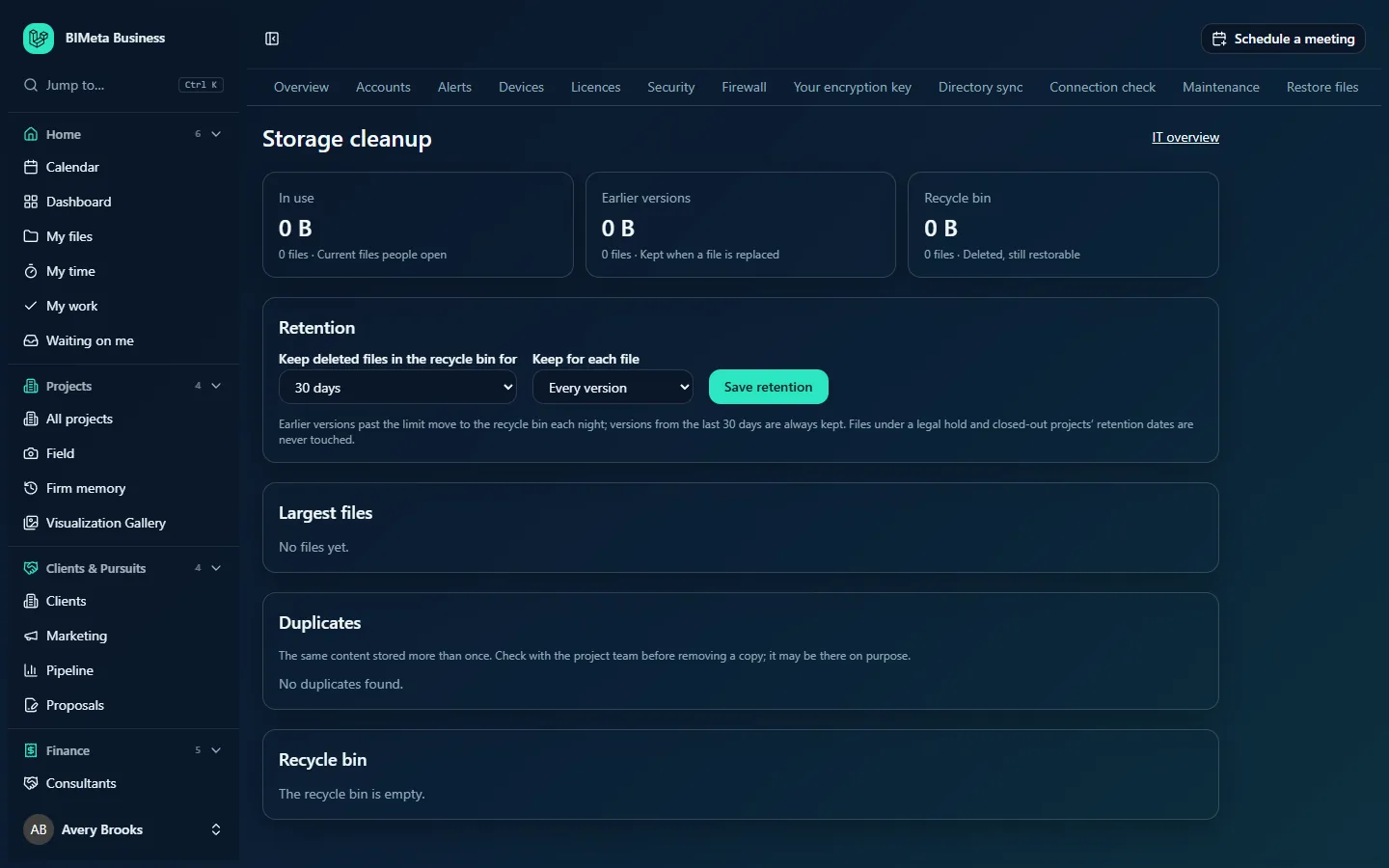
An IT overview link sits at the top right.
The three summary cards
- In use: size and number of current files people open.
- Earlier versions: size and number of versions kept when a file is replaced.
- Recycle bin: size and number of deleted files that can still be restored.
Retention
- Keep deleted files in the recycle bin for: 30 days, 60 days, 90 days, 180 days, 365 days or Until restored (never purged automatically).
- Keep for each file: Every version (the default), or The last 3, 5, 10 or 20 versions. The current version counts as one of them.
- Save retention.
- A note explains that earlier versions past the limit move to the recycle bin each night, that versions from the last 30 days are always kept, and that files under a legal hold and closed-out projects' retention dates are never touched.
- When some earlier versions are already past the limit, a highlighted bar says "n earlier versions (size) are past the limit." with a Move to recycle bin now button.
Largest files
The 25 largest current files in the firm. Columns: File (name and folder, or "Personal file" for someone's personal file), Where (the project, e.g. 26-002 Harbor Point Library, or "Personal files of name"), Size, Earlier versions (how many and how much space, or —) and a Move to recycle bin button. With no files: No files yet.
Duplicates
Up to 20 groups of identical files stored more than once, biggest waste first. Each group says "n copies of size, size could be freed" and lists each copy with where it is and a Move to recycle bin button. A note reminds you to check with the project team first: a copy may be there on purpose (for example, a file issued in two packages). With none: No duplicates found.
Recycle bin
The 50 most recently deleted files. Each shows the name, an Earlier version badge if it's a version rather than a whole file, a Legal hold badge if a hold covers it, where it was, its size, and either "removed for good on date" or "kept until restored". A Restore button brings it back. When empty: The recycle bin is empty.
How to set retention for deleted files and versions
- Choose Keep deleted files in the recycle bin for. Longer is safer; shorter frees space sooner.
- Choose Keep for each file. For large model files, The last 5 versions or 10 is often a good balance.
- Click Save retention. You'll see "Retention saved. Earlier versions past the limit move to the recycle bin tonight."
How to trim earlier versions now
- After lowering Keep for each file, look for the bar "n earlier versions (size) are past the limit."
- Click Move to recycle bin now and confirm.
- You'll see how many versions were moved. They stay restorable in the recycle bin until your deleted-files period ends.
How to move a large or duplicate file to the recycle bin
- Find it under Largest files or Duplicates.
- Check with the project team that it's not needed.
- Click Move to recycle bin and confirm ("Move this file and its earlier versions to the recycle bin? People can no longer open it, and you can restore it below.").
- The file and its earlier versions disappear from the project and appear in the recycle bin.
How to restore something from the recycle bin
- Find the file in Recycle bin.
- Click Restore ("Restored"). A whole file comes back with the earlier versions that were deleted with it; an earlier version comes back on its own.
Files already removed for good can still be brought back from a backup copy on Restore files, if your firm has backups.
Every save, trim, move and restore on this page is recorded in the audit log.
Tips and good to know
- Moving files to the recycle bin doesn't free space straight away: binned files still count until they're removed for good. To see the space come back, the deleted-files period has to pass.
- Until restored means the bin is never emptied automatically, so storage keeps growing; use it only if you have a policy that requires it.
- Files under a legal hold or protected by the retention lock can't be moved to the bin here; you'll see an error explaining why.
- For the overall picture by person and project, see IT overview.
Troubleshooting
"A file with that name is in that folder now. Rename or move it first."
Someone uploaded a new file with the same name in the same place after this one was deleted. Rename or move the new file, then restore.
"That file is no longer there."
Someone else already moved or deleted it. Reload the page.
Why doesn't "Move to recycle bin now" appear?
Either Keep for each file is set to Every version, or no earlier versions are past the limit (versions less than 30 days old and protected files are never counted).
Was this article helpful?
Share