



IT security: firewall, sign-in, sharing, countries, AI and crawlers
17 views · by Kevin J Bruno · updated 21 hours ago
IT security is the firm-wide security control panel. On one page you decide which networks and countries can reach the portal, whether everyone must use two-factor sign-in, when idle people are signed out, how files may be shared by link, whether downloads are watermarked, when IT is alerted about sign-ins and servers, what may be sent to AI vendors, and whether search engines and crawlers are kept out. At the bottom, a summary shows how your data is encrypted.
All settings on the page (except the Encryption summary) are saved together with one Save security settings button.
Where to find it
- Sidebar → Admin → IT, then the Security tab. The IT entry opens on the Overview tab; a row of tabs across the top of every IT page (Overview, Accounts, Alerts, Devices, Licences, Security, Firewall, Your encryption key, Directory sync, Connection check, Maintenance, Restore files, Retention and holds, Storage cleanup, Report, Audit export) takes you between the IT tools. If the window is narrow, scroll the tab row sideways to reach the last tabs.
- Press Ctrl K (Jump to…) and type
it security. - Links from the Accounts, Alerts, Your encryption key and Audit export tabs.
Who can use it
- Business Owner and IT Staff can open the page and change every setting.
- Other roles, including Admin, can't open it. Note that when IT blocks AI here, Admins can't switch AI back on in the firm's AI settings.
The page
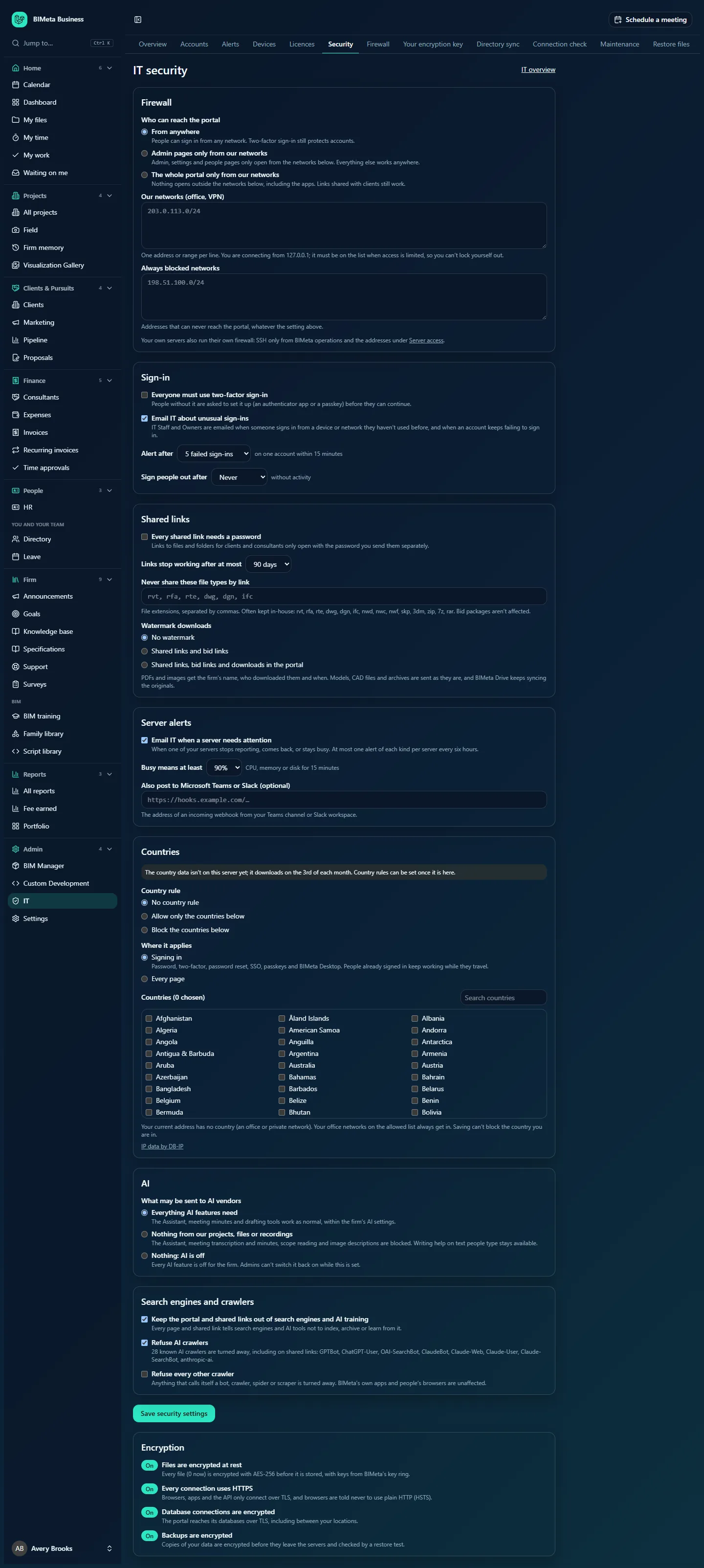
An IT overview link sits at the top right.
Firewall
Who can reach the portal:
- From anywhere (the default): people can sign in from any network. Two-factor sign-in still protects accounts.
- Admin pages only from our networks: admin, settings and people pages only open from your listed networks. Everything else works anywhere.
- The whole portal only from our networks: nothing opens outside your listed networks, including the apps. Links shared with clients still work.
- Our networks (office, VPN): one address or range per line (commas also work), e.g.
203.0.113.10or203.0.113.0/24. Up to 50 entries. Below the box, the page tells you the address you are connecting from right now; when access is limited it must be on the list, so you can't lock yourself out. - Always blocked networks: addresses that can never reach the portal, whatever the setting above, e.g.
198.51.100.0/24. Your own current address can't be in this list. - A note reminds you that if your firm has its own servers, they also run their own firewall: server sign-in (SSH) only from BIMeta operations and the addresses under Server access.
Shared links for clients, signing out and the portal's health check are never blocked by the network or country rules.
Your networks and the BIMeta firewall. This Firewall section decides who may reach the portal. It is separate from the Firewall tab of the IT hub, which shows the BIMeta firewall that inspects every request, bans abusive addresses and refuses known-bad networks. The two are linked: when Who can reach the portal is set to one of the two limited options, the addresses in Our networks (office, VPN) become your firm's office networks for the BIMeta firewall too. They are never banned automatically (useful when many people share one office address and a few mistype their passwords), they appear on the Firewall tab's Allow list marked "Office network (IT security)", and they are the networks that keep access during an Office networks only lockdown. With From anywhere, the list isn't used by the firewall; add your office addresses on the Firewall tab's allow list instead if you want them never to be banned.
Sign-in
- Everyone must use two-factor sign-in: off by default. When on, people without two-factor are asked to set it up (an authenticator app or a passkey) before they can continue. (Owners, Admins, Human Resources, IT Staff and BIM Managers must always use it.)
- Email IT about unusual sign-ins: on by default. IT Staff and Owners are emailed when someone signs in from a device or network they haven't used before, and when an account keeps failing to sign in. Choose who receives these on IT alerts.
- Alert after … on one account within 15 minutes: 3, 5 (default), 10 or 20 failed sign-ins.
- Sign people out after … without activity: Never (default), 15 minutes, 30 minutes, 1 hour, 2 hours, 4 hours or 8 hours.
Shared links
- Every shared link needs a password: when on, links to files and folders for clients and consultants only open with a password you send them separately.
- Links stop working after at most: 1 day, 7 days, 30 days or 90 days (default).
- Never share these file types by link: file extensions separated by commas (up to 100), e.g.
rvt, rfa, rte, dwg, dgn, ifc. The hint lists types firms often keep in-house: rvt, rfa, rte, dwg, dgn, ifc, nwd, nwc, nwf, skp, 3dm, zip, 7z, rar. Bid packages aren't affected. - Watermark downloads: No watermark (default), Shared links and bid links, or Shared links, bid links and downloads in the portal. PDFs and images get the firm's name, who downloaded them and when (in UTC). Models, CAD files and archives are sent as they are, and BIMeta Drive keeps syncing the originals.
Server alerts
- Email IT when a server needs attention: on by default. When one of your own servers stops reporting, comes back, or stays busy. At most one alert of each kind per server every six hours.
- Busy means at least: 80%, 90% (default) or 95% CPU, memory or disk for 15 minutes.
- Also post to Microsoft Teams or Slack (optional): the https address of an incoming webhook from your Teams channel or Slack workspace. It must be a public https address. Which kinds of alert are posted there is chosen on IT alerts.
Countries
Country rules use a database of which country each internet address belongs to (IP data by DB-IP), downloaded on the 3rd of each month. Until it's on the server you'll see a note, and country rules can't be switched on yet. Once it is, the page shows the date of the data.
- Country rule: No country rule (default), Allow only the countries below, or Block the countries below.
- Where it applies: Signing in (default; covers password, two-factor, password reset, SSO, passkeys and BIMeta Desktop sign-in, so people already signed in keep working while they travel) or Every page.
- Countries (n chosen): tick countries in the list; use Search countries to find them by name or two-letter code.
- A line tells you which country you're signed in from now (or that your address has no country, as with an office or private network). Your office networks on the allowed list always get in, and saving can't block the country you are in.
AI
What may be sent to AI vendors:
- Everything AI features need (default): the Assistant, meeting minutes and drafting tools work as normal, within the firm's AI settings.
- Nothing from our projects, files or recordings: the Assistant, meeting transcription and minutes, scope reading and image descriptions are blocked. Writing help on text people type stays available.
- Nothing: AI is off: every AI feature is off for the firm. Admins can't switch it back on while this is set.
Search engines and crawlers
- Keep the portal and shared links out of search engines and AI training: on by default. Every page and shared link tells search engines and AI tools not to index, archive or learn from it.
- Refuse AI crawlers: on by default. 28 known AI crawlers (such as GPTBot, ChatGPT-User, ClaudeBot, PerplexityBot and CCBot) are turned away, including on shared links.
- Refuse every other crawler: off by default. Anything that calls itself a bot, crawler, spider or scraper is turned away. BIMeta's own apps and people's browsers are unaffected.
Save security settings
Saves every section above at once ("Security settings saved"). The save is recorded in the audit log and the security log, including the main values chosen.
Encryption
A read-only summary with On badges:
- Files are encrypted at rest: every file (with the current count) is encrypted with AES-256 before it's stored, with keys from BIMeta's key ring (or your own, see Your encryption key).
- Every connection uses HTTPS: browsers, apps and the API only connect over TLS, and browsers are told never to use plain HTTP (HSTS).
- Database connections are encrypted: including between your locations.
- Backups are encrypted: before they leave the servers, and checked by a restore test.
How to limit the portal to your office networks
- Find your office and VPN public addresses (ask your internet provider or network admin). Make sure the address shown under the box ("You are connecting from …") is one of them.
- Type them in Our networks (office, VPN), one per line.
- Choose Admin pages only from our networks first. Try it for a week before considering The whole portal only from our networks, which also stops people working from home unless they use the VPN.
- Click Save security settings.
Every save also refreshes your office networks on the BIMeta firewall's allow list, so remove an old office address here and it stops being protected from bans there too.
How to require two-factor for everyone
- First, on IT accounts, click Remind everyone under People without two-factor sign-in and give people a few days.
- Tick Everyone must use two-factor sign-in and save. Anyone still without it is asked to set it up the next time they continue.
How to set a country rule
- Choose Allow only the countries below (stricter; good when all staff are in a few countries) or Block the countries below.
- Leave Where it applies on Signing in unless you need every page covered.
- Tick the countries. At least one is required.
- Save. If the rule would block the country you're in now, you'll see an error instead of being locked out.
Safe practice
- Start gentle, then tighten. Turn on alerts and reminders first; restrict networks and countries once you know where people really work from.
- Keep a second way in. Before limiting access to office networks, make sure at least one other Owner or IT person can reach the portal from an allowed network (e.g. via VPN).
- Password-protect shared links and keep their life short when sharing with outside parties; send passwords by a different channel (phone or text, not the same email).
- Block model and CAD types from links if your contracts limit sharing native files, and use watermarks on PDFs for issued documents.
- Use idle sign-out (e.g. 1 hour) on shared or office computers.
- Review this page after staff or office changes and when clients send new security requirements.
Troubleshooting
"Your own address (…) isn't in the allowed networks. Add it, or you'd be locked out."
Add the address shown (or its range) to Our networks (office, VPN), or choose From anywhere.
"Check the network … Use an address like 203.0.113.10 or a range like 203.0.113.0/24."
An entry isn't a valid address or range. Ranges can't be wider than /8 (IPv4) or /16 (IPv6).
"List at least one network (your office or VPN) before limiting access."
Add your networks before choosing either of the limited options.
"The country data isn't on this server yet. Try again after tonight's update."
Country rules can only be saved once the country database has downloaded.
"Use the https address of a Microsoft Teams or Slack incoming webhook."
The webhook must start with https:// and point to a public address.
A client says a shared link doesn't open.
Check whether it expired (Links stop working after at most), needs the password, or the file type is in Never share these file types by link. Network and country rules never block shared links; only the crawler settings apply to them, and they don't affect people's browsers.
Was this article helpful?
Share