



Retention and holds: keep project records and place legal holds
18 views · by Kevin J Bruno · updated 3 days ago
Retention and holds is where your firm decides how long a finished project's records are kept, whether that protection can be weakened later, and where every legal hold in the firm is listed. Architecture and engineering firms often have to keep project records for many years after a project closes, in case of a claim, and must stop deleting anything once a dispute is likely. This page puts both rules in one place.
Key ideas in plain words
- Retention period: when a project is closed out, BIMeta Business sets a "keep until" date on it: the closeout date plus the number of years you choose here. Until that date the project is in retention and its files are protected.
- Retention lock: an extra safeguard. With the lock on, nobody (Owners included) can delete files from a project that is in retention, and a project's keep-until date can only ever move later, never earlier, even if the project is reopened and closed again. Without the lock, people can still move a project's files to the recycle bin, but the file contents are kept until the keep-until date. Only an Owner can turn the lock off.
- Legal hold: a freeze placed because of a claim, dispute or investigation. While a hold is active, nothing it covers can be deleted or purged by anyone: not by Admins, not by storage cleanup, not even by closing the firm's account. A hold covers either one project or every file in the firm.
- Custodian: the one person named on a hold who is responsible for it. Only the custodian can lift the hold, so choose someone who will be around for the whole matter (often an Owner or the firm's risk or legal contact).
Where to find it
- Sidebar → Admin → IT, then the Retention and holds tab. The IT entry opens on the Overview tab; a row of tabs across the top of every IT page (Overview, Accounts, Alerts, Devices, Licences, Security, Firewall, Your encryption key, Directory sync, Connection check, Maintenance, Restore files, Retention and holds, Storage cleanup, Report, Audit export) takes you between the IT tools. If the window is narrow, scroll the tab row sideways to reach the last tabs.
- Press Ctrl K (Jump to…) and type
retention. - Holds on a single project are placed from that project's Closeout page; they also appear in the list here.
Who can use it
| Action | Who |
|---|---|
| Open the page | Business Owner, IT Staff |
| Change the number of years, turn the retention lock on | Business Owner, IT Staff |
| Turn the retention lock off | Business Owner only (for anyone else the tick box is greyed out once the lock is on) |
| Place a firm-wide hold | Business Owner, IT Staff (anyone on this page who is allowed to place legal holds) |
| Lift a hold | Only the custodian named on that hold, whatever their role |
Admin, BIM Manager, Project Manager, Human Resources and User can't open this page. Project Managers place project holds from a project's Closeout page.
The page
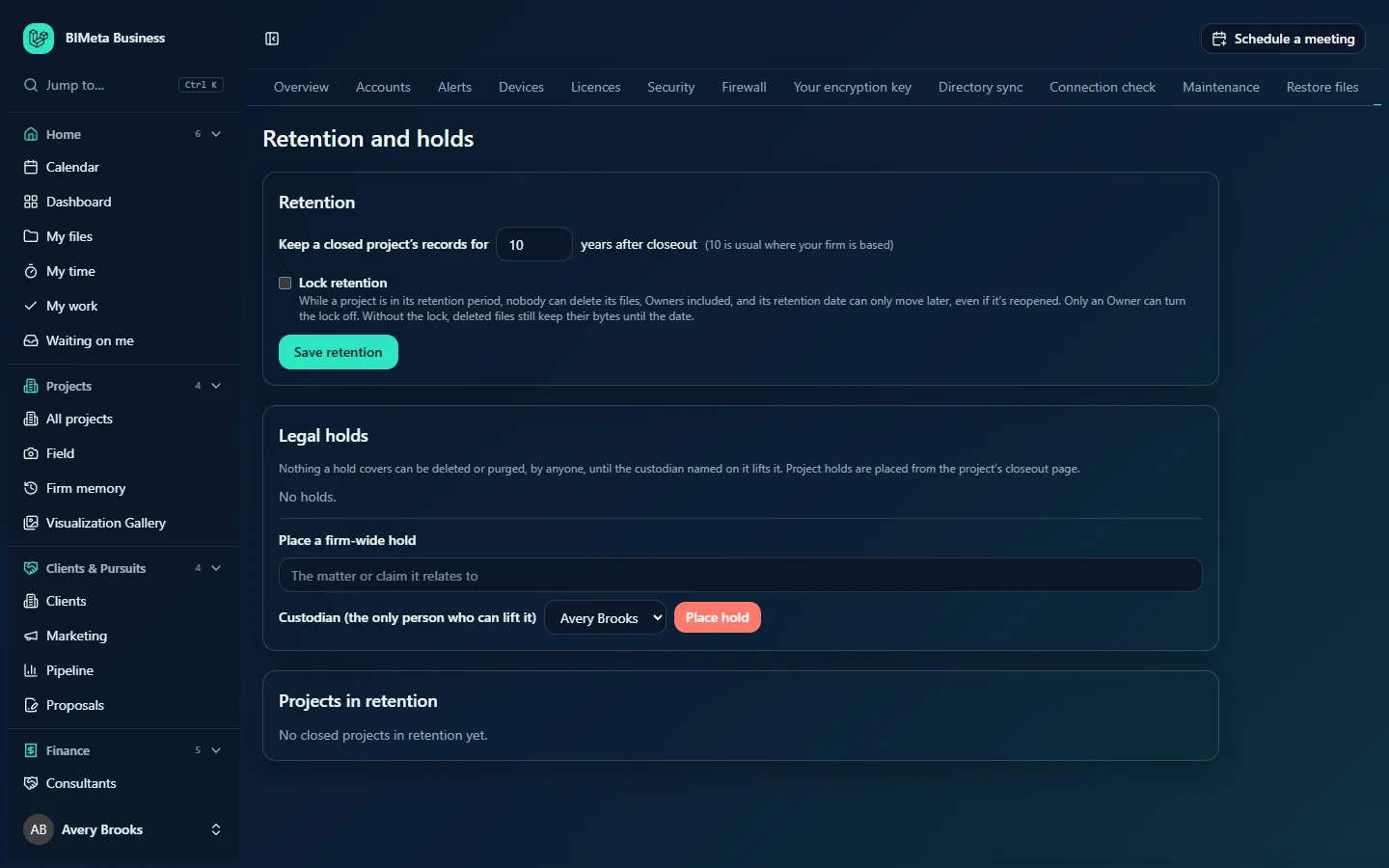
Next to the title, badges warn you at a glance: a red 1 active hold (or n active holds) and Retention locked when the lock is on.
Retention
- Keep a closed project's records for … years after closeout: a whole number from 1 to 50. Next to it, a hint such as "(10 is usual where your firm is based)" gives the common period for your firm's country (for example 10 years in the US, 15 in Canada and the UK).
- Lock retention: the tick box described above, with its explanation underneath.
- Save retention: saves both settings.
Legal holds
A note reminds you that nothing a hold covers can be deleted or purged until the custodian lifts it, and that project holds are placed from the project's closeout page. Then every hold (up to 100), active ones first. Each shows:
- A badge: Active (red) or Lifted.
- What it covers: the project number and name, or Every file in the firm.
- Custodian: who can lift it, and placed by who and on what date.
- The reason, and the note written when it was lifted, if any.
- If you are the custodian of an active hold: a Why it can be lifted (optional) box and a Lift hold button.
When there are none you'll see No holds.
Below the list is Place a firm-wide hold:
- The matter or claim it relates to (required, up to 500 characters).
- Custodian (the only person who can lift it): choose from the firm's active staff (clients and consultants aren't listed).
- Place hold.
Projects in retention
Every closed project whose keep-until date hasn't passed, soonest first: project number and name (click to open), a Reopened badge if the project was reopened while still in retention, and kept until with the date. Until a project is closed out you'll see No closed projects in retention yet.
How to set the retention period
- In Retention, type the number of years (1 to 50). If unsure, use the usual period shown in brackets, and check with your insurer or legal adviser.
- Click Save retention. You'll see "Retention saved".
The period is used for projects closed from now on; projects already in retention keep their date. The project manager can still choose a different number of years on a project's Closeout page when closing it.
How to turn the retention lock on or off
- Tick (or, as an Owner, untick) Lock retention.
- Click Save retention.
Every change is recorded in the audit log and the security log, including whether the lock was on before.
How to place a firm-wide legal hold
- Under Place a firm-wide hold, describe the matter or claim, for example "Claim 2026-14, Harbor Point roof leak".
- Choose the Custodian.
- Click Place hold and confirm the prompt ("Place a hold on every file in the firm? Nobody can delete anything until the custodian lifts it.").
- You'll see "Firm-wide legal hold placed. No file in the firm can be deleted until the custodian lifts it." The hold is recorded in the audit log.
To freeze just one project instead, open the project, go to its Closeout page and use Place a legal hold there.
How to lift a hold (custodians only)
- Find the active hold where you are named as custodian.
- Optionally write Why it can be lifted, for example "Claim settled, counsel confirmed 2026-11-02". This note stays on the record.
- Click Lift hold and confirm ("Lift this hold? Files it covers can be deleted again.").
- The hold moves to Lifted and the lifting is recorded in the audit log.
Tips and safe practice
- Place a hold as soon as a claim is likely, not when it arrives. Deleting records after you knew of a dispute can have serious legal consequences.
- A firm-wide hold stops all deletion, including the recycle bin emptying and storage cleanup. Your storage will grow while it's in place, so prefer a project hold when the matter concerns one project.
- Choose custodians carefully. Only the custodian can lift a hold. If they leave the firm, the hold stays active; plan ahead and pick someone senior.
- Turn the lock on if you must prove records weren't altered. With the lock, even an Owner can't delete files from a project in retention, and dates can only be extended.
- Holds and retention also protect files on Storage cleanup: protected files can't be moved to the recycle bin there.
Troubleshooting
Why is the Lock retention box greyed out?
The lock is on and you're not an Owner. Only an Owner can turn it off.
Why can't I see a Lift hold button?
Only the custodian named on the hold sees it. Ask that person to lift the hold.
Someone can't delete a file. Why?
Either an active hold covers it, or the retention lock is on and the file's project is in retention. Check the badges at the top of this page and the project's Closeout page.
I changed the number of years. Why didn't the dates of closed projects change?
The setting applies when a project is closed out. Existing keep-until dates aren't recalculated.
Was this article helpful?
Share