



Restore files: bring project files back from a backup copy
18 views · by Kevin J Bruno · updated 5 days ago
Restore files lets you bring project files back from one of your firm's backup copies yourself, without contacting support. Pick a copy (a snapshot of the firm's files taken at a point in time), pick a project, and restore individual files, one folder, or the whole project. It's the safety net for when something was deleted and has since been emptied from the recycle bin, or when you need a project exactly as it was on a given day.
Restoring is safe: nothing that's in the portal now is overwritten. A file that's missing comes back as it was. If a newer file with the same name exists now, the copy's version comes back beside it as an earlier version, so you can compare and choose.
Where to find it
- Sidebar → Admin → IT, then the Restore files tab. The IT entry opens on the Overview tab; a row of tabs across the top of every IT page (Overview, Accounts, Alerts, Devices, Licences, Security, Firewall, Your encryption key, Directory sync, Connection check, Maintenance, Restore files, Retention and holds, Storage cleanup, Report, Audit export) takes you between the IT tools. If the window is narrow, scroll the tab row sideways to reach the last tabs.
- Press Ctrl K (Jump to…) and type
restore.
Who can use it
- Business Owner and IT Staff: anyone allowed to manage the firm's storage. Someone who can see the IT pages but may not manage storage doesn't get the Restore files tab at all.
- Other roles can't open it. People can still bring back their own recently deleted files from the recycle bin where they work; this page is for restoring from backup copies.
The page
The example firm Northlight Architects doesn't have backup copies turned on, so the page shows a note instead of the picker:
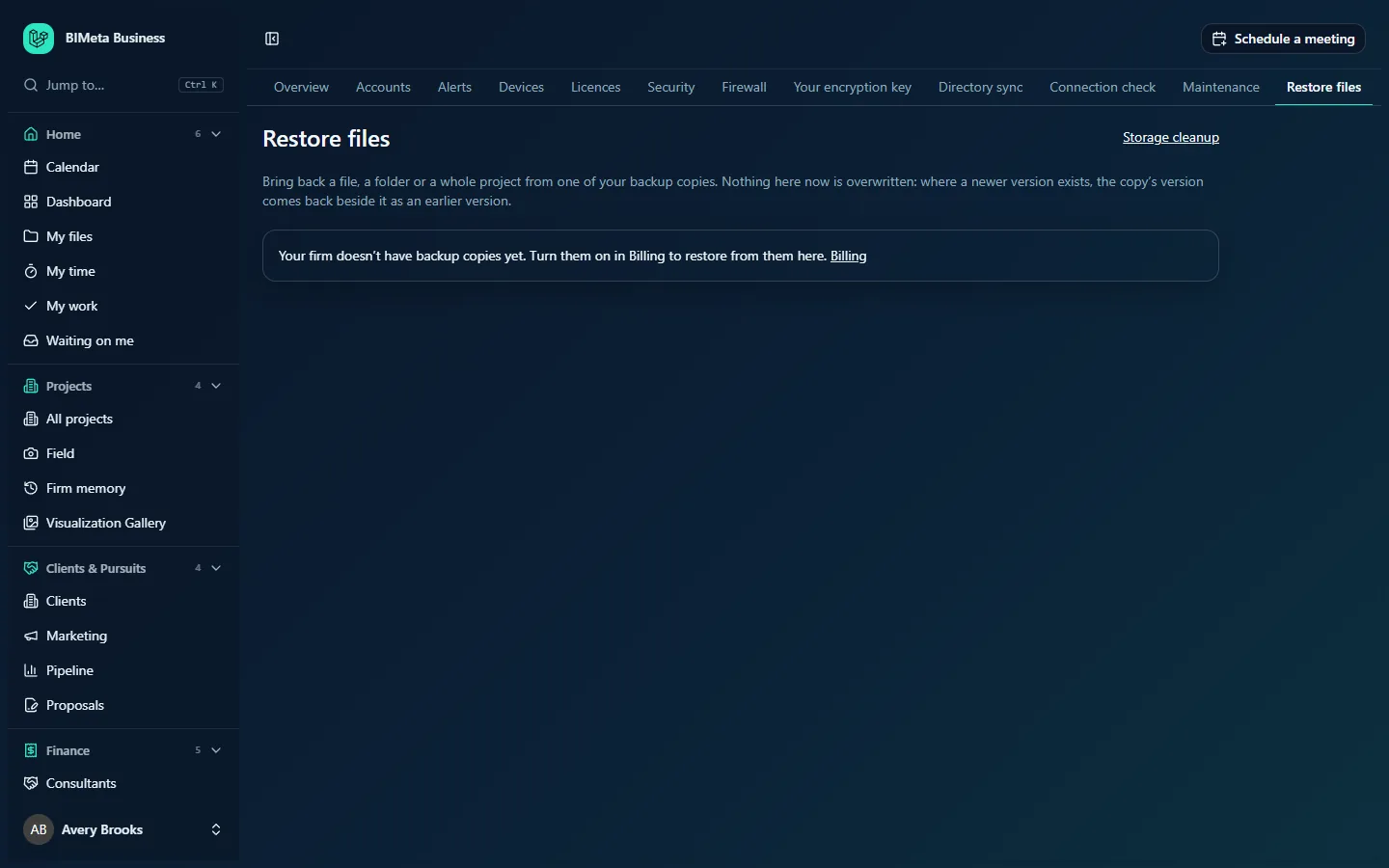
- A Storage cleanup link at the top right.
- A short explanation of what restore does.
- If backup copies aren't part of your plan: "Your firm doesn't have backup copies yet. Turn them on in Billing to restore from them here." with a Billing link.
- If they are on but the first copy hasn't been made yet: No backup copy has been made yet.
Once copies exist you see:
- Backup copy: a list of copies by date and time, newest first.
- Project: the projects that existed in that copy. Starts at Choose a project.
After you choose a project, Files in that copy appears, with "n can be restored". Each file is listed with its folder and name, version (e.g. v3), size and a status:
- Here now: the file is in the portal; there's nothing to restore, so its tick box is disabled.
- In the recycle bin: it was deleted but not yet purged; restoring brings it back out of the bin.
- Removed for good: it has since been purged; restoring copies it back from the backup.
If the project had no files in that copy you'll see This project had no files in that copy.
When at least one file can be restored, two ways to restore appear at the bottom:
- Restore selected (n): restores the files you ticked.
- A folder list (The whole project or a folder name) with a Restore button: restores everything in that folder (and its sub-folders), or the whole project.
How to restore specific files
- Choose the Backup copy from before the files were lost.
- Choose the Project.
- Tick the files to bring back. Only files marked In the recycle bin or Removed for good can be ticked.
- Click Restore selected (n).
- You'll see "1 file restored." or "n files restored." The files are back in the project's files, in their original folders.
How to restore a folder or a whole project
- Choose the copy and the project.
- In the folder list at the bottom, choose a folder, or leave The whole project.
- Click Restore and confirm ("Restore everything that was in folder?" or "Restore every file this project had in that copy?").
- Files that are already here are skipped. If everything was already present you'll see "Everything in that copy is here already."
Tips and good to know
- Up to 5,000 files per restore. For a bigger project, restore one folder at a time.
- Every file is checked against the copy's record before it's put back. A file that fails the check is skipped rather than restored damaged.
- Restores are recorded in the audit log: which copy, which project, and how many files were restored and skipped.
- Restored files keep their original uploader and upload date.
- Restore works per project. Personal files and other non-project files aren't restored from this page.
- The first time you open a copy it may take a moment while the copy's index is read; after that it's quick for an hour.
- For a recent deletion, check Storage cleanup → recycle bin first: restoring from there is instant.
Troubleshooting
"That copy can't be read. Try another one."
That backup copy couldn't be opened. Choose a different copy (an earlier or later one); if none work, contact BIMeta support.
"Nothing to restore there in that copy."
The folder you chose had no files in that copy, or none of the selected files are in it.
Why can't I tick a file?
It's marked Here now: it's already in the portal and doesn't need restoring.
I restored a file but people still see the newer one.
That's by design: a newer file with the same name existed, so the copy's version came back as an earlier version. Open the file's version history to use it.
Was this article helpful?
Share