



IT report: the weekly IT summary
16 views · by Kevin J Bruno · updated 1 day ago
The IT report is a one-screen summary of the last seven days: your servers and the alerts they raised, how much storage grew, new and dormant accounts, who still signs in without two-factor, sign-in trouble, and what the BIMeta firewall blocked. The same report is emailed every week to the people you choose, so the firm's IT health lands in their inbox without anyone having to remember to look. It's ideal for a Monday-morning check or for an Owner who wants the headline numbers without opening every IT page.
Where to find it
- Sidebar → Admin → IT, then the Report tab. The IT entry opens on the Overview tab; a row of tabs across the top of every IT page (Overview, Accounts, Alerts, Devices, Licences, Security, Firewall, Your encryption key, Directory sync, Connection check, Maintenance, Restore files, Retention and holds, Storage cleanup, Report, Audit export) takes you between the IT tools. If the window is narrow, scroll the tab row sideways to reach the last tabs.
- Press Ctrl K (Jump to…) and type
it report. - The link at the bottom of the weekly report email opens this page.
Who can use it
- Business Owner and IT Staff can open the page, click Email it to me and change the Weekly email settings.
- Someone allowed to view IT pages but not to manage IT security would see the settings greyed out and no save button. With the standard roles, Owners and IT Staff have both.
- Only active Owners and IT Staff can receive the weekly email.
- Other roles can't open the page.
The page
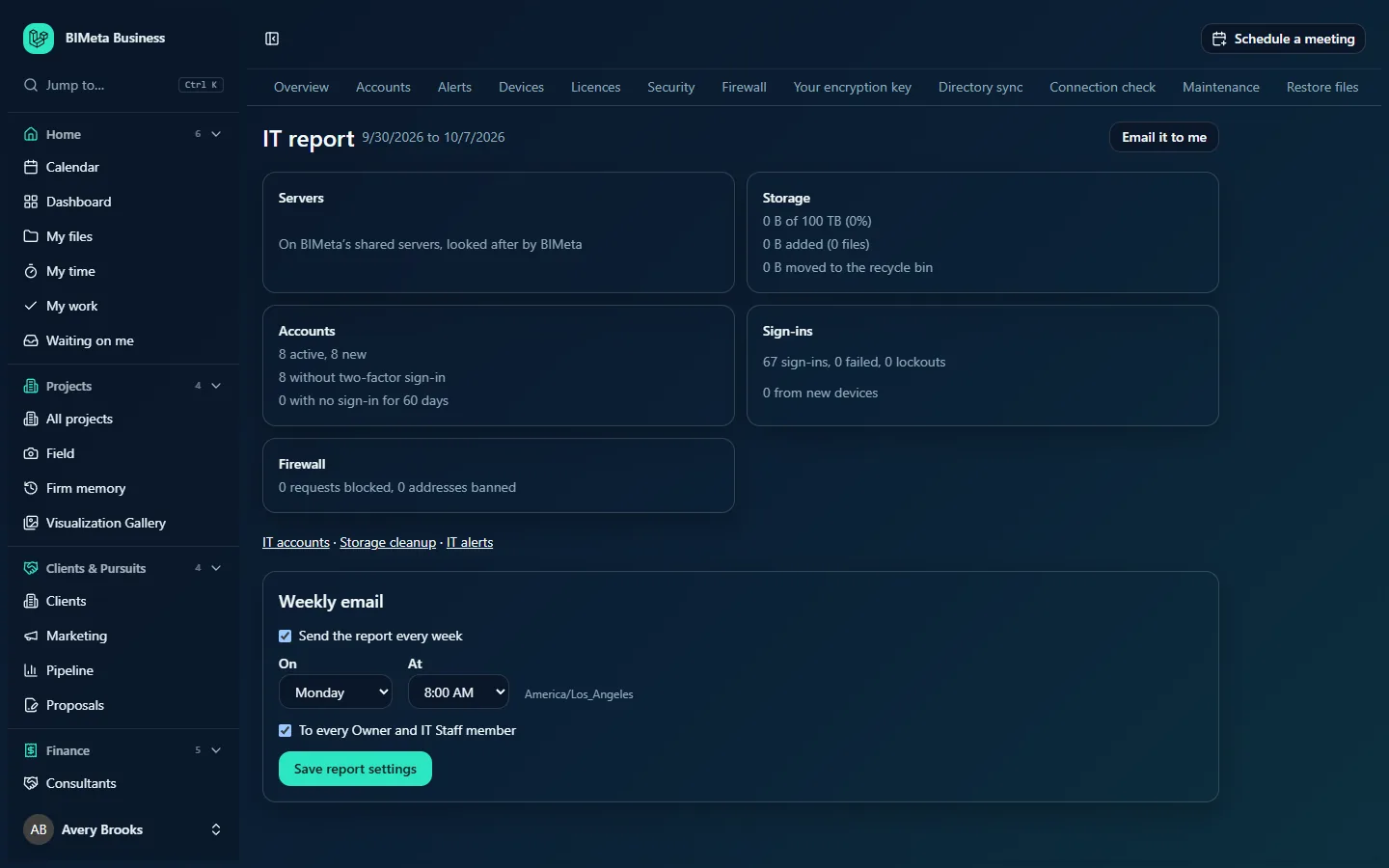
The header
- The period covered: the seven days up to now, for example "9/28/2026 to 10/5/2026".
- Email it to me: sends the current report to your own email address straight away ("The report is on its way to your inbox.").
The five report cards
A card gets an amber border when something in it needs your attention.
- Servers: with your own servers, "n servers, n not reporting now", the number of server alerts in the week, and "n updates installed, n failed". On shared servers it says "On BIMeta's shared servers, looked after by BIMeta". Amber when a server isn't reporting or an update failed.
- Storage: space used and the share of your allowance (e.g. "0 B of 100 TB (0%)"), how much was added during the week and in how many files, and how much was moved to the recycle bin. Amber at 80% of your allowance or more.
- Accounts: active people and how many are new this week (e.g. "8 active, 8 new"), how many sign in without two-factor, and how many haven't signed in for 60 days. Amber when anyone lacks two-factor.
- Sign-ins: successful sign-ins, failed attempts and lockouts (e.g. "7 sign-ins, 0 failed, 0 lockouts"), sign-ins from new devices, and the countries people signed in from, when known. Amber when there was a lockout.
- Firewall: how many requests to your portal the BIMeta firewall blocked during the week and how many addresses were banned from your portal, e.g. "0 requests blocked, 0 addresses banned", and, when there were any, the rules that blocked most often ("Most often: …", up to three). This card is never amber: blocked requests are attacks that were stopped. The addresses counted are bans on your portal only (from scanning, failed sign-ins, too many requests, or bans IT added); attack bans BIMeta applies to every portal aren't counted here.
Under the cards, links take you to the pages where you act on the numbers: IT accounts, Storage cleanup and IT alerts.
Weekly email
- Send the report every week: on by default.
- On: the day, Monday by default.
- At: the hour, 8:00 AM by default. The time zone shown next to it (e.g. America/Los_Angeles) is the one set for IT alerts; change it on IT alerts.
- To every Owner and IT Staff member: on by default. Untick it to choose specific people from the list of Owners and IT Staff that appears.
- Save report settings.
How to set up the weekly email
- Tick Send the report every week.
- Choose the day in On and the hour in At.
- Leave To every Owner and IT Staff member ticked, or untick it and tick the people who should get it. You must choose at least one person.
- Click Save report settings. You'll see "Report settings saved". The change is recorded in the audit log.
The report goes out once a week, during the chosen hour in the alert time zone.
How to stop the weekly email
- Untick Send the report every week.
- Click Save report settings. You can still open this page or use Email it to me whenever you like.
How to read the report and act on it
- Servers not reporting or failed updates: open IT overview to see which server, and Maintenance for update history.
- Storage above 80%: open Storage cleanup to free space, or add storage in Billing.
- People without two-factor: open IT accounts and click Remind everyone, or require two-factor in IT security.
- Dormant accounts: review them on IT accounts.
- Many blocked requests or bans: open the Firewall tab to see which addresses and rules, and check none of them are your own people (if they are, add their network to the allow list or add an exception).
- Lockouts, failures, unexpected countries: filter the sign-in log on IT accounts and consider country or network rules in IT security.
Tips and good to know
- "New" accounts include people who were invited but haven't accepted yet.
- The "no sign-in for 60 days" count always uses 60 days, whatever period you choose on IT accounts.
- Server alerts in the report count the alerts recorded on IT alerts during the week.
- The weekly email has the same sections, including a FIREWALL section with the blocked and banned counts.
Troubleshooting
"Choose who gets the report, or send it to everyone."
You unticked To every Owner and IT Staff member without ticking anyone. Tick at least one person.
Someone I want to receive the report isn't in the list.
Only active Owners and IT Staff can receive it. Give the person the IT Staff role in People & access if appropriate, or forward the email.
The email arrives at the wrong time.
The hour uses the IT alerts time zone. Check it on IT alerts.
Was this article helpful?
Share