



Maintenance: choose when your servers are updated
17 views · by Kevin J Bruno · updated 1 day ago
Maintenance is where you tell BIMeta when it may update and restart your firm's own servers. You choose the days, a start time and how long the maintenance window lasts, in your own time zone, so updates happen when nobody is working against a deadline. You also choose whether everyone gets a warning banner beforehand and whether urgent security fixes may be installed straight away. If your firm has its own servers, the page also shows which software release each server runs and the history of recent updates.
Where to find it
- Sidebar → Admin → IT, then the Maintenance tab. The IT entry opens on the Overview tab; a row of tabs across the top of every IT page (Overview, Accounts, Alerts, Devices, Licences, Security, Firewall, Your encryption key, Directory sync, Connection check, Maintenance, Restore files, Retention and holds, Storage cleanup, Report, Audit export) takes you between the IT tools. If the window is narrow, scroll the tab row sideways to reach the last tabs.
- Press Ctrl K (Jump to…) and type
maintenance.
Who can use it
- Business Owner and IT Staff can open the page and change the window.
- Someone allowed to view IT pages but not to manage maintenance would see the settings greyed out with no save button. With the standard roles, Owners and IT Staff have both.
- Other roles can't open it, but everyone in the firm sees the maintenance banner when an update is coming.
The page
The example firm Northlight Architects runs on BIMeta's shared servers, so the page shows the window settings only:
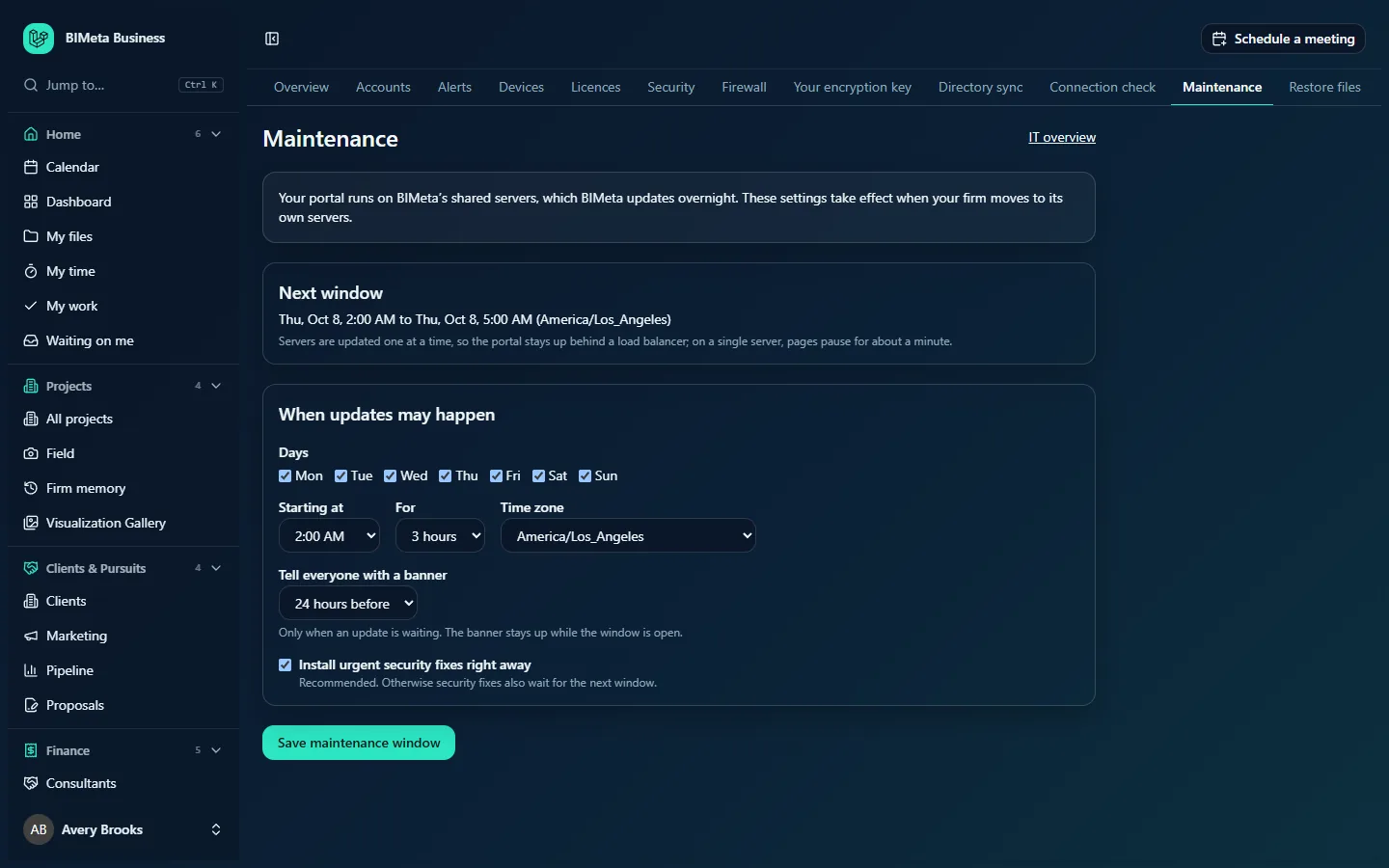
An IT overview link sits at the top right.
Shared servers note
If your portal runs on BIMeta's shared servers, a note explains that BIMeta updates them overnight and that these settings take effect when your firm moves to its own servers. You can still set your preferred window now.
Next window / Window open now
Shows when the next window starts and ends in your chosen time zone, e.g. "Tue, Oct 6, 2:00 AM to Tue, Oct 6, 5:00 AM (America/Los_Angeles)". While a window is running the heading reads Window open now. A note explains that servers are updated one at a time so the portal stays up behind a load balancer; on a single server, pages pause for about a minute.
When updates may happen
- Days: tick the days updates may start: Mon to Sun. All seven are ticked by default. At least one is required.
- Starting at: the hour the window opens. Default 2:00 AM.
- For: how long it stays open: 1 hour, 2, 3 (default), 4, 6 or 8 hours.
- Time zone: the zone the window is set in. Defaults to your first office's time zone.
- Tell everyone with a banner: No banner, 1 hour before, 4 hours before, 24 hours before (default) or 48 hours before. The banner only appears when an update is actually waiting, and stays up while the window is open.
- Install urgent security fixes right away: on by default and recommended. Untick it and security fixes also wait for the next window.
- Save maintenance window.
Servers (your own servers only)
A table of your application servers: Server (e.g. Web 1), Location and Release (the version it runs) with a badge: Up to date or Update waiting. Above it, Latest release shows the newest version, with a red Security fix badge if it's urgent, and its release notes underneath.
Recent updates (your own servers only)
The last 20 update attempts: a status badge (Waiting, Installing, Installed or Failed), the version, the server and location, and the time. For failed updates, the reason is shown in red. With none: No updates yet.
How to set your maintenance window
- Under Days, tick the days you're happy for updates to run. Many firms untick the days before big submittal deadlines or leave only weekend nights.
- Choose Starting at and For. Pick hours when nobody is working, including staff in other time zones and people rendering overnight.
- Check the Time zone.
- Choose when to Tell everyone with a banner.
- Leave Install urgent security fixes right away ticked unless you have a strong reason not to.
- Click Save maintenance window. You'll see "Maintenance window saved" and the Next window box updates. The change is recorded in the audit log.
How to check that updates are going through
- Look at Servers: every server should say Up to date after the window.
- Check Recent updates for any Failed entries and read the reason.
- If an update failed, BIMeta can alert you: tick Server updates in IT alerts. The weekly IT report also counts installed and failed updates.
Tips and good to know
- A longer window gives updates more room on firms with several servers; a short window on a single server is usually enough.
- Night-time renders and long model syncs can be interrupted on a single-server setup; a banner 24 hours ahead gives people time to plan.
- Delaying security fixes leaves your servers exposed for longer. Keep Install urgent security fixes right away on.
- Operating system security updates on your servers are part of the free security baseline (see IT overview) and restart in the quiet hours.
Troubleshooting
"Choose at least one day for updates."
Tick at least one day under Days.
Why don't I see the Servers and Recent updates sections?
Your firm is on BIMeta's shared servers. They appear once your firm has its own servers.
People didn't see a banner before the window.
The banner only appears when an update is actually waiting, and not at all if No banner is chosen.
Was this article helpful?
Share