



Licences: track software seats, costs and renewals
17 views · by Kevin J Bruno · updated 1 day ago
Licences is your register of the software your firm pays for: Revit, AutoCAD, Bluebeam, Enscape, Microsoft 365 and the rest. For each product you record how many seats you have, what it costs and when it renews, and you assign seats to people. BIMeta Business then flags seats held by people who have left or stopped signing in, shows how many machines actually have the product installed, and reminds IT before each renewal so you can give unused seats back instead of paying for them again.
(This page is about software licences. Professional licences and continuing education for staff are under People → HR → Licences & CE.)
Where to find it
- Sidebar → Admin → IT, then the Licences tab. The IT entry opens on the Overview tab; a row of tabs across the top of every IT page (Overview, Accounts, Alerts, Devices, Licences, Security, Firewall, Your encryption key, Directory sync, Connection check, Maintenance, Restore files, Retention and holds, Storage cleanup, Report, Audit export) takes you between the IT tools. If the window is narrow, scroll the tab row sideways to reach the last tabs.
- Press Ctrl K (Jump to…) and type
licences. - The Licences link on the Devices tab.
- Be careful not to confuse it with Licences & CE under People → HR, which tracks professional licences and continuing education for staff. Ctrl K shows both; this one is listed under IT.
Who can use it
- Business Owner and IT Staff can open the page and manage licences: Add licence, Edit, Remove, Give seat and Free seat.
- Someone allowed to view IT pages but not to manage licences would see the list without buttons. With the standard roles, Owners and IT Staff have both.
- Other roles can't open the page.
The page
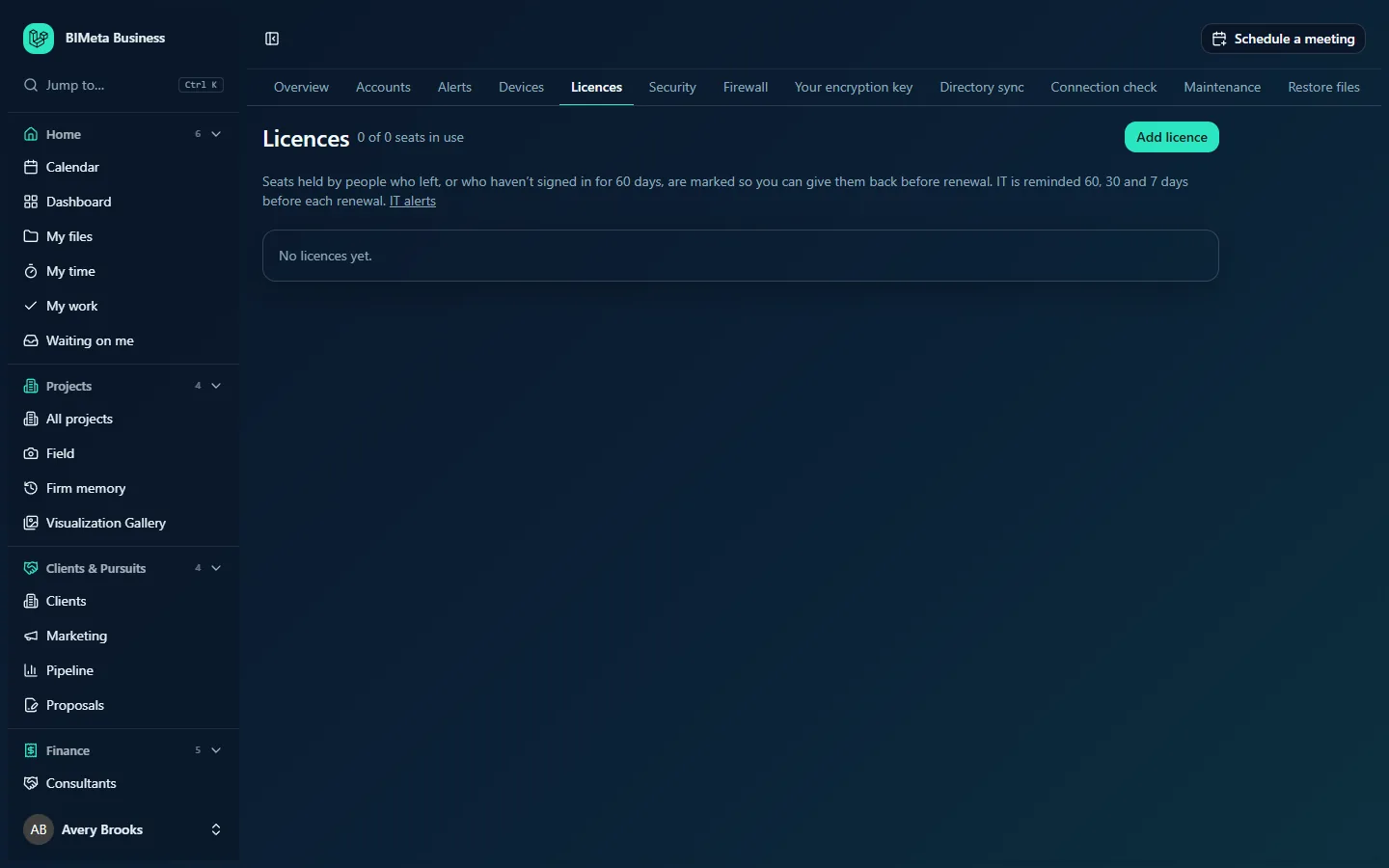
At the example firm Northlight Architects no licences have been added yet:
The header
- Totals across all licences: "used of seats seats in use", plus "· n to give back" when some seats are flagged.
- Add licence: opens the form for a new licence.
- A note explaining the flags and renewal reminders, with a link to IT alerts (where you choose who receives the reminders).
Each licence
Licences are listed by renewal date (soonest first). Each card shows:
- The product and vendor, and a badge for the kind: Named user, Network (shared), Subscription or Perpetual.
- A renewal badge when renewal is 60 days away or less: Renews in n days, or a red Renewal date passed.
- On the right: "3 of 5 seats", the cost, "renews date" and, if BIMeta Desktop or Drive has found the product on any machines, "installed on n machines".
- The notes, if any.
- The seat holders: name and email, with a red Left the firm badge for deactivated people or No sign-in for 60 days for people who haven't signed in for 60 days. Each has a Free seat button.
- At the bottom: a person picker with Give seat (only while seats are free), Edit and Remove.
With no licences you'll see No licences yet.
How to add a licence
- Click Add licence.
- Fill in the form:
- Product (required, up to 120 characters). Start typing for suggestions such as Autodesk AEC Collection, Revit, AutoCAD, Civil 3D, Navisworks Manage, Bluebeam Revu, Enscape, Twinmotion, SketchUp Pro, Rhino, Adobe Creative Cloud, Microsoft 365, Lumion, V-Ray, Tekla Structures or ArchiCAD. Using the same name the software reports helps the "installed on" count.
- Vendor (optional, up to 120 characters).
- Kind (required): Named user (one seat per person), Network (shared) (a pool of concurrent seats), Subscription or Perpetual.
- Seats (required, at least 1).
- Renews on (optional date). Needed for renewal reminders.
- Cost per term (optional, 0 or more, cents allowed).
- Currency: a three-letter code,
USDby default (e.g.CAD,GBP,EUR). - Notes (contract number, reseller) (optional, up to 1,000 characters).
- Click Add licence (or Cancel). You'll see "Licence saved".
How to give and free seats
- On the licence card, pick a person in the list at the bottom (active and invited people who don't already hold a seat).
- Click Give seat ("Seat given"). When every seat is taken, the picker disappears until you free a seat or add seats.
- To take a seat back, click Free seat next to the person ("Seat freed").
How to edit or remove a licence
- Click Edit, change the fields and click Save licence. You can't reduce Seats below the number of people holding one; free seats first.
- To delete a licence and its seat list, click Remove and confirm ("Remove this licence and its seat list?").
Adding, editing, removing, giving and freeing seats are all recorded in the audit log.
How to prepare for a renewal
- About 60 days before the date, IT gets a reminder such as "Revit renews in 60 days" with the number of seats in use. Further reminders follow at 30 and 7 days.
- Open Licences and look for Left the firm and No sign-in for 60 days badges, and compare seats with "installed on n machines".
- Free seats you no longer need, then reduce Seats with Edit and tell your reseller before the renewal.
- After renewing, update Renews on and Cost per term.
Tips and good to know
- Renewal reminders go through IT alerts under the "licences" kind; choose there who receives them (and whether they also go to Teams, Slack or text).
- The "installed on" count comes from Devices and matches by product name, so it only counts machines running BIMeta Desktop or Drive.
- Keep the contract or order number in Notes; it saves time when you call the reseller.
- When someone leaves, free their seats here as part of your off-boarding checklist.
Troubleshooting
"Every seat is taken. Free one, or add seats to the licence."
All seats are assigned. Free a seat or edit the licence to add seats.
"More people hold this licence than that. Free some seats first."
You tried to lower Seats below the number of current holders.
I didn't get a renewal reminder.
Check the licence has a Renews on date, and that you're a recipient of licence alerts in IT alerts.
Was this article helpful?
Share