



Emergency lockdown: close your portal in one click
15 views · by Kevin J Bruno · updated 5 days ago
An emergency lockdown closes your firm's portal in one click, until you lift it. Use it when you suspect a breach, for example a stolen laptop with a signed-in session, a password you think has leaked, or strange activity you don't yet understand, and you need time to investigate without anyone else getting in. You choose who keeps access: only people on your office networks, or only the firm's Owners.
Where to find it
- Sidebar → Admin → IT, then the Firewall tab (between Security and Your encryption key in the row of IT tabs).
- Press Ctrl K (Jump to…) and type
firewall. - The lockdown box is at the top of the Firewall tab.
Who can use it
- Business Owner and IT Staff can start and lift a lockdown.
- Anyone who can see the Firewall tab sees whether the portal is locked down.
- Other roles can't start or lift one.
- If a lockdown can't be lifted from inside the firm (for example, everyone who could lift it is locked out), BIMeta staff can lift it; contact BIMeta support. Lifting it that way is recorded.
The lockdown box
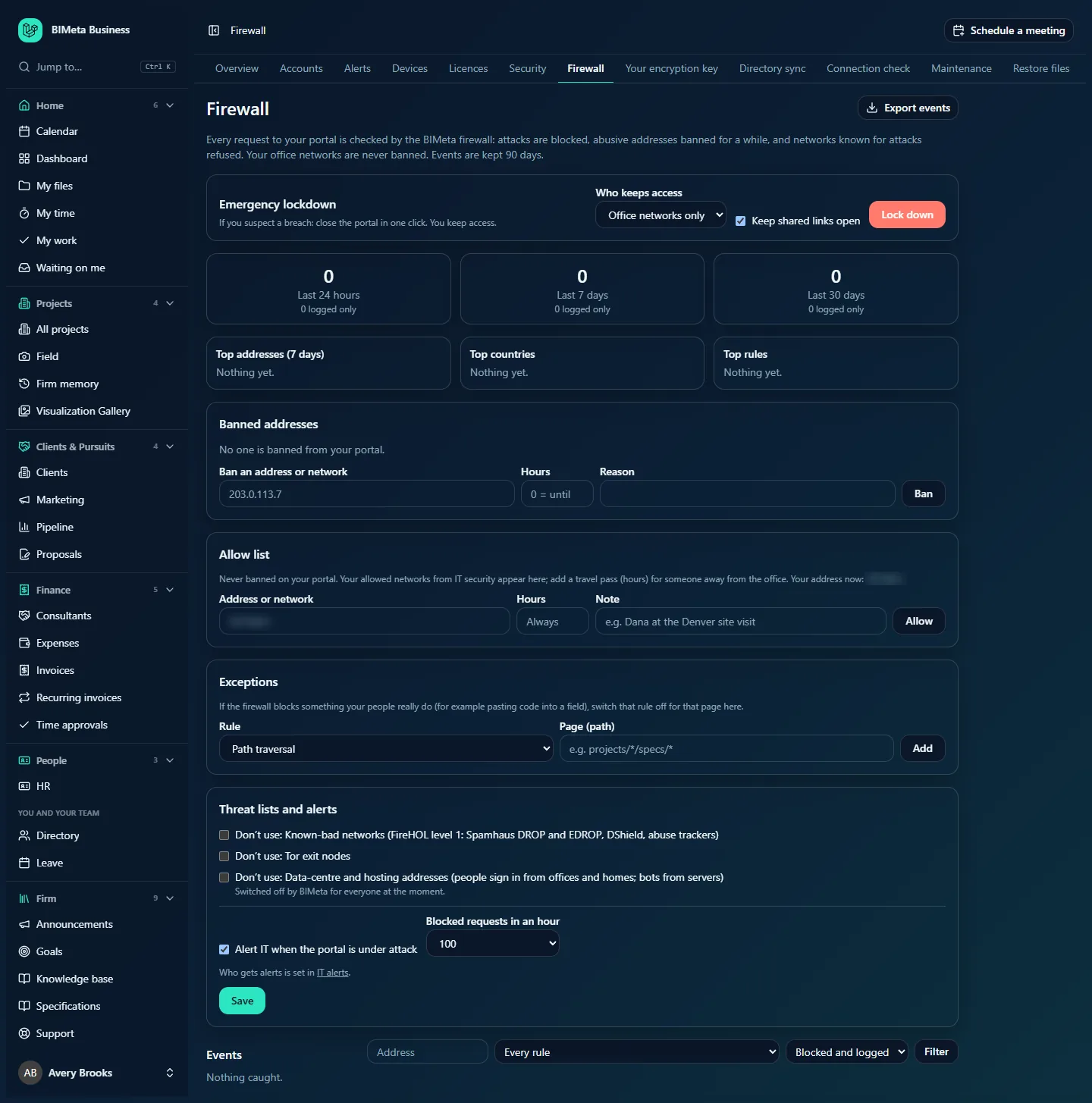
At the top of the Firewall tab:
- Emergency lockdown: "If you suspect a breach: close the portal in one click. You keep access."
- Who keeps access: Office networks only (the default) or Owners only.
- Keep shared links open: ticked by default.
- Lock down: the red button that starts it, after you confirm.
While a lockdown is on, the box becomes a red-bordered panel: Your portal is locked down, a sentence saying who can still get in ("Only your allow list (office networks and travel passes) can reach the portal." or "Only Owners can use the portal.") and whether "Shared links still work." or "Shared links are closed too.", the time it started and who started it, and Lift the lockdown.
The two kinds of lockdown
| Office networks only | Owners only | |
|---|---|---|
| Who gets in | Only requests from your firm's allow list: the office networks from the Security tab, entries on the Firewall tab's Allow list, and travel passes. Anyone, of any role, on those networks can keep working. | Only people with the Business Owner role, from anywhere. Everyone else, including IT Staff and Admins who aren't Owners, is shut out after signing in. |
| When it's enforced | Before sign-in: everything from other addresses is refused, including the sign-in page, BIMeta's desktop apps and the API. | After sign-in: other people can reach the sign-in page but, once signed in, only see a page saying "firm’s portal is locked down" and "Your firm’s portal is locked down for now. Only Owners can use it until IT lifts the lockdown.", with a Sign out button. |
| What outsiders see | The firewall's "This request was blocked by the BIMeta firewall" message. | The locked-down page above. |
| Shared links | Keep working if Keep shared links open was ticked (links to shared files and folders, bid packages, proposals, documents to sign, surveys and gallery shares); refused otherwise. | Shared links don't need anyone to sign in, so they keep working. |
| The person who starts it | Gets a 24-hour travel pass for the address they're using, so they stay in for at least a day. | Stays in only if they are an Owner. |
Signing out always works, whatever the lockdown.
How to lock the portal down
- Decide who must keep working. If your office networks are listed (see the Allow list on the Firewall tab), Office networks only lets the office carry on while closing the portal to the rest of the internet. Owners only is the tightest choice, for when you suspect an account inside the firm.
- Decide about shared links. Leave Keep shared links open ticked unless the breach may involve shared links; unticking it stops clients and consultants opening them during an office-networks lockdown.
- Click Lock down and confirm "Lock down the portal now? It stays locked until you lift it."
- You'll see "Your portal is locked down until you lift it." The lockdown is recorded in your audit log and on BIMeta's side.
- Tell your people what is happening by phone, Teams or another channel: those outside the office (or who aren't Owners) can't reach the portal to read an announcement.
If you have no office networks listed and choose Office networks only, the lockdown still starts, but you'll see "Locked down. You have no office networks listed, so only your own address (…) gets in for 24 hours. Add office networks in IT security." Your 24-hour pass is then the only way in: add your office networks or travel passes before it runs out.
While the portal is locked down
- Use the time to investigate: the Accounts tab (open sessions, recent sign-ins; End suspicious sessions, Deactivate an account), the audit log, and the Firewall tab's Events.
- To let a particular person back in during an office-networks lockdown, give their address a travel pass on the Allow list.
- Requests refused by an office-networks lockdown appear in Events with the rule lockdown. They count as blocked requests, so you may also get a "Your portal is under attack" alert.
- If your firm has its own servers, the lockdown applies there too.
How to lift the lockdown
- Open the Firewall tab.
- Click Lift the lockdown in the red panel. You'll see "Lockdown lifted." Everyone can use the portal again straight away (within about a minute), and the lifting is recorded in the audit log.
The travel pass created for the person who started the lockdown stays on the allow list until its 24 hours are up; remove it there if you want.
Tips and good to know
- Prepare before you need it. List your office and VPN networks on the Security tab now. An office-networks lockdown is only as useful as that list.
- Owners only is literal. IT Staff who aren't also Owners are shut out of an Owners-only lockdown, even if they started it, and can't lift it. If your IT person isn't an Owner, use Office networks only, or make sure an Owner is available to lift it.
- Your 24-hour pass is temporary. In an office-networks lockdown started from outside the office, you are in for 24 hours. After that you need to be on an office network or have a new travel pass.
- A lockdown has no end time. It lasts until someone lifts it.
- BIMeta can see which portals are locked down and can lift one in an emergency.
Troubleshooting
We're locked out and nobody can lift the lockdown.
Contact BIMeta support. BIMeta staff can lift any firm's lockdown.
Someone in the office can't get in during an office-networks lockdown.
Their connection may be using a different public address than the ones listed (for example a phone hotspot or a second internet line). Ask an IT person inside to check the address in Events and add it to the Allow list.
A client says their shared link stopped working.
The lockdown was started with Keep shared links open unticked. Shared links work again as soon as the lockdown is lifted. (To change the choice, lift the lockdown and start it again with the box ticked.)
Was this article helpful?
Share