



How the BIMeta firewall protects your portal
15 views · by Kevin J Bruno · updated 23 hours ago
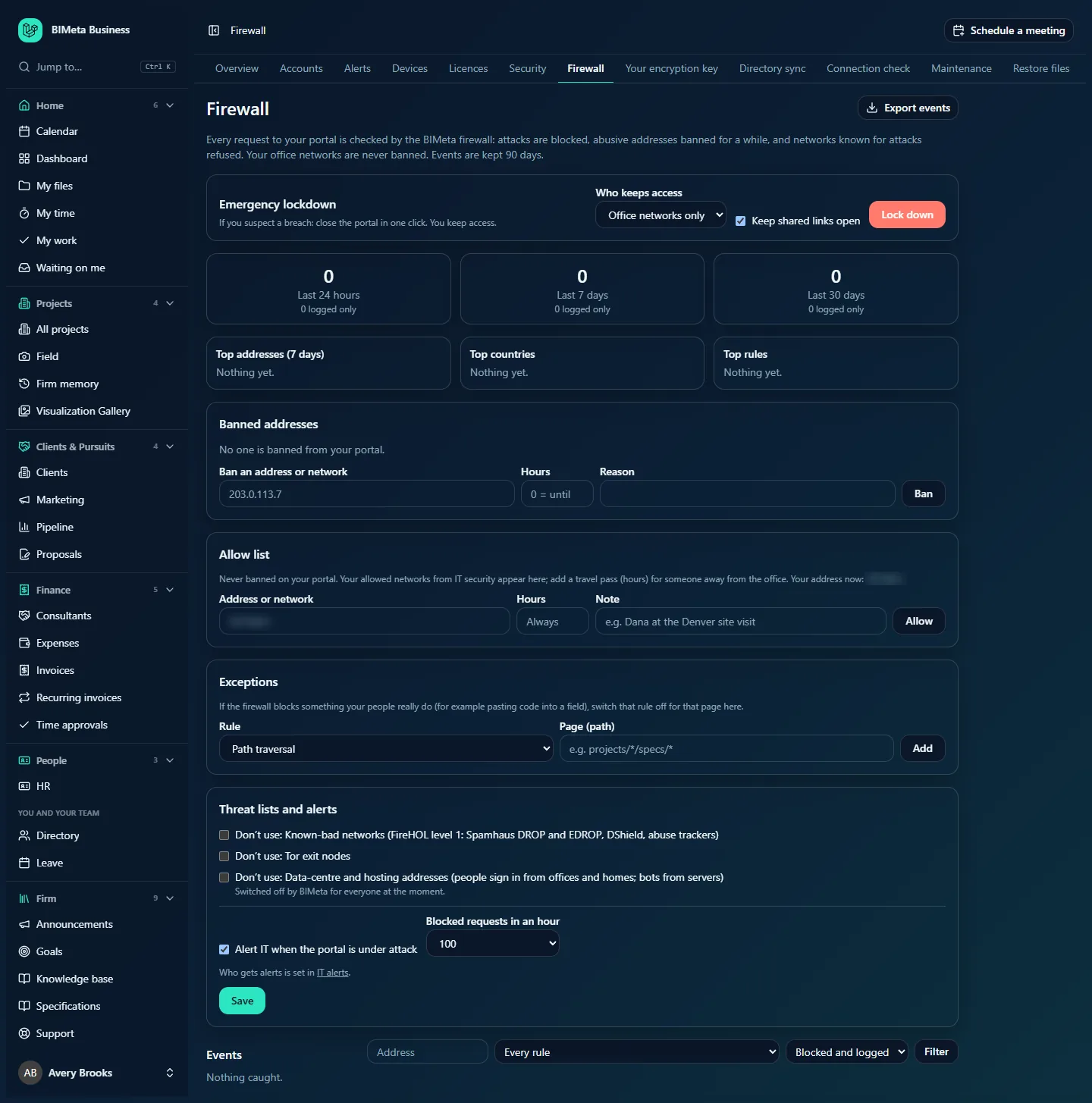
Every request made to your BIMeta Business portal, whether from a browser, BIMeta's desktop apps, the API or a shared link, passes through the BIMeta firewall before the portal handles it. It is switched on for every firm from the moment the portal is created, on BIMeta's shared servers and on a firm's own servers alike, and it needs no setup. This article explains what it does, so you know what to expect and what you can adjust on the Firewall tab (see Firewall: see what's blocked, ban addresses and lock down your portal).
The firewall works in four layers, in this order: banned addresses are turned away, then networks on a threat list, then (during an office-networks lockdown) anyone outside your allow list, and finally the request itself is inspected for attacks.
Where to find it
- Sidebar → Admin → IT, then the Firewall tab (between Security and Your encryption key in the row of IT tabs).
- Press Ctrl K (Jump to…) and type
firewall. - Firewall alert emails and Teams/Slack posts link straight to it.
Who can use it
- The firewall protects everyone; nobody needs to do anything for it to work.
- Business Owner and IT Staff see and adjust it on the Firewall tab of the IT hub.
- Other roles never see it, unless one of their requests is blocked.
1. Request inspection
Each request is checked for the tell-tale shapes of attacks. The rules are written to match attacks, not ordinary words people type. Each kind of rule is set by BIMeta to block (refuse the request), log (let it through and record it) or off:
| Rule (as named on the Firewall tab) | What it catches | Can your firm switch it off for a page? |
|---|---|---|
| Scanner probes (.env, .git, wp-admin...) | Robots looking for files and admin pages that other kinds of website have, such as configuration files, source-control folders, WordPress or phpMyAdmin pages, backup files and .php pages. Your portal has none of these, so only robots ask for them. | No |
| Path traversal | Attempts to climb out of a folder (../) or reach system files. | Yes |
| SQL injection | Database commands smuggled into a request. | Yes |
| Cross-site scripting | Scripts smuggled into a request to run in someone else's browser. | Yes |
| Command injection | Operating-system commands smuggled into a request. | Yes |
| Known exploit payloads (Log4Shell, template injection) | Well-known attack strings against popular software. | No |
| Attack tools (by user agent) | Requests from known hacking and scanning tools that announce themselves. | No |
| Oversized or malformed requests | Requests with an address longer than 4,096 characters, more than 100 headers, or a header larger than 8 KB. | Yes |
Good to know about inspection:
- The page address is checked for path traversal only, so ordinary page names never trip a rule. Browser headers are checked only for exploit payloads and cross-site scripting.
- What people type into forms is checked too, but BIMeta runs those checks in log mode by default: the request goes through and is listed as Logged. This avoids blocking real work such as a specification that quotes code.
- Passwords, sign-in codes and security tokens are never inspected or stored.
- Attackers often disguise their strings with encoding; the firewall decodes them before checking.
- A few things are never inspected: the portal's health check, your servers reporting in, and signed messages from BIMeta's payment and background-check providers.
- If your people really need to do something a rule blocks, IT can switch that rule off for that page with an exception on the Firewall tab. Scanner probes, exploit payloads and attack tools can never be switched off.
2. Automatic banning
Like a bouncer who remembers faces, the firewall keeps score of bad behaviour from each internet address. When an address collects enough points within ten minutes, it is banned for a while.
| Behaviour | Points | Banned from |
|---|---|---|
| A blocked attack | 10 | Every BIMeta portal |
| A request the firewall logged but let through | 2 | Every BIMeta portal |
| A failed sign-in | 4 | The portal it happened on |
| Hitting a rate limit (too many requests too fast) | 3 | The portal it happened on |
| Asking for a page that doesn't exist | 1 | The portal it happened on |
- By default an address is banned at 20 points within ten minutes (BIMeta sets this level for every portal). Two blocked attacks are enough; so are five failed sign-ins.
- Bans grow longer for repeat offenders: 15 minutes the first time, then 1 hour, 24 hours and 7 days for further bans within 30 days. They lift on their own.
- Never banned automatically: your office networks (from the Security tab), anything on your allow list (including travel passes), and private network addresses.
- Bans for attacks protect every firm, so they are shown on your Firewall tab with the badge By BIMeta, every portal and only BIMeta can lift them. Bans for failed sign-ins, scanning and too many requests apply to your portal only, and your IT team can lift them.
- IT can also ban an address or network by hand, for a number of hours or until lifted.
3. Threat intelligence
BIMeta downloads lists of networks known for attacks every day and refuses them. Each list is used in one of three ways, set by BIMeta: refuse every request, refuse only signing in, or not at all. At the time of writing:
| List | How it's used |
|---|---|
| Known-bad networks (FireHOL level 1: Spamhaus DROP and EDROP, DShield, abuse trackers) | Refuses every request. These are networks run by criminals or taken over for attacks. |
| Tor exit nodes | Refuses signing in (the sign-in, two-factor, password reset, single sign-on and passkey pages). Shared links and other pages still open. |
| Data-centre and hosting addresses (people sign in from offices and homes; bots from servers) | Switched off by BIMeta for everyone at the moment. When switched on, it refuses signing in from servers in data centres, where robots run but people don't work. |
- Your firm can opt out of any list for your portal with the Don’t use tick boxes on the Firewall tab.
- If a list can't be refreshed, the last good copy stays in use, and BIMeta is alerted if it gets more than three days old.
- Private network addresses are never refused by a list.
- Requests refused this way show as Threat list in your events.
4. Lockdown
In an emergency, IT can close the portal to everyone except the office networks, or to everyone except the Owners, with one click. See Emergency lockdown: close your portal in one click.
What someone who is blocked sees
A blocked request gets a short plain-text page: "This request was blocked by the BIMeta firewall. If you think that is a mistake, contact your IT team or BIMeta support with reference …", where the reference identifies the request. BIMeta's apps and the API get an error saying the request was blocked, with the same reference. Nothing else about the firewall's rules is revealed. If one of your people sees this, IT can look the address up in Events on the Firewall tab.
On your firm's own servers and at the edge
- If your plan includes your own servers, they apply exactly the same rules, bans, allow list, exceptions, threat-list choices and lockdown, because they read the same central settings.
- On top of that, each of your servers receives the list of blocked addresses every five minutes with its health report and drops them in its own server firewall, so they never even reach the portal. This covers bans for every portal, your portal's own bans, and the threat lists that refuse every request (unless you opted out). Private addresses, your office networks and your allow list are never dropped. A server holds up to 50,000 blocked entries.
- Bans that apply to every portal are also pushed out to BIMeta's edge network every five minutes, and removed again when they are lifted, so banned addresses are stopped before they reach any server.
Firewall setup when your firm joins
There is no firewall step in Setup: the firewall is put in place for you.
- When your portal is created, the firewall's firm defaults are set: attack alerts on, at 100 blocked requests an hour, and every threat list in use. Request inspection, banning and threat lists protect the portal from the first request.
- When the Owner finishes onboarding (the last Setup step, followed by the thank-you screen), the firewall is set up again with the choices made so far: in particular, any office networks already listed on the IT Security tab go onto the never-ban list, and on a firm with its own servers the next health report carries the blocked addresses to those servers. Choices you made earlier are kept.
- After that, every time IT saves the Security tab, the office networks on the never-ban list are refreshed.
Built to fail safe
If anything inside the firewall goes wrong, the request is let through and the fault is logged for BIMeta. An outage of the firewall never becomes a lock-out of your firm.
Tips and good to know
- List your office and VPN addresses on the Security tab (with access limited to your networks) or on the Firewall tab's allow list. It is the single best thing you can do to make sure the firewall never gets in your own people's way.
- Every firm portal attracts robots probing for weaknesses within hours of going online. Seeing scanner probes and blocked requests in your events is normal and means the firewall is working.
- Firewall events are kept for 90 days. The weekly IT report summarizes them.
- Network and country rules on the Security tab are separate from the BIMeta firewall and are still applied as before.
FAQ
Do I need to turn the firewall on?
No. It protects every portal from the start. The Firewall tab is for watching and fine-tuning it.
Could the firewall block my own staff?
Rarely. The most likely cases are several failed sign-ins from one shared address in a few minutes (fix: list your office networks), a VPN or Tor address on a threat list, or a page where people paste code-like text (fix: an exception). The Events list shows exactly what happened.
Does the firewall read our files or passwords?
No. It looks at the request (the page address, the query, a few headers and form fields), never at stored files, and it skips passwords, sign-in codes and tokens entirely. For a blocked or logged request it keeps only the first 120 characters of the part that matched.
Was this article helpful?
Share