



Firewall: see what's blocked, ban addresses and lock down your portal
17 views · by Kevin J Bruno · updated 1 day ago
The Firewall tab is your firm's view of the BIMeta firewall: the protection that checks every request made to your portal before BIMeta Business handles it. On this one page IT can see what the firewall stopped over the last day, week and month, which addresses and countries the attacks came from, and every blocked request in detail. It is also where you ban an address yourself, keep your own people from ever being banned (the allow list, including short "travel passes" for someone on the road), switch a rule off for one page when it gets in the way of real work, choose which threat lists your portal uses, decide when IT is alerted, and, if you ever suspect a breach, lock the whole portal down in one click.
The firewall works on its own from the day your portal is created: you don't have to set anything up for it to block attacks. Use this page to keep an eye on it, to fine-tune it for your firm, and in an emergency. How the protection works behind the scenes (the rules, automatic banning, threat lists and your own servers) is explained in How the BIMeta firewall protects your portal; the lockdown has its own article, Emergency lockdown: close your portal in one click.
Where to find it
- Sidebar → Admin → IT, then the Firewall tab (between Security and Your encryption key in the row of IT tabs).
- Press Ctrl K (Jump to…) and type
firewall. - Firewall alert emails and Teams/Slack posts link straight to it.
Who can use it
| Role | What they can do |
|---|---|
| Business Owner, IT Staff | Everything: see the dashboard and events, Export events, start and lift a lockdown, ban addresses and lift the firm's own bans, add and remove allow-list entries and exceptions, choose threat lists and alert settings. |
| Someone allowed to see IT pages but not to manage IT security (only possible with a custom role) | Sees the counts, the top lists, the bans, the allow list, the exceptions and the events, and can export events, but gets none of the forms or buttons (no lockdown, Ban, Allow, Add, Lift, Remove or the Threat lists and alerts box). |
| Admin, BIM Manager, Project Manager, Human Resources, User | Can't open the page, and don't have the IT entry in the sidebar. |
Bans that BIMeta applies to every portal are shown to you, but only BIMeta can lift them.
The page
Here is the Firewall tab for the example firm Northlight Architects. It is a new portal, so nothing has been blocked yet (the address of the person viewing the page is blurred):
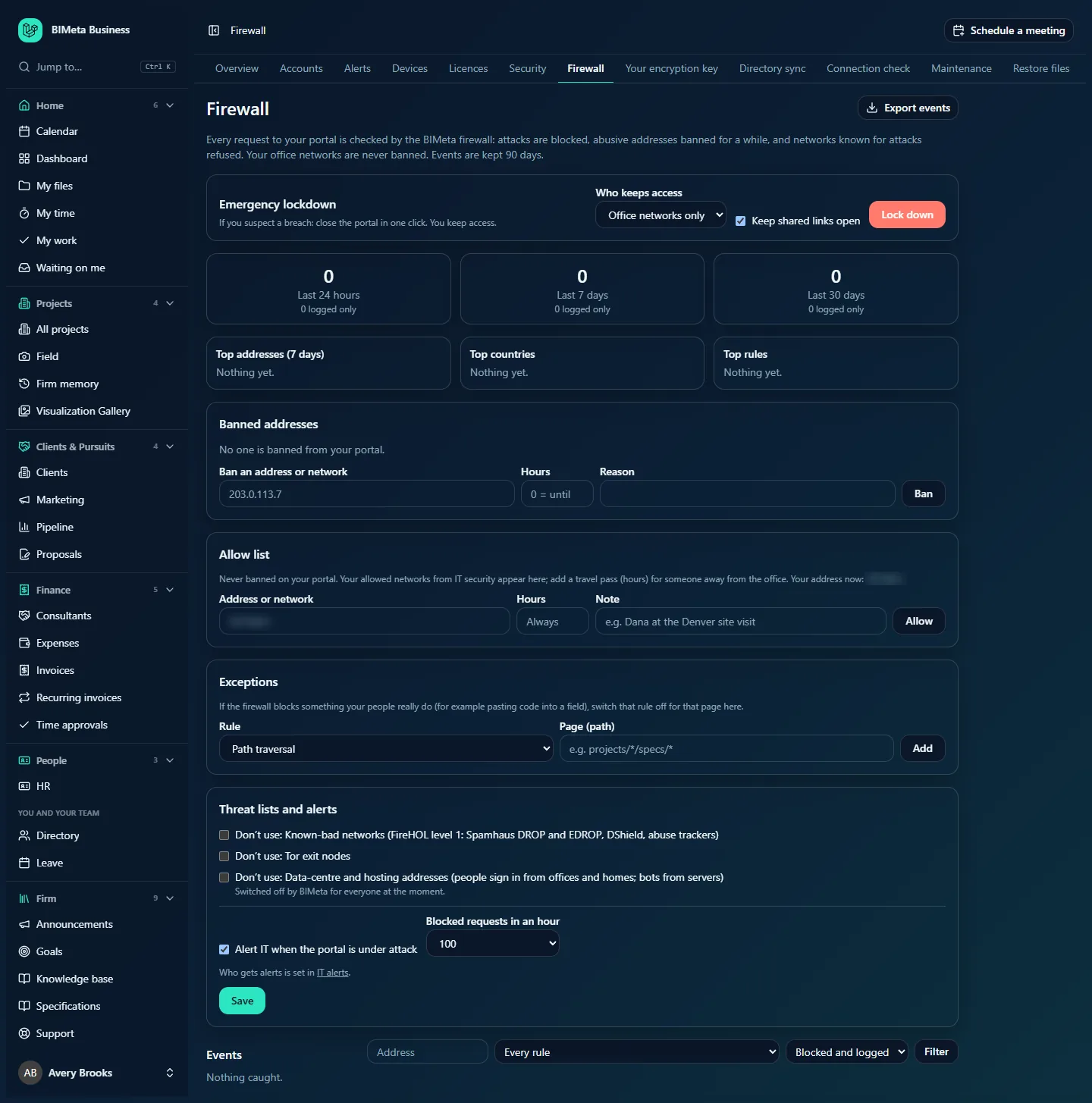
Title, Export events and the introduction
- Export events (top right) downloads every firewall event for your portal as a spreadsheet file (firewall-events.csv), newest first, up to 100,000 rows. Columns: When (UTC), Address, Country, Rule, Action, Method, Path, Found in, Sample and User agent. Each export is recorded in the audit log.
- The introduction sums it up: "Every request to your portal is checked by the BIMeta firewall: attacks are blocked, abusive addresses banned for a while, and networks known for attacks refused. Your office networks are never banned. Events are kept 90 days."
Emergency lockdown
A box with Emergency lockdown ("If you suspect a breach: close the portal in one click. You keep access."), a Who keeps access choice (Office networks only or Owners only), a Keep shared links open tick box (ticked by default) and a red Lock down button. While a lockdown is on, this box is replaced by a red-bordered panel, Your portal is locked down, that says who still gets in, whether shared links still work, since when and who started it, with a Lift the lockdown button. See Emergency lockdown: close your portal in one click for exactly what each choice does.
The three counters
Last 24 hours, Last 7 days and Last 30 days. The big number is how many requests to your portal were blocked in that period; the small line underneath, e.g. "0 logged only", counts requests the firewall flagged but let through (rules BIMeta runs in log-only mode, such as checks on what people type into forms).
Top addresses, Top countries, Top rules
Three boxes with the eight most frequent internet addresses, countries and rules in your portal's events over the last seven days, each with its count. Until something is caught they say Nothing yet.
- Click an address in Top addresses (7 days) to show only that address's events in the Events list below.
- Click a rule in Top rules to show only that rule's events.
- Countries are for information; they can't be clicked. To act on a whole country, use the country rule on the Security tab.
Banned addresses
Every ban that currently keeps someone out of your portal: "No one is banned from your portal." when there are none. Each line shows the address or network, the reason and how long it lasts ("until date and time", or "until lifted"). Reasons you'll see:
- Scanning for pages that don’t exist, Failed sign-ins, Too many requests: automatic bans for things that happened on your portal. They count as your firm's bans, so you can Lift them.
- Attacks (…), with the kind of attack in brackets: automatic bans for attack attempts. Attacks ban an address from every BIMeta portal, so these lines carry a By BIMeta, every portal badge and have no Lift button.
- Whatever reason was typed for a ban added by hand (by your IT team, or by BIMeta for every portal).
Below the list is the form to ban an address yourself: Ban an address or network, Hours ("0 = until lifted"), Reason and Ban.
Allow list
Addresses and networks that are never banned on your portal. The note under the heading reads: "Never banned on your portal. Your allowed networks from IT security appear here; add a travel pass (hours) for someone away from the office. Your address now: …", followed by the internet address you are using at this moment. Each entry shows the address or network, its note, and "until …" if it expires.
- Entries with the note Office network (IT security) come from Our networks (office, VPN) on the Security tab. They are kept in step with that tab automatically and have no Remove button here; change them on the Security tab.
- Entries with a Travel pass badge were added for a number of hours and drop off on their own. A lockdown also adds a 24-hour travel pass, noted "Started the lockdown", for the person who started it.
- Other entries were added here without a time limit. They have a Remove button, as do travel passes.
The form: Address or network (pre-filled hint: your current address), Hours (leave empty for Always), Note (e.g. "Dana at the Denver site visit") and Allow.
Exceptions
"If the firewall blocks something your people really do (for example pasting code into a field), switch that rule off for that page here." The list shows each exception's page path and the rule it switches off; exceptions marked set by BIMeta apply to every portal and can't be removed here. The form has Rule (a drop-down), Page (path) (e.g. projects/*/specs/*) and Add.
Only these rules can be switched off for a page: Path traversal, SQL injection, Cross-site scripting, Command injection and Oversized or malformed requests. Scanner probes, known exploit payloads and attack tools are never switched off.
Threat lists and alerts
One tick box per threat list BIMeta uses, each labelled "Don’t use:" followed by the list's name:
- Known-bad networks (FireHOL level 1: Spamhaus DROP and EDROP, DShield, abuse trackers)
- Tor exit nodes
- Data-centre and hosting addresses (people sign in from offices and homes; bots from servers)
Leave a box unticked to keep using that list on your portal (the default); tick it to stop using it. A list BIMeta has switched off for everyone shows "Switched off by BIMeta for everyone at the moment." (in the screenshot, the data-centre list). What each list does is explained in How the BIMeta firewall protects your portal.
Under a dividing line:
- Alert IT when the portal is under attack: ticked by default.
- Blocked requests in an hour: the alert level, 50, 100 (default), 250, 500 or 1000.
- "Who gets alerts is set in IT alerts." with a link to the Alerts tab.
- Save saves the tick boxes and the alert settings together ("Firewall settings saved."). The change is recorded in the audit log.
Events
The latest 200 requests the firewall acted on, newest first, with filters above the table: an Address box, a rule drop-down (Every rule, each rule by name, and Banned address), an action drop-down (Blocked and logged, Blocked, Logged only) and Filter. With nothing to show: Nothing caught.
| Column | What it shows |
|---|---|
| When | The date and time of the request. |
| Address | The internet address it came from, followed by its two-letter country code (e.g. US) when known. |
| Rule | A Blocked or Logged badge and what triggered it: a rule's name (e.g. SQL injection), Banned address (the address was already banned), Threat list (the address is on a threat list), or lockdown (refused during an office-networks lockdown). |
| Request | The method and page address requested, e.g. GET /.env. When a rule matched something specific, a second line shows where it was found (path, query, header, body or agent) and the first 120 characters of what matched. |
How to look into a spike or an alert
- Open the Firewall tab (the alert email links to it).
- Compare Last 24 hours with Last 7 days to see whether it's a one-off burst or a trend.
- In Top addresses (7 days), click the busiest address. The Events list now shows only its requests.
- Read the Rule and Request columns. Requests for things like
/.env,/wp-adminor.phppages are robots probing for weaknesses; your portal has none of those pages, and they were blocked. - Check the address isn't one of yours (compare it with your office addresses on the Security tab or the Allow list). If it isn't, there is usually nothing to do: the firewall blocked the requests and will have banned the address if it kept going.
- If you want a permanent record, click Export events.
How to ban an address or network
- Under Banned addresses, type the address (e.g.
203.0.113.7) or a network (e.g.203.0.113.0/24) in Ban an address or network. IPv6 works too. Networks can be as wide as /8 for IPv4 or /32 for IPv6. - In Hours, type how long the ban should last (up to 8,760, one year), or leave it empty or at 0 for a ban that stays until you lift it.
- Type a Reason (required, up to 190 characters). It's shown in the list, so make it useful, e.g. "Repeated password guessing on Avery's account".
- Click Ban. You'll see "Banned from your portal." The ban applies to your portal only, takes effect within about half a minute, and is recorded in the audit log.
You can't ban your own current address, or a network that contains it ("That would ban your own address (…)."), and you can't ban an address that is on your allow list or one of your office networks; remove it from there first.
How to lift a ban
- Find the line under Banned addresses.
- Click Lift. You'll see "Ban lifted." It's recorded in the audit log.
Lines with By BIMeta, every portal can't be lifted here. If one of your own people is caught by such a ban, contact BIMeta support with the address. Automatic bans also end on their own when their time is up.
How to keep an address from ever being banned
- For your offices, the best place is the Security tab: list them in Our networks (office, VPN) and choose one of the limited Who can reach the portal options. They then appear here as Office network (IT security).
- Otherwise, under Allow list, type the address or network in Address or network, leave Hours empty (Always), add a Note such as "Seattle office", and click Allow. You'll see "Added to your allow list."
Allowing an address also lifts any ban on that single address that your portal had. Being on the allow list means "never banned"; the address's requests are still checked, so a real attack from it is still blocked.
How to give someone a travel pass
Use this when someone will work from a hotel, a client's office or a job site for a while and you don't want their address banned (for example if they keep mistyping a password on hotel Wi-Fi), or so that they keep access during an office-networks lockdown.
- Ask them for their current internet address (they can find it by searching "what is my IP" in a browser, or by opening the Firewall tab themselves if they're in IT; the note under Allow list shows "Your address now").
- Under Allow list, type it in Address or network.
- In Hours, type how long the pass should last, from 1 to 8,760 (e.g.
72for three days). - Add a Note such as "Dana at the Denver site visit" and click Allow.
The entry gets a Travel pass badge and an "until" time, and disappears by itself when it runs out. Click Remove to end it early ("Removed from your allow list.").
How to add an exception for a page
Do this only when the firewall blocks something your people genuinely need to do, for example a specification editor where people paste text containing code-like characters, and you've confirmed it in Events.
- In Events, find the blocked request from your own person. Note the rule (e.g. Cross-site scripting) and the page in the Request column.
- Under Exceptions, choose that rule in Rule.
- In Page (path), type the page address without the leading slash, using
*for the parts that change, e.g.projects/*/specs/*for the specification pages of every project. Only letters, numbers,-,_,.,/and*are allowed, up to 190 characters, and a path of just*(the whole portal) isn't accepted. - Click Add. You'll see "Exception added." Exceptions take effect within about a minute and are recorded in the audit log.
Keep exceptions as narrow as you can. To remove one, click Remove on its line ("Exception removed.").
How to choose threat lists and attack alerts
- In Threat lists and alerts, tick Don’t use for any list your portal should ignore. Most firms use every list. A typical reason to opt out is staff who genuinely need to sign in through Tor.
- Leave Alert IT when the portal is under attack ticked, and pick the level in Blocked requests in an hour. 100 suits most firms; choose a higher level if you get alerts for background noise, a lower one if you want to hear about smaller bursts.
- Click Save.
- On the Alerts tab, check who receives the Firewall kind of alert, and whether it should also go to Teams or Slack.
The firewall checks every 15 minutes. When your portal's blocked requests in the last hour reach your level, the chosen people get "Your portal is under attack: n requests blocked in the last hour", saying the firewall is blocking them, where most came from, and that nothing needs doing unless your own people are affected. You get at most one such alert every six hours.
How to lock the portal down (and lift it)
- In Emergency lockdown, choose Who keeps access: Office networks only or Owners only.
- Untick Keep shared links open if outside parties must not open shared links either.
- Click Lock down and confirm "Lock down the portal now? It stays locked until you lift it."
- When the incident is over, click Lift the lockdown ("Lockdown lifted.").
Read Emergency lockdown: close your portal in one click before you need it: it explains who stays in, what others see, and the traps to avoid (for example, IT Staff who aren't Owners are shut out of an Owners-only lockdown too).
How to export events
- Click Export events at the top right.
- Open firewall-events.csv in Excel or another spreadsheet. Times are in UTC.
The export ignores the filters on the page and contains every stored event of the last 90 days (up to 100,000).
Tips and good to know
- List your office networks. Many people behind one office address share it in the firewall's eyes: a handful of mistyped passwords in ten minutes from the same office address could earn it a short ban from your portal. Office networks and allow-list entries are never banned automatically.
- Events are kept 90 days. Under a flood, only the first 30 events a minute from one address are stored; the rest are still blocked but not listed, so the counters can be lower than the real number of requests.
- Logged only events were let through. They're there so BIMeta can tune the rules; you don't need to act on them.
- The Report tab and the weekly IT email include a firewall section: requests blocked, addresses banned and the rules that blocked most often.
- Your choices here (threat lists, alerts, bans, allow list, exceptions, lockdown) also apply on your firm's own servers if you have them: they read the same settings, and banned addresses are dropped by the servers' own firewalls within about five minutes.
- Requests refused during an office-networks lockdown count as blocked requests, so a lockdown can trigger an attack alert.
- Every action on this page is recorded in the audit log (Admin → Settings → Audit log).
Troubleshooting
Someone in the firm sees "This request was blocked by the BIMeta firewall".
Ask them for the reference at the end of the message, and their internet address. In Events, filter by that address: if the rule is Banned address, lift the ban (or ask BIMeta support if it's a BIMeta ban) and consider adding their network to the allow list; if it's a rule such as Cross-site scripting on a page they use for real work, add an exception for that page; if it's Threat list, their network is on a threat list (common with VPNs and Tor), so they should switch it off or you can opt out of that list.
"That would ban your own address (…)."
The address or network you typed includes the address you're using. Check you have the right address; banning yourself would lock you out.
"That address is on the allow list (or a firm’s office network). Remove it there first."
Remove it from the allow list (or from Our networks on the Security tab) before banning it.
"Enter an address like 203.0.113.7, or a network like 203.0.113.0/24."
The entry isn't a valid address or network, or the network is wider than /8 (IPv4) or /32 (IPv6).
Why can't I lift some bans?
Bans marked By BIMeta, every portal belong to BIMeta: they come from attacks and protect every firm. Contact BIMeta support if one affects your people.
Was this article helpful?
Share