



Your encryption key: bring your own key for stored files
19 views · by Kevin J Bruno · updated 3 days ago
Your encryption key is where your firm can "bring its own key" for the files it stores in BIMeta Business. Your drawings, models and documents are always encrypted. By default they're encrypted with keys BIMeta manages. If you connect your own key from Azure Key Vault, AWS KMS or Google Cloud KMS, new files are encrypted in a way that only your key vault can unlock, so your firm, not BIMeta, holds the final say over who can read them.
This is a powerful control meant for firms with strict client, government or insurance requirements. Read the whole article before connecting a key: if your key is lost, files encrypted with it can't be recovered by anyone, including BIMeta.
How it works, in plain words
- Data keys do the actual encrypting. Each file is encrypted with a data key.
- Your vault key (the key you create in Azure, AWS or Google Cloud) never leaves your vault. BIMeta asks your vault to wrap (lock) each data key with it. Only the wrapped, locked form of a data key is stored by BIMeta.
- When someone opens a file, BIMeta asks your vault to unwrap (unlock) the data key, uses it, and keeps the unlocked key in memory for at most five minutes. It's never written to disk or shared.
- If you remove BIMeta's access in your vault, or disable or delete the vault key, data keys can no longer be unlocked and the files encrypted with them become unreadable, to BIMeta too. That's the point of the feature, and also its main risk.
- Rotation means making a new data key from time to time. New files use the newest key; older files keep using the key they were encrypted with, so nothing needs re-encrypting.
- Your own key covers stored files. The portal's database and backup copies stay encrypted with BIMeta's keys.
Where to find it
- Sidebar → Admin → IT, then the Your encryption key tab. The IT entry opens on the Overview tab; a row of tabs across the top of every IT page (Overview, Accounts, Alerts, Devices, Licences, Security, Firewall, Your encryption key, Directory sync, Connection check, Maintenance, Restore files, Retention and holds, Storage cleanup, Report, Audit export) takes you between the IT tools. If the window is narrow, scroll the tab row sideways to reach the last tabs.
- Press Ctrl K (Jump to…) and type
encryption key. - The Security tab links here from its Encryption summary.
Who can use it
| Action | Who |
|---|---|
| Open the page, see the data keys | Business Owner, IT Staff |
| New data key now, Re-wrap after rotating my vault key | Business Owner, IT Staff |
| Connect a vault, change vault settings, Stop using my key for new files | Business Owner only |
IT Staff see the vault form greyed out with the note "Only an Owner can connect or change the firm's key." Bringing your own key can make every file unreadable if the vault is lost, so it's an Owner's decision. Other roles can't open the page.
The page
At the example firm Northlight Architects no key is connected yet, so the page shows the connection form:
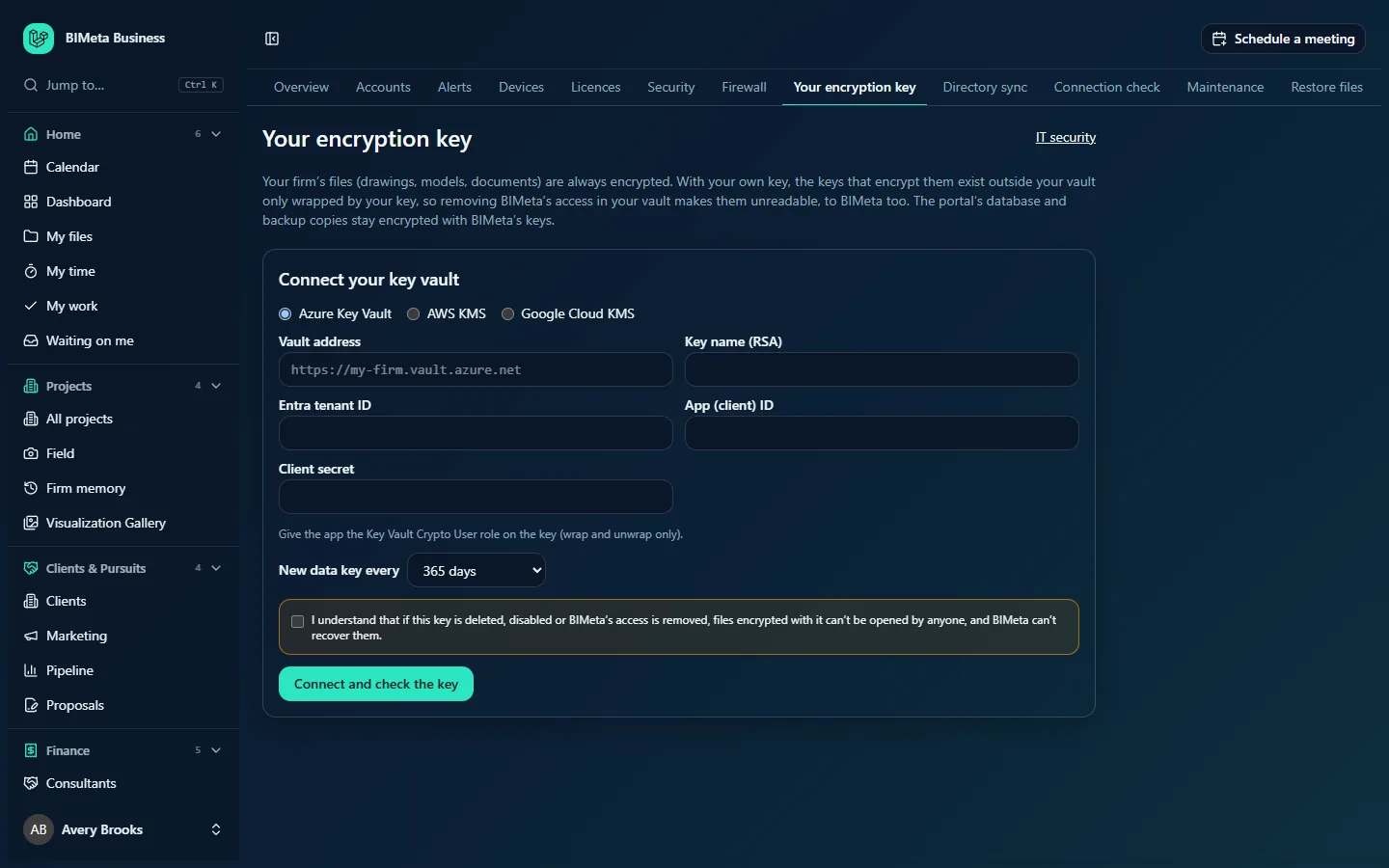
- When a key is connected, a badge next to the title shows On: and the vault type, e.g. On: Azure Key Vault. An IT security link sits at the top right.
- An explanation of what your own key does and doesn't cover.
Data keys (when your key is on)
Every data key made with your vault, newest first: its ID, a For new files badge on the active one, how many files use it and the date it was made. Below:
- New data key now: makes a new data key straight away; new files use it. ("New data key in use for new files.")
- Re-wrap after rotating my vault key: after you create a new version of your key inside your vault, this locks every data key again with the new version ("n data keys wrapped again with your vault key's current version."). Do this before you disable the old version in your vault.
- Stop using my key for new files (Owners): see below.
Connect your key vault / Vault settings
Choose the vault type, fill in its settings, choose the rotation and confirm you understand the risk.
| Vault | Fields | Permission to grant BIMeta |
|---|---|---|
| Azure Key Vault | Vault address (like https://my-firm.vault.azure.net), Key name (RSA), Entra tenant ID, App (client) ID, Client secret | Give the app the Key Vault Crypto User role on the key (wrap and unwrap only). |
| AWS KMS | Region (like us-west-2), Key ARN (starts with arn:aws), Access key ID, Secret access key | Allow kms:Encrypt and kms:Decrypt on the key for those credentials, nothing else. |
| Google Cloud KMS | Key resource name (projects/…/locations/…/keyRings/…/cryptoKeys/…), Service account key (JSON) | Give the service account Cloud KMS CryptoKey Encrypter/Decrypter on the key. |
- Secrets (client secret, secret access key, service account JSON) are never shown again after saving. When one is saved, its box says "Saved; leave blank to keep it". All vault settings are stored encrypted.
- New data key every: 90 days, 180 days, 365 days (default) or Only when I ask.
- The amber box: "I understand that if this key is deleted, disabled or BIMeta's access is removed, files encrypted with it can't be opened by anyone, and BIMeta can't recover them." You must tick it.
- Connect and check the key (or Save and check the key when already connected).
How to connect your own key
- In your cloud account, create a key (for Azure, an RSA key) in a vault you control, and enable soft-delete and purge protection so it can't be deleted by accident.
- Create credentials for BIMeta (an app registration, an access key or a service account) and give them only the wrap/unwrap permission listed above for that key.
- As an Owner, open Admin → IT → Your encryption key, choose the vault type and fill in every field.
- Choose New data key every.
- Tick the "I understand…" box.
- Click Connect and check the key. BIMeta tests a full lock-and-unlock round trip with your vault before switching anything on. If it works you'll see "Your key is connected. New files are encrypted with keys only your vault can release." and the first data key appears.
Connecting, rotating, re-wrapping and stopping are all recorded in the audit log and the security log.
How to rotate your vault key safely
- In your vault, create a new version of the key. Keep the old version enabled for now.
- Click Re-wrap after rotating my vault key.
- Once the message confirms every data key was wrapped again, you can disable the old version in your vault.
How to stop using your own key
- As an Owner, click Stop using my key for new files and confirm.
- New files go back to BIMeta's keys ("New files use BIMeta's key again. Files stored while your key was on still need your vault.").
- Keep your vault and BIMeta's access to it for as long as you need the files stored while your key was on; they still need it to open.
Safe practice
- Never delete or disable the vault key while any data key still lists files. Turn on soft-delete and purge protection in your vault.
- Grant the least permission: wrap/unwrap (encrypt/decrypt) on that one key, nothing else.
- Watch credential expiry. Azure client secrets and similar credentials expire; renew them and save the new value here before they do, or people won't be able to open files.
- Keep your vault highly available. If the vault is unreachable, files encrypted with your key can't be opened until it's back.
- Document who owns the vault in your firm, and make sure more than one person can reach it.
Troubleshooting
"BIMeta couldn't use that key: …"
The test lock-and-unlock failed. Check each field, that the key exists and is enabled, and that the credentials have exactly the wrap/unwrap permission. The message includes the vault's own error to help.
"Fill in every setting for your key vault."
A field is empty. Secrets you've saved before can be left blank to keep them.
People see "Your firm's key vault didn't release the key for this file, so it can't be opened."
Your vault refused or couldn't be reached: the key may be disabled, the credentials expired, or BIMeta's permission removed. Fix it in your vault (or save new credentials here); files open again as soon as the vault answers.
Why are the vault fields greyed out?
Only an Owner can connect or change the firm's key.
Was this article helpful?
Share