



Directory sync: add and remove people automatically (SCIM)
18 views · by Kevin J Bruno · updated 14 hours ago
Directory sync connects BIMeta Business to your firm's identity provider (the system that holds your staff accounts, such as Microsoft Entra ID or Okta) so people are added, updated and deactivated automatically. When someone joins the firm and is assigned the BIMeta app in your identity provider, their BIMeta account is created; when their name or email changes, BIMeta follows; and when they leave, their BIMeta account is deactivated and every sign-in and API key they had stops working. This uses SCIM 2.0, the industry standard for this kind of automatic provisioning.
Key ideas in plain words
- Identity provider: the directory that is your single source of truth for staff accounts (Microsoft Entra ID, formerly Azure AD; Okta; and others that support SCIM 2.0).
- SCIM: a standard way for the identity provider to tell other apps "add this person", "change this name", "this person left".
- Tenant URL: the address in your portal the identity provider sends those changes to.
- Secret token: a long password the identity provider uses to prove the changes really come from it. Anyone with the token could add or deactivate people in your portal, so treat it like an admin password.
- Directory sync vs single sign-on: directory sync manages who has an account; single sign-on (set up on Admin → Settings → Single sign-on) manages how people sign in. Most firms use both.
Where to find it
- Sidebar → Admin → IT, then the Directory sync tab. The IT entry opens on the Overview tab; a row of tabs across the top of every IT page (Overview, Accounts, Alerts, Devices, Licences, Security, Firewall, Your encryption key, Directory sync, Connection check, Maintenance, Restore files, Retention and holds, Storage cleanup, Report, Audit export) takes you between the IT tools. If the window is narrow, scroll the tab row sideways to reach the last tabs.
- Press Ctrl K (Jump to…) and type
directory sync.
Who can use it
- Business Owner and IT Staff can open the page, change the settings and create or replace the token.
- Other roles can't open it.
The page
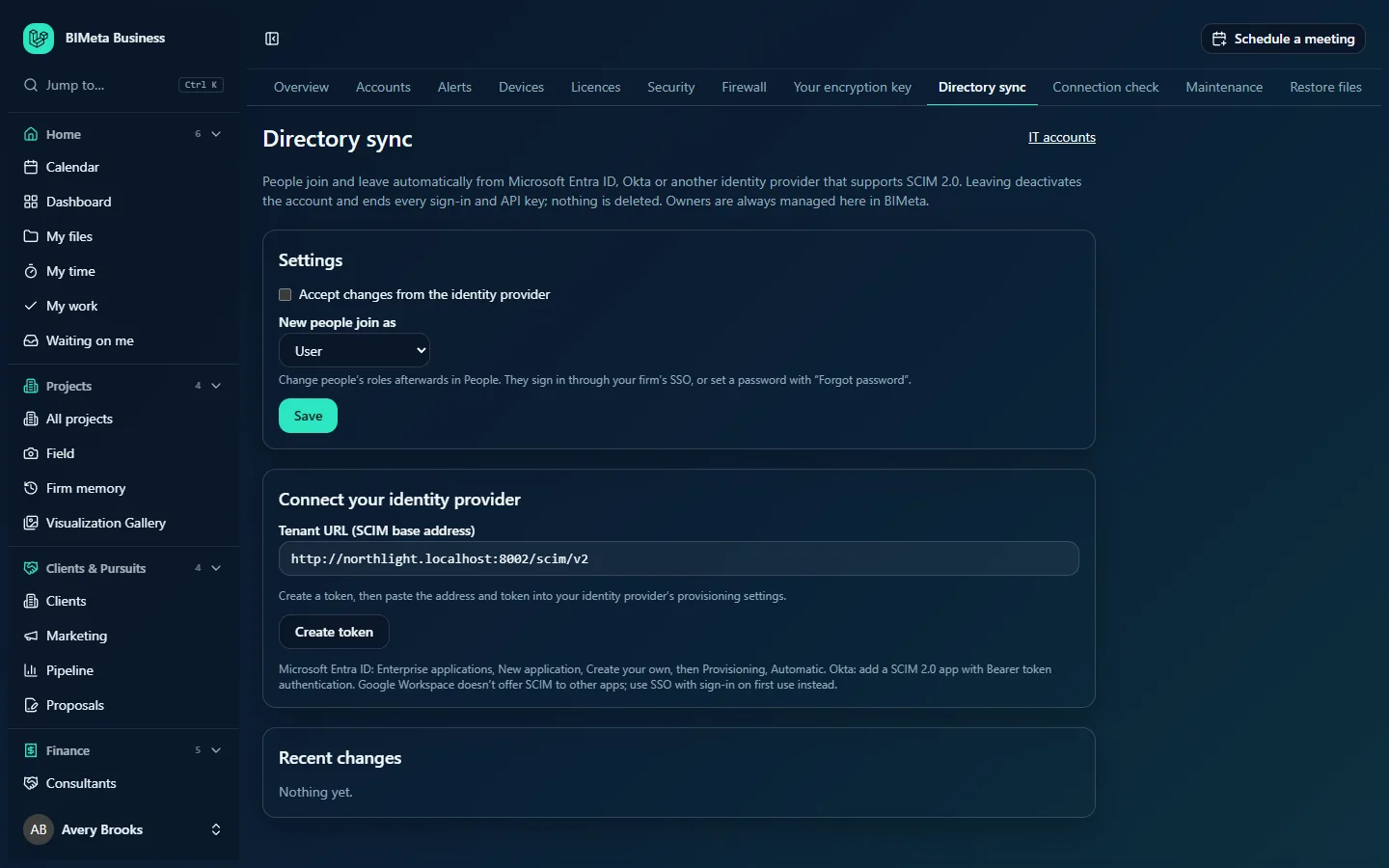
An IT accounts link sits at the top right. The introduction explains that leaving deactivates the account and ends every sign-in and API key, that nothing is deleted, and that Owners are always managed here in BIMeta.
Settings
- Accept changes from the identity provider: the on/off switch. While it's off, the identity provider's requests are refused, even with a valid token.
- New people join as: the role given to people your identity provider adds, User by default. You can choose any firm role except Business Owner (and client roles). A note reminds you to change individual roles afterwards in People, and that people sign in through your firm's single sign-on, or set a password with "Forgot password".
- Save ("Directory sync saved").
Connect your identity provider
- Tenant URL (SCIM base address): your portal's address followed by
/scim/v2. Click the box to select it, then copy it. - Before any token exists: "Create a token, then paste the address and token into your identity provider's provisioning settings." and a Create token button.
- Once a token exists: "A token was created on date. A new one replaces it straight away." and a Replace token button.
- Right after you create a token, an amber box shows Secret token: copy it now, it won't be shown again with the token itself (it starts with
bmscim_). - Set-up hints: in Microsoft Entra ID go to Enterprise applications, New application, Create your own, then Provisioning, Automatic. In Okta, add a SCIM 2.0 app with Bearer token authentication. Google Workspace doesn't offer SCIM to other apps; use single sign-on with sign-in on first use instead.
Recent changes
The last 20 changes made through directory sync: Added, Updated, Deactivated or Reactivated, with the person and the time. With none yet: Nothing yet.
What the identity provider can and can't change
- Add people with their email address and name. They join with the role in New people join as. An email address that already has an account in the firm isn't added twice.
- Update a person's email address and name.
- Deactivate a person (when they're unassigned or removed in the identity provider). The account is deactivated, not deleted, and every sign-in and API key ends. Their work stays in BIMeta.
- Reactivate a person who was deactivated.
- It can't change roles (do that in People), create Owners, or deactivate an Owner: "Owners are managed in BIMeta, not through directory sync."
How to set up directory sync
- On Directory sync, choose New people join as (start with User; it's the least access).
- Tick Accept changes from the identity provider and click Save.
- Copy the Tenant URL.
- Click Create token and copy the secret token from the amber box immediately. Store it only in your identity provider; it won't be shown again.
- In your identity provider, open the provisioning settings for a new app (see the hints on the page), paste the Tenant URL and the token, and test the connection.
- Assign a small test group first, run provisioning, and check Recent changes and People & access.
- When it looks right, assign the rest of the firm.
How to replace the token
- Click Replace token and confirm ("Create a new token? The current one stops working until you paste the new one into your identity provider.").
- Copy the new token and paste it into your identity provider straight away. The old token stops working immediately, so syncing pauses until you do.
Saving settings and creating tokens are recorded in the audit log, as is every person added, updated, deactivated or reactivated through directory sync.
Safe practice
- Treat the token like an admin password. Never email it or paste it into chat. If you think it has leaked, click Replace token at once.
- Keep the default role low. Promote people individually in People.
- Keep at least two Owners managed directly in BIMeta, since directory sync never touches Owners.
- Pause instead of disconnecting: untick Accept changes from the identity provider if you need to stop changes temporarily (for example during a directory clean-up in your identity provider).
- Pair directory sync with Single sign-on so people sign in with their company account and leavers lose access everywhere at once.
Troubleshooting
The identity provider says the connection test failed.
Check that Accept changes from the identity provider is ticked and saved, that the Tenant URL was pasted exactly, and that the token is the latest one (an older token stops working as soon as you replace it).
Someone wasn't added.
An account with that email address may already exist in the firm, or the person has no valid email as their user name. Check Recent changes and your identity provider's provisioning log.
An Owner was removed in the identity provider but is still active in BIMeta.
That's by design: Owners are managed only in BIMeta. Deactivate them in People if appropriate.
I lost the token.
Tokens are shown once. Click Replace token and paste the new one into your identity provider.
Was this article helpful?
Share