



Devices: machines running BIMeta Desktop and Drive
18 views · by Kevin J Bruno · updated 59 minutes ago
Devices is your firm's machine inventory. Every computer that runs BIMeta Desktop or BIMeta Drive reports itself here about once a day: its name, who uses it, its system and hardware, which BIMeta app versions it runs, which design software is installed (Revit, AutoCAD and so on) and how many add-ins. Use it to find machines on an old app version, check who has which design software before a renewal, spot machines that are low on disk space, and see which add-ins are spread across the firm.
Where to find it
- Sidebar → Admin → IT, then the Devices tab. The IT entry opens on the Overview tab; a row of tabs across the top of every IT page (Overview, Accounts, Alerts, Devices, Licences, Security, Firewall, Your encryption key, Directory sync, Connection check, Maintenance, Restore files, Retention and holds, Storage cleanup, Report, Audit export) takes you between the IT tools. If the window is narrow, scroll the tab row sideways to reach the last tabs.
- Press Ctrl K (Jump to…) and type
devices.
Who can use it
- Business Owner and IT Staff can open the page. It is read-only for everyone: machines add and update themselves.
- Other roles can't open it.
The page
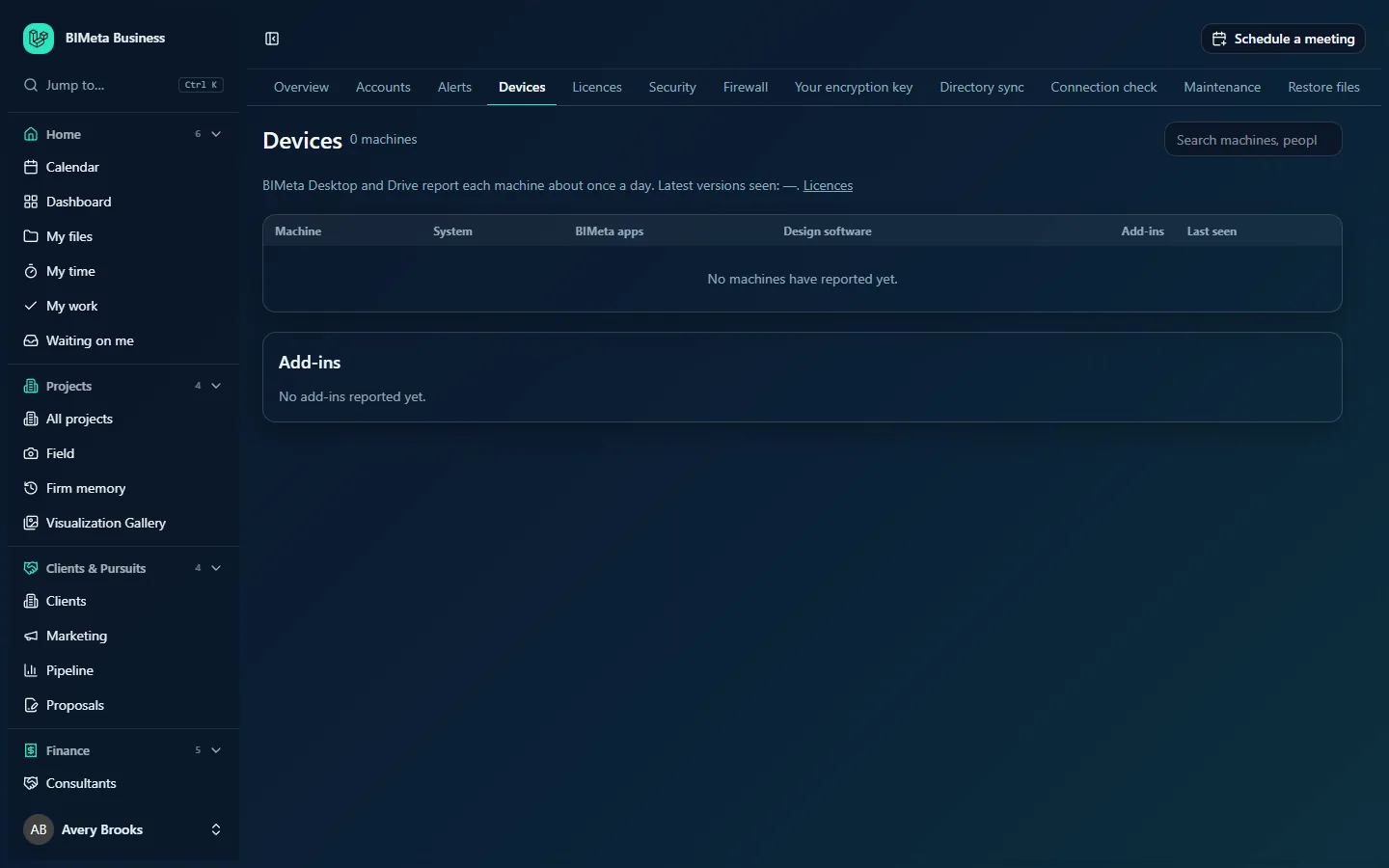
At the example firm Northlight Architects, no machines have reported yet, so the tables are empty:
The header
- The number of machines, for example "0 machines", and, if any are behind, "· 3 with an older BIMeta app".
- Search machines, people, software: filters the table by machine name, person, system or design software.
- A line explaining that BIMeta Desktop and Drive report each machine about once a day, with Latest versions seen: the newest version of each BIMeta app found on any machine (for example "BIMeta Desktop 2.4.1, BIMeta Drive 1.9.0"), or — when nothing has reported. A Licences link takes you to the licence list.
The machine table
| Column | What it shows |
|---|---|
| Machine | The computer's name, and underneath the person signed in to the BIMeta app on it, or Not linked to a person. |
| System | Operating system and version; underneath, the processor, memory (n GB RAM), graphics card and free disk space (n GB free), when reported. |
| BIMeta apps | A badge per BIMeta app with its version. A filled (shaded) badge means that version is older than the latest seen in the firm; hover to see "Older than the latest version seen". |
| Design software | Products found on the machine with their versions, e.g. Revit 2026, AutoCAD 2026. |
| Add-ins | How many add-ins were found across that machine's design software. |
| Last seen | The date of the last report. A Quiet badge means the machine hasn't reported for 30 days. |
Empty states: No machines have reported yet., or Nothing matches. when your search finds nothing.
Add-ins
The 100 most widespread add-ins across all machines: name, vendor, on how many machines it's installed (n machines) and, if machines run different versions, how many (n versions). Until any are reported: No add-ins reported yet.
How to find machines that need an update
- Look at the header for "n with an older BIMeta app".
- Scan the BIMeta apps column for shaded badges.
- Ask the people who use those machines to update the app. Admin → Settings → Desktop apps (in the Apps and connections section) is where the firm manages how BIMeta's desktop apps are distributed.
How to check who has a design product
- Type the product name, e.g.
Revit, in Search machines, people, software. - The table narrows to machines with that product. Compare with the seats you pay for on Licences, which also shows "installed on n machines" for each licence.
Tips and good to know
- A machine appears only after BIMeta Desktop or Drive is installed and signed in on it. Machines without either app aren't listed.
- Machines that haven't reported for 180 days are removed from the list automatically. A Quiet machine (30 days) may be switched off, replaced or no longer used.
- Different versions of the same add-in across machines (n versions) can cause model problems when people share files; consider standardizing through the BIM Manager panel.
- Low free disk space on a machine that syncs large models is a common cause of sync trouble.
Troubleshooting
A machine I know about isn't listed.
Check that BIMeta Desktop or Drive is installed, signed in and has been running for a while; machines report about once a day.
A machine says "Not linked to a person".
The app on it reported without a signed-in person (for example a shared render machine). Sign in to the app with the person's account to link it.
Was this article helpful?
Share