



Connection check: test each office's speed to your servers
19 views · by Kevin J Bruno · updated 4 days ago
Connection check tells you how quickly each of your offices reaches each of your firm's server locations. People in each office run a short test in their browser (about half a minute); the results come back to this page, where you see the typical delay (latency) and download speed per office and location, and which location is nearest for each office. Use it to decide whether an office would benefit from a server location closer to it, or to check whether "the portal is slow in the Seattle office" is a network problem.
Where to find it
- Sidebar → Admin → IT, then the Connection check tab. The IT entry opens on the Overview tab; a row of tabs across the top of every IT page (Overview, Accounts, Alerts, Devices, Licences, Security, Firewall, Your encryption key, Directory sync, Connection check, Maintenance, Restore files, Retention and holds, Storage cleanup, Report, Audit export) takes you between the IT tools. If the window is narrow, scroll the tab row sideways to reach the last tabs.
- Press Ctrl K (Jump to…) and type
connection check. - The test itself lives at a separate page that anyone signed in can open. Its link is shown on the Connection check tab for you to send around, and there's a Run it from here link at the top right to run it yourself.
Who can use it
- Business Owner and IT Staff can open the results page.
- Everyone signed in to the portal (any role) can run the test from the link IT sends and send their results to IT. Nothing on their computer is read.
The results page
Here is the Connection check tab for the example firm Northlight Architects before anyone has sent results (the link in the box is blurred; yours shows your portal's own address):
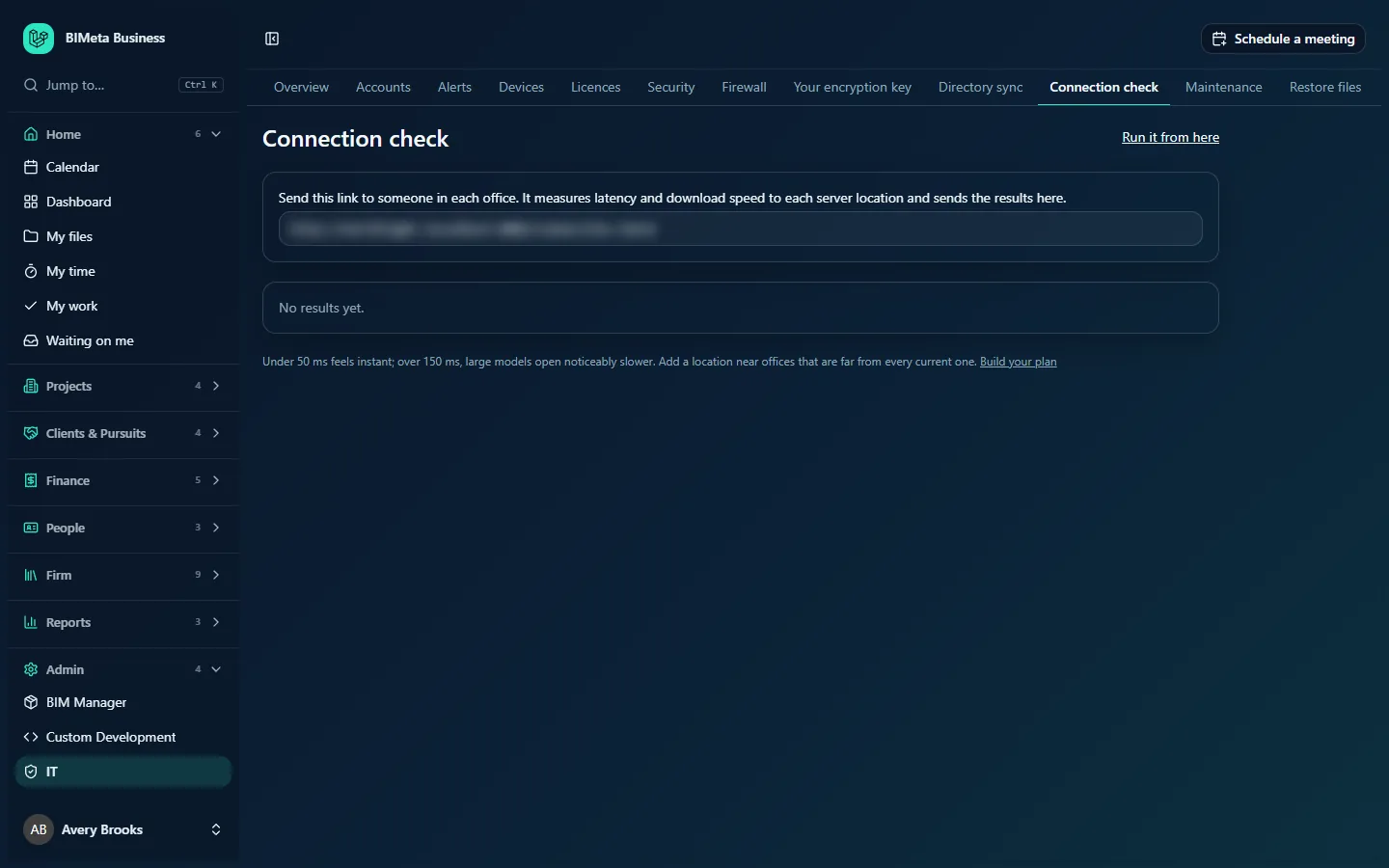
From top to bottom it shows:
- Connection check (the title) and a Run it from here link at the right.
- A box with the instruction "Send this link to someone in each office. It measures latency and download speed to each server location and sends the results here." and the link itself in a read-only field. Click the field to select the whole link, then copy it.
- Until anyone has sent results: No results yet.
- Once results arrive: a table with one row per Office and one column per server location. If your firm runs on a single location or on BIMeta's shared servers, there's one column, Your portal. Each cell shows the typical latency in milliseconds and download speed in Mbps, for example "38 ms · 210 Mbps", and underneath how many tests it's based on. The location with the lowest latency for that office has a Nearest badge. A dash means that office hasn't reached that location.
- A note at the bottom: "Under 50 ms feels instant; over 150 ms, large models open noticeably slower. Add a location near offices that are far from every current one." with a Build your plan link to Billing.
The figures are the median (the middle value) of all tests in the last 90 days, so one bad test on hotel Wi-Fi doesn't skew them. Results older than 90 days are deleted automatically.
The test page (what people in the offices see)
When someone opens the link, they see a short explanation ("Takes about half a minute… Nothing on your computer is read."), then:
- Where are you now?: a list of your firm's offices (from your firm profile) plus Home or travelling.
- Start the check: runs the test. Each location shows Waiting…, then its result such as "42 ms · 180 Mbps", or Couldn't reach it.
- Send the results to IT: sends them to the results page. They'll see "Sent. Thank you." Run again repeats the test.
How to run a connection check across your offices
- Open Admin → IT → Connection check and copy the link from the box.
- Send it to one or two people in each office (email or chat). Ask them to run it from their usual desk, on the office network, during a normal working day.
- Ask them to pick the right office in Where are you now?, click Start the check, then Send the results to IT.
- Come back to the results page. Look at each office's Nearest location and its latency.
- If an office is above about 150 ms to every location, consider adding a server location near it (Build your plan).
Tips and good to know
- The office list comes from your firm profile in Setup. If an office is missing, add it there first; the test only accepts offices from that list.
- Ask people working from home to choose Home or travelling so their results don't mix with an office's.
- Several tests per office give a more reliable median. Run it again after any network change (new internet line, new firewall, VPN change).
- Latency matters most for opening and syncing large models; download speed matters for big file transfers.
Troubleshooting
Someone got "The test didn't reach any server."
Their browser couldn't reach any location. A firewall, proxy or VPN may be blocking it. Ask them to try again, or from another network, and check your office firewall rules.
An office shows "Couldn't reach it" for one location.
That location wasn't reachable from that office at the time. Check that it's running on IT overview and ask the office to run the check again.
Why doesn't my office appear in "Where are you now?"
Offices come from the firm profile. Ask an Owner or Admin to add it in Setup.
Was this article helpful?
Share