



Audit export: send the audit log to Splunk, Sentinel, syslog or a webhook
18 views · by Kevin J Bruno · updated 4 days ago
Audit export sends your firm's audit log to your own security or logging tools, so it sits alongside the rest of your company's records. You can send it to Splunk, Microsoft Sentinel, a syslog server, or any system that accepts a signed webhook. Every entry in the audit log is sent once, in order, within about five minutes of it happening, starting with the firm's full history. Each entry carries its hash, a fingerprint linked to the entry before it, so your tool can check that nothing was changed or left out.
Use it if your firm has a security team or managed security provider that watches logs centrally, or if your insurer or clients require you to keep audit records outside the application.
Where to find it
- Sidebar → Admin → IT, then the Audit export tab. The IT entry opens on the Overview tab; a row of tabs across the top of every IT page (Overview, Accounts, Alerts, Devices, Licences, Security, Firewall, Your encryption key, Directory sync, Connection check, Maintenance, Restore files, Retention and holds, Storage cleanup, Report, Audit export) takes you between the IT tools. If the window is narrow, scroll the tab row sideways to reach the last tabs.
- Press Ctrl K (Jump to…) and type
audit export. - To read the audit log inside BIMeta instead, use Admin → Settings → Audit log (in the People and access section).
Who can use it
- Business Owner and IT Staff can open the page and add, change, test and remove destinations.
- Other roles can't open it.
The page
Here is the Audit export tab for the example firm Northlight Architects, before any destination has been added:
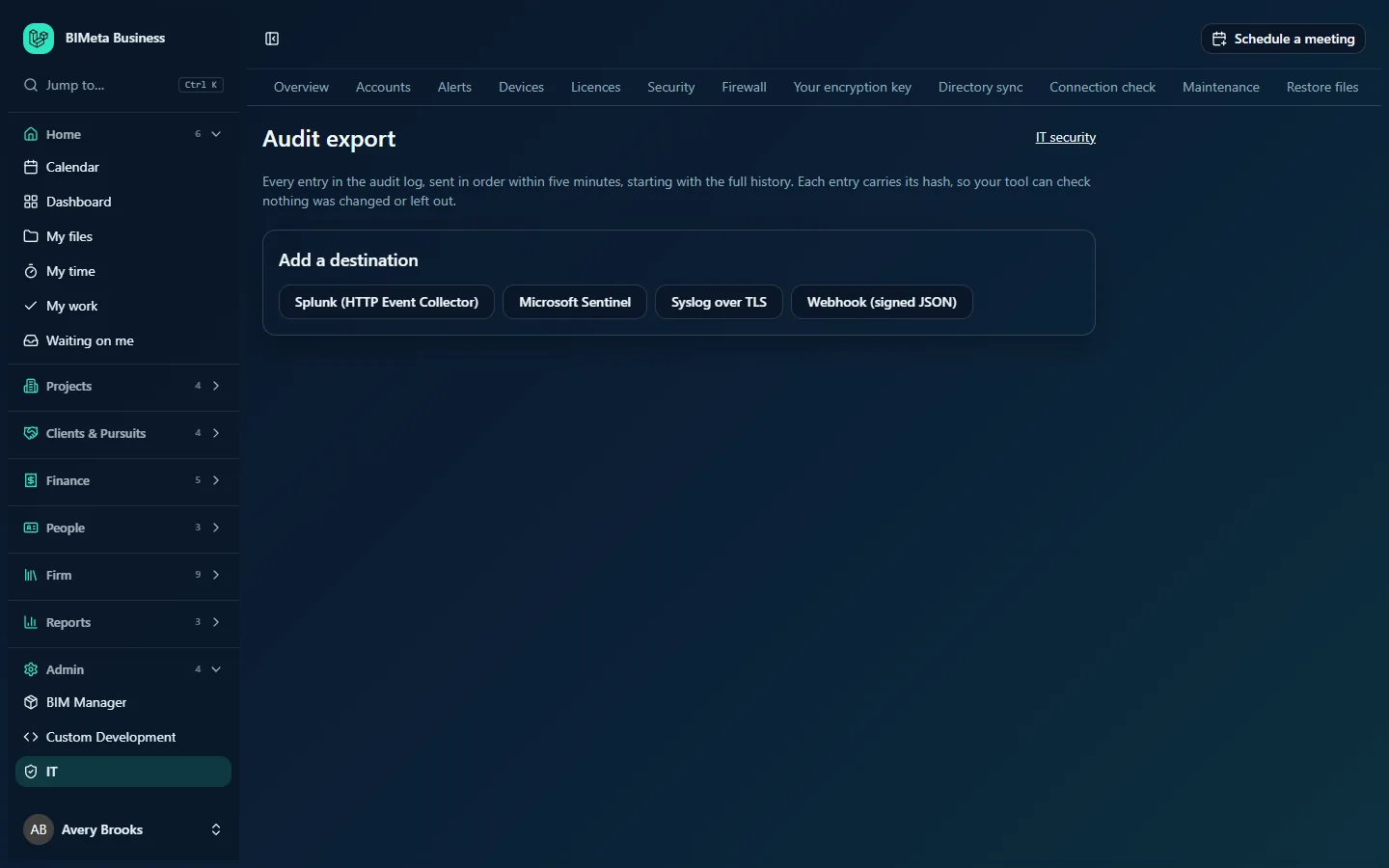
From top to bottom it shows:
- The title Audit export, with an IT security link at the right.
- A short explanation: every entry, sent in order within five minutes, starting with the full history, each with its hash.
- One box per destination you've added (see below).
- Add a destination: four buttons, Splunk (HTTP Event Collector), Microsoft Sentinel, Syslog over TLS and Webhook (signed JSON). Clicking one opens its form.
Each destination
- Its name and a badge with its type.
- Paused if sending is switched off; a red Not arriving badge and the error message in red if the last delivery failed.
- On the right: Up to date, or how many entries are still to send (e.g. "1,240 entries to send"), and "last sent time".
- Its settings form (the same fields as when adding it) with Save changes.
- Send a test event and Remove.
The settings for each type
| Type | Fields |
|---|---|
| Splunk (HTTP Event Collector) | Collector address (e.g. https://splunk.example.com:8088), HEC token (secret), Index (optional). |
| Microsoft Sentinel | Data collection endpoint (e.g. https://my-dce-abcd.eastus-1.ingest.monitor.azure.com), Data collection rule ID (dcr-…), Stream name (e.g. Custom-BIMetaAudit_CL), Entra tenant ID, App (client) ID, Client secret (secret). |
| Syslog over TLS | Server (e.g. logs.example.com) and TLS port (often 6514). Entries are sent as standard syslog messages, one per entry, over an encrypted connection. |
| Webhook (signed JSON) | Address (e.g. https://logs.example.com/bimeta) and Signing secret (16+ characters) (secret). Each delivery carries an X-BIMeta-Signature header, a SHA-256 HMAC of the body made with your secret, so your receiver can verify it came from BIMeta. |
Every destination also has a Name (up to 80 characters, defaults to the type) and a Sending tick box (on by default). Secrets are stored encrypted and never shown again; when one is saved, its box says "Saved; leave blank to keep it".
How to add a destination
- Prepare the receiving side first (a HEC token in Splunk, a data collection endpoint and rule plus an app registration in Azure for Sentinel, a TLS syslog listener, or a webhook receiver).
- Under Add a destination, click the type.
- Give it a Name and fill in every required field. Addresses must be
httpsand reachable from the internet; syslog servers must accept TLS. - Leave Sending ticked and click Add destination (or Cancel).
- You'll see "Saved. New audit entries go out within five minutes, starting with the full history."
- Click Send a test event and check it arrives. A test event has the action
bimeta.testand the message "Test event from BIMeta Business". It doesn't affect what's been sent.
How to pause, change or remove a destination
- Pause: untick Sending and click Save changes. Entries keep queuing; when you tick it again, sending resumes where it left off, so nothing is lost.
- Change settings (e.g. a renewed token): edit the fields and click Save changes. Leave secret fields blank to keep the saved ones.
- Remove: click Remove and confirm ("Stop sending to this destination and forget its settings? What it already has stays there."). If you add it again later, it starts from the full history.
Adding, changing and removing destinations are themselves recorded in the audit log.
What gets sent
Each audit entry includes the firm, its number, the time (UTC), the action (for example a sign-in, a role change or a file deleted), who did it and how (in the browser, through the API and so on), what it was done to, extra details, the internet address, and the entry's hash and the previous entry's hash. Up to 2,000 entries go to each destination every five minutes, so a long history catches up over a short while.
Safe practice
- Give the credentials you enter here only permission to send logs, nothing else.
- Use a long, random signing secret for webhooks and verify the
X-BIMeta-Signatureheader on every delivery. - Check the page now and then (or set an alert in your logging tool) for Not arriving. Renew tokens and client secrets before they expire.
- Use the hashes: a gap or mismatch in the chain means entries are missing or altered in transit.
Troubleshooting
"The test didn't arrive: …"
BIMeta couldn't deliver the test. The message includes the receiving system's error; check the address, token or secret, and that your firewall lets BIMeta's servers in.
"Use an https address that BIMeta can reach on the internet."
Addresses must start with https:// and point to a public server, not a private network address.
"Use a syslog server on the internet that accepts TLS, and its port (often 6514)."
Check the server name and the TLS port; plain (unencrypted) syslog isn't supported.
A destination says "Not arriving".
The last delivery failed and BIMeta will keep retrying every five minutes from the same point, so nothing is skipped. Fix the cause shown in red, then click Send a test event.
Was this article helpful?
Share