



IT alerts: who gets which alert, quiet hours, Teams/Slack and texts
17 views · by Kevin J Bruno · updated 5 days ago
IT alerts decides who hears about what, and how. BIMeta Business raises five kinds of IT alert: sign-in warnings, server health problems, failed server updates, upcoming software licence renewals and firewall attack spikes. On this page you choose which Owners and IT Staff receive each kind by email, set quiet hours so nobody is woken at 3 a.m. for something that can wait, pick which kinds also go to a Microsoft Teams or Slack channel and which go by text message, register your own mobile number, and see a history of every alert sent.
Where to find it
- Sidebar → Admin → IT, then the Alerts tab. The IT entry opens on the Overview tab; a row of tabs across the top of every IT page (Overview, Accounts, Alerts, Devices, Licences, Security, Firewall, Your encryption key, Directory sync, Connection check, Maintenance, Restore files, Retention and holds, Storage cleanup, Report, Audit export) takes you between the IT tools. If the window is narrow, scroll the tab row sideways to reach the last tabs.
- Press Ctrl K (Jump to…) and type
it alerts. - Links from the Report, Licences and Firewall tabs. Alert digests sent after quiet hours also link here.
Who can use it
- Business Owner and IT Staff can open the page, change every setting and add their own mobile number.
- Someone allowed to view IT pages but not to manage IT security would see the settings greyed out with no save button; they could still add their own mobile number. With the standard roles, Owners and IT Staff have both permissions.
- Only active Owners and IT Staff can receive IT alerts.
- Other roles can't open the page.
Turning alerts on is a two-step job
This page controls who receives alerts and how. Whether sign-in alerts and server health alerts are raised at all, the failed sign-in threshold, the "busy" level, and the Teams or Slack webhook address are set on IT security (under Sign-in alerts and Server alerts). Licence reminders are raised for every licence that has a renewal date on Licences. Firewall alerts are switched on, and their level set, on the Firewall tab (Alert IT when the portal is under attack and Blocked requests in an hour); they are on by default at 100 blocked requests an hour.
The page
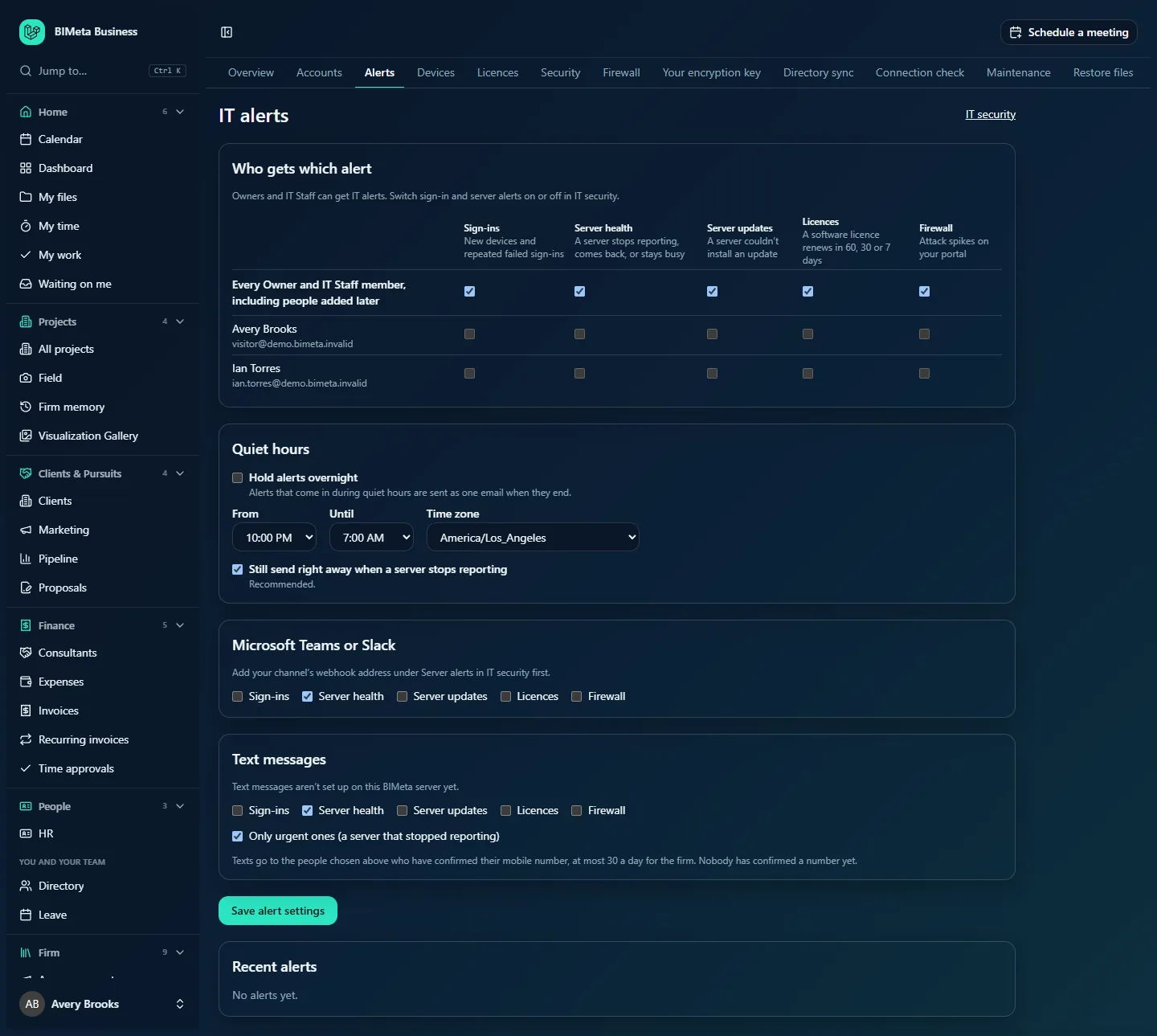
At the top right is a link to IT security. While quiet hours are in effect, a Quiet hours now badge appears next to the title.
Who gets which alert
A grid with one column per kind of alert:
- Sign-ins: new devices and repeated failed sign-ins.
- Server health: a server stops reporting, comes back, or stays busy.
- Server updates: a server couldn't install an update.
- Licences: a software licence renews in 60, 30 or 7 days.
- Firewall: attack spikes on your portal. The firewall checks every 15 minutes; when the number of requests it blocked on your portal in the last hour reaches your level, the chosen people get "Your portal is under attack: n requests blocked in the last hour", with the addresses most of them came from and a link to the Firewall tab. At most one such alert is sent every six hours.
The first row, Every Owner and IT Staff member, including people added later, is ticked for every kind by default. While it's ticked for a kind, that column's personal boxes are greyed out and everyone gets it. Untick it to pick individual people in the rows below (each Owner and IT Staff member, with their email address).
Quiet hours
- Hold alerts overnight: off by default. When on, alerts that come in during quiet hours are held and sent as one summary email per person when quiet hours end.
- From and Until: the start and end hour (10:00 PM to 7:00 AM by default). Quiet hours can run over midnight.
- Time zone: the time zone for quiet hours and for the weekly IT report. It defaults to your first office's time zone.
- Still send right away when a server stops reporting: on by default and Recommended. Urgent alerts (a server going silent) skip quiet hours.
Microsoft Teams or Slack
Tick which kinds should also be posted to your chat channel: Sign-ins, Server health (ticked by default), Server updates, Licences, Firewall. If no webhook address has been added yet, a note says to add it under Server alerts in IT security first. Alerts held during quiet hours are posted as one combined message when quiet hours end.
Text messages
- Tick which kinds can be sent by text (Server health by default).
- Only urgent ones (a server that stopped reporting): on by default, so only urgent alerts of the ticked kinds go by text. Untick to text every alert of those kinds. Firewall alerts are never counted as urgent, so to get them by text, tick Firewall here and untick this box.
- A note explains that texts go to the people chosen above who have confirmed their mobile number, at most 30 texts a day for the whole firm, and lists who has confirmed a number (or "Nobody has confirmed a number yet.").
- If text messaging isn't available on your BIMeta server, you'll see "Text messages aren't set up on this BIMeta server yet."
Save alert settings saves everything above in one go.
Your mobile number
Shown only when text messaging is available. It's personal: each Owner or IT Staff member adds their own number. You see your number with Confirmed or Waiting for the code, a Remove button, a code box with Confirm while a code is pending, and a number box with Text me a code (or Use a different number).
Recent alerts
The last 50 alerts, newest first. Each shows the kind, the headline (e.g. "Revit renews in 30 days"), the date and time, the detail, the status and how many people it went to. Statuses are Sent, Held for quiet hours and Sent after quiet hours. With none yet: No alerts yet. Alerts are kept for 180 days.
How to choose who gets each alert
- In Who gets which alert, untick the top row for the kind you want to narrow.
- Tick the people who should get that kind. At least one person per kind is required.
- Click Save alert settings ("Alert settings saved").
How to set quiet hours
- Tick Hold alerts overnight.
- Choose From, Until and Time zone.
- Leave Still send right away when a server stops reporting ticked unless you have someone else on call.
- Click Save alert settings.
How to send alerts to Teams or Slack
- In Teams or Slack, create an incoming webhook for the channel you want and copy its address.
- Paste it into the webhook field under Server alerts on IT security and save.
- Back on IT alerts, tick the kinds to post under Microsoft Teams or Slack and click Save alert settings.
How to get alerts by text
- Under Your mobile number, type your number with the country code, e.g.
+1 206 555 0100, and click Text me a code. - Type the six-digit code you receive into the code box and click Confirm. Codes work for 10 minutes. You'll see "Number confirmed. You'll get text alerts for the alerts IT chose."
- Make sure you're a recipient of the kinds ticked under Text messages.
- To stop texts, click Remove.
Tips and good to know
- Firewall alerts aren't urgent: during quiet hours they are held and arrive in the summary when quiet hours end.
- Every change to alert settings is recorded in the audit log and the security log. Confirming a mobile number is recorded too.
- Choose at least two people for Server health so alerts aren't missed when someone is on holiday.
- Keep the Teams or Slack channel private to IT: sign-in alerts mention people's names.
- The 30-texts-a-day firm limit stops a flapping server from running up a bill; important alerts still arrive by email.
Troubleshooting
"Choose who gets … alerts, or send them to everyone."
You unticked the top row for a kind without ticking anyone. Tick at least one person, or tick the top row again.
Nothing is posted to Teams or Slack.
Check that the webhook address is saved on IT security, that the kind is ticked here, and that the webhook still exists in Teams or Slack.
"That code is wrong or has expired. Send a new one."
Codes last 10 minutes. Click Use a different number (or re-enter your number) to get a new code.
I never get sign-in or server alerts.
Check they're switched on in IT security, and that you're a recipient here.
I never get firewall alerts.
Check that Alert IT when the portal is under attack is ticked on the Firewall tab and that the level isn't higher than the traffic you see there, and that you're a recipient of the Firewall kind here. Remember there is at most one firewall alert every six hours.
Was this article helpful?
Share