



IT accounts: sign-ins, sessions, dormant accounts and two-factor
18 views · by Kevin J Bruno · updated 11 hours ago
IT accounts is where you keep an eye on who is signing in to your portal and how. It shows every recent sign-in attempt, every browser and app that is signed in right now, people who haven't signed in for a while, and who still signs in without two-factor. From here you can sign a browser out remotely, deactivate an unused account and remind people to turn on two-factor sign-in.
Use it when someone loses a laptop or phone, when a person leaves, when you get a "new device" or "failed sign-ins" alert, and as a regular account-hygiene check (monthly is a good rhythm).
Where to find it
- Sidebar → Admin → IT, then the Accounts tab. The IT entry opens on the Overview tab; a row of tabs across the top of every IT page (Overview, Accounts, Alerts, Devices, Licences, Security, Firewall, Your encryption key, Directory sync, Connection check, Maintenance, Restore files, Retention and holds, Storage cleanup, Report, Audit export) takes you between the IT tools. If the window is narrow, scroll the tab row sideways to reach the last tabs.
- Press Ctrl K (Jump to…) and type
it accounts.
Who can use it
- Business Owner and IT Staff can open the page and use every button on it (End, End all theirs, Deactivate, Remind, Remind everyone). They also see the IT security link at the top.
- Someone who can view the IT pages but isn't allowed to manage IT security would see the lists without the buttons. With the standard roles that never happens, because Owners and IT Staff have both.
- Admin, BIM Manager, Project Manager, Human Resources and User can't open it. Each person can manage their own sessions and two-factor from their own account security settings.
The page
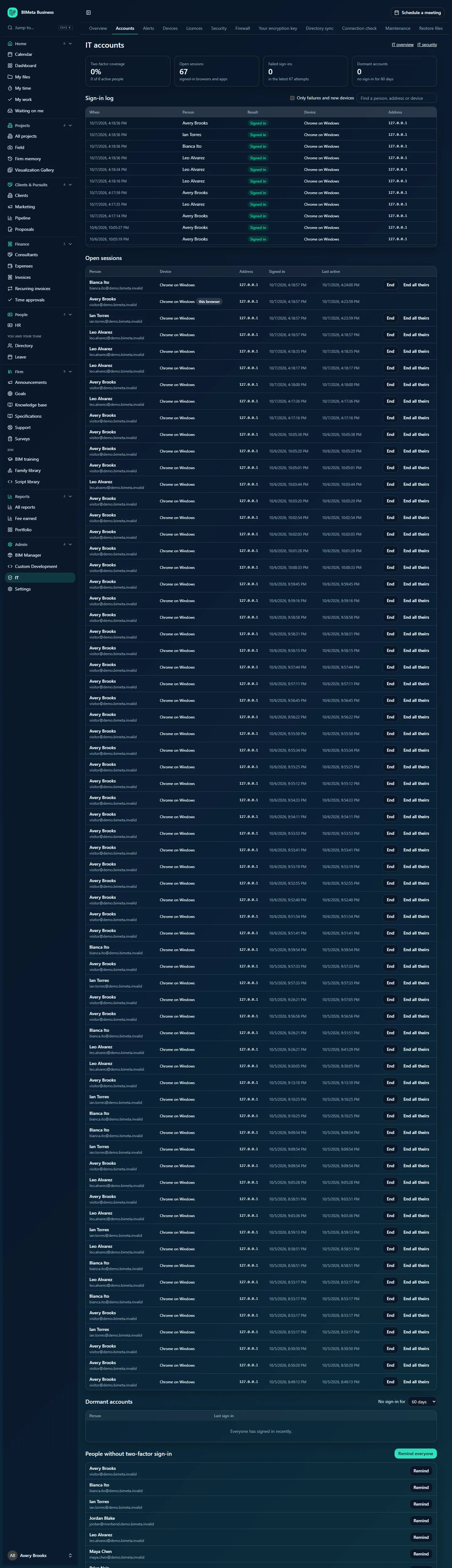
At the top right are links to IT overview and IT security.
The four summary cards
- Two-factor coverage: the share of active people protected by two-factor sign-in (an authenticator app or a passkey), for example "0% · 0 of 8 active people".
- Open sessions: how many browsers and apps are signed in now.
- Failed sign-ins: failed or locked-out attempts among the latest attempts in the log, for example "0 in the latest 7 attempts".
- Dormant accounts: active people with no sign-in for the number of days chosen further down (60 by default).
Sign-in log
The latest 300 sign-in attempts, newest first. Entries are kept for 180 days.
- When: date and time of the attempt.
- Person: who it was. Unknown account means someone typed an email address that isn't in your firm. For privacy, the address they typed isn't stored.
- Result: Signed in (green), Failed (amber, wrong password or code) or Locked out (red, too many attempts). A new device badge means the person signed in from a browser and network they've never used before (not counted on their very first sign-in).
- Device: the browser and system, e.g. Chrome on Windows, Safari on iPhone or BIMeta Desktop.
- Address: the internet address the attempt came from, with the country code when known.
Two filters sit above the log:
- Only failures and new devices: tick to hide ordinary successful sign-ins and see only what deserves a second look.
- Find a person, address or device: type part of a name, email, address or device to narrow the list.
Open sessions
Every browser and app that is signed in and has been active in the last 30 days, most recently active first.
- Person: name and email.
- Device: browser and system. this browser marks the session you're using right now. You can't end your own current session here (use Sign out instead).
- Address, Signed in (when the session started) and Last active (updated about every five minutes while in use).
- End: signs out that one browser or app.
- End all theirs: signs out every session of that person, everywhere.
Dormant accounts
Active people who haven't signed in for the period chosen in No sign-in for (30, 60, 90 or 180 days). People who have never signed in are listed once their account is older than that period. Each row shows the person, their Last sign-in and a Deactivate button.
The same table also lists invitations not accepted for more than 14 days, with the date of the invitation and a Resend or remove in People link. When nobody qualifies you'll see Everyone has signed in recently.
People without two-factor sign-in
Every active person who has neither an authenticator app nor a passkey set up. Each row has a Remind button and, after a reminder, "Reminded" with the date. Remind everyone at the top sends the reminder to the whole list. When everyone is covered you'll see Everyone active signs in with two-factor or a passkey.
How to sign out a lost or stolen device
- In Open sessions, find the person. Use the Device, Address and Last active columns to identify the lost device.
- Click End on that row, or End all theirs if you're not sure which session it is.
- You'll see "Session ended. That browser is signed out on its next step." (or "n sessions ended."). The device is signed out the next time it does anything.
- Ask the person to change their password and, if they use an authenticator app on the lost phone, to set two-factor up again.
How to deactivate a dormant account
- In Dormant accounts, choose the period in No sign-in for. The list reloads.
- Check each person with their manager before acting. Someone on leave may simply be away.
- Click Deactivate. The account is deactivated and signed out everywhere ("Account deactivated and signed out everywhere."). You can't deactivate yourself here.
- To reactivate someone later, or to resend or cancel an unaccepted invitation, use Admin → Settings → People & access.
How to remind people to turn on two-factor
- Go to People without two-factor sign-in.
- Click Remind for one person, or Remind everyone.
- Each person gets an email with a link to their account security settings. You'll see "n reminders sent. Each person gets at most one a day." Anyone already reminded in the last 24 hours is skipped and not counted.
Ending sessions, deactivating accounts and sending reminders are all recorded in the audit log.
How to investigate a suspicious sign-in
- Tick Only failures and new devices.
- Type the person's name in the search box.
- Look at the pattern: many Failed attempts from an unfamiliar address or country, a Locked out result, or a new device sign-in the person doesn't recognize.
- If it wasn't them, use End all theirs in Open sessions, ask them to change their password, and consider tightening sign-in rules in IT security (allowed networks, countries, required two-factor).
Tips and good to know
- Two-factor is already required for Owners, Admins, Human Resources, IT Staff and BIM Managers. You can require it for everyone in IT security; reminders help people set it up before you switch that on.
- Alerts about new devices and repeated failed sign-ins are switched on in IT security and routed to people in IT alerts.
- Deactivating someone stops them signing in; it doesn't delete their work. Check Licences too: seats held by people who left are flagged there.
Troubleshooting
I ended a session but the person still sees the page.
The browser is signed out on its next step: as soon as they click anything or the page refreshes, they're sent to the sign-in page.
Why doesn't my own session have an End button?
The session marked this browser is the one you're using. Use the normal Sign out to end it.
Why did "Remind everyone" send fewer reminders than the number of people listed?
Each person gets at most one reminder a day. People reminded in the last 24 hours are skipped.
Someone has a passkey but no authenticator app. Are they listed?
No. A passkey counts as two-factor sign-in, so they're covered.
Was this article helpful?
Share