



Invoices: list, filters and billing a project
17 views · by Kevin J Bruno · updated 1 day ago
The Invoices page is the firm's list of client invoices and the place where you bill a project. At a glance it shows how much clients owe the firm, every invoice with its dates, total, balance and status, and filters to narrow the list. When a Business Owner or Admin chooses a project, the page also shows what that project can be billed for right now, buttons to draft an invoice four different ways, and the project's automatic phase billing rules.
Use it to see what's unpaid, to find an invoice, to bill a project at the end of a month or phase, and to set up invoices that create themselves when a phase reaches a milestone. For the money flow as a whole, see Finance overview: how money flows through BIMeta Business.
Where to find it
- Sidebar → Finance → Invoices.
- Dashboard → Outstanding invoices card: opens this page already filtered to Unpaid.
- From any invoice, the All invoices for this project link opens this page filtered to that invoice's project.
- Jump to… (Ctrl K): type invoices, billing, bills or payments.
- The Recurring invoices page has an Invoices link above its title that brings you back here.
Who can use it
- Business Owner and Admin: see everything and can bill projects (the Bill this project and Automatic phase billing sections). This is the "create, send and void invoices, and record payments" permission.
- IT Staff, BIM Manager and Project Manager: can see the list, totals and filters, and open any invoice, but read only. Choosing a project only filters the list for them; the billing sections don't appear. This is the "see client invoices and payments" permission.
- User (and Human Resources): can't open this page and don't see it in the sidebar.
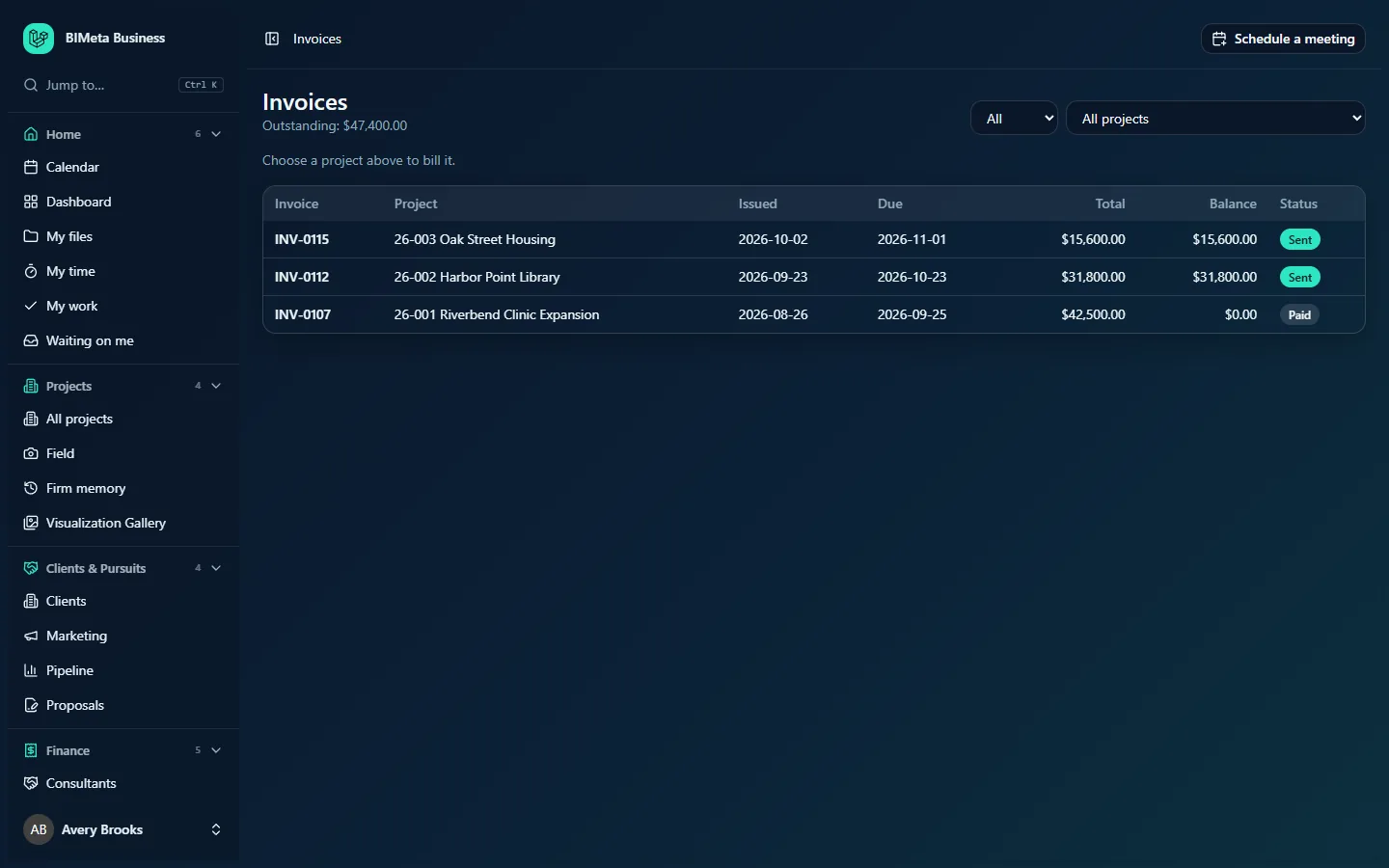
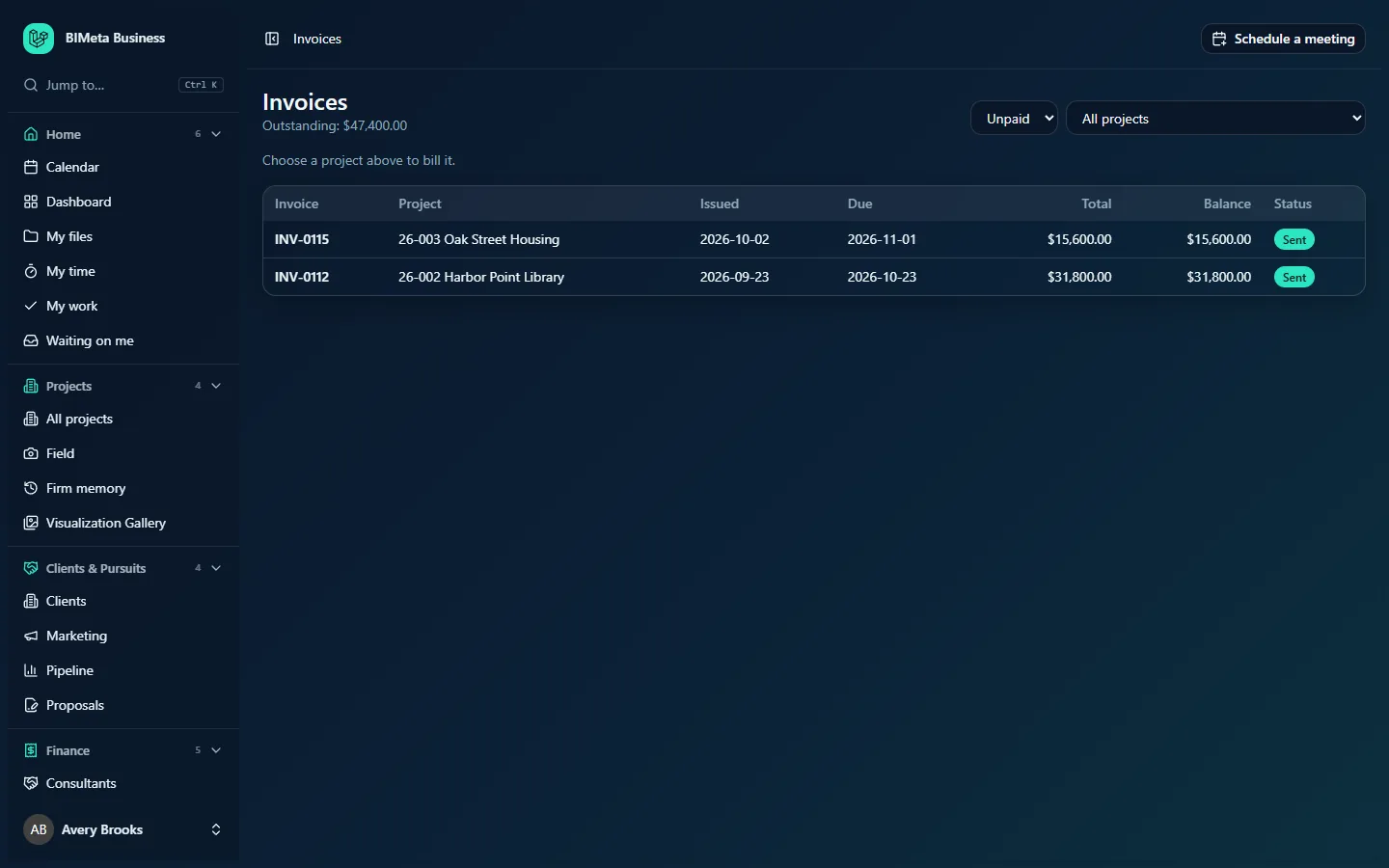
Filtered to Unpaid, the same list looks like this:
A tour of the page
Header
- Invoices: the page title.
- Outstanding: the total still owed to the firm across all projects: the sum of the balances of every invoice that is Sent or Part paid. Drafts, paid and void invoices are not included, and this figure does not change when you filter the list. At Northlight Architects, for example, it reads $47,400.00: INV-0115 ($15,600.00) plus INV-0112 ($31,800.00).
Filters (top right)
- Status drop-down:
- All (default): every invoice.
- Unpaid: invoices that are Sent or Part paid, that is, issued and still owing money. This is what the Dashboard card opens.
- Drafts: invoices not yet issued.
- Paid: fully paid invoices.
- Void: cancelled invoices.
- Project drop-down: All projects (default) or one active project, shown as number and name, e.g. 26-001 Riverbend Clinic Expansion. Only active projects are listed here, but invoices of closed projects still appear in the list under All projects.
The two filters combine, e.g. Unpaid + 26-002 Harbor Point Library. Changing a filter reloads the list straight away; the page address remembers the filter, so you can bookmark it.
"Choose a project above to bill it."
Owners and Admins see this hint while All projects is selected. Billing always starts from a project.
Bill this project (Owners and Admins, after choosing a project)
A table showing, for each phase of the project that has a fee:
| Column | What it shows |
|---|---|
| Phase | The phase name, e.g. Construction documents. |
| Fee | The phase fee: the baseline fee from the project's Budget tab plus any approved Additional Services in that phase. |
| Complete | The percent complete the Project Manager reported on Reports → Fee earned. |
| Earned | Fee × percent complete. |
| Billed before | What earlier invoices already billed for this phase as phase lines. Every invoice that isn't void counts, including drafts. |
| To bill now | Earned minus billed before (never below zero). This is what a phase-progress invoice would bill. |
If the project has no phase fees yet, you see This project has no phase fees yet. Set them under the project's Budget tab. instead.
Below the table are four buttons. Each creates a draft invoice for the project and opens it:
- Invoice phase progress (amount): the amount in brackets is the total of To bill now. Adds one line per phase with something to bill, described like Schematic design: 60% complete (earned 24,000.00, billed before 12,000.00). Greyed out when there's nothing to bill.
- Invoice approved hours: adds every approved, billable hour on the project that isn't on an invoice yet. One line per person and phase (e.g. Leo Alvarez, Design development), with the hours as quantity and the person's bill rate as rate.
- Invoice reimbursables only: adds only the project's unbilled reimbursables (see below).
- Blank invoice: an empty draft for you to add lines to by hand.
Reimbursables are approved consultant invoices marked "bill to client" and approved expenses marked billable, on this project, that haven't been billed yet. Each becomes one line at its amount plus markup, e.g. Consultant Northside Structural, invoice 2291 (plus 10% markup) or Expense 2026-09-14: Plotting for client review. The phase-progress and hours buttons add them automatically too; only the blank invoice leaves them out.
Automatic phase billing (Owners and Admins, after choosing a project)
Shown when the project has at least one phase with a fee. The explanation at the top reads: give each phase one or more billing rules: when the phase is complete (100% or moved past at the phase gate), when progress reaches a percentage, or on a date. Each rule bills once. Percentages and fixed amounts never bill past the phase fee.
There is one row per phase, showing the phase name and a summary such as 60% complete · fee $40,000.00 · $16,000.00 left (left = fee minus billed before), and an Add billing rule button (it becomes Cancel while the form is open).
Under the phase, each existing rule is listed as when: what, for example At 50% progress: 50% of the phase fee or When complete: What is left of the phase fee, followed by badges:
- + reimbursables: the rule also adds the project's unbilled reimbursables.
- Sent automatically or Drafted: whether the invoice goes straight to the client or waits as a draft for you to check.
- Status: Waiting (not triggered yet), Billed (it fired; an Open the invoice link takes you to the invoice, or Nothing was left to bill if there was nothing to bill so no invoice was made) or Failed (in red, with the reason).
- Retry (failed rules only): puts the rule back to Waiting so it fires on its next trigger; a date rule whose date has passed fires on the next daily run.
- Remove: deletes the rule. Invoices it already made are not affected.
The invoice list
| Column | What it shows |
|---|---|
| Invoice | The invoice number, e.g. INV-0115, as a link to the invoice. Drafts have no number yet and show as Draft #12. |
| Project | Project number and name, e.g. 26-003 Oak Street Housing. |
| Issued | The date it was issued (sent). A dash for drafts. |
| Due | The payment due date. A dash for drafts. |
| Total | The invoice total including tax, in the invoice's currency. |
| Balance | Total minus payments recorded. Always $0.00 for void invoices. E.g. INV-0107 shows $42,500.00 total and $0.00 balance because it's paid. |
| Status | Draft, Sent, Part paid, Paid or Void. |
The newest invoices are at the top, and the list shows up to the 300 most recent that match your filters; use the filters to reach older ones. If nothing matches, you see No invoices yet.
How to …
See what clients owe
- Open Finance → Invoices (or click the Dashboard's Outstanding invoices card).
- Read Outstanding under the title for the firm-wide total.
- Set Status to Unpaid. Compare each invoice's Due date with today to spot late payers.
- To see one project only, pick it in the Project filter.
Bill a project's phase progress
- Make sure progress is up to date: the Project Manager sets each phase's percent complete on Reports → Fee earned.
- On Invoices, choose the project in the Project filter.
- Check the Bill this project table. To bill now is what will be billed per phase.
- Click Invoice phase progress (amount).
- The new draft opens with Draft invoice created. Review it, adjust it, then Issue and send (see An invoice: edit, send, record payments, print and void).
Bill approved hours (hourly / time-and-materials projects)
- Make sure the hours are approved on Finance → Time approvals and people's bill rates are set under Admin → Settings → Rates.
- Choose the project, then click Invoice approved hours.
- Review the draft. The hours on it are now reserved for this invoice: they won't appear on any other invoice unless this one is voided.
Bill only reimbursables, or start from scratch
- Choose the project.
- Click Invoice reimbursables only to pass through approved consultant invoices and expenses, or Blank invoice to add every line yourself.
- If there were no reimbursables to bill, the draft is empty; you can add lines or void it.
Add an automatic phase billing rule
- Choose the project. Scroll to Automatic phase billing.
- On the phase's row, click Add billing rule.
- When (required):
- When the phase is complete: fires when the phase's progress is set to 100% or the project is moved past the phase at the phase gate.
- When progress reaches a percentage: shows Progress reaches (%), a whole number from 1 to 100 (default 50). If the phase is already at or past that percentage, the rule bills straight away when you add it. When a phase completes, any progress rules that haven't fired yet fire too.
- On a date: shows Billing date, today or later. Dated rules are checked once a day, early in the morning.
- Bill (required), what the invoice bills:
- What is left of the phase fee (default): fee minus everything billed before for the phase.
- Earned to date by progress: earned minus billed before (the same as the phase-progress button, for this phase).
- A percentage of the phase fee: shows Percentage of the phase fee (above 0, up to 100). A lump sum, capped at what's left of the fee.
- A fixed amount: shows Amount (above 0). Capped at what's left of the fee.
- Hours worked, at billing rates: approved, unbilled hours logged to this phase, one line per person, at their bill rates. Not capped.
- Hours worked, up to the phase fee: the same hours as a single line, capped at what's left of the phase fee (the line says "billed up to the remaining fee" when the cap applies). Hours over the cap are still marked as billed.
- Tick Add the project's unbilled reimbursables (consultants and expenses) to pass them through on the same invoice.
- Tick Send to the client automatically (otherwise it is drafted for you to check) if the invoice should be numbered and emailed immediately. Leave it unticked to get a draft you can review first (recommended until you trust the rule).
- Click Add rule. You see Billing rule added, or Billing rule added. Its trigger was already reached, so it has been billed.
A phase can have up to 10 rules. Each rule fires only once. If a rule finds nothing to bill (for example the fee is already fully billed), no empty invoice is made; the rule shows Billed with Nothing was left to bill.
Fix a failed rule
- Read the red reason next to the Failed badge (for example the invoice couldn't be created).
- Fix the cause (e.g. set the phase fee, or make sure the project still exists).
- Click Retry. The rule waits again and fires on its next trigger. The message reads The rule will bill again on its next trigger.
Tips and good to know
- Drafts reserve what they bill. Hours, expenses and consultant invoices on a draft won't go onto another invoice, and phase lines on a draft count as "billed before". Clear out stale drafts by sending or voiding them.
- Voiding gives it all back. Voiding an invoice makes its hours, reimbursables and phase amounts billable again, so you can redo an invoice cleanly.
- The progress cap. Phase-progress, percentage and fixed-amount billing never exceed the phase fee. If you need to bill more, approve an Additional Service (which raises the phase fee) or add a manual line to a draft.
- Automatic sends use the client's contact. A rule or schedule set to send automatically emails the client's primary contact. If the client has no contact email, the invoice is still issued and numbered; print it and send it yourself.
- Every action is audited: drafting, sending, voiding, payments and adding, removing or retrying rules all appear in the Audit log.
- Recurring billing (retainers, monthly progress billing) has its own page: see Recurring invoices: retainers and scheduled billing.
Troubleshooting / FAQ
Why don't I see "Bill this project"?
Either no project is chosen in the Project filter, or your role can only view invoices. Only Business Owners and Admins can bill by default.
Why is "Invoice phase progress" greyed out?
Nothing is left to bill by progress: every phase's earned amount is already billed (check for drafts), progress hasn't been updated on Reports → Fee earned, or the project has no phase fees.
Why is my project missing from the Project filter?
Only active projects are listed. Invoices of other projects still show under All projects.
"Invoice approved hours" made an empty draft. Why?
There were no approved, unbilled hours: hours may still be waiting on Time approvals, or already be on another invoice (perhaps a draft). Void the empty draft.
Why doesn't Outstanding change when I filter?
It's always the firm-wide total of what's owed on sent and part-paid invoices, so you have it in view whatever you're looking at.
Was this article helpful?
Share