



An invoice: edit, send, record payments, print and void
18 views · by Kevin J Bruno · updated 3 days ago
Every client invoice has its own page. While the invoice is a Draft this is where you check and adjust it: the bill-to address, tax rate, notes and lines. Then you issue and email it to the client, record the payments as they come in, print it or save it as a PDF, and void it if it was wrong. People who can only view invoices see the same page without the editing controls.
Where to find it
- Sidebar → Finance → Invoices, then click an invoice number (or Draft #…) in the list.
- A new draft opens here automatically after you click one of the billing buttons on the Invoices page, or Bill next period now on Recurring invoices.
- From Recurring invoices, the Last invoice … link, and from Automatic phase billing, the Open the invoice link.
Who can use it
- Business Owner and Admin: everything on this page (edit drafts, add and remove lines, issue and send, record payments, void, print).
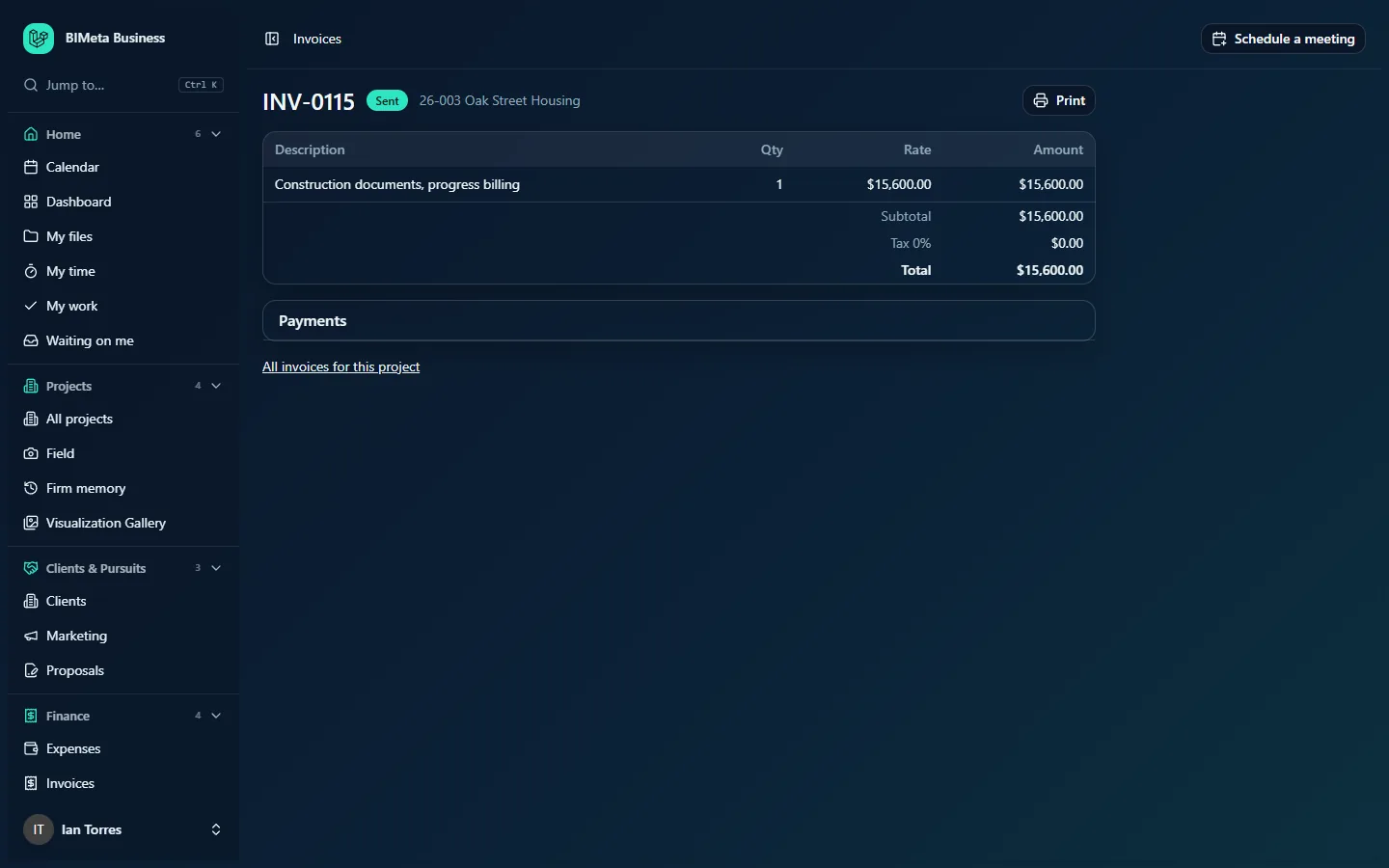
- IT Staff, BIM Manager and Project Manager: view and Print only. They see the lines, totals and payments list, but no edit form, line controls, Issue and send, Void or payment form.
- User: can't open invoices.
- The custom fields card at the bottom can be edited by whoever your firm allows to edit invoice custom fields.
The same invoice as an IT Staff member sees it, read only:
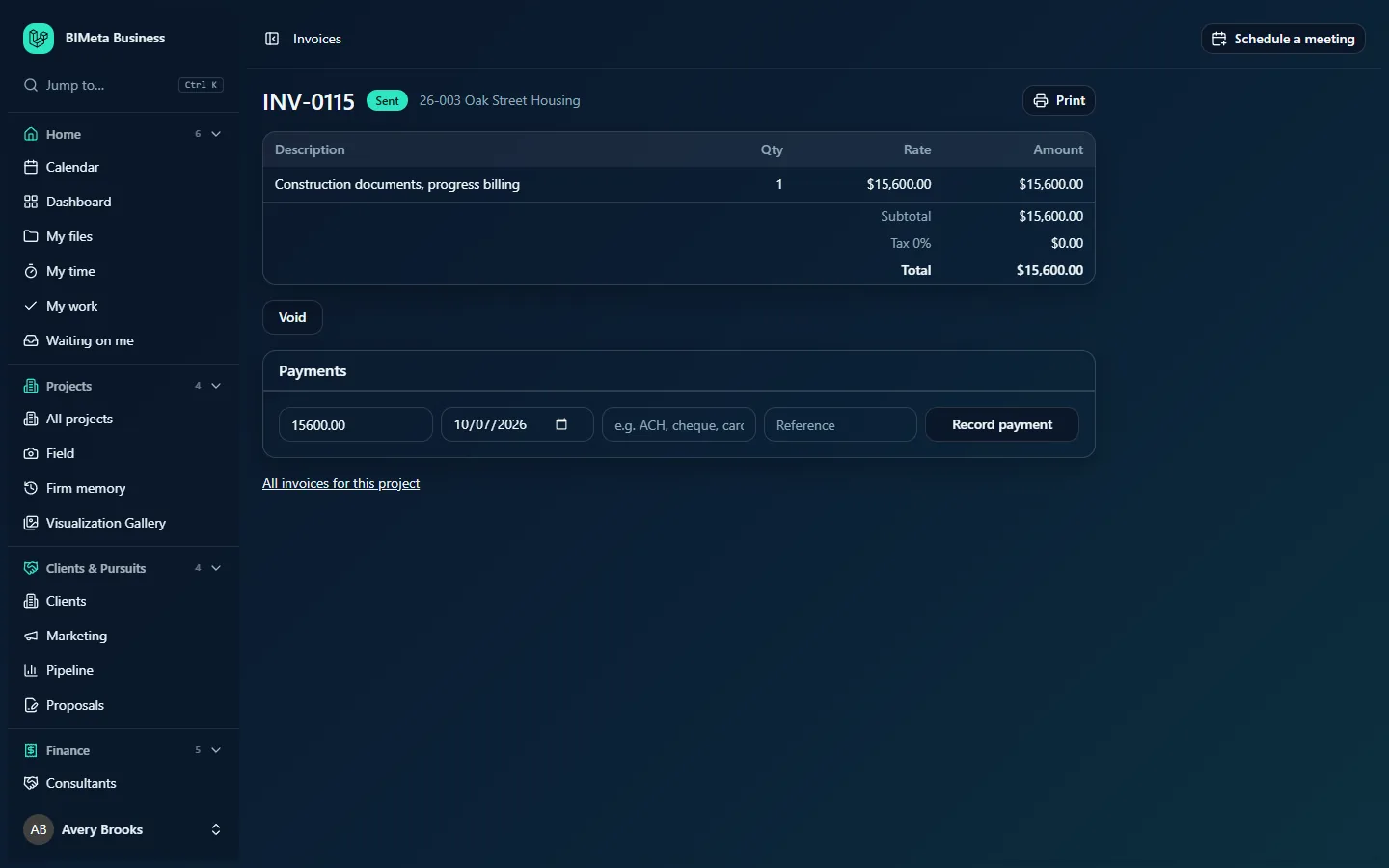
A tour of the page
Header
- The invoice number, e.g. INV-0115, or Draft invoice if it hasn't been issued yet.
- The status badge: Draft, Sent, Part paid, Paid or Void.
- The project, e.g. 26-003 Oak Street Housing.
- Print: opens a clean, printable version in a new browser tab (see Print or save as PDF below).
Invoice details (drafts, Owners and Admins)
- Bill to: who the invoice is addressed to, up to 500 characters over several lines. It's filled in when the draft is created from the project's client record: client name, address, city and region, and country. If the project has no linked client, the project's client name is used.
- Tax (%): the tax rate applied to the subtotal, from 0 to 50, decimals allowed (e.g.
8.25). New drafts start at your firm's default rate, which is 0% unless your firm has set one. - Notes on the invoice: free text printed at the bottom of the invoice and included in the email, up to 5,000 characters. Use it for payment instructions or a thank-you.
- Save: saves these three fields and recalculates the tax and total (Invoice saved).
Once the invoice is issued, these fields can't be changed; the bill-to address is simply shown above the lines (the sample invoice has none, so nothing appears).
Lines
| Column | What it shows |
|---|---|
| Description | What's being billed, e.g. Construction documents, progress billing. Lines made by BIMeta describe themselves: phase progress (Design development: 40% complete (earned …, billed before …)), hours (Priya Nair, Schematic design), consultant pass-throughs (Consultant …, invoice … (plus 10% markup)) and expenses (Expense 2026-09-14: …). |
| Qty | Quantity. For hours lines, the number of hours (e.g. 7.5); for most other lines, 1. |
| Rate | Price per unit. For hours, the person's hourly bill rate. |
| Amount | Qty × Rate. |
| Bin icon (Remove line) | Drafts only, Owners and Admins only: removes the line. |
Under the lines:
- Subtotal: the sum of all line amounts.
- Tax n%: subtotal × tax rate, e.g. Tax 0% $0.00.
- Total: subtotal plus tax.
- Balance due: total minus payments, shown once at least one payment is recorded.
Add line (drafts, Owners and Admins)
A row of three boxes and a button below the lines: description (placeholder e.g. Reimbursable printing), quantity (default 1), Rate, and Add line.
Action buttons (Owners and Admins)
- Issue and send (drafts only): issues the invoice and emails it. Greyed out while the total is zero or less.
- Void: cancels the invoice. Shown on any invoice that isn't already void and has no payments recorded (including drafts).
Payments
Shown on Sent and Part paid invoices, and on any invoice that has payments. Each payment is listed as date · method · reference with its amount, e.g. 2026-10-20 · ACH · Remittance 5531 … $15,600.00. If no method was entered, it says Payment.
On sent and part-paid invoices, Owners and Admins also get the payment form:
- Amount (required): pre-filled with the full balance, e.g. 15600.00. Must be above zero and no more than the balance.
- Paid on (required): the date the money arrived, today by default.
- Method (optional, up to 30 characters): placeholder e.g. ACH, cheque, card.
- Reference (optional, up to 120 characters): a check number, remittance or transaction ID.
- Record payment: saves it.
Links and custom fields
- All invoices for this project: back to the Invoices list, filtered to this project.
- A custom fields card appears at the bottom if your firm has added custom fields for invoices under Admin → Settings → Custom fields (for example a client PO number).
How to …
Check and adjust a draft
- Open the draft. Read every line against the project's progress, hours and reimbursables.
- Correct Bill to, set Tax (%) if tax applies, add Notes on the invoice, and click Save.
- To add a charge, fill in the description (required, up to 300 characters), quantity (above zero, defaults to 1, decimals allowed) and Rate (required), then click Add line (Line added). A negative rate makes a credit line, for example a discount.
- To drop a line, click its bin icon (Line removed).
Hours lines can't be removed one by one. Removing one shows Hours come off together: void this draft to put the hours back for billing. Void the draft, fix the hours if needed, and draft again.
When you remove a phase, consultant or expense line from a draft, the line is gone from the invoice. A removed phase line stops counting as "billed before", so its amount shows as billable again. A removed consultant or expense line, however, stays reserved for this invoice until you void it; to bill it later, void this draft rather than removing the line.
Issue and send an invoice
- Open the draft and make sure the total is right (the button is greyed out at zero).
- Click Issue and send.
- BIMeta:
- gives it the next invoice number from your firm's pattern (Admin → Settings → Setup → Document numbering; e.g. INV-0115). Drafts never use up numbers;
- sets Issued to today and Due to 30 days later;
- changes the status to Sent, locks the invoice and adds it to Outstanding;
- emails it to the client's primary contact (or another contact on the client with an email address). The email, titled Invoice INV-… from your firm, lists the project, every line and amount, the total due, the due date and your notes. Its wording can be changed under Admin → Settings → Emails (Invoice to a client).
- Read the message at the top:
- Invoice INV-… sent to [email protected]: done.
- Invoice INV-… is issued. The client has no contact email, so print it or send it yourself.: add a contact with an email to the client for next time, and send this one yourself.
- Invoice INV-… is issued, but the email couldn't be sent. Print it or try again later.: the invoice is issued either way; send the printed or PDF copy yourself.
If your firm connected QuickBooks Online under Admin → Settings → Integrations, sent invoices can also be copied to QuickBooks, depending on how the connection is set up.
Record a payment
- Open the sent or part-paid invoice.
- In Payments, keep or change the Amount, set the Paid on date, and optionally the method and reference.
- Click Record payment (Payment recorded).
- If the payment equals the remaining balance, the status becomes Paid; otherwise Part paid, and Balance due appears under the total. Record later payments the same way.
You can't record more than the balance (Enter an amount up to the balance of …), and you can't record payments on drafts, paid or void invoices. A recorded payment can't be edited or deleted on this page, so double-check the amount.
Print or save as PDF
- Click Print. A plain white invoice opens in a new tab: your firm name, Invoice (or DRAFT for a draft), the number, Issued and Due dates, Bill to, Project, the lines, Subtotal, Tax, Total due and your notes.
- Click the Print button on that tab (or use your browser's Print) and choose Save as PDF to make a PDF.
Total due on the printout is the remaining balance (total minus payments), so a reprint of a part-paid invoice shows what's still owed.
Void an invoice
- Open the invoice. It must have no payments recorded.
- Click Void. The message reads Invoice voided. What it billed can be billed again.
- The status becomes Void, its balance drops out of Outstanding, and its hours, expenses, consultant invoices and phase amounts are released to be billed again. An issued invoice keeps its number, so your numbering has no gaps.
Tips and good to know
- Only drafts can change. Trying to edit a sent invoice gives Only a draft invoice can be changed. Void it and start a new one.
- Paid invoices can't be voided, and neither can any invoice with a payment recorded. Issue a credit on a new invoice (a line with a negative rate) if you need to correct one.
- Currency comes from your firm profile when the draft is made.
- Due date: invoices you send with Issue and send are always due 30 days after issue. Recurring invoices use the payment terms set on their schedule.
- The email has no attachment; it lists the lines in the message. Attach a PDF from Print yourself if the client needs one.
- Drafting, sending, payments and voids are all recorded in the Audit log.
Troubleshooting / FAQ
Why is "Issue and send" greyed out?
The total is zero (or less). Add at least one line with an amount.
Why is there no Void button?
The invoice is already void or has a payment recorded, or your role can only view invoices.
The client didn't get the email. What now?
Check the message shown after sending. If the client has no contact email, add one on the client's page. In any case, use Print to save a PDF and send it yourself; the invoice is already issued.
Can I change the due date?
Not on this page; it's set to 30 days after issue. Mention different terms in Notes on the invoice, or use a recurring schedule, which has its own payment terms.
Was this article helpful?
Share