



Integrations: QuickBooks Online, Procore and Outlook
18 views · by Kevin J Bruno · updated 5 days ago
Integrations connects your firm's BIMeta Business portal to the outside systems you already use. QuickBooks Online receives your invoices and clients and sends payments back. Procore is linked project by project and keeps RFIs and submittals in step with your contractors. Microsoft Outlook is connected by each person for their own calendar, so this page only shows how many people have done that. Use this page to connect, choose what goes where, run a sync on demand and check that syncing is healthy.
Where to find it
- Sidebar → Admin → Settings, then Integrations in the Apps and connections section. You can also type in Search settings at the top of the Settings page. A ‹ Settings link above the page title takes you back.
- Ctrl K and type
connections,quickbooks,procoreoroutlook.
Since the menu was shortened, the firm's settings pages are no longer listed one by one in the sidebar: they are gathered on the Settings page under Admin, grouped into sections. Each person sees only the pages they may open there. Jump to… (Ctrl K) still finds every page, and you can pin a page to the top of your sidebar if you use it often.
Who can use it
Business Owners, Admins and IT Staff, who can connect the firm to QuickBooks Online and Procore and control what syncs. BIM Managers and Users can't open it (everyone can still connect their own Outlook under Settings → Connected apps). Other firm-wide connections live where they're used: social media pages in Marketing Studio and Social pages, payroll on HR's Payroll page, and Autodesk Docs on the BIM Manager's pages.
A tour of the page
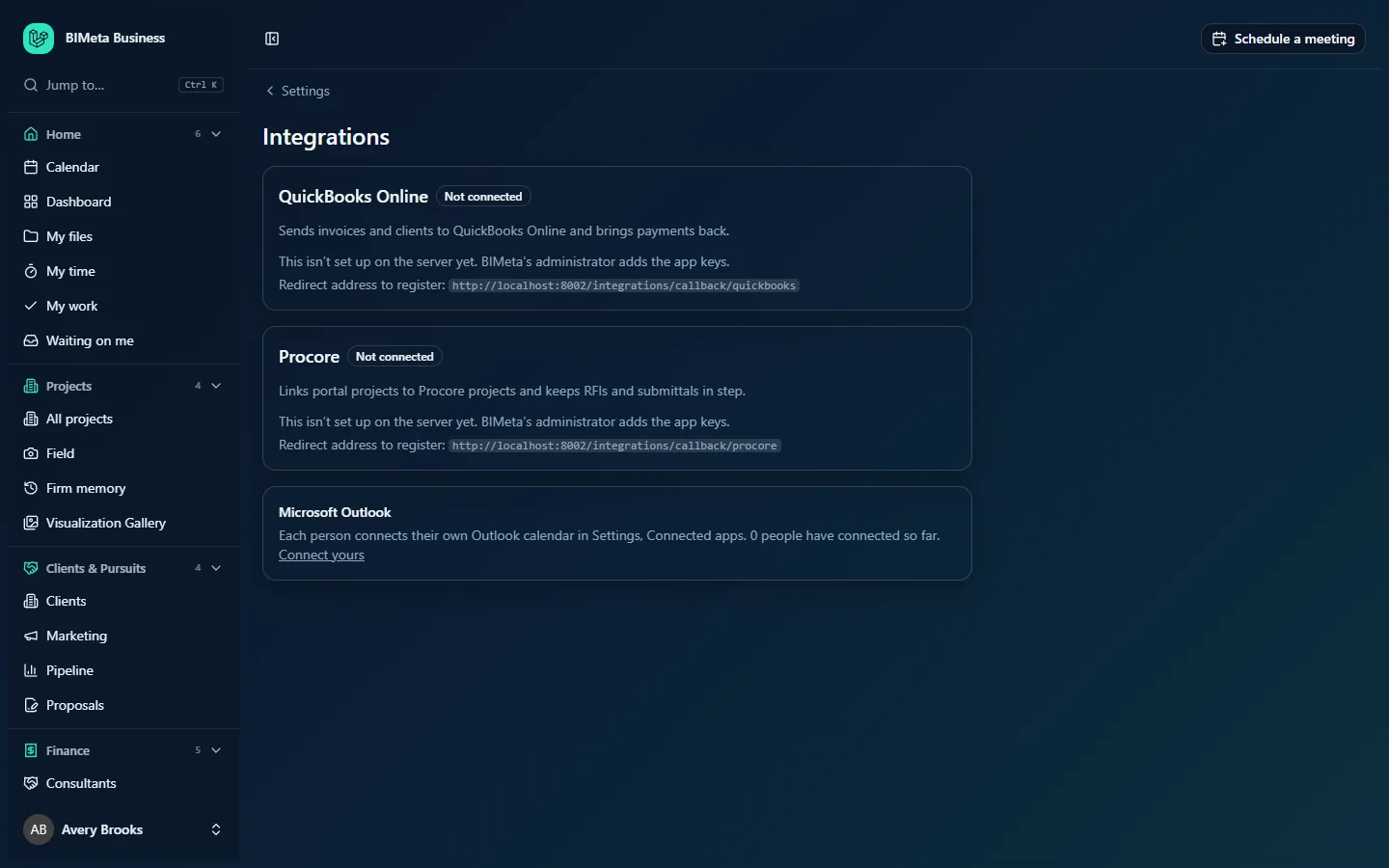
Each integration card
QuickBooks Online and Procore each get a card with:
- The name and a status badge: Not connected, Connected, Problem (the last sync failed) or Connect again (the other service needs you to sign in again).
- A one-line description: QuickBooks Sends invoices and clients to QuickBooks Online and brings payments back.; Procore Links portal projects to Procore projects and keeps RFIs and submittals in step.
- If BIMeta hasn't set the integration up on your portal's server yet: This isn't set up on the server yet. BIMeta's administrator adds the app keys. and a Redirect address to register, which is for BIMeta's administrator. You can't connect until this is done; contact BIMeta support.
- Once connected: Account (the QuickBooks company or Procore company connected), Last synced (or Not yet) and, after a failure, Last problem in red.
- Buttons: Connect QuickBooks Online / Connect Procore (or Connect again), Sync now, and Disconnect.
- The integration's own options (see below), and a fold-out Recent syncs list with the last 10 runs: time, a badge (OK, Some skipped or Failed), and the counts or error.
QuickBooks options
- Send invoices: Automatically, every 15 minutes (default), Only when I press Sync now, or Never.
- Only invoices issued on or after: a date, so older invoices already in QuickBooks aren't sent twice.
- QuickBooks service item for invoice lines (up to 100 characters; Professional services by default): Found by name, or created as a service item on your first income account.
- Bring payments entered in QuickBooks back to BIMeta (on by default): payments recorded against synced invoices in QuickBooks are brought back to the matching invoices in BIMeta.
- Save.
Procore options
- Company: which Procore company to use, chosen from the companies your Procore sign-in can see.
- RFIs: Bring in, and send our answers back (default), Bring in only, or Leave alone.
- Submittals: Bring into our review log (default) or Leave alone.
- Link portal projects to Procore projects (once a company is chosen; before that the card says Choose the company, then link projects.) and Save.
Microsoft Outlook
Each person connects their own Outlook calendar in Settings, Connected apps. N people have connected so far. The Connect yours link opens your own Connected apps page. For privacy, you see the count only, not who.
How to connect QuickBooks Online
- Click Connect QuickBooks Online. You're taken to Intuit to sign in.
- Choose the QuickBooks company and approve access.
- You come back to Integrations with QuickBooks Online is connected.
- Set the options: how to Send invoices, the Only invoices issued on or after date, the service item, and whether to bring payments back. Click Save; you'll see Saved. The next sync uses these settings.
- Click Sync now to send the first batch, or wait for the automatic sync (every 15 minutes).
After each sync you'll see a summary such as Synced with QuickBooks: 12 invoices sent, 0 voided, 3 payments brought back, 4 unchanged or skipped.
How to connect Procore and link projects
- Click Connect Procore, sign in to Procore and approve access.
- Back on Integrations, choose the Company, set RFIs and Submittals, and click Save.
- Click Link portal projects to Procore projects. The Procore projects page lists your active portal projects with a Procore project choice for each (suggested by project number) and a Linked or Not linked badge. Pick the matching Procore project and click Save on each row; choose none to unlink.
- Back on Integrations, click Sync now. You'll see, for example, Synced with Procore: 3 projects, 7 RFIs in, 2 answers out, 5 submittals in.
Sync now only appears for Procore once a company is chosen. Linked projects sync automatically every 15 minutes.
How to disconnect
- Click Disconnect on the card.
- Confirm Disconnect QuickBooks Online? (or Procore).
- You'll see QuickBooks Online disconnected. Syncing stops; what was already synced stays in both systems.
Connecting, syncing, saving options and disconnecting are all recorded in the Audit log.
Tips and good to know
- Set the Only invoices issued on or after date before your first sync if your older invoices are already in QuickBooks.
- Automatic syncs run every 15 minutes for every connected integration. One failing never stops the others; its error appears in Last problem.
- If a card says Connect again, the other service ended the connection (for example a password change or expired approval). Click Connect again and sign in.
- Invoices are created on Finance → Invoices; RFIs and submittals live on each project's construction administration tabs.
Troubleshooting / FAQ
"The connection was cancelled." / "The service couldn't be reached." / "The service turned the connection down."
The sign-in at QuickBooks or Procore was cancelled, the service was down, or it refused. Try Connect again in a few minutes.
There's no Connect button, only "This isn't set up on the server yet."
BIMeta must add the integration's app keys to your portal's server first. Contact BIMeta support.
An invoice didn't reach QuickBooks.
Check Send invoices isn't Never or Only when I press Sync now, that the invoice is issued on or after your start date, and open Recent syncs for skipped items or errors.
Was this article helpful?
Share