



Guide for Users (staff)
18 views · by Kevin J Bruno · updated 5 days ago
This guide is for staff with the User role: architects, designers, engineers and everyone else who works on projects day to day. It explains what you can do in BIMeta Business, tours your dashboard card by card, walks through every item in your sidebar, and ends with a checklist for your first week.
Where to find it
After you sign in at your firm's web address you land on your Dashboard. Everything else is in the sidebar on the left, or press Ctrl K and type what you need, for example vacation, timesheet or receipts.
Who can use it
Anyone with the User firm role. As a User you can:
- See the dashboard, every project and every client.
- Log your own hours and submit your timesheet.
- Claim your own expenses.
- Request leave, keep your own licences and CE credits, and use the HR self-service pages.
- Answer RFIs and submittals in your court, see permits, and take site photos, punch items and daily logs in Field.
- Ask the project assistant, add renderings to the gallery, and reshare the firm's posts to your own LinkedIn.
- Read announcements, goals and the knowledge base, answer surveys, and raise support tickets.
- Keep your own personal files and link BIMeta Drive and Blueprint.
- Manage your own password, two-factor sign-in and passkeys.
You can't create projects, approve time, leave or expenses, see invoices or reports, or open Admin pages. If you're given a project role on a project (for example Project Architect or Designer), you get extra rights on that project only, such as editing it. Two-factor sign-in is optional for Users unless your firm requires it, but we recommend turning it on.
Your dashboard
Here is Leo Alvarez's dashboard at the example firm Northlight Architects:
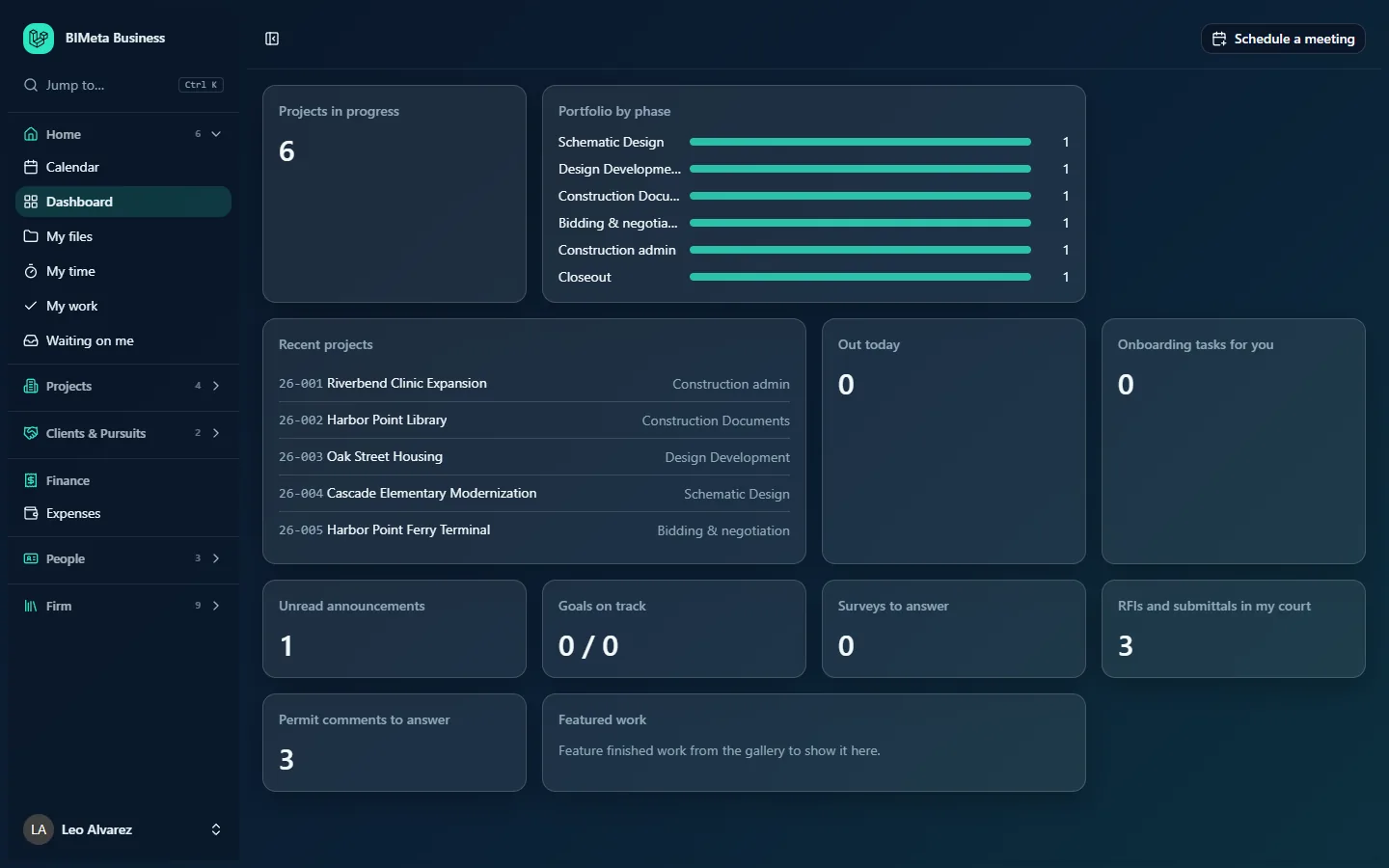
- Projects in progress: how many projects the firm has across all phases (6). Click to open All projects.
- Portfolio by phase: a bar per phase (Schematic Design, Design Development, Construction Documents, Bidding & negotiation, Construction admin, Closeout) with the number of projects in each.
- Recent projects: the five most recently updated projects with their number, name and phase, for example 26-001 Riverbend Clinic Expansion · Construction admin. Click one to open it.
- Out today: how many people are on leave today. Opens Leave.
- Onboarding tasks for you: tasks on your onboarding checklist (for example "read the handbook" or "set up BIMeta Drive"). Opens Onboarding.
- Unread announcements: firm news you haven't read yet. Opens Announcements.
- Goals on track: how many of the firm's current goals are on track, out of all current goals.
- Surveys to answer: staff surveys waiting for your answers.
- RFIs and submittals in my court: open RFIs and submittals where the ball is in your court (3 at Northlight). Opens Waiting on me.
- Permit comments to answer: open permit review comments assigned to you (3). Opens Waiting on me.
- Featured work: renderings the firm has featured from the gallery. Until some are featured it says Feature finished work from the gallery to show it here.
Two more cards appear only when they apply: Policies to sign (handbook policies you still need to acknowledge) and Newsletter (the firm's latest client newsletter, once one has been sent and the firm shows it on the dashboard).
Your sidebar
Your sidebar has six groups with 25 entries, listed alphabetically inside each group. Each page has its own detailed article in the matching BIMeta Business help category.
Home (6)
- Calendar: meetings, events and task due dates, with an export for Outlook or other calendar apps.
- Dashboard: the cards above.
- My files: your own personal file space. Only you, the Business Owner and IT Staff the Owner appoints can see it, and every look by someone else is recorded.
- My time: log your hours against projects and submit your timesheet.
- My work: your open tasks across every project, plus model clashes assigned to you.
- Waiting on me: RFIs to answer, submittals to review, change orders to sign, punch items and permit comments waiting on you. If it's empty you'll see Nothing is waiting on you right now.
See Home: Dashboard, My Work & Calendar.
Projects (4)
- All projects: every project in the firm. Open one to see its tabs: Overview, Tasks, Files, Drawings, Team, RFIs, Submittals, Changes, Punch list, Meetings, Field, Permits, 3D and more.
- Field: the phone-friendly site screen. Pick a project and take site photos, add punch items, and write daily logs and site reports, even with a weak connection.
- Firm memory: search how the firm answered similar RFIs, submittals and permit comments on earlier projects.
- Visualization Gallery: all renderings, animations and panoramas; you can add your own work.
See Projects.
Clients & Pursuits (2)
- Clients: client companies and contacts (view only).
- Share to LinkedIn (under the Marketing heading): posts the firm has offered to staff. Connect your own LinkedIn once, change the wording if you like, and press Share. Nothing is ever posted for you. Managers see this page as a tab of the Marketing hub; because it's the only marketing page for Users, you get it directly.
See Clients, Pursuits & Marketing.
Finance
- Expenses: claim your own expenses with receipts and follow their approval. It's the only Finance page for Users, so the group shows it directly.
See Finance.
People (3)
First comes HR, a hub: click it and its pages appear as tabs across the top of the page.
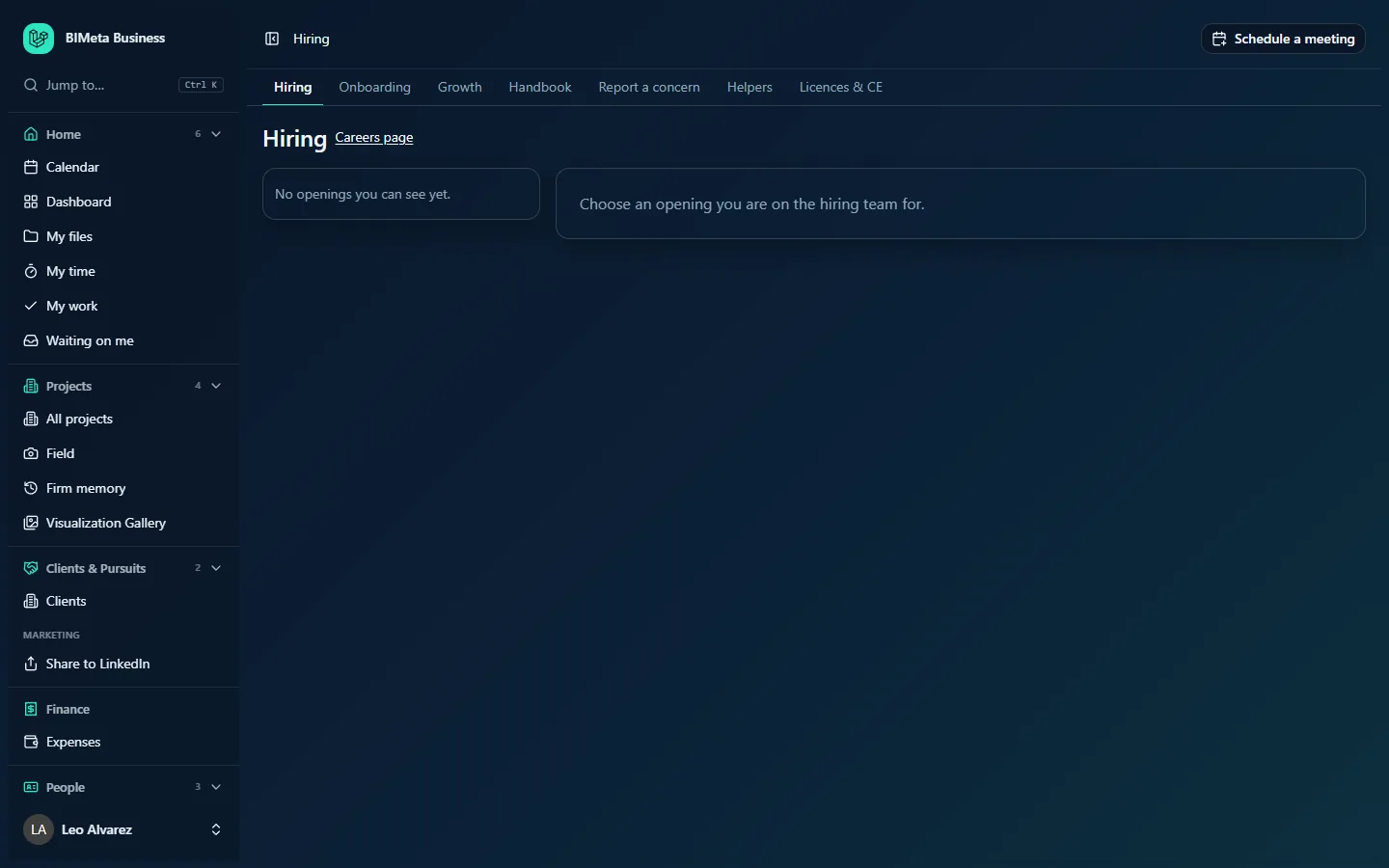
- Hiring: the firm's openings and the Careers page link, and the candidates for openings where you're on the hiring team. Until you're on one it says Choose an opening you are on the hiring team for.
- Onboarding: your own onboarding (or offboarding) checklist tasks.
- Growth: your reviews, one-to-ones, goals, career ladder, recognition, CE progress and path to licensure.
- Handbook: the firm's policies; acknowledge those that apply to you, or ask HR.
- Report a concern: report an incident or concern, openly or anonymously.
- Helpers: AI drafting helpers, when your firm has turned them on.
- Licences & CE: your professional licences, renewal dates and CE hours.
Under You and your team:
- Directory: everyone in the firm, the org chart, and My record.
- Leave: request time off and see your balance and who's out.
See People & HR, for example People & HR → Leave.
Firm (9)
- Announcements: firm news, pinned items first.
- Support: raise a ticket with your firm's IT or support team and follow its progress.
- Goals: the firm's goals for this period.
- Knowledge base: how-to articles from your firm.
- Surveys: surveys waiting for your answers.
- Specifications: the firm's master specification sections.
- Under BIM: BIM training (your assigned training paths, with steps to tick off), Family library (search and download approved Revit families and details) and Script library (Dynamo graphs and pyRevit or Python scripts).
See Firm: Announcements, Support, Knowledge & BIM Libraries.
Your first week
- Accept your invitation and sign in, then turn on two-factor sign-in and add a passkey under Settings → Security. If your firm asks team members for a background check, you're asked to confirm your identity first; see Confirming your identity (when your firm asks for a background check).
- Check your profile (Settings → Profile) and pick a look under Settings → Appearance, and your language from the user menu.
- Work through Onboarding (People → HR → Onboarding): tick off your checklist tasks.
- Read and acknowledge the Handbook policies that apply to you (watch for the Policies to sign card).
- Add your licences and any CE credits under People → HR → Licences & CE.
- Start your timesheet in My time and submit it at the end of the week.
- Find your projects in All projects and check My work and Waiting on me every morning.
- Start your BIM training path and bookmark the Family library.
- Pin your favorite pages with the star in the sidebar, and learn Ctrl K.
- Book any planned time off under Leave.
Tips and good to know
- The two "in my court" cards are your to-do list from the construction side. Clearing them keeps projects moving.
- If you use Field on site without a signal, wait until everything has been sent before you log out; logging out clears what's stored on the device.
- Need something you can't see? Ask your Project Manager for a project role, or raise a ticket in Support.
Troubleshooting / FAQ
Why can't I edit a project?
Users can see every project but edit only those where they have a project role such as Project Architect or Designer. Ask the project's Project Manager.
Where are Growth, Handbook and Licences & CE?
They're tabs of the HR hub in the People group. Click HR and pick the tab, or press Ctrl K and type the page name.
Why don't I see Reports or Admin?
Those groups are for managers and administrators. Your sidebar only shows what your role can open.
Where do I approve my team's timesheets?
Approving timesheets needs a firm role with that right, such as Project Manager. Ask your Business Owner or Admin if you should have it.
Was this article helpful?
Share