



Guide for IT Staff
19 views · by Kevin J Bruno · updated 4 days ago
This guide is for IT Staff: the people who look after the firm's accounts, sign-in security, devices, software, storage and connections. In BIMeta Business, IT Staff can do everything a Project Manager can, plus the whole IT hub, Custom Development, and most of the "People and access" and "Apps and connections" pages on the Settings page. This guide explains the role, tours your dashboard card by card, walks through your sidebar, and ends with a checklist for your first week.
Where to find it
Your dashboard is the first page after you sign in. Your IT pages are all in one entry: Admin → IT, a hub that opens on Overview and shows the other IT pages as tabs across the top. The accounts, sign-in and connection pages you look after are links on Admin → Settings. Press Ctrl K and type words like firewall, ssh, sso, api keys, gdpr or audit to jump straight to the right page.
Who can use it
Anyone with the IT Staff firm role. Only a Business Owner can give out this role. Two-factor sign-in is required.
What IT Staff can do beyond a Project Manager: see server health, storage and project statistics (sizes and counts only, never file contents); manage sign-ins and sessions; set the two-factor, sign-out and network rules; run the BIMeta firewall (ban or allow addresses, add exceptions, choose threat lists and attack alerts, export events, and lock the portal down in an emergency); manage retention and legal holds, devices, software licences, alerts, restores, storage cleanup and server maintenance windows; invite people, change their roles, deactivate accounts and reset two-factor; set up single sign-on and directory sync; create API keys and webhooks and control the data API; connect firm integrations; read and export the audit log; handle privacy requests; look into everyone's personal files when appointed by the Owner (every look is audited); sign in to the firm's own servers over SSH; manage desktop apps, the Software Hub, office servers and Drive & Blueprint; work the support desk and write knowledge base articles; choose project tabs; view and approve BIM deployments; and ask BIMeta for custom work under Custom Development, accepting proposals up to the amount the Business Owner allows.
What IT Staff can't do: HR records, pay and payroll, compliance and incident reports; firm settings (Setup, Navigation, Web address, Custom fields, Emails, Wording, Import from CSV, AI, Project assistant, Support access, Background checks); billing and rates; editing what roles allow (you can view the permission matrix); the pursuit pipeline and social media marketing; creating invoices (you can view them); and adding or deploying BIM plugins yourself (that's the BIM Manager's job; you can approve).
Your dashboard
Here is Ian Torres's dashboard at the example firm Northlight Architects:
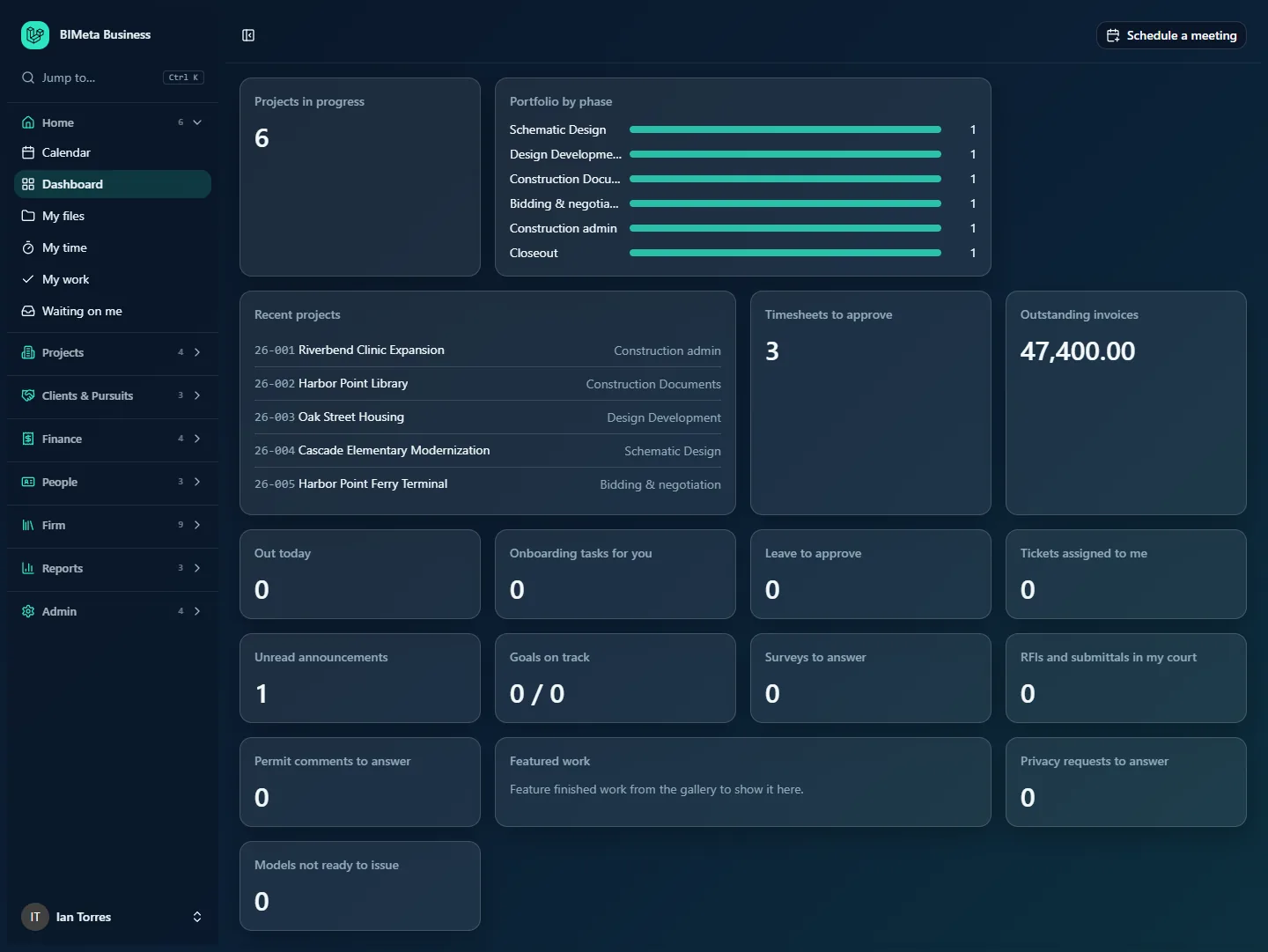
- Projects in progress: how many projects the firm has across all phases (6). Opens All projects.
- Portfolio by phase: a bar per phase with the number of projects in each.
- Recent projects: the five most recently updated projects, for example 26-002 Harbor Point Library · Construction Documents.
- Timesheets to approve: timesheets submitted to you (3 at Northlight). Opens Time approvals. You see this because IT Staff can approve time like a Project Manager.
- Outstanding invoices: the unpaid balance of sent and partly paid invoices (47,400.00). Opens open Invoices; you can view but not change them.
- Out today: people on leave today.
- Onboarding tasks for you: checklist tasks assigned to you, such as setting up a new hire's laptop or removing a leaver's access.
- Leave to approve: leave requests waiting for a decision.
- Tickets assigned to me: open support tickets assigned to you. Opens Support on your assigned view. This is your main IT inbox.
- Unread announcements, Goals on track and Surveys to answer: firm pages.
- RFIs and submittals in my court and Permit comments to answer: items waiting on you, opening Waiting on me.
- Featured work: renderings featured from the gallery.
- Privacy requests to answer: pending requests for a copy or erasure of someone's personal data. Opens Privacy requests. These have due dates, so keep this at zero.
- Models not ready to issue: synced models whose review says "fix first" or "not ready". Opens Model health.
Cards such as Newsletter (once one is sent) and Policies to sign (when you have some) also appear when they apply. You don't see Open pursuits, Consultant insurance, Licences to renew or Finish setting up. Firewall attacks don't have a dashboard card; they reach you as IT alerts when Alert IT when the portal is under attack is on.
Your sidebar
You see all eight groups, with 36 entries, listed alphabetically inside each group. Each page has its own detailed article in the matching BIMeta Business help category.
Home (6)
Calendar, Dashboard, My files, My time, My work and Waiting on me (see Home: Dashboard, My Work & Calendar).
Projects (4)
All projects (you can create and edit projects and manage teams, like a Project Manager), Field, Firm memory and Visualization Gallery (see Projects).
Clients & Pursuits (3)
Clients, the Marketing hub with three tabs (Library, SF330s and Share to LinkedIn) and Proposals (see Clients, Pursuits & Marketing).
Finance (4)
Expenses, Invoices and Recurring invoices (view), and Time approvals (see Finance).
People (3)
The HR hub with the tabs Hiring, Onboarding, Growth, Capacity, Handbook, Report a concern, Helpers and Licences & CE, then under You and your team Directory and Leave (see People & HR).
Firm (9)
Announcements, Goals, Knowledge base (you can write and publish articles), Specifications, Support (you work the queue: reply, assign, prioritize and resolve tickets), Surveys, and under BIM BIM training, Family library and Script library (see Firm: Announcements, Support, Knowledge & BIM Libraries).
Reports (3)
All reports, Fee earned and Portfolio (see Reports).
Admin (4)
- BIM Manager: the BIM panel. You can see everything and approve deployments that wait for a second person (Admin: BIM Manager & Project Tabs).
- Custom Development: ask BIMeta to build something for the firm, such as a Revit add-in, a script, an integration or a report, follow the replies, estimate and progress, and accept proposals up to the limit the Business Owner set (Custom Development).
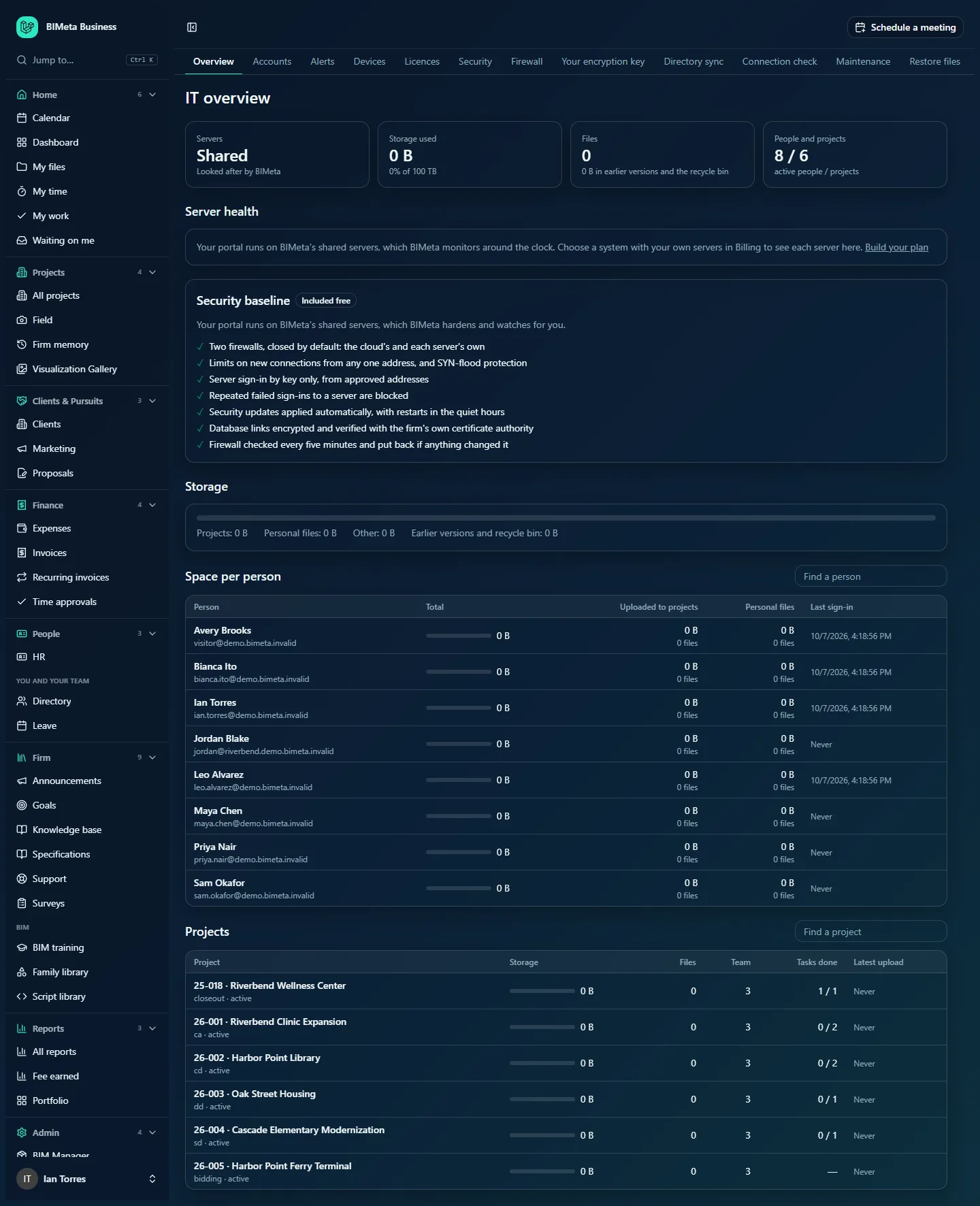
- IT (hub), your main workspace (Admin: IT & Security). Its tabs, in order:
- Overview: servers, storage used, file counts, active people and projects, server health, the security baseline, storage by type, space per person and per project.
- Accounts: every sign-in, every open session (end any of them), people who haven't signed in for a while, and who doesn't use two-factor yet.
- Alerts: who gets each kind of alert, quiet hours, Teams or Slack webhooks, and what was sent.
- Devices: machines running BIMeta Desktop and Drive, with their system, app versions, design software and add-ins.
- Licences: software seats (Revit, AutoCAD, Bluebeam…), who holds them, cost, renewal dates and seats to give back.
- Security: network rules, two-factor for everyone, automatic sign-out, sign-in alerts, shared-link protection and encryption.
- Firewall: the BIMeta firewall that checks every request to the portal. Blocked-request counts for the last 24 hours, 7 and 30 days, top addresses, countries and rules, Banned addresses (ban one by hand for a number of hours), an Allow list (never banned; add a travel pass for someone away from the office), Exceptions (switch a rule off for one page), Threat lists and alerts, the Events log with Export events, and Emergency lockdown to close the portal in one click if you suspect a breach.
- Your encryption key: encrypt the firm's stored files with keys only the firm's own key vault can release.
- Directory sync: SCIM so Microsoft Entra ID, Okta and others add, update and deactivate people automatically.
- Connection check: each office's latency and download speed to each server location.
- Maintenance: when BIMeta may update and restart the firm's own servers.
- Restore files: bring back files, a folder or a whole project from a backup copy without overwriting anything current.
- Retention and holds: how long closed projects' records are kept, the retention lock, and legal holds.
- Storage cleanup: what takes space, safe clean-up to the recycle bin, and how long deleted files and old versions are kept.
- Report: the last seven days at a glance, and who gets the weekly email.
- Audit export: send the audit log to Splunk, Microsoft Sentinel, a syslog server or a webhook.
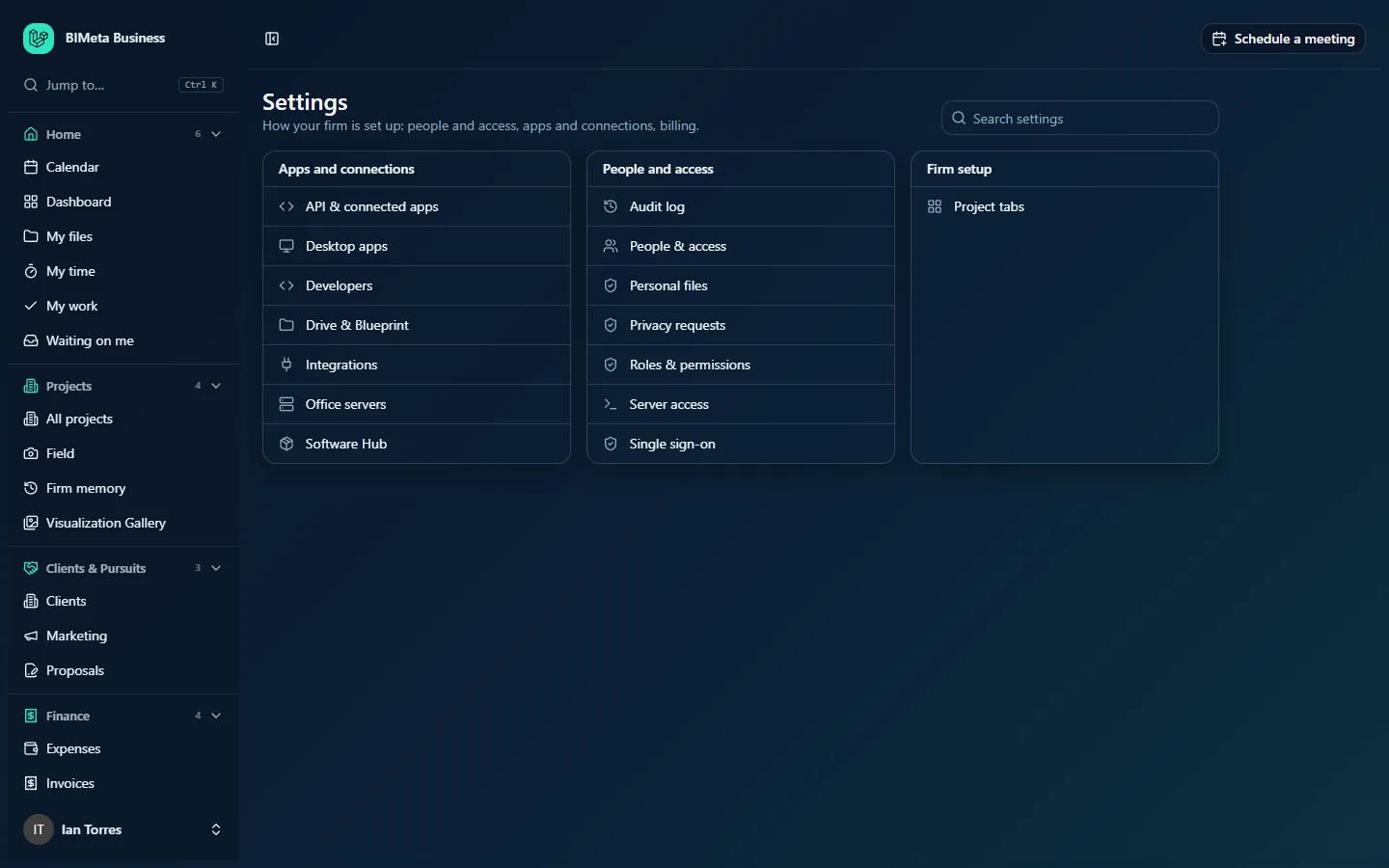
- Settings: the firm settings pages you may open, with a search box:
- Apps and connections (Admin: Apps & Connections): API & connected apps, Desktop apps, Developers, Drive & Blueprint, Integrations, Office servers and Software Hub.
- People and access (Admin: People & Access): Audit log, People & access (invite, change roles, deactivate, reset two-factor), Personal files, Privacy requests, Roles & permissions (view), Server access and Single sign-on.
- Firm setup: Project tabs.
Your first week
- Secure your own account: two-factor, recovery codes in a password manager, and a passkey.
- Review IT → Security: decide on two-factor for everyone, the inactivity sign-out, network rules, sign-in alerts and shared-link protection. Make sure your own network is listed before restricting admin pages to office networks.
- Review IT → Firewall: check the office networks on the Allow list, decide on the threat lists, turn on Alert IT when the portal is under attack, and know where Lock down is before you ever need it.
- Set up single sign-on and, if you use Entra ID or Okta, Directory sync, so joiners and leavers are handled automatically. Agree with the Business Owner whether SSO is optional or required.
- Check IT → Accounts: who hasn't set up two-factor, and anyone who has never signed in.
- Set up IT → Alerts and the weekly IT → Report recipients, with a Teams or Slack webhook if you use one.
- Load your software seats under Licences and check Devices once BIMeta Desktop and Drive are installed.
- Set retention and check Storage cleanup settings for deleted files and earlier versions.
- Register office servers and set their download windows, if the firm keeps local copies.
- Prepare the support desk: write the first knowledge base articles (how to sign in, how to reach IT) and watch Tickets assigned to me.
- Agree onboarding and offboarding tasks with HR so you get the right checklist tasks for new and leaving staff.
Tips and good to know
- IT sees sizes and counts, never file contents, on the IT Overview and Storage cleanup tabs. Personal files show their owner and size, never a name.
- Ending a session on IT → Accounts signs that person out on their next click.
- Restores never overwrite current files.
- When a staff member loses their phone, reset their two-factor under People & access; they set it up again on next sign-in.
Troubleshooting / FAQ
Why can't I open Setup, Web address or Background checks?
Firm settings belong to Business Owners and Admins, not IT Staff, so they aren't on your Settings page.
Someone is locked out by the firewall. What do I do?
Open Admin → IT → Firewall, find their address under Banned addresses and click Lift, then add the address to the Allow list (with a number of hours for a travel pass) so it isn't banned again.
Why can't I change what a role allows?
IT Staff can view the permission matrix and change people's roles, but only Business Owners and Admins can edit the roles themselves.
Why can't I deploy a Revit plugin?
Adding and deploying BIM plugins is the BIM Manager's job. You can see deployments and approve those waiting for a second person.
Was this article helpful?
Share