



Guide for Business Owners
21 views · by Kevin J Bruno · updated 4 days ago
This guide is for the Business Owner: the principal or partner who owns the firm's BIMeta Business portal. As Business Owner you can open every page and change every setting, and a few decisions are yours alone. This guide explains what the role is for, tours your dashboard card by card, walks through your full sidebar, and ends with a checklist for your first week.
Where to find it
Everything in this guide starts from the sidebar on the left or from Jump to… (Ctrl K). Your dashboard is the first page after you sign in; click the BIMeta Business logo or Home → Dashboard to get back to it.
Who can use it
This guide applies to anyone with the Business Owner firm role. Business Owners have every permission. Some things only Business Owners can do by default:
- Manage the subscription, storage and AI credits under Admin → Settings → Billing & storage.
- Let BIMeta support look in read-only under Admin → Settings → Support access.
- Accept Custom Development proposals above the amount IT Staff and BIM Managers may accept, and set that amount.
- Choose who approves BIM deployments (the approval rule in the BIM Manager panel).
- Give someone the IT Staff role, and appoint IT Staff who may look into personal files.
- See pay and payroll (shared with Human Resources), turn on the HR hub's Helpers and the compliance AI helper, and approve pay cycles.
- Keep signing in with a password when your firm requires single sign-on, so the firm can never be locked out.
Two-factor sign-in is required for Business Owners. Keep your recovery codes somewhere safe and make sure the firm has a second Business Owner.
Your dashboard
As Business Owner you see the most dashboard cards of any role. Here is Avery Brooks's dashboard at the example firm Northlight Architects:
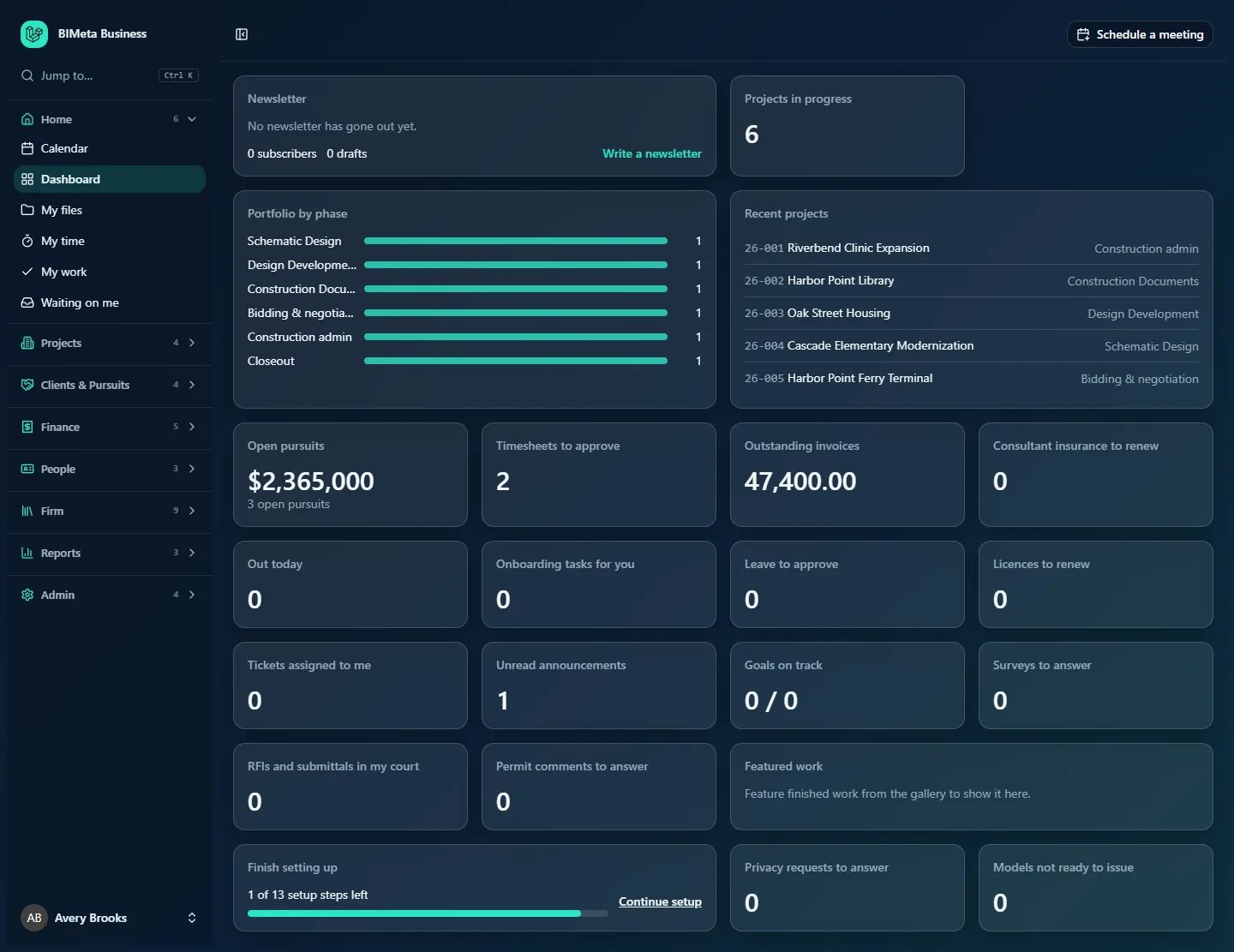
Cards appear in this order. Each number or title is a link to the page behind it.
- Newsletter (wide, first): the latest client newsletter. Because you can write newsletters, it also shows your subscribers and drafts counts and a Write a newsletter link; at Northlight it says No newsletter has gone out yet. The card only shows when the firm's newsletter setting puts it on the dashboard. Staff who can't write newsletters see it once one has been sent.
- Projects in progress: how many projects the firm has across all phases (6 at Northlight). Opens All projects. Everyone at the firm sees this card.
- Portfolio by phase: a bar per phase (Schematic Design, Design Development, Construction Documents, Bidding & negotiation, Construction admin, Closeout) with the number of projects in each. Everyone sees it.
- Recent projects: the five most recently updated projects with number, name and phase, for example 26-001 Riverbend Clinic Expansion · Construction admin. Click one to open it. Everyone sees it.
- Open pursuits: the total value and number of leads in the pipeline that are not yet won or lost ($2,365,000 across 3 open pursuits at Northlight). Opens Pipeline. Only people who work the pipeline (Owners and Admins) see it.
- Timesheets to approve: submitted timesheets waiting for you. Opens Time approvals. Shown to everyone who approves time.
- Outstanding invoices: the unpaid balance of sent and partly paid invoices (47,400.00). Opens Invoices filtered to open ones. Shown to everyone who can see invoices.
- Consultant insurance to renew: consultants whose insurance certificates are about to expire. Opens Consultants. Owners and Admins.
- Policies to sign: handbook policies you haven't acknowledged. It only appears while there's at least one.
- Out today: how many people are on leave today. Opens Leave. Everyone.
- Onboarding tasks for you: onboarding or offboarding checklist tasks assigned to you. Everyone.
- Leave to approve: leave requests waiting for a decision. Shown to leave approvers.
- Licences to renew: staff professional licences coming up for renewal. Opens Licences & CE. Owners, Admins and HR.
- Tickets assigned to me: open support tickets assigned to you. Opens Support on your assigned view. Support agents (Owners, Admins, IT Staff).
- Unread announcements, Goals on track (current goals on track out of all current goals, e.g. 0 / 0) and Surveys to answer: firm pages, for everyone.
- RFIs and submittals in my court and Permit comments to answer: items waiting on you personally. Both open Waiting on me. Everyone.
- Featured work (wide): renderings featured from the gallery. Until some are featured it says Feature finished work from the gallery to show it here. Everyone.
- Finish setting up (wide): how many Setup steps are left out of 13 (1 of 13 setup steps left at Northlight), with a progress bar and a Continue setup link to Admin → Settings → Setup. When everything is done or skipped it says Setup is complete. Change any step under Admin, Setup. (Setup is now on the Settings page.) Owners and Admins.
- Privacy requests to answer: pending requests for a copy or erasure of personal data. Owners and IT Staff.
- Models not ready to issue: synced models whose review says "fix first" or "not ready". Opens Model health. Owners, Admins, IT Staff and BIM Managers.
If a card fails to load it is simply left out; the rest of the dashboard still works.
Your sidebar
You see all eight groups, with 38 entries. Entries are listed alphabetically inside each group (unless your firm set its own order under Navigation). Families of pages are folded into hubs (HR, Marketing and IT) whose pages show as tabs at the top of the page, and the firm's settings are gathered on one Settings page. Every page has its own detailed article in the matching BIMeta Business help category, named in brackets.
Home (6)
- Calendar, Dashboard, My files, My time, My work and Waiting on me: your calendar, this dashboard, your personal files, your timesheet, your tasks and the approvals waiting on you (see Home: Dashboard, My Work & Calendar).
Projects (4)
- All projects: every project; you can create projects, advance phases, set budgets and manage teams.
- Field: the phone-friendly site screen for photos, punch items, daily logs and site reports.
- Firm memory: search past RFIs, submittals, changes, minutes, permit comments and clashes across all projects.
- Visualization Gallery: all renderings; you can approve work for marketing and feature it.
See Projects.
Clients & Pursuits (4)
- Clients: clients and contacts.
- Marketing (hub) with every tab: Library (resumes and project sheets), SF330s (federal qualifications), Studio (social posts and their approval), Campaigns, Results, Share to LinkedIn (staff resharing), Social pages (connecting the firm's networks) and Newsletters (client newsletters).
- Pipeline: the pursuit pipeline; won leads become projects.
- Proposals: fee proposals.
See Clients, Pursuits & Marketing.
Finance (5)
- Consultants: subconsultants, their insurance and their invoices.
- Expenses: your own claims, and claims to approve.
- Invoices and Recurring invoices: create, send and void invoices, record payments, and set up retainers billed automatically.
- Time approvals: approve or send back timesheets.
See Finance.
People (3)
- HR (hub) with every tab: Hiring, Onboarding, Growth, Capacity, Pay, Payroll, Compliance, Handbook, Report a concern, Helpers and Licences & CE. As Owner you see pay bands and cycles (and approve every cycle), payroll, compliance and every reported concern.
- Under You and your team: Directory and Leave.
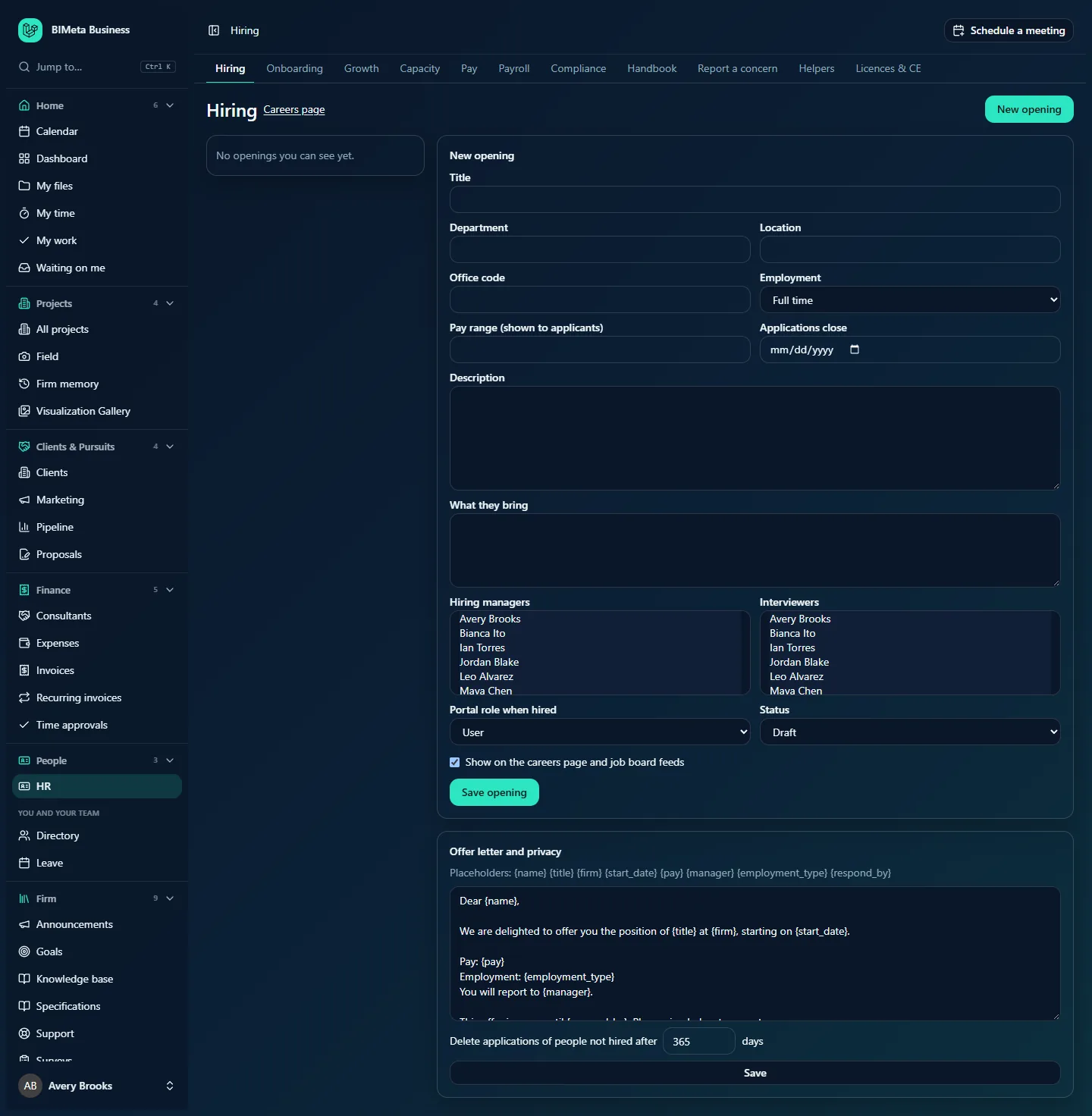
See People & HR, for example People & HR → Leave.
Firm (9)
- Announcements, Goals, Knowledge base, Specifications, Support and Surveys: you can publish announcements, set goals, write knowledge base articles, edit the master specification, work support tickets and run surveys.
- Under BIM: BIM training, Family library and Script library.
See Firm: Announcements, Support, Knowledge & BIM Libraries.
Reports (3)
- All reports (Work in progress, Phase burn, Utilization, Income and costs), Fee earned and Portfolio. See Reports.
Admin (4)
- BIM Manager: the BIM panel, where you also set who approves deployments (Admin: BIM Manager & Project Tabs).
- Custom Development: ask BIMeta to build something for the firm (a Revit add-in, a script, an integration, a report), buy prepaid hours, and set how much IT Staff and BIM Managers may accept without you (Custom Development).
- IT (hub), shared with IT Staff: Overview, Accounts, Alerts, Devices, Licences, Security, Firewall, Your encryption key, Directory sync, Connection check, Maintenance, Restore files, Retention and holds, Storage cleanup, Report and Audit export (Admin: IT & Security).
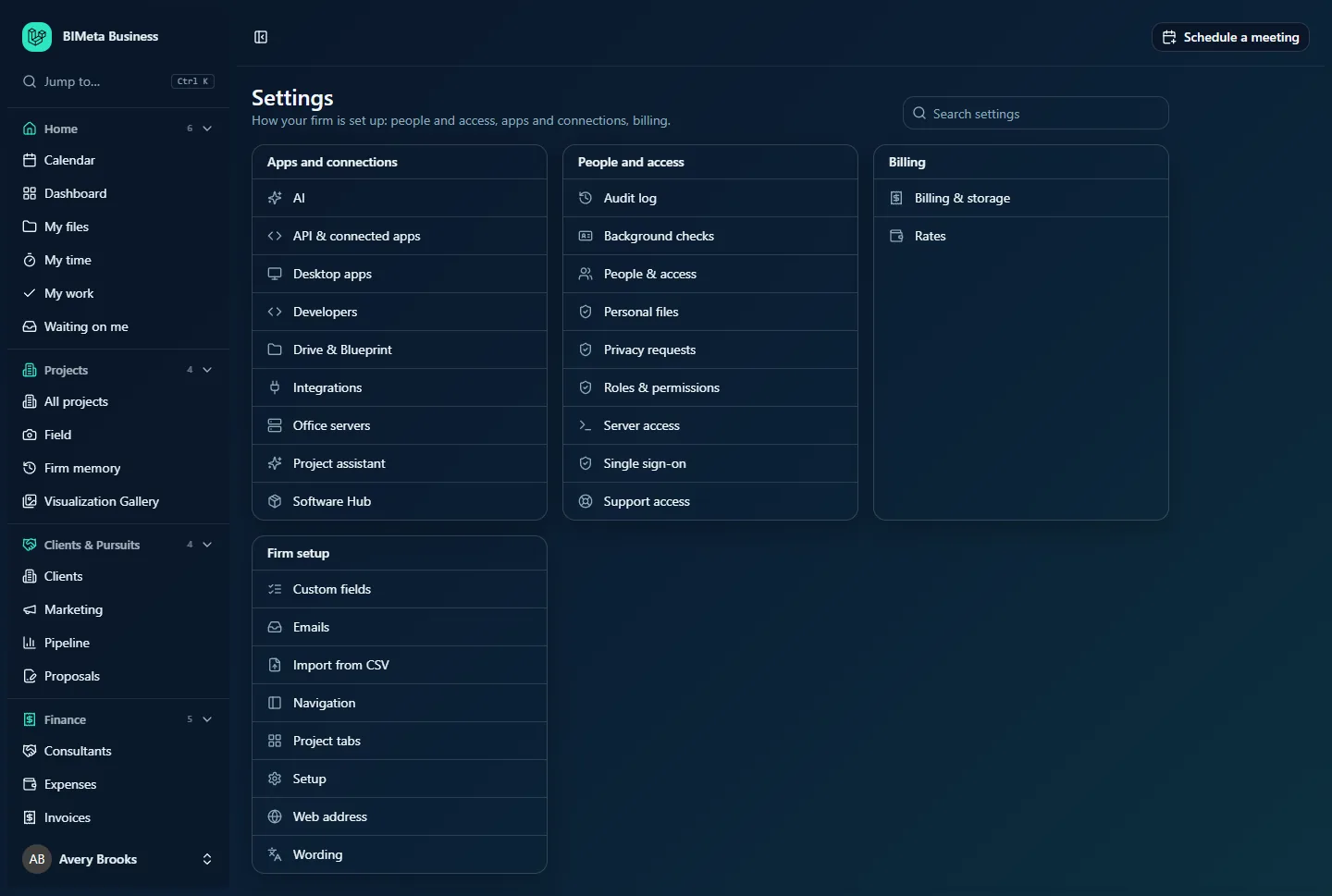
- Settings: every firm settings page, in four sections, with a search box:
- Apps and connections: AI, API & connected apps, Desktop apps, Developers, Drive & Blueprint, Integrations, Office servers, Project assistant and Software Hub (Admin: Apps & Connections).
- People and access: Audit log, Background checks, People & access, Personal files, Privacy requests, Roles & permissions, Server access, Single sign-on and Support access (Admin: People & Access).
- Billing: Billing & storage and Rates (Admin: Billing & Rates).
- Firm setup: Custom fields, Emails, Import from CSV, Navigation, Project tabs, Setup, Web address and Wording (Admin: Firm Setup).
Your first week
- Secure your account. Set up two-factor sign-in, save your recovery codes in a password manager, and add a passkey (Settings → Security).
- Finish Setup. If your firm is new, you're guided through it right after signing up: a welcome page, then every step in order, in four sections, then a thank-you page, and the full portal opens when you're done. Otherwise open Admin → Settings → Setup (or the Finish setting up card). The 13 steps are: Get started (language, plan and storage, background check), Your firm (firm profile and region, appearance, modules and integrations), Project standards (project numbering, phases and fee split, sheet, file and model naming, document numbering, project folders; during onboarding Use recommended settings accepts industry-standard choices for all five at once) and Your team (roles and permissions, inviting your team). You can skip a step and come back later.
- Complete the background check if your plan needs one (Setup step Background check). The portal opens for your team once it passes. Later you can check team members, new hires and vendors under Admin → Settings → Background checks.
- Invite your team under Admin → Settings → People & access with the right roles. Appoint a second Business Owner, your IT Staff and your BIM Manager.
- Set your web address under Admin → Settings → Web address if you want the portal on your own domain.
- Decide on sign-in. With your IT Staff, connect Single sign-on (Admin → Settings) if the firm uses Microsoft Entra ID, Google or Okta, and review Admin → IT → Security (two-factor for everyone, automatic sign-out, network rules) and Admin → IT → Firewall (bans, allow list and the emergency lockdown).
- Set billing and cost rates under Admin → Settings → Rates so fee earned, invoices and reports are right.
- Check Billing & storage (Admin → Settings): your plan, storage and AI credits.
- Tidy the menu for each role under Admin → Settings → Navigation, and set the firm's default theme in your own Settings → Appearance.
- Choose the BIM deployment approval rule in the BIM Manager panel with your BIM Manager.
- Connect integrations such as QuickBooks Online or Procore under Admin → Settings → Integrations, and decide whether to turn on AI features and the HR hub's Helpers.
- Set the Custom Development limit under Admin → Custom Development: how much IT Staff and BIM Managers may accept on their own (0 means only Owners accept).
- Post a welcome announcement under Firm → Announcements so everyone knows the portal is live.
Tips and good to know
- Delegate. Admins can run most firm settings, IT Staff the technical side, HR the people side and BIM Managers the BIM side. Keep billing and approval rules for yourself.
- Everything you change in Admin is recorded in the Audit log.
- Use Support access only while BIMeta support is helping you, and end it when done.
Troubleshooting / FAQ
A card I expected isn't on my dashboard.
Some cards only show under conditions: Policies to sign when you have some, Newsletter when the firm's newsletter setting is on. Cards for modules not included in your plan don't appear.
I can't find an Admin page mentioned elsewhere.
Most Admin pages are now links on Admin → Settings (use its search box) or tabs of the IT hub. Ctrl K finds any of them by name. Some pages belong to optional modules that are only switched on for certain plans; check Billing & storage.
Can I lose access if single sign-on breaks?
No. Business Owners can always sign in with their password, even when SSO is required.
Was this article helpful?
Share