



Guide for BIM Managers
19 views · by Kevin J Bruno · updated 3 hours ago
This guide is for the BIM Manager: the person who owns the firm's models, BIM standards and design software setup. In BIMeta Business, a BIM Manager can do everything a Project Manager can, plus run the BIM Manager panel (model health, standards, libraries, training, plugins and program settings deployed to people's machines) choose which project tabs people see, and ask BIMeta for custom development. This guide explains the role, tours your dashboard, walks through your sidebar and ends with a first-week checklist.
Where to find it
Your dashboard is the first page after you sign in. Your main workspace is Admin → BIM Manager. Press Ctrl K and type revit, plugins, pyrevit, model health or standards to jump there.
Who can use it
Anyone with the BIM Manager firm role. Two-factor sign-in is required.
Beyond a Project Manager's rights (create and edit projects, manage teams and budgets, approve time, expenses and leave, run construction administration, bids and permits, see reports and invoices, book capacity), a BIM Manager can: see the BIM Manager panel; add BIM plugins and upload or publish their versions; save settings changes for Revit, AutoCAD, Tekla and other programs; deploy plugins and settings to people's machines; approve deployments waiting for approval; choose project tabs for everyone and for each person; and ask BIMeta for custom work under Custom Development, accepting proposals up to the amount the Business Owner allows.
A BIM Manager can't: choose who approves BIM deployments (that rule belongs to the Business Owner); open the IT hub, server access, HR records, billing or anyone's personal files; or change firm settings (your Settings page holds only Project tabs).
Your dashboard
Here is Bianca Ito's dashboard at the example firm Northlight Architects:
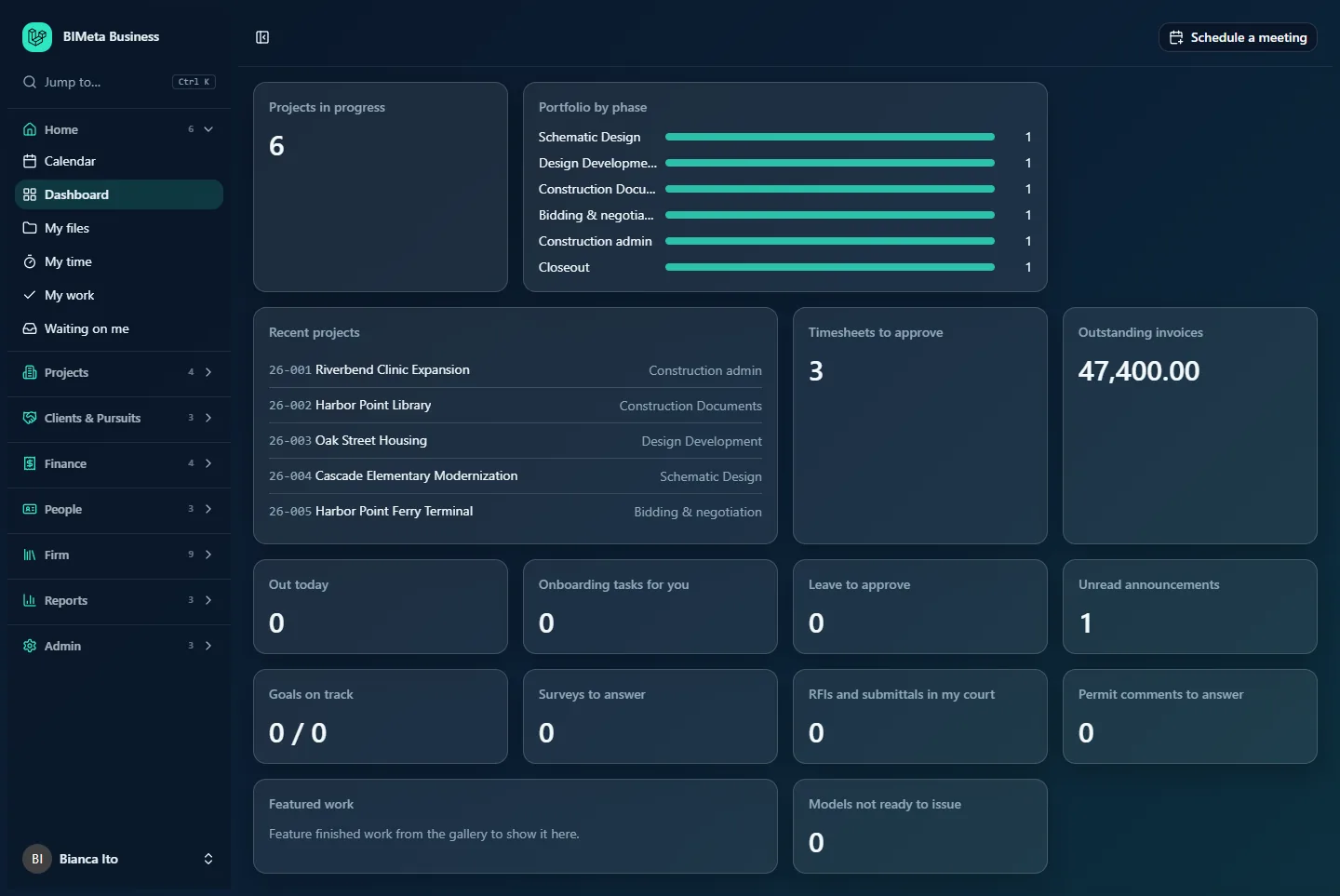
- Projects in progress: the number of projects across all phases (6). Opens All projects.
- Portfolio by phase: a bar per phase (Schematic Design through Closeout) with the number of projects in each. Useful for seeing which jobs are heading into Construction Documents, when model standards matter most.
- Recent projects: the five most recently updated projects, for example 26-003 Oak Street Housing · Design Development.
- Timesheets to approve: timesheets waiting for you (3). Opens Time approvals.
- Outstanding invoices: the unpaid balance of sent and partly paid invoices. Opens open Invoices (view only).
- Out today: people on leave today.
- Onboarding tasks for you: checklist tasks assigned to you, such as BIM onboarding for a new hire.
- Leave to approve: leave requests waiting for a decision.
- Unread announcements, Goals on track and Surveys to answer: firm pages.
- RFIs and submittals in my court and Permit comments to answer: items waiting on you, opening Waiting on me.
- Featured work: renderings featured from the gallery.
- Models not ready to issue: the number of synced models whose review verdict is "fix first" or "not ready". Opens Model health filtered to those models. This is your key card: aim to bring it to zero before every issue.
Newsletter (once one is sent) and Policies to sign (when you have some) also appear when they apply.
Your sidebar
This screenshot shows Bianca's whole sidebar opened, next to the BIM Manager panel. You see all eight groups, with 35 entries, listed alphabetically inside each group:
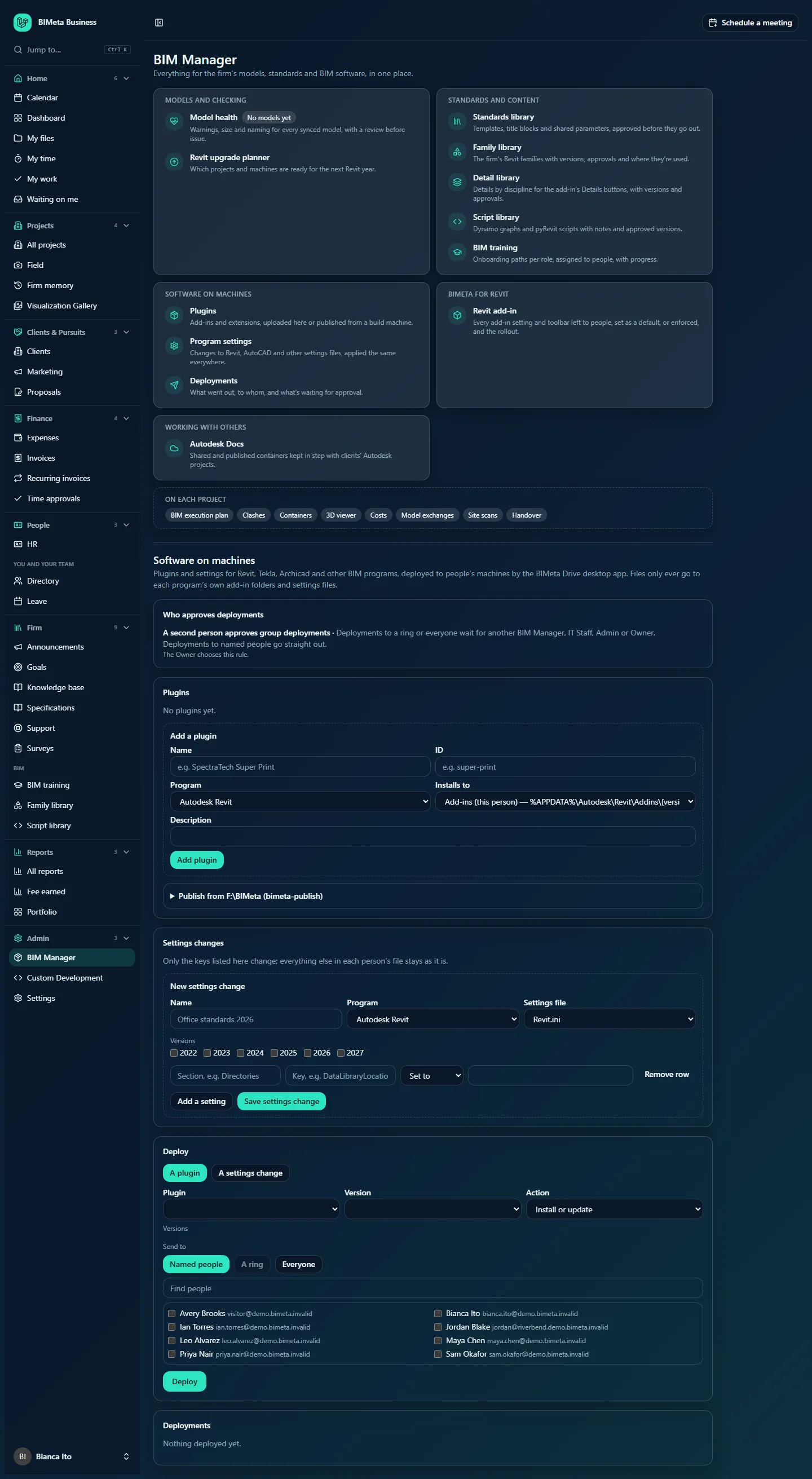
Each page has its own detailed article in the matching BIMeta Business help category.
Home (6)
Calendar, Dashboard, My files, My time, My work (your tasks, and clashes assigned to you from saved clash checks) and Waiting on me (see Home: Dashboard, My Work & Calendar).
Projects (4)
All projects, Field, Firm memory (search earlier clashes, RFIs and answers across all projects) and Visualization Gallery (see Projects). Inside each project, the Design and BIM tab group holds Drawings, BEP (BIM execution plan), Clashes, Exchanges, Scans, Containers, 3D, 4D, Specs, Code and Certification, with Costs under Money and Handover and Maintenance under After handover.
Clients & Pursuits (3)
Clients, the Marketing hub with three tabs (Library, SF330s and Share to LinkedIn) and Proposals (see Clients, Pursuits & Marketing).
Finance (4)
Expenses, Invoices and Recurring invoices (view), and Time approvals (see Finance).
People (3)
The HR hub with the tabs Hiring, Onboarding, Growth, Capacity, Handbook, Report a concern, Helpers and Licences & CE, then under You and your team Directory and Leave (see People & HR).
Firm (9)
Announcements, Goals, Knowledge base, Specifications, Support, Surveys, and under BIM the three libraries everyone uses: BIM training (where you build training paths, assign them and follow everyone's progress), Family library (approved Revit families, where you add families, upload versions and approve them) and Script library (Dynamo graphs and pyRevit or Python scripts with versions). See Firm: Announcements, Support, Knowledge & BIM Libraries.
Reports (3)
All reports, Fee earned and Portfolio (see Reports).
Admin (3)
- BIM Manager: the panel shown above, with cards for
- Models and checking: Model health (warnings, size and naming for every synced model, with a review before issue) and the Revit upgrade planner (which projects and machines are ready for the next Revit year).
- Standards and content: Standards library (templates, title blocks and shared parameters, approved before they go out), Family library, Detail library (details by discipline for the add-in's Details buttons), Script library and BIM training.
- Software on machines: Plugins (add-ins and extensions, uploaded here or published from a build machine), Program settings (changes to Revit, AutoCAD and other settings files, applied the same everywhere) and Deployments (what went out, to whom, and what's waiting for approval).
- BIMeta for Revit: the Revit add-in settings and toolbar, left to people, set as a default, or enforced.
- Working with others: Autodesk Docs, keeping shared and published containers in step with clients' Autodesk projects.
- On each project: shortcuts to the BIM execution plan, Clashes, Containers, 3D viewer, Costs, Model exchanges, Site scans and Handover tabs.
- Custom Development: ask BIMeta to build something for the firm, such as a Revit add-in, a script, an integration or a report, follow the replies, estimate and progress, and accept proposals up to the limit the Business Owner set (Custom Development).
- Settings: for a BIM Manager this page has one link, Project tabs (under Firm setup). There you choose which project tabs everyone sees by default and set individual people's tabs, so, for example, interior designers don't see Bidding. Hiding a tab only tidies the tab bar; permissions still decide what people can open, and Overview always shows.
Your first week
- Secure your account: two-factor sign-in, recovery codes and a passkey.
- Ask the Business Owner to set the deployment approval rule, so you know which deployments need a second person.
- Load your standards: templates, title blocks and shared parameters in the Standards library, then approve them.
- Fill the Family, Detail and Script libraries with the firm's approved content.
- Add your plugins (for example pyRevit extensions) and a settings change for Revit (such as the firm's library paths), then deploy to yourself first as a named person to test.
- Roll out in rings: deploy to a pilot group, check Deployments, then deploy to everyone.
- Set the Revit add-in defaults and decide which settings to enforce.
- Check Model health for live projects and work the Models not ready to issue card toward zero.
- Set default Project tabs for the firm (Admin → Settings → Project tabs).
- Collect custom tool ideas: if the team needs a Revit add-in or script nobody has, describe it under Admin → Custom Development with Ask for development. Asking costs nothing; BIMeta sends an estimate before any work starts.
- Build a BIM training path for new starters and assign it.
- Look at the Revit upgrade planner to plan the next version move.
Tips and good to know
- Deployments to named people go out straight away; group deployments may wait for approval. Test on yourself first.
- Settings changes only touch the keys you list; everything else in each person's settings file stays as it is.
- Staff need the BIMeta Drive desktop app signed in on their machine to receive plugins and settings. IT Staff can check this under Devices.
Troubleshooting / FAQ
Why is my deployment waiting?
The Owner's approval rule requires a second person for deployments to a ring or everyone. Another BIM Manager, IT Staff, Admin or the Owner can approve it.
Why don't I see the IT pages or Server access?
Those belong to IT Staff. Ask IT for device or server information.
A person doesn't see a project tab I expect.
Check Admin → Settings → Project tabs for that person, and their permissions on that project.
Where did Project tabs go?
It moved from the Admin menu onto the Admin → Settings page, under Firm setup. Ctrl K and typing tabs also finds it.
Was this article helpful?
Share