



Finding your way around: sidebar, hubs, Settings, Jump to (Ctrl K) and your user menu
20 views · by Kevin J Bruno · updated 4 days ago
BIMeta Business has a lot of pages, but finding any of them takes a second once you know the three ways in: the sidebar, Jump to… (Ctrl K) and the user menu. This article explains how the sidebar is organized and how to fold, pin and search it, what's in the top bar and the user menu at the bottom, how dashboards differ by role, and how your firm can rearrange the menu for everyone.
Where to find it
The sidebar is on the left of every page once you're signed in. Jump to… is the first line of the sidebar, or press Ctrl K (⌘K on a Mac) anywhere. The user menu is your name at the bottom of the sidebar. The top bar runs across the top of every page.
Who can use it
Everyone. The sidebar and Jump to… only ever list pages you can open, so two people at the same firm can see quite different menus. A Business Owner at the example firm Northlight Architects sees 38 menu entries across eight groups (with many more pages inside the hubs and on the Settings page); a User sees 25 entries across six groups. See Roles and permissions for the full comparison.
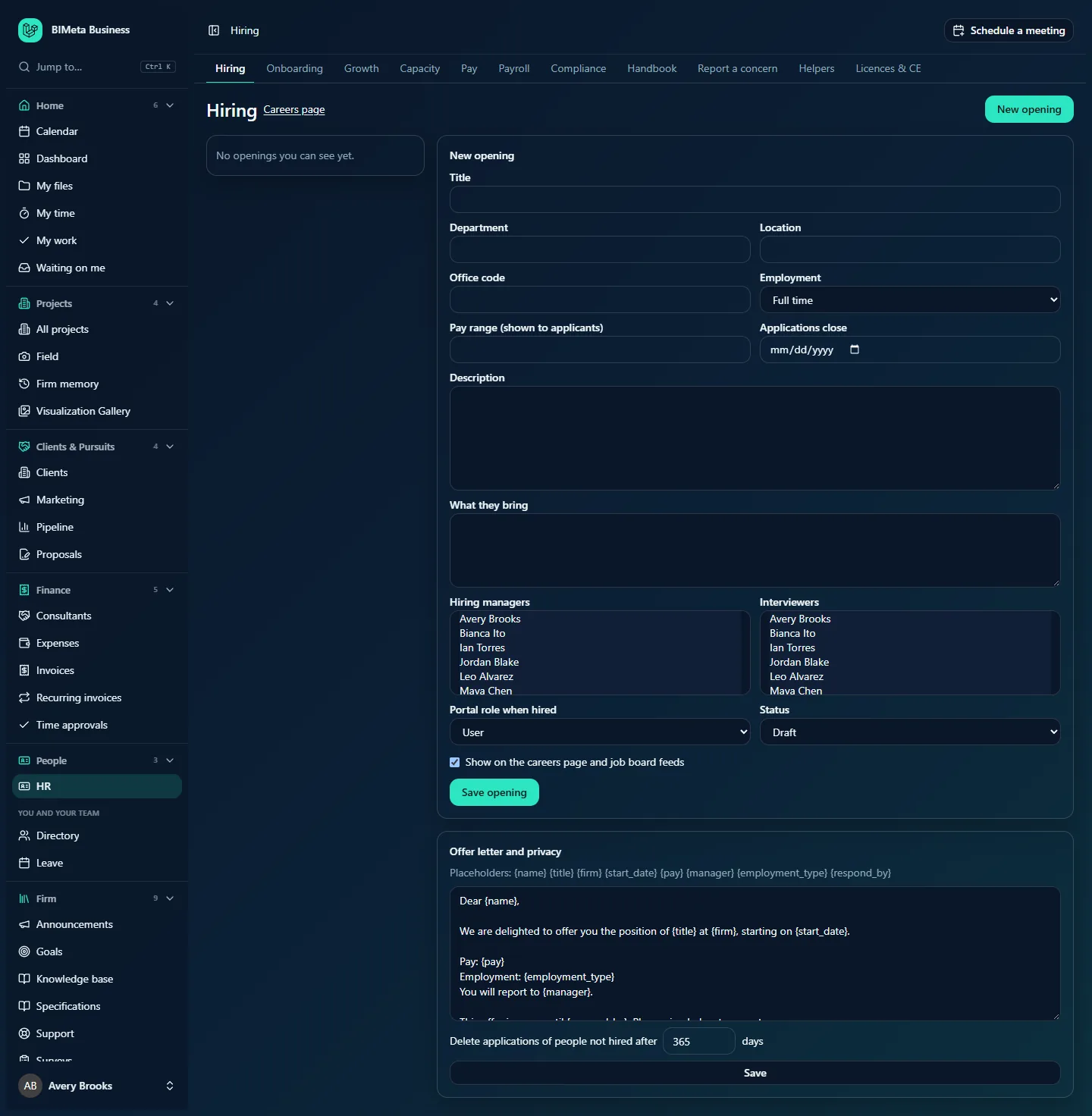
Above: a Business Owner's sidebar with the HR hub open. The hub's pages appear as tabs across the top of the page, from Hiring to Licences & CE.
A tour of the sidebar
Logo
The BIMeta Business logo at the top takes you back to your Dashboard from anywhere.
Jump to…
The search line with the Ctrl K hint opens the quick jump window (see below).
Pinned
If you've pinned pages, they appear in a Pinned list right under Jump to…, so your most-used pages are always one click away.
Groups
Below that come the groups, always in this order: Home, Projects, Clients & Pursuits, Finance, People, Firm, Reports and Admin. Each group has an icon, its name, a small count of the entries inside it for you (for example Admin 4 for an Owner or IT Staff, Admin 3 for a BIM Manager), and an arrow. Inside a group, entries are listed alphabetically by name, unless your firm has put that group in its own order. Groups with nothing in them for you are left out altogether.
- Click a group's name to open or close it. The arrow turns down when it's open.
- The group holding the page you're on opens by itself.
- BIMeta remembers which groups you left open in this browser. (In a private window it may forget, which is harmless.)
- A group with only one page for you doesn't fold. For example, a User's Finance group just shows Expenses directly, with no count.
- The page you're on is highlighted.
Hubs: one entry, several pages as tabs
To keep the menu short, families of related pages are folded into one entry called a hub. Click the hub in the sidebar and it opens the first of its pages you may use; the hub's other pages appear as a row of tabs under the top bar, and the current tab is underlined. The hub stays highlighted in the sidebar whichever tab you're on. There are three hubs:
- HR (in People): Hiring, Onboarding, Growth, Capacity, Pay, Payroll, Compliance, Handbook, Report a concern, Helpers and Licences & CE.
- Marketing (in Clients & Pursuits): Library, SF330s, Studio, Campaigns, Results, Share to LinkedIn, Social pages and Newsletters.
- IT (in Admin): Overview, Accounts, Alerts, Devices, Licences, Security, Firewall, Your encryption key, Directory sync, Connection check, Maintenance, Restore files, Retention and holds, Storage cleanup, Report and Audit export.
You only see the tabs your role allows. A User's HR hub, for example, has Hiring, Onboarding, Growth, Handbook, Report a concern, Helpers and Licences & CE, but not Capacity, Pay, Payroll or Compliance. When only one page of a family is open to you, there's no hub: that page is listed on its own. A User who can only use Share to LinkedIn sees it directly, under a small Marketing heading.
The Settings page
The firm's settings pages no longer fill the Admin group. They're gathered on one page, Admin → Settings, which lists every settings page you may open in sections (Apps and connections, People and access, Billing and Firm setup), each with its icon. Type in Search settings at the top right to narrow the list by name or by everyday words (for example domain finds Web address); if nothing matches you'll see No settings match followed by what you typed. When you open a page from Settings, a Settings link with a back arrow at the top of that page takes you back. What's on the Settings page depends on your role: a BIM Manager, for example, sees only Project tabs.
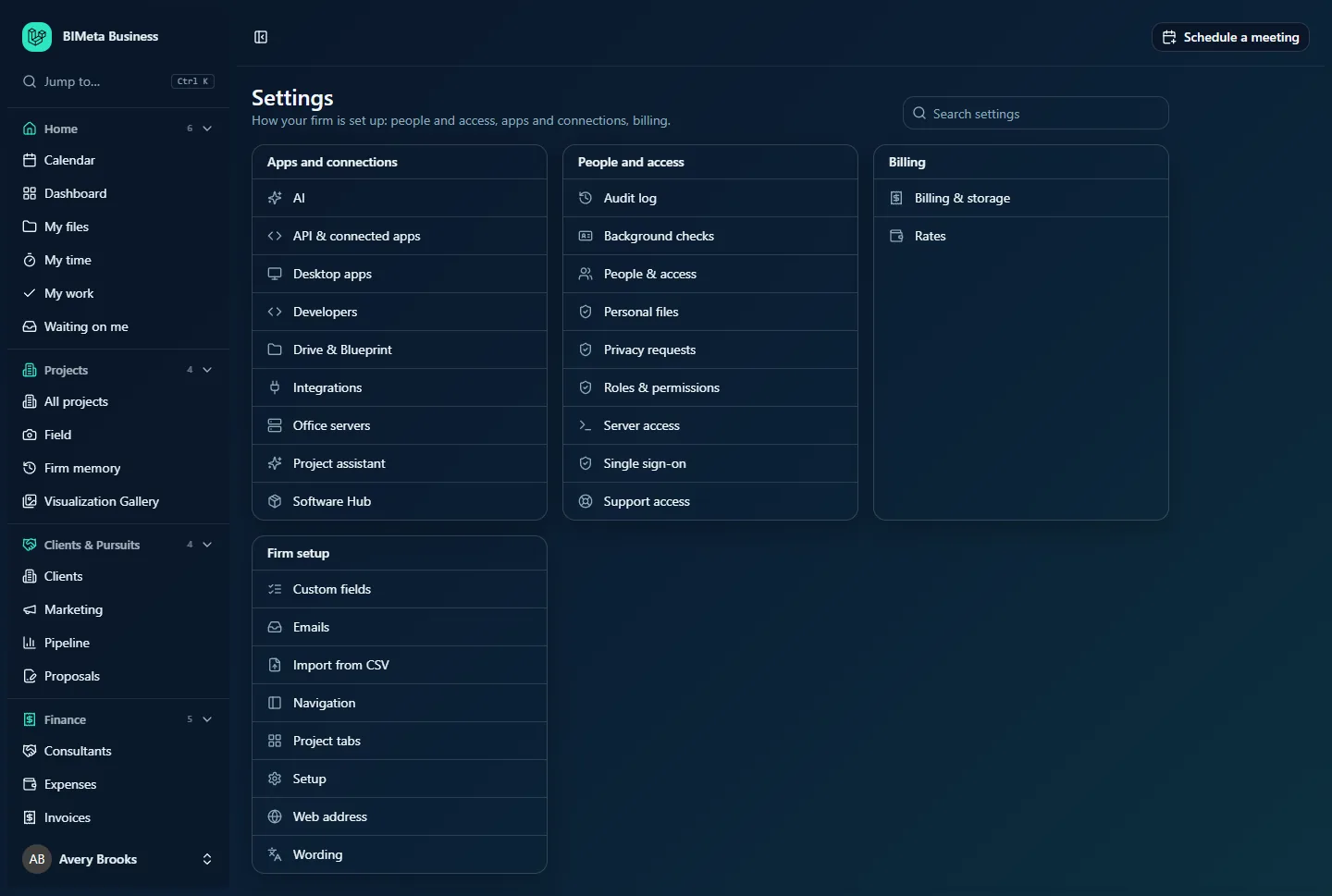
The Admin pages people use day to day stay in the menu as their own entries: BIM Manager and Custom Development, next to the IT hub and Settings.
Section headings
A couple of groups still have small grey headings. Entries without a heading come first, then each heading with its entries:
- People: the HR hub, then You and your team with Directory and Leave.
- Firm: Announcements, Goals, Knowledge base, Specifications, Support and Surveys, then BIM with BIM training, Family library and Script library.
- Clients & Pursuits: Marketing, only when a marketing page is listed on its own instead of as a hub.
Pinning a page
- Hover over a page in the sidebar. A star appears at the right.
- Click the star (Pin to the top). The star turns gold and the page appears under Pinned.
- To unpin, click the gold star again (Unpin).
Pins are saved on your account, so they follow you to any computer. You can pin up to 12 pages. Pinned pages also come first in Jump to…. You can pin a hub or the Settings page like any other entry; pages you pinned before they moved into a hub or onto the Settings page stay in your Pinned list and still open directly.
Folding the sidebar to icons
Click the panel button at the left of the top bar to fold the sidebar down to icons, which gives the page more room. In the folded sidebar each group is a single icon; hover to see its name and click it to open a fly-out menu with all of that group's pages and section headings. Click the panel button again to unfold. On a phone or narrow window, the same button slides the sidebar in and out.
Jump to… (Ctrl K)
Jump to… is the fastest way around. It searches every page you can open, including every tab inside a hub and every page on the Settings page, plus your own settings pages and a few actions. It's the quickest way to reach a page without remembering which hub it's in.
- Press Ctrl K (⌘K on a Mac), or click Jump to… in the sidebar.
- Start typing. You can type part of a page's name, its group or section, or simply what you need.
- Use the up and down arrow keys to move through results and press Enter to open one, or click it. Press Esc to close.
Each result shows its group (and section) on the right, for example People · HR for a tab of the HR hub, or Admin · People and access for a page on the Settings page. With nothing typed, the list starts with your pinned pages. If nothing matches you'll see No page matches that.
Matching is forgiving: the page name counts most, then the section, the group, and a set of everyday words for each page. Letters typed in order also match, so pyrl finds Payroll. Some examples:
| You type | You get |
|---|---|
vacation, pto, sick | Leave |
timesheet or hours | My time (and Time approvals if you approve) |
tasks | My work |
approvals | Waiting on me, Time approvals |
receipts | Expenses |
site visits or punch | Field |
renderings | Visualization Gallery |
leads | Pipeline |
rfp or fees | Proposals |
HR or Marketing | The hub and every page inside it |
firewall | Firewall (IT hub) |
background check or kyc | Background checks (Settings) |
revit, pyrevit, plugins | BIM Manager |
ssh | Server access |
api keys | Developers, API & connected apps |
entra, okta, saml | Single sign-on |
menu or sidebar | Navigation |
2fa or passkey | Password and two-factor sign-in (your account) |
theme or dark | Appearance (your account) |
gdpr or export | My data & privacy (your account) |
meeting | Schedule a meeting (an action: press Enter to open the meeting form) |
Results under Your account are your personal settings: Profile, Password and two-factor sign-in, Appearance and My data & privacy. Results under Actions do something instead of opening a page.
The top bar
- Panel button (far left): folds or unfolds the sidebar.
- Breadcrumbs: where you are, for example Directory, or a project and its tab. Click an earlier step to go back up.
- Schedule a meeting (far right): available to everyone at the firm (not to client or consultant accounts). It opens a form with Title, Date, Starts and Ends (or All day), Time zone, Project (optional), Where, Video call link (optional), Agenda or notes, Invite people (find people at the firm) and Outside people (emails), up to 100 attendees. Send invitations now emails everyone a calendar invitation. People who manage the project (or, for firm meetings, the firm's settings) can also tick Show on everyone's calendar. Click Schedule meeting; you'll see Meeting scheduled. Invitations are on their way. and the meeting appears on the Calendar.
On a page that belongs to a hub, the hub's tabs run just below the top bar; on a page opened from the Settings page, a Settings back link sits there instead.
Banners may appear under the top bar: messages after you save something, notices from the firm, planned maintenance, or a notice that a BIMeta support session is in progress.
The user menu
Click your name and initials at the bottom of the sidebar. The menu shows your name and email, then:
- Settings: your personal settings, with four pages on the left:
- Profile: change your Name and Email address, then Save.
- Security: change your password, turn on two-factor sign-in, view recovery codes and manage passkeys. See Signing in to BIMeta Business.
- Appearance: choose Light, Dark or System, and a Theme. Core themes are System, Light, Dark, BIMeta (the default navy, teal and mint look), Blueprint, High Contrast (meets WCAG AAA contrast), Midnight (true black for OLED screens) and Soft Light. Style themes include Glassmorphism, Liquid Glass, Neumorphism, Claymorphism, Skeuomorphism, Frutiger Aero, Flat, Material, Neubrutalism, Aurora, Bento, Swiss and Flat Dark. Themes with their own light or dark look ignore the Light/Dark setting; System follows it. Use the firm's default goes back to the firm's choice. Business Owners and Admins also see Set the firm's default instead, which sets the look for everyone who hasn't picked their own.
- Connected apps: connect your own Outlook calendar (if your role allows it) and choose what goes to Outlook: meetings, milestones, bid dates, leave, task due dates, reminders and how far ahead.
- My data & privacy: see, export or ask for deletion of the personal data the firm holds about you.
- Language (when your firm offers more than one): pick your language, or Firm's default.
- Log out: signs you out of this browser.
Dashboards are role-specific
Everyone lands on the Dashboard, but the cards on it depend on your role. Everyone at the firm sees cards like Projects in progress, Portfolio by phase, Recent projects, Out today, Unread announcements and RFIs and submittals in my court. Approvers also see Timesheets to approve and Leave to approve; Owners see Newsletter, Open pursuits, Consultant insurance to renew, Licences to renew, Finish setting up and more; IT sees Tickets assigned to me and Privacy requests to answer; BIM Managers see Models not ready to issue. Every number is a link to the page behind it. Clients and consultants don't have a dashboard: they land on Waiting on me or their projects. The role guides explain each card.
Your firm's own menu layout
Business Owners and Admins can arrange the sidebar for the whole firm under Admin → Settings → Navigation: move items between groups, change their order, and hide items from roles that never use them. If an item seems to be in an unexpected place, that's probably why. A few things to know:
- Hiding only tidies the menu. People still need permission to open a page, and someone with permission can still reach a hidden page by its link.
- An item moved to another group loses its section heading there, and a page moved away from the rest of its hub's family is listed on its own.
- Changing the order of any item in a group switches that group from alphabetical to your firm's own order.
- Settings pages stay gathered on the Settings page; the layout still decides which roles see them there.
- The Navigation page itself (on the Settings page under Firm setup) can never be hidden, so nobody locks themselves out.
- Back to the standard layout undoes the firm's changes.
Similarly, inside a project, the tab bar can be tidied per person under Admin → Settings → Project tabs by Owners, IT Staff and BIM Managers. The project's Overview tab always shows.
Tips and good to know
- Learn Ctrl K first. Typing
leaveand pressing Enter is faster than opening People and scrolling. - Pin the three or four pages you use every day.
- Fold the sidebar when working on wide tables or the 3D viewer.
- Every page has a detailed article in its matching help category, for example People & HR → Leave or Admin: Firm Setup → Navigation.
- Hub tabs scroll sideways on a narrow screen. If you can't see the tab you want, scroll the tab row or use Ctrl K.
Troubleshooting / FAQ
A colleague has a menu item I don't.
First check the hubs and the Settings page: many pages that used to be separate menu items are now tabs of HR, Marketing or IT, or links on Admin → Settings. If it isn't there either, it isn't in your role, or your firm hid it for your role under Admin → Settings → Navigation. Ask your Business Owner or Admin.
My menu order changed.
Groups are now listed alphabetically by default. If your firm has set its own order for a group, that order is kept.
My open/closed groups reset.
Group states are remembered per browser. A private window, a different browser or clearing site data starts fresh. Pins, by contrast, are saved on your account.
Ctrl K opens something else.
Click into the page first (not the address bar), then press Ctrl K. You can always click Jump to… in the sidebar instead.
Was this article helpful?
Share